If you have one computer at home with a printer connected to it via USB, you probably have not had any issues printing your documents. But when you start sharing that printer with other clients on your network, sometimes some gremlins will creep in. If you have ever been in that situation, you are probably familiar with the plethora of issues that can arise. In this article, we will look at a simple and elegant solution: A print server. But what exactly is a print server, and how can it make printing easier, whether at home or in the office? We’ll walk you through what print servers are, how they work, and the benefits and drawbacks of using them. We’ll also explore if a print server could be a good addition to your home setup and recommend some practical options you can consider.
What is a Print Server?
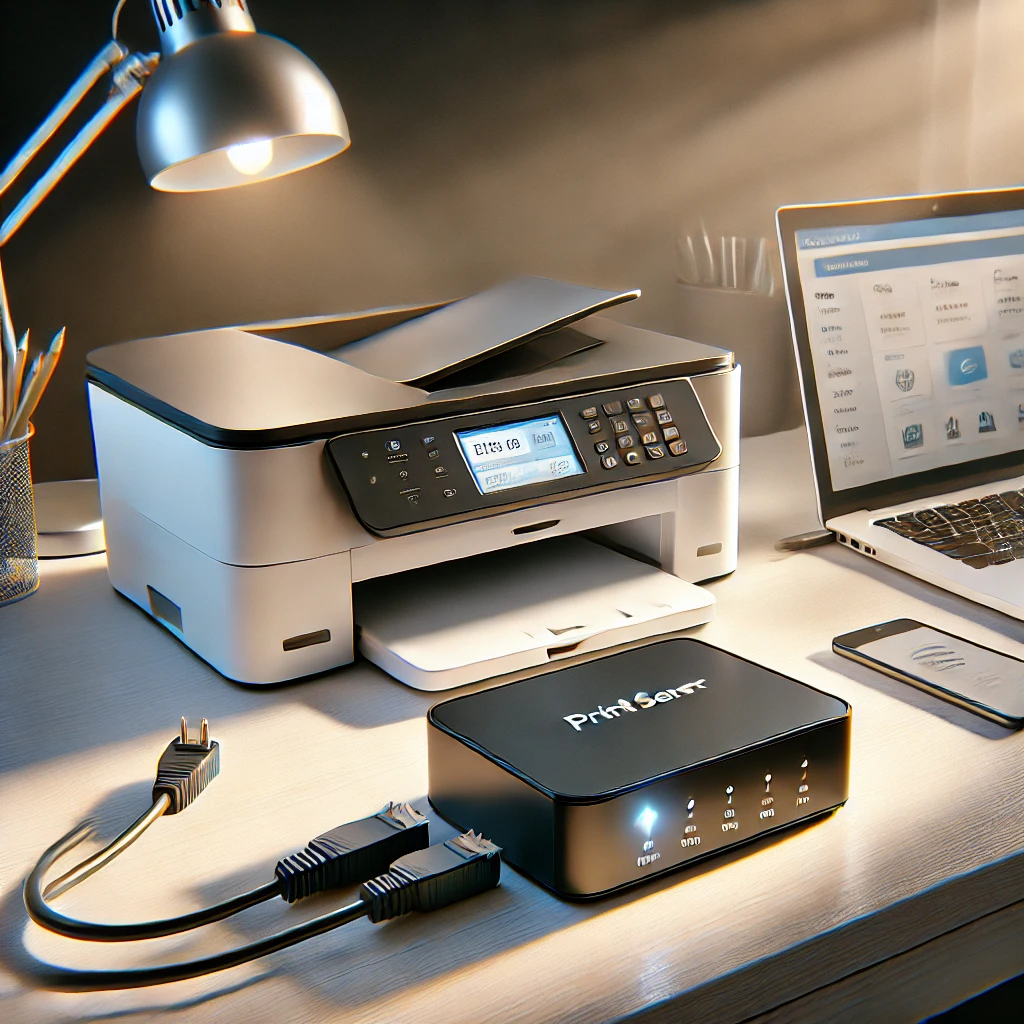
A print server is a device or software that manages the flow of print requests from multiple computers to a single printer or a group of printers. In simple terms, it acts as a bridge between your computers and your printer, making it easy to share one printer with multiple users. Print servers come in two main types:
- Hardware Print Servers: These are small, standalone devices that connect to your printer, allowing computers on your network to send print jobs to that printer via this one node on your network. These are appliances built specifically for printer sharing.
- Software Print Servers: These are services installed on a computer or network server, including a Raspberry Pi running CUPS, and they perform the same role by managing print requests from different users or even network clients to your printer(s).
How Does a Print Server Work?
A print server acts as a central hub for print requests. Here’s a quick breakdown of the process:
- Sending a Print Request: When you send a print request from your computer, it is routed to the print server rather than directly to the printer.
- Managing the Queue: The print server manages the order of print jobs, placing them in a queue based on the time they were received or on priority settings.
- Communicating with the Printer: The print server then sends each print job to the printer when it’s ready, using the selected queue settings and the format the printer understands. A queue cannot fix a wrong driver, an unsupported document format or a paper jam.
This process helps streamline the printing workflow, especially in settings where multiple users need to print at the same time.
Pros and Cons of Using a Print Server
Pros
- Centralized Printing: A print server simplifies access to the printer, making it easy for multiple users to connect to the same device.
- Improved Efficiency: It makes queued jobs and errors easier to manage. It cannot increase the printer’s mechanical printing speed, and a large job can still delay later jobs.
- Cost Savings: Instead of purchasing multiple printers for each user or department, a shared printer may meet the group’s needs if its capacity and location suit the workload.
- Access Control: Some print servers allow you to manage who can print and track usage, which can be useful in an office environment.
Cons
- Initial Setup Complexity: Setting up a print server can require a bit of configuration, which might be challenging for non-technical users.
- Network Dependence: Print servers rely on your network, so if your network goes down, your printing capability may also be disrupted.
- Potential Costs: Although software print servers can sometimes be free, hardware print servers have a cost. This may or may not be worth it, depending on the needs of your setup.
Considerations When Using a Print Server
Here are a few things to keep in mind when considering a print server:
- Compatibility: Ensure that the print server is compatible with your printer model and operating systems, especially if you have mixed devices like Windows, Mac, or Linux systems.
- Network Speed: The performance of a print server can be impacted by network speed. A slow network can create delays in print job processing.
- Security: In office settings, securing a print server is essential to prevent unauthorized access. Consider a model that offers encryption and other security features if needed.
- Ease of Use: Look for a print server with a user-friendly setup and interface. Some print servers offer app-based controls or simple web interfaces, which can make them easier to manage.
Is a Print Server Beneficial at Home?
For most home users, a print server might not be necessary unless there are multiple family members or devices needing frequent access to the printer. However, if you have a home office, work remotely, or have several devices connected, a print server can be beneficial. It allows easy sharing and centralizes printing, making it less of a hassle to manage print jobs from different computers or devices.
Examples of Print Servers for Home Use
Here are some options to consider if you’re interested in adding a print server at home:
- TP-Link TL-PS110U: A single-port USB print-server example. Check the exact printer and hardware revision against TP-Link’s compatibility list; the documented device shares printing, not every scanning or fax function of a multifunction printer.
- D-Link DP-301U: A legacy single-USB-port example. Its official datasheet describes USB 1.1 and 10/100 Ethernet and lists older operating systems. Those historical listings do not establish support for every current client or mobile-printing method.
- StarTech.com PM1115U: A compact USB-to-10/100-Ethernet print-server example. The official datasheet distinguishes configuration-software compatibility from using supported network-printing protocols. Check printer language and current-client setup before buying.
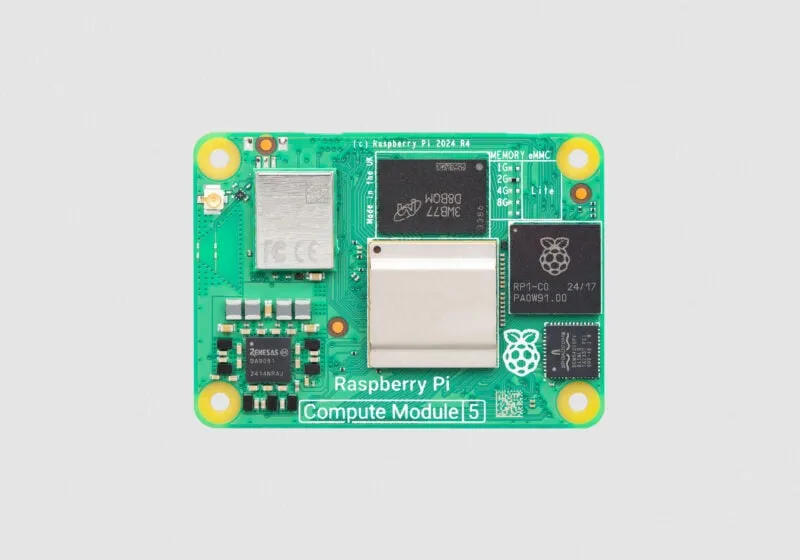
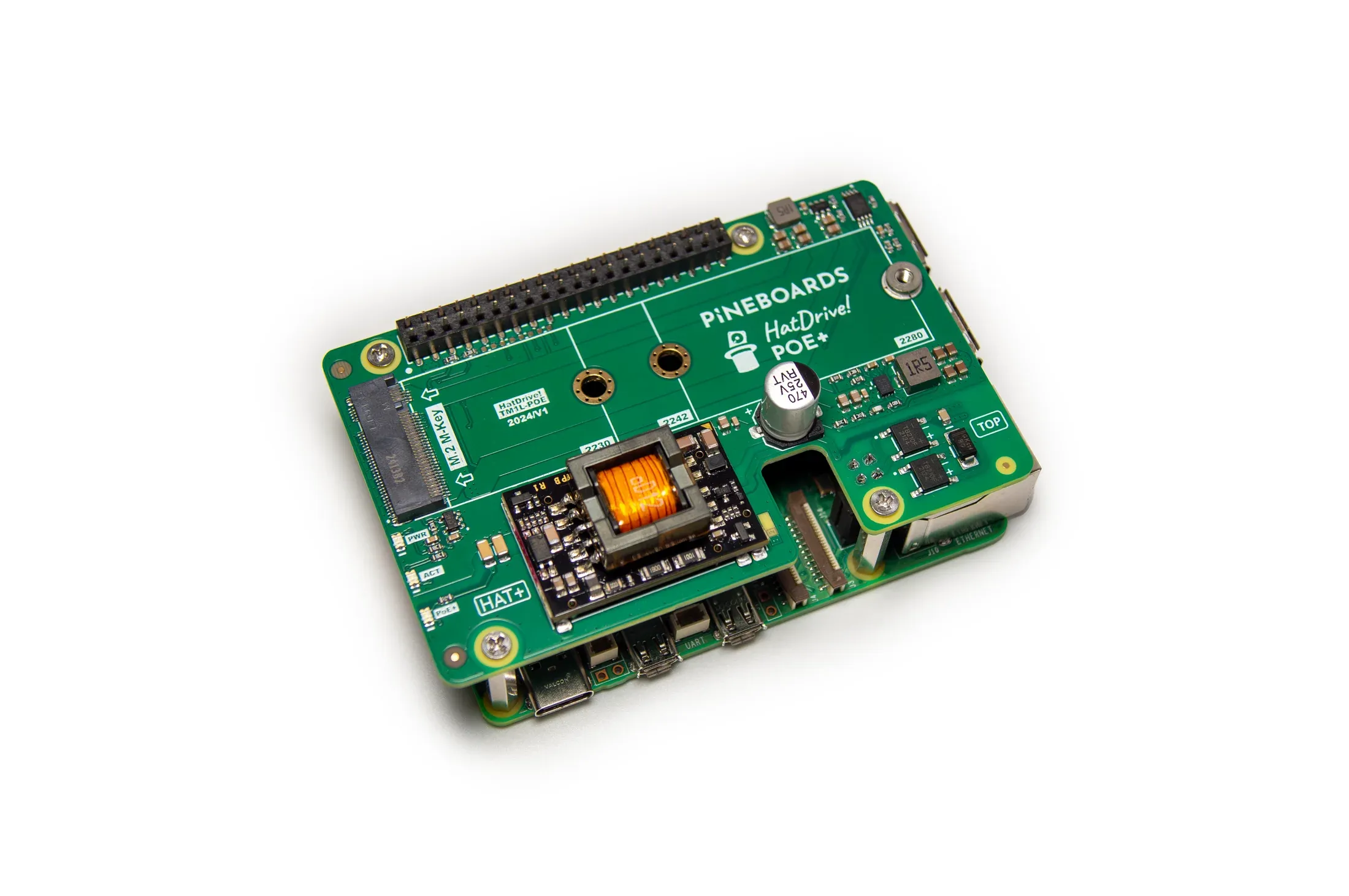
- Raspberry Pi with Print Server Software: If you’re open to a DIY approach, you can set up a Raspberry Pi with print server software, like CUPS (Common Unix Printing System), to manage print jobs. It’s an affordable option if you have some tech skills and want a flexible solution. For related projects, read about using your Raspberry Pi in a home server setup.
Check the Printer Before Adding a Server
A printer with working Ethernet or Wi-Fi and appropriate IPP, AirPrint or other client support may already provide the sharing you need. Try its built-in network connection first. An extra server is most useful when a USB-only printer must be shared, or when central queues and access rules solve a specific problem.
Record the exact model, not just the manufacturer. Some printers accept standard languages such as PCL or PostScript; others rely on model-specific processing in the host's driver. A USB socket on a print server does not make those drivers available. Check Linux driver or Printer Application support if you plan to use CUPS, including support for your server's CPU architecture.
Keep printing and scanning separate in the plan. A multifunction printer working through a print queue may still need another supported route for its scanner, ink information or maintenance tools. Test duplex, paper size, colour and tray selection, rather than treating one successful plain-text page as proof that every feature works.
CUPS, Discovery and AirPrint
CUPS manages queues and commonly uses the Internet Printing Protocol, or IPP. DNS Service Discovery, often called Bonjour, helps clients find a shared service. On many Linux systems Avahi provides that discovery infrastructure. These are different jobs: a queue can be reachable while discovery fails, and a discovered queue can still fail to print because its driver or accepted format is wrong.
Sharing an old USB printer through CUPS can support useful network-printing workflows, but it does not guarantee that any USB printer becomes AirPrint compatible. The server must expose a service and formats that the intended client can use, and it must convert jobs correctly for the attached printer. OpenPrinting describes Printer Applications as a way to support legacy hardware through modern printing interfaces.
Apple's AirPrint instructions require a supported printer or service, network connectivity and an app with a print option. Android uses enabled print services; its menus and service capabilities differ from Windows. Installing Avahi does not by itself guarantee that every phone discovers and prints through the queue. Begin by testing one supported desktop client, then validate the mobile devices you actually use.
A Staged CUPS Setup and Check
On a supported Linux host, install CUPS and the driver or Printer Application appropriate to the exact printer using your distribution's documentation. Add the printer locally and print a small test page before sharing it. Keep the queue name and device address in your notes. Avoid installing every driver package as a substitute for identifying the model.
For an existing CUPS installation, these inspection commands show the service, queues, attached devices and pending jobs:
lpstat -r
lpstat -p -d
lpstat -v
lpstat -o
Once local printing works, CUPS documents sudo cupsctl --share-printers for sharing with clients on the server's local subnet. Mark the intended queue as shared in its configuration. The additional --remote-any option broadens access to any reachable network; it is not a necessary default for a simple home subnet. Remote administration is another separate setting and should only be enabled when you need it.
Keep printer and administration access limited to trusted networks, with authentication and encrypted administration where configured. Do not forward the CUPS service to the Internet merely to make discovery easier. Network segmentation may intentionally prevent a guest device from reaching a printer. If printing across subnets is required, plan the allowed traffic and discovery mechanism deliberately.
Locate the Failure Before Changing Settings
| Symptom | Useful first checks |
|---|---|
| Server cannot print locally | Printer power/paper/errors, USB connection, queue state and correct driver |
| Local printing works; a client cannot reach the queue | Server address, sharing rule, firewall, subnet and client protocol |
| Queue works by address but is not discovered | DNS-SD advertisement, client isolation and multicast across the actual network path |
| Job arrives but fails or looks wrong | Accepted format, driver options, paper/colour/duplex settings and logs |
| Printing stops when a computer sleeps | Whether that computer is the server; power settings and a more suitable always-available host |
Send a small representative document after each change and avoid submitting repeated copies while a queue is stuck. Record whether the job reached the server before changing client drivers. For shared office equipment, also consider who can see queued document names, where sensitive output waits and how retained spool files are handled.
See CUPS printer sharing, CUPS server security, Apple's AirPrint requirements and Google's Android printing guidance.
Conclusion
Print servers can be a practical solution for both office and home environments where multiple users need access to the same printer. By centralizing printing tasks and managing print jobs, a print server can make life easier and reduce the need for multiple printers. However, there are some initial setup requirements and potential costs to consider. For home users, a print server might only be necessary if there are multiple devices or a home office setup in place.
Ultimately, choosing a print server depends on your unique needs and how often you’ll be printing. With a range of affordable and easy-to-use options available, it’s possible to set up a print server to make printing a seamless and organized part of your workflow.