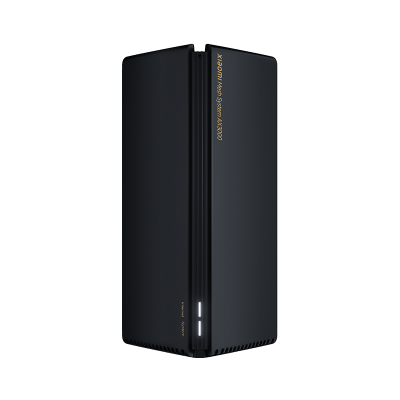
The original black-tower Xiaomi Mesh System AX3000 combines dual-band Wi-Fi 6 with a dedicated Gigabit WAN port and three Gigabit LAN ports. Its two-pack can be useful for extending home coverage, especially when you plan the links between units carefully. The similar AX3000 NE and AX3000T names describe other products; their instructions and convenience features should not be copied into this guide.
The hardware in this AX3000
| Component | Manufacturer specification |
|---|---|
| Processor | Qualcomm IPQ5000, dual-core A53 CPU at 1.0 GHz, plus a single-core 1.0 GHz network processor |
| Memory | 256 MB |
| Wi-Fi | 2×2 on each band: up to 574 Mbps at 2.4 GHz and 2,402 Mbps at 5 GHz |
| Ethernet | One 10/100/1000 Mbps WAN and three 10/100/1000 Mbps LAN ports |
| Management | Web interface and Mi Home/Xiaomi Home app |
The official specifications provide these details. The AX3000 class adds the advertised radio rates, giving 2,976 Mbps. It is not one client's measured throughput or a 3 Gbps wired connection. A Gigabit port still limits a path crossing it.
Wi-Fi 6 features need compatible clients
Wi-Fi 6 is the 802.11ax generation, rather than the newest wireless standard. OFDMA helps share radio resources among compatible devices. The 5 GHz radio supports 160 MHz channels, but clients and the local radio environment determine whether that width is useful.
A laptop limited to a narrower channel cannot gain the full advertised link rate just by joining this router. Nor can Wi-Fi 6 remove the internet service's speed limit. Target Wake Time is a compatible-device scheduling feature; it does not guarantee longer battery life for every phone or laptop.
Use the radio features to understand a candidate's capabilities, then measure the actual task. A work call, a stream and a large local file transfer have different needs. A speed-class number alone does not tell you whether any of them improved.
Coverage and backhaul planning
Xiaomi advertises up to 4,000 square feet for the two-pack. That is a laboratory coverage estimate, not a guarantee for dense walls, multiple floors or an outdoor building. Its 254-device figure also combines wireless and wired connections under laboratory conditions, rather than promising that many simultaneous heavy transfers.
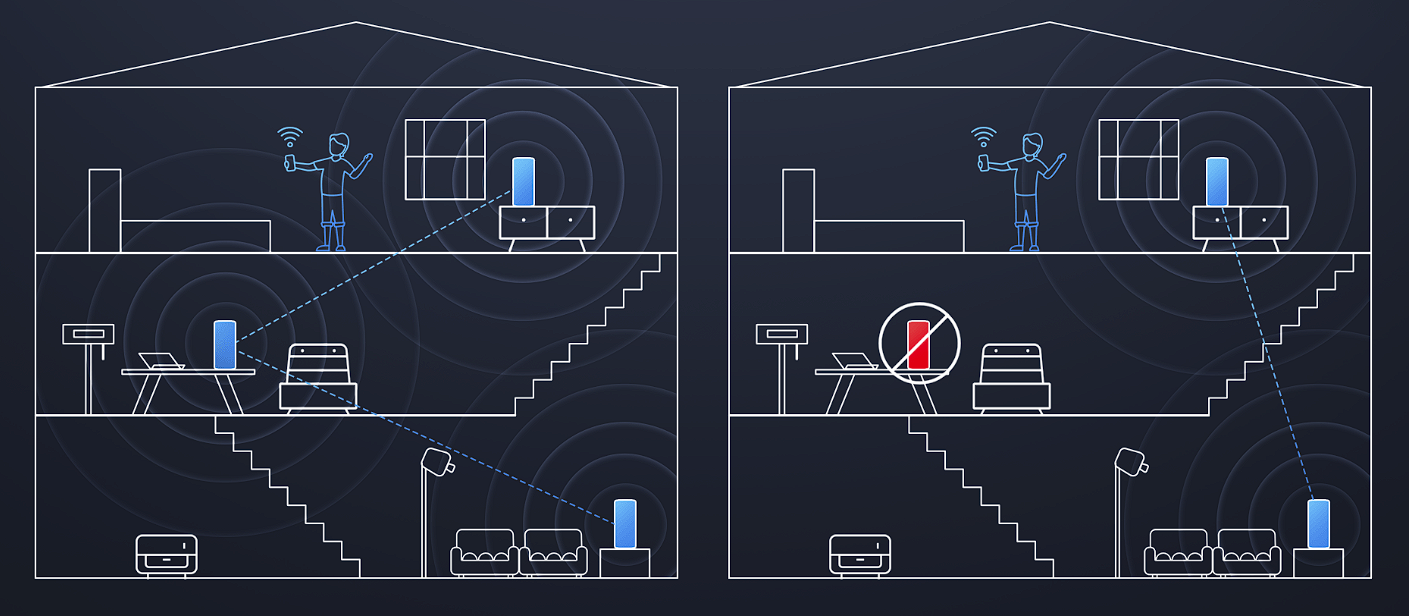
The link between mesh units is backhaul. With wireless backhaul, a satellite needs a useful upstream signal as well as good coverage for clients nearby. Position it between the main unit and a weak room, rather than deep inside the weakest spot. Test before fixing its permanent position.
Wired backhaul avoids that radio hop but still crosses Gigabit Ethernet ports and any intervening equipment. “Zero speed loss” is not a measurable guarantee: client radios, endpoint performance and the network path remain limits. Do not assume the entire advertised 5 GHz rate becomes one client's usable transfer speed after plugging in a cable.
Set up the first unit
Keep your current network settings and provider credentials available. The manufacturer's manual connects the main router's blue WAN port to the modem's LAN output, or the appropriate internet Ethernet outlet. An optical terminal and an existing router are different uplink arrangements, so confirm the provider's requirements.
Join the initial Wi-Fi name printed on the label when the unit is ready. Follow the browser setup prompt; the manual gives router.miwifi.com if the page does not appear. Create your network name and password, then confirm internet access before expanding the mesh.
The Mi Home/Xiaomi Home app uses a Mi account for app pairing. A web interface is supported, but its existence does not establish every advanced feature in every firmware. Check the actual menus for addressing, forwarding or operation modes instead of relying on a universal “full GUI” list or an assumed default IP.
Add and wire another unit
The two units supplied as a factory two-pack are pre-connected. That does not mean every separately purchased Xiaomi router is already paired. The original product page specifically describes the same model and/or Mi Router AX9000, up to ten total devices. Verify regional model and firmware compatibility before mixing other routers.
For an additional compatible unit, the manual's recommended method uses the main router's Mesh network devices → Add page in the app. Start near the main unit, follow the discovery prompts and verify that the satellite appears in the same topology before moving it.
The alternative physical Mesh button is on the back of the main unit in the manual. It is not an NFC onboarding area on top. If a used satellite must be reset before pairing, record its settings and understand that a factory reset erases them; do not reset a functioning main network as a routine first step.
For the manual's wired pairing method, connect the main unit's LAN port to the satellite's WAN port. The previous LAN-to-LAN prescription should not be applied to that method. Read the indicator instructions for the exact product, then confirm completion in the app rather than assuming a universal 90-second countdown.
The manufacturer-authored AX3000 manual, hosted with a retailer's product documents, illustrates these methods. Check the manual supplied with your regional unit when its model or firmware differs.
Measure whether the upgrade helped
Use the same client near the main unit and in the room needing coverage. Record the connected node, backhaul type and results of the same internet test. Also try a local task, such as printing or transferring a file, because an internet test cannot identify every local bottleneck.
If the main result is good but the satellite result is poor, adjust placement or investigate the backhaul. If both are poor, check the uplink before adding more nodes. Change one thing at a time and keep the first results as a baseline.
The AX3000 can be a sensible coverage upgrade at a suitable local price when its Gigabit ports and compatible clients match your needs. It cannot establish universal lag-free performance, guaranteed whole-home coverage or permanent future-proofing. Compare the right pack and verified firmware features, and keep the working setup until the replacement passes the tasks you depend on.