Dual-band routers offered 2.4GHz and 5GHz long before Wi-Fi 6. Both bands remain useful on Wi-Fi 4 and Wi-Fi 5 equipment, but choosing one shared network name or separate names is a configuration decision, rather than a rule determined by the Wi-Fi generation. Start with the devices, rooms and connection problems you actually have.
2.4GHz: coverage and compatibility
For comparable equipment and conditions, 2.4GHz generally reaches farther and handles obstacles better than 5GHz. It is useful for distant devices and many smart-home accessories that support only this band. That does not guarantee good service through every wall, nor does a strong signal guarantee a fast connection.
The band has less room for wide channels and is shared with nearby Wi-Fi networks and non-Wi-Fi equipment such as Bluetooth devices and microwave ovens. Congestion or interference can make it slow even when the router is close. Keeping 2.4GHz enabled preserves compatibility, but increasing its transmit power cannot create more available airtime.
5GHz: more capacity where the signal is useful
5GHz offers more channel capacity and can support faster connections with compatible clients. It is often a good choice for a nearby laptop, TV or large file transfer. Its useful range is usually shorter under comparable conditions, and walls, channel width and client antennas influence the result.
It is not immune to interference. Nearby networks can share a channel, and some 5GHz channels have radar-related restrictions. Use the channels allowed by your local regulatory settings. A higher negotiated Wi-Fi rate also cannot exceed a slower internet plan, wired uplink or storage source when the task depends on those components.
One SSID or two?
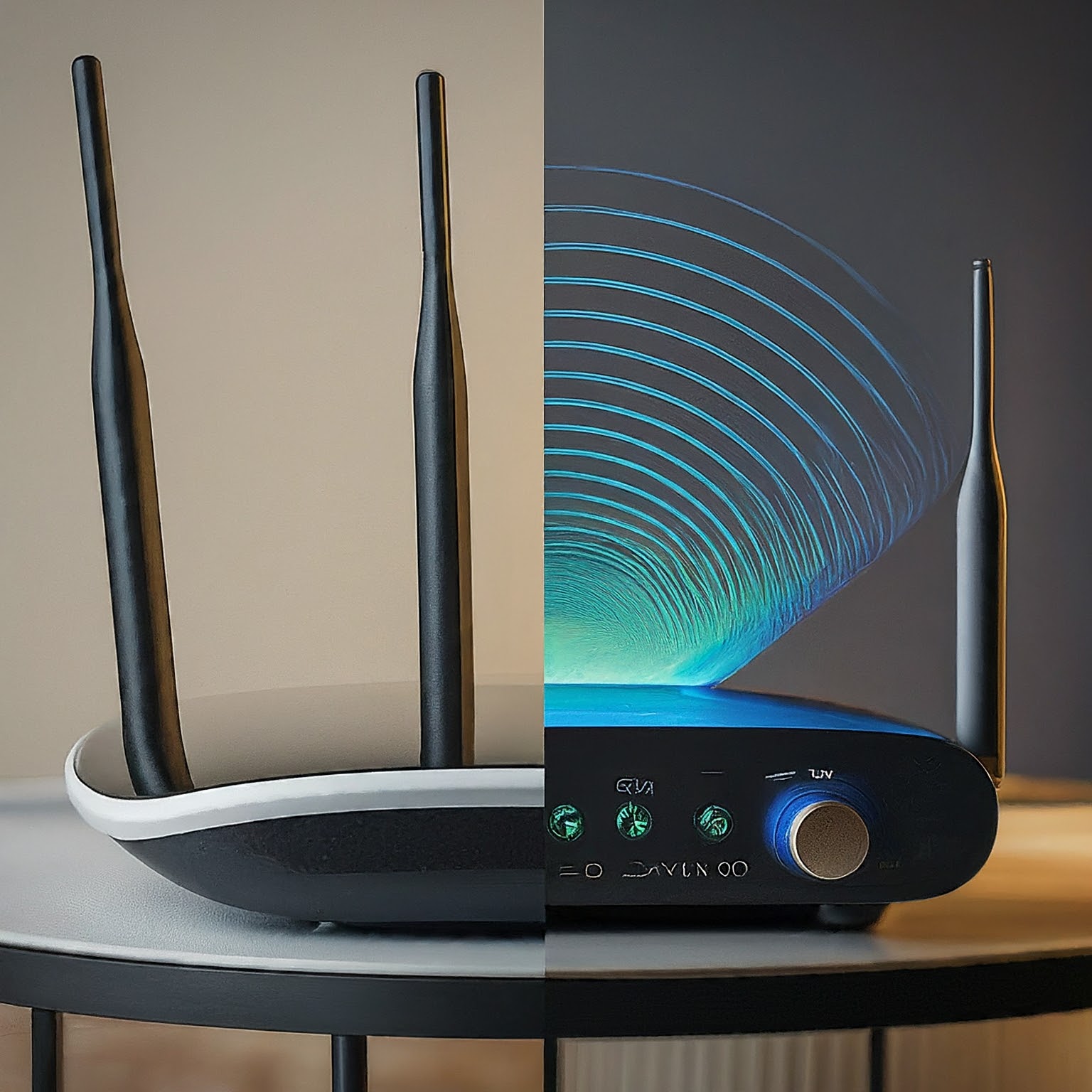
The SSID is the network name shown in the device's Wi-Fi list. With the same name and compatible security settings on both bands, a dual-band device can choose between their separate radio connections. A 2.4GHz-only device still uses 2.4GHz; the shared name does not give it a 5GHz radio.
| Choice | Useful advantage | Tradeoff to test |
|---|---|---|
| One shared SSID | One name to save; suitable clients can change radio connections without choosing another name | The device may retain a connection that is usable but slower than another available band |
| Separate SSIDs | A reader can explicitly join a band-specific network for a stationary device or a diagnostic test | More profiles to maintain; automatic movement between saved names is not guaranteed |
One name is a useful starting point for a mixed household. Apple explicitly recommends one unique SSID across bands for its devices. Separate names remain useful when you need to diagnose band selection, accommodate a particular setup app or keep a stationary device on a verified 5GHz connection. Splitting names is not a guaranteed speed or latency improvement.
Clients, steering and sticky connections
Clients decide which connection to join or roam to, but the router can influence that process. Features such as band steering, neighbour information and transition suggestions help compatible clients, while other policies can reject or disconnect a connection. It is therefore misleading to say that the router has no influence or that every selection is entirely independent of the access point.
Giving two radios the same name is also not identical to enabling a vendor's Smart Connect policy. The former supplies matching network identities; the latter can apply additional steering and load-balancing behaviour. Check the router's manual and actual setting instead of inferring steering support from the name alone.
Assisted roaming features such as 802.11k/v/r are not exclusive to Wi-Fi 6. They also occur on supported older equipment and clients. Their presence depends on the implementation, not just the box's generation label. A shared name cannot guarantee an uninterrupted call when a device changes bands or access points.
A sticky client may hold onto a still-usable connection even when another would be faster. Roaming policies vary by manufacturer, device, driver and conditions. Apple's documented thresholds are specific to its devices; they are not universal values for Android or every router. Measure with the device that has the problem rather than copying a signal threshold from an unrelated setup.
Smart-home setup and local connectivity
A 2.4GHz-only plug can normally associate with a shared dual-band SSID. However, some onboarding apps expect the setup phone to use 2.4GHz or have trouble during discovery. Follow that device's instructions. A temporary separate 2.4GHz name, a supported IoT network or temporarily disabling 5GHz can help isolate that particular setup issue.
After pairing, restore the normal configuration and test control again. If you change a network name or password, devices using the old credentials will need updating. Keep those consequences in mind before renaming the whole household network to fix one accessory.
Different SSID names do not by themselves establish network isolation. Two band-specific names can still lead to the same LAN. Conversely, guest-network, VLAN or client-isolation rules can prevent local discovery even when the internet works. If a phone cannot find a printer or speaker, check those network policies rather than assuming that using different frequency bands always prevents communication.
Test the two arrangements without buying a router
- Keep a baseline and recovery route. Save the current router settings and credentials. A wired administration connection is useful because changing Wi-Fi settings disconnects wireless clients.
- Use one repeatable task. At the troublesome location, record the client's band and signal, then repeat the same call, local transfer or internet test. Keep the test device and server consistent.
- Check a nearby connection. Compare the same device near the router and, when possible, a wired internet test. This helps separate a Wi-Fi problem from an upstream connection limit.
- Test a band-specific profile if needed. Use distinct names such as
Home-2.4andHome-5, then explicitly join each for comparison. Saving both does not promise that a phone will always choose the faster one or fall back at exactly the right moment. - Check ordinary radio settings first. A 20MHz channel width is a sensible 2.4GHz starting point in a crowded environment, as Apple's guidance explains. Keep allowed channels, compatible security and current firmware consistent. Change one setting at a time.
- Treat forced-disconnect thresholds cautiously. ASUS Roaming Assistant is an example of an adjustable RSSI policy on supported products. If there is no better reachable connection, an aggressive threshold can simply disconnect the device. Reducing 2.4GHz power by a fixed percentage also cannot guarantee matching coverage between bands.
Keep a shared name when it serves the household reliably; use separate names when a measured compatibility or control need justifies them. The useful result is that the device works where it is needed, rather than a particular band name or a claim that every older router behaves the same way.
For the technical background, read Apple's router settings, its roaming documentation and TP-Link's Smart Connect guide.