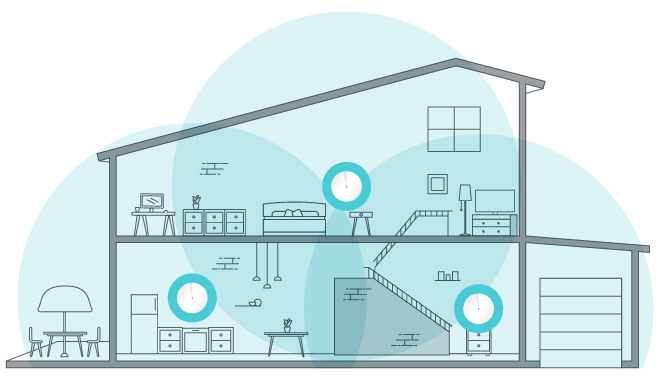
A home with several floors or thick walls may need more than one Wi-Fi access point. Adding useful coverage can make calls, streaming and ordinary browsing more dependable, provided the new equipment has a good connection back to the main network.
Here, hotspot means a home access point, not a mobile-phone tether or a public Wi-Fi service. An access point bridges wireless clients onto a network. A router also connects networks and commonly supplies functions such as DHCP, NAT and firewalling. Understanding that difference prevents many second-router setup problems.
Start with the Network You Want
For most households extending ordinary coverage, the aim is one LAN with several access points. That lets devices keep an address on the same network as they move between coverage areas. It does not require every device to have a separate internet router.
A second router left in Router mode may create another subnet and another NAT layer. Internet browsing may still work, while discovery, casting, inbound access or some applications become harder to configure. It is too strong to say double NAT makes every printer or NAS unreachable in every case; the behaviour depends on routing, firewall rules and which side starts the connection.
If you deliberately want separate guest or IoT networks, plan the router, VLAN, access-point and firewall capabilities together. A different Wi-Fi name by itself is not a network security boundary or a bandwidth policy. Some consumer products also change guest-isolation behaviour in Access Point mode, so verify the exact model.
Benefits and Tradeoffs
| Potential benefit | What makes it work |
|---|---|
| Coverage in difficult rooms | Suitable placement and a reliable upstream path |
| More useful wireless capacity | Channel planning, client distribution and sufficient wired/uplink capacity |
| Reuse of existing equipment | Supported firmware, suitable ports and a documented AP configuration |
| Convenient movement around the house | Consistent network settings and clients that roam suitably |
The costs include extra hardware, cabling or injectors, power, administration and possible interference. More access points do not increase the ISP's available bandwidth. Adding one beside another may provide little useful coverage and consume more shared airtime.
Ethernet gives an access point an upstream path that does not use its wireless backhaul airtime. Wireless mesh can be more convenient when cabling is impractical, but the satellite needs a usable connection to another node. A wireless unit placed directly in the existing dead zone may have the same weak upstream path as the client.
Map Your Needs Before Installing
- Identify the symptom: list weak rooms and the applications that fail. Distinguish poor coverage from internet congestion or a problem affecting only one client.
- Check cable routes: include Ethernet, switch ports, power outlets and any required PoE budget in the plan.
- Choose supported equipment: review the exact model's AP/mesh modes and ongoing firmware availability.
- Start small: try one additional access point in a useful location before assuming every floor needs several.
- Document settings: save the router configuration, DHCP range, access-point management addresses and intended wireless security.
Keep an access point in an open position rather than behind a metal cabinet. Test with the doors and furniture in their normal positions. The practical goal is a usable path where you need it, not a particular distance between devices copied from another house.
Turn a Spare Router into an Access Point
First check for a documented Access Point mode. It is usually easier than manually adapting Router mode, but the correct uplink port and management-address behaviour are model-specific. Do not assume every brand converts its WAN port in the same way.
TP-Link's access-point guide illustrates two supported approaches for the products it covers. Use your own product manual for exact menus and ports. The manual alternative below describes the principles, not a promise that any router can be configured identically.
- Configure the spare separately: connect to its management interface without leaving an unconfigured DHCP server attached to the live LAN.
- Set its management address: choose an unused address on your actual LAN, outside the dynamic pool or otherwise excluded from allocation. An address being outside the pool does not prove another static device is not using it.
- Disable its independent DHCP service: for this simple single-LAN design, keep the established DHCP service. Do not leave two uncoordinated servers answering clients.
- Connect the documented uplink: TP-Link's cited manual method uses LAN-to-LAN. A built-in AP mode may specify another port, so follow that model's instructions rather than a universal skip-WAN rule.
- Configure wireless access: choose the intended SSID, password and supported security settings. Keep these consistent across access points when they are intended to form one ordinary wireless network.
- Verify a client: check its address, gateway, DNS, internet access and access to the intended local services. Confirm the management address remains reachable after a reboot.
For illustration, a LAN using 192.168.1.0/24 might have its router at 192.168.1.1 and a dynamic pool beginning at 192.168.1.50. A spare access point could use 192.168.1.2 only after confirming that address is unused. These are examples; copy the structure of your own address plan, not an unrelated subnet.
Same SSID Does Not Guarantee Seamless Roaming
Using the same SSID and appropriate matching security makes movement between access points more convenient. The client still decides when to search for and use another connection; some devices stay with a weaker access point longer than expected. Different manufacturers' standalone devices do not automatically become one managed mesh just because their Wi-Fi names match.
Standards such as 802.11k, 802.11v and 802.11r can assist compatible clients when supported and configured, but the exact behaviour varies. Test an actual phone or laptop while moving through the important rooms. Do not treat fixed handover thresholds or a certain overlap percentage as a universal guarantee of an uninterrupted call.
Separate SSIDs can be useful for temporary diagnosis or a deliberate user choice. They do not automatically isolate devices, and users may need to select another network manually. Choose them for a clear purpose rather than expecting the names to implement routing or security rules.
Plan Channels without a Universal Blueprint
Nearby access points benefit from appropriate channel separation where available, but reusing a channel is sometimes necessary. Devices on the same channel share airtime; they do not always corrupt each other's transmissions. Channel reuse and interference depend on distance, width, activity and the radio environment.
On 2.4 GHz, a common plan uses 20 MHz channels 1, 6 and 11 where those channels are allowed. For 5 GHz, consider the entire occupied channel block: different primary channel numbers can still fall inside the same wide channel. Available bands, radar-related restrictions and permitted transmit power depend on the country and equipment.
Start with supported automatic settings or a plan based on actual measurements. Avoid universal 14 dBm/22 dBm power targets or importing another region's channel list. Raising transmit power is not always helpful because a small client still needs to send traffic back to the access point.
Verify Security and Keep the Result Maintainable
Use supported WPA3 Personal where appropriate, WPA2/WPA3 transitional settings for compatible mixed clients, or WPA2 AES where necessary. Avoid obsolete WPA/TKIP combinations. Keep management credentials distinct from a weak or shared default, apply firmware updates and save the final topology and addresses.
Retest the real use cases: video calls while walking, casting or printing, local transfers and simultaneous family traffic. Check guest restrictions separately if you depend on them. If a change makes things worse, restore the saved configuration and test one variable at a time.
Supporting references include Apple's recommended router settings, client roaming behaviour and Deco's model-dependent Router/AP feature comparison. Careful planning lets additional access points solve the rooms that need help without making the network unnecessarily complex.