Mesh Wi-Fi networks are becoming increasingly popular because they can extend coverage into rooms a single router struggles to reach. Results still depend on placement, the link between nodes, client capabilities and the internet connection. However, to get the best performance out of your mesh system, there are a few tips and tricks you can follow. Here are eight easy-to-understand tips to optimize your Mesh Wi-Fi network, along with some advice on mixing and matching units.
1. Location, Location, Location!
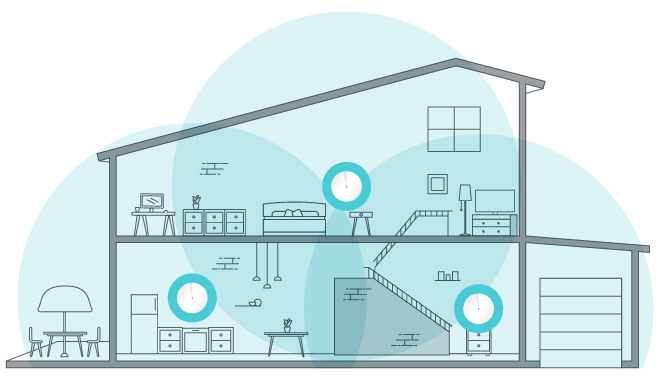
Think of your mesh nodes (the extra units that spread the signal) like beacons, sending out internet waves. Ideally, you want them positioned for clear sailing. Here's the key: avoid placing them right next to each other, or behind thick walls and metal objects – these things can weaken the signal. Instead, spread them out strategically throughout your home, with a clear line of sight between them if possible.
Imagine your house is a medieval castle, and you want to ensure every room gets a strong Wi-Fi signal, like a trusty messenger carrying important orders. Placing your mesh nodes in clear, open areas is key. Avoid tucking them away in corners or behind thick walls, which act like a moat or portcullis, blocking the signal. Thick metal objects like filing cabinets also play the role of a pesky dragon, disrupting the signal with their interference. The more open space you can give your mesh nodes, the better your Wi-Fi signal will be throughout your entire home.
Tip: Place your main node (the one connected to your modem) in a central location in your home. Then, place the additional nodes about halfway between the main node and areas where you need better coverage. Avoid placing nodes too far apart or with thick walls between them, as this can weaken the signal.
2. Up High and Mighty
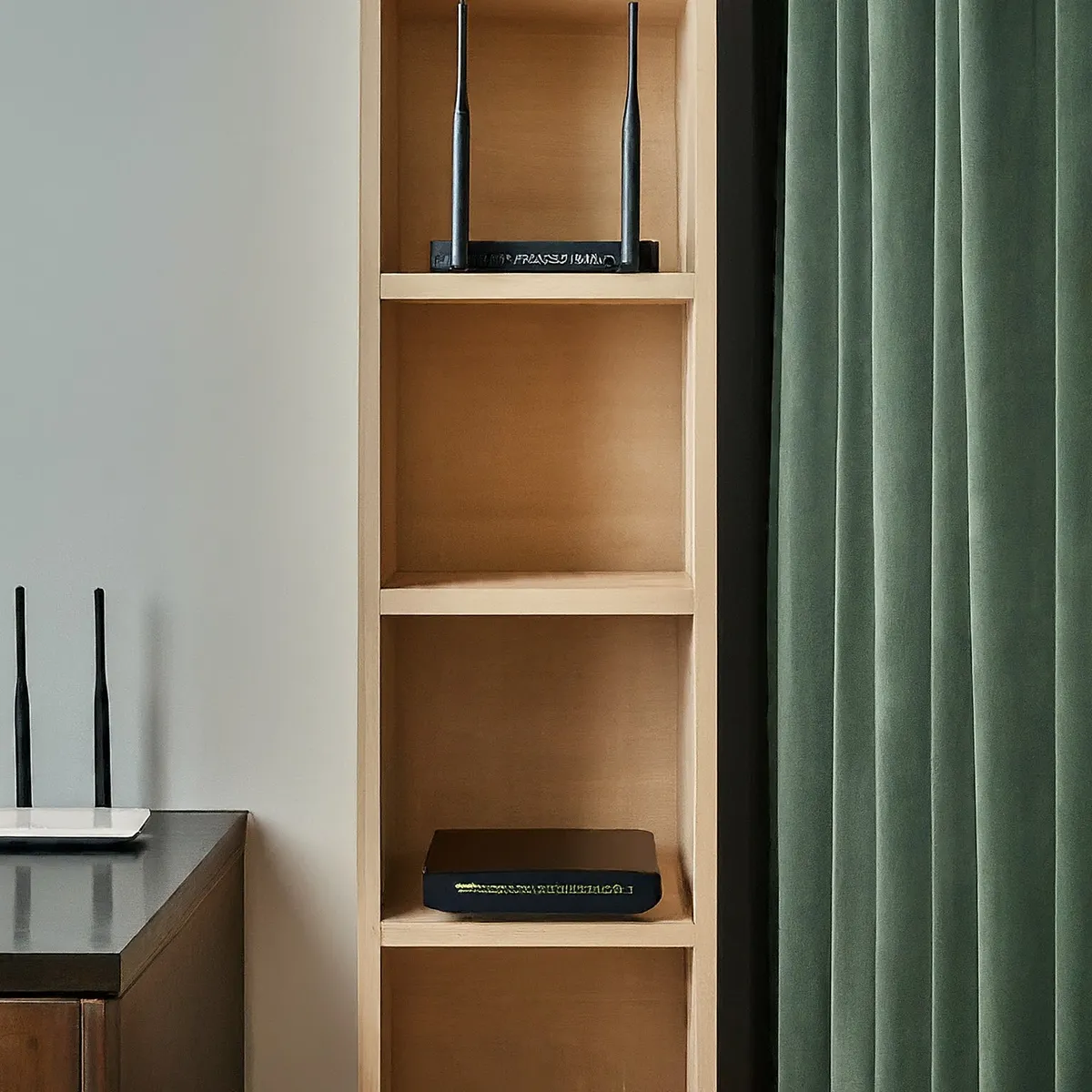
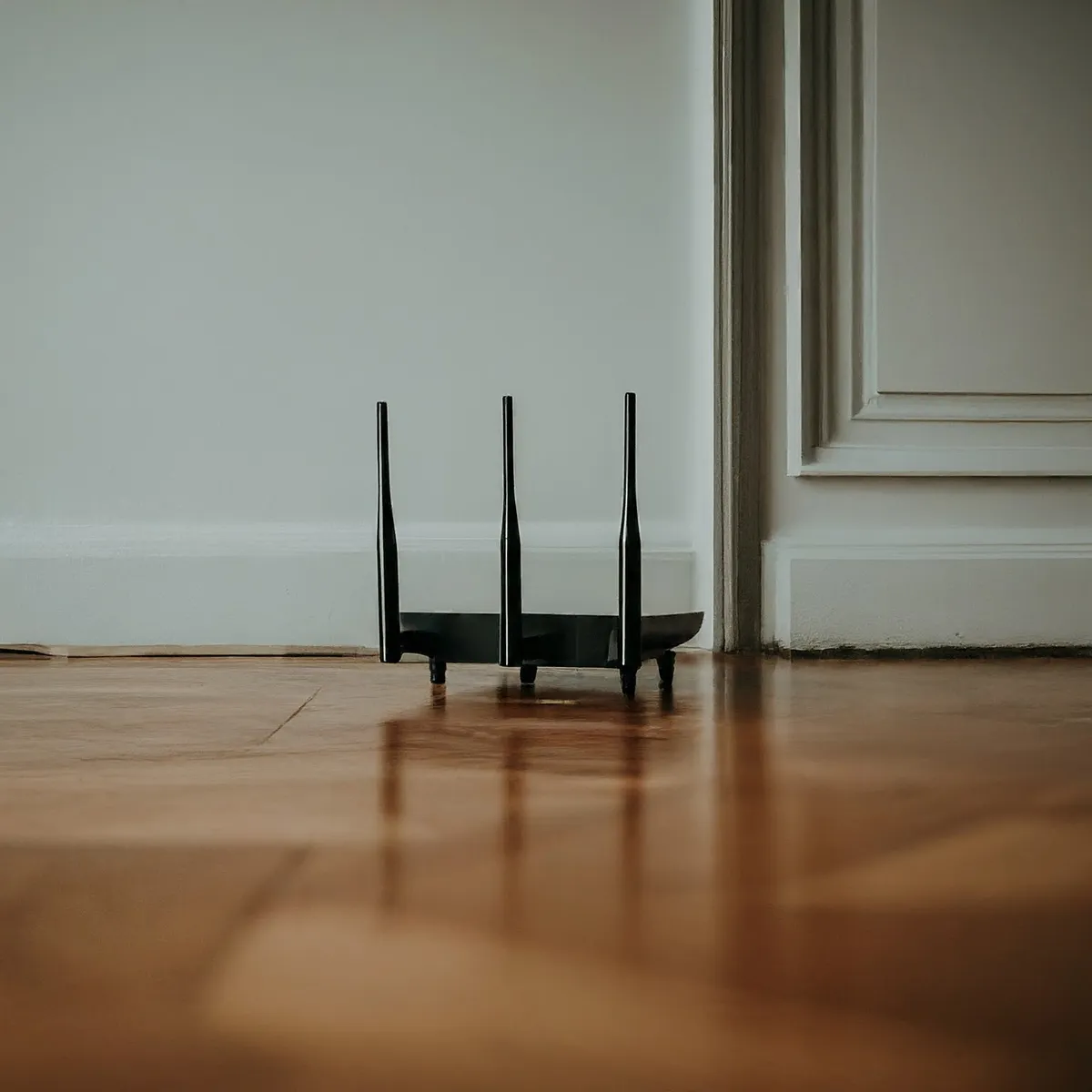
Radio waves travel better in open spaces, so avoid tucking your mesh nodes away in cabinets or corners. Try an open shelf or countertop, following the manufacturer's intended orientation. Higher is not automatically better: a position close to the ceiling, inside a cabinet or far from the rooms you use can make coverage worse. Think of it like raising a flag on a castle tower. The higher the vantage point, the farther the signal can travel, giving it fewer nearby obstructions rather than guaranteeing coverage in every corner.
3. Reduce Interference
Your Wi-Fi signal can be like a knight trying to fight through a crowd of unruly villagers. Electronic devices in your home can create interference, disrupting the signal and slowing down your internet speeds. Here are the main culprits to keep at bay:
Bluetooth devices: While not as disruptive as other devices on this list, Bluetooth speakers, wireless headphones and other Bluetooth devices share the 2.4 GHz band. They do not occupy the 5 GHz or 6 GHz Wi-Fi channels in the same way. If you're experiencing slow speeds, try turning off Bluetooth on your devices and see if it makes a difference.
Baby monitors and cordless phones: Some models use frequencies that overlap with Wi-Fi, while others do not. Check the actual device rather than assuming every monitor or cordless phone interferes. Try switching to a different channel on your baby monitor or using a DECT phone, which operates on a different frequency.
Microwaves: When a microwave is in use, it can generate a powerful burst of interference that disrupts Wi-Fi signals for a short period. If you notice your internet dropping out around the time you use the microwave, try moving your mesh node farther away from the appliance.
Tip: Try to keep your nodes away from these devices and large metal objects, which can block or reflect Wi-Fi signals. Also, if your mesh system allows you to choose between different Wi-Fi channels, select a less congested one (often done automatically by modern systems).
4. Friend or Foe? Mixing and Matching Mesh Units
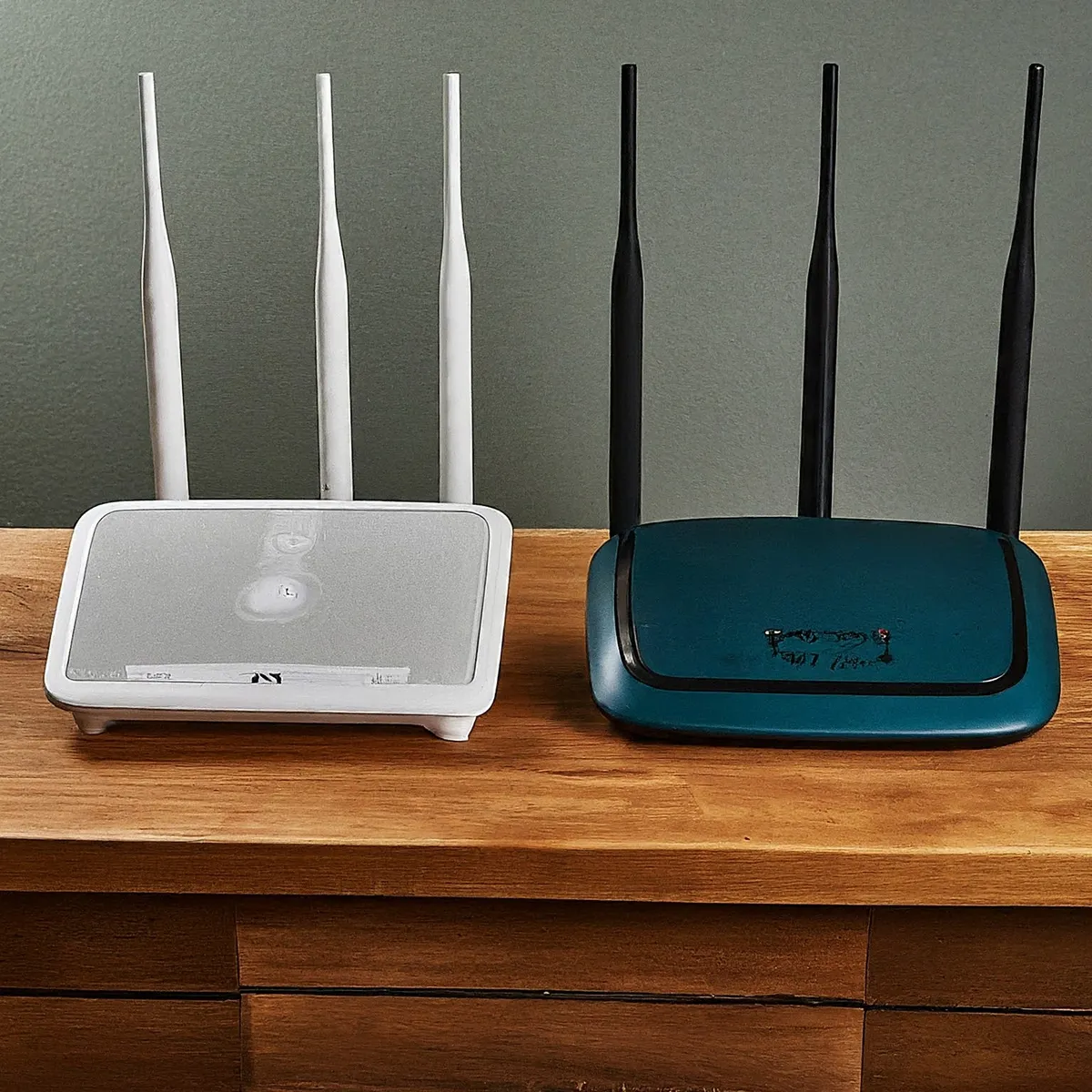
Check the exact compatibility list before buying an extra node. A shared brand name is not enough: TP-Link's Deco, OneMesh/EasyMesh and Omada systems do not combine into one unified mesh. Google likewise says Nest Wifi Pro cannot join a mesh with older Nest Wifi or Google Wifi units. Compatible models may also differ in supported bands and management features.
Some products use standardized interoperability features, but implementation and supported roles still matter. Confirm the model, hardware revision, regional variant and firmware your manufacturer actually lists. Separately wired access points can coexist on a network, but giving them the same Wi-Fi name does not automatically create coordinated mesh backhaul or identical roaming behavior.
5. Channel Surfing for Speeds
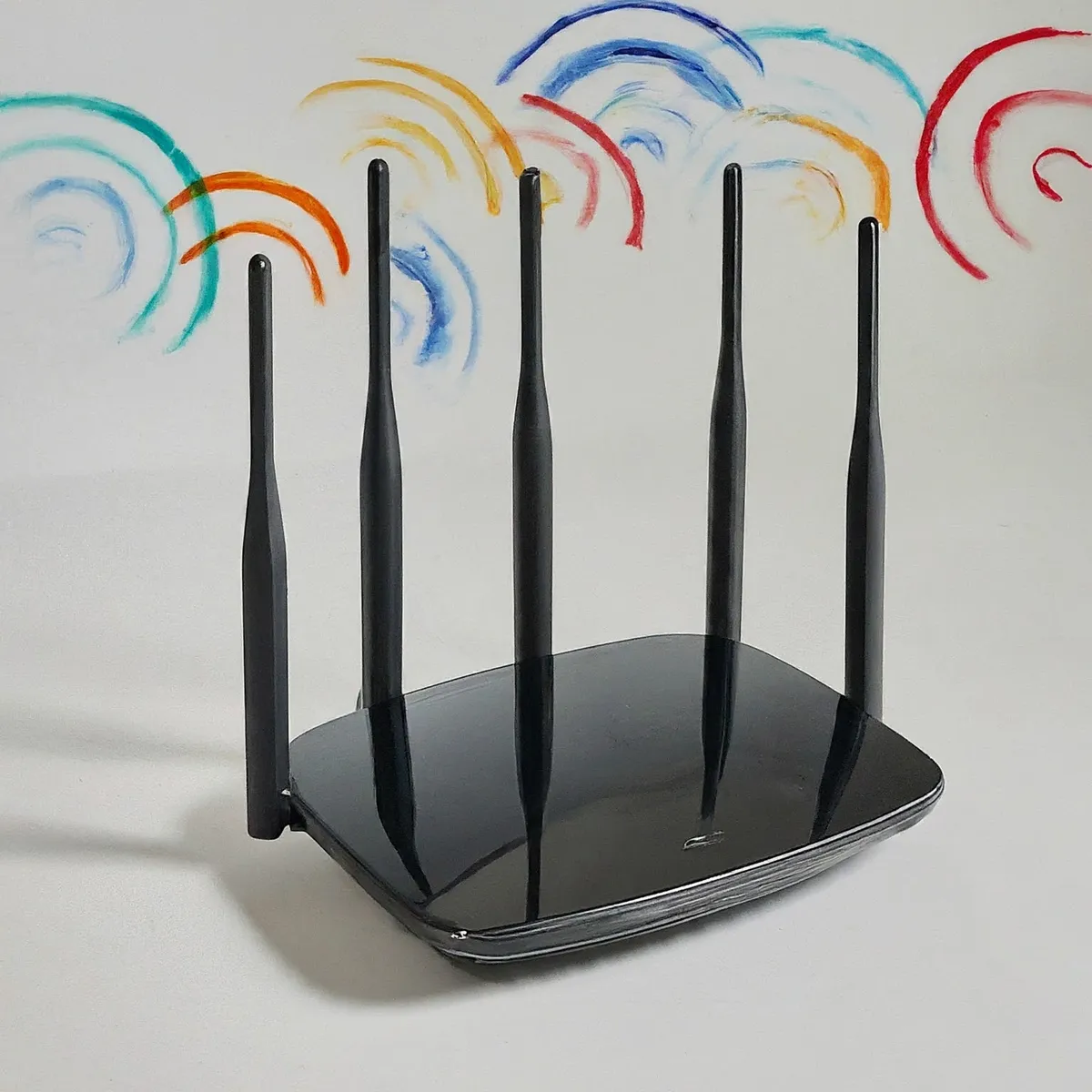
Nearby Wi-Fi networks share airtime. Automatic channel selection is a good starting point; many consumer mesh systems choose channels centrally and do not expose manual controls. A Wi-Fi scan shows nearby network signals, not every source of interference or how busy each network is. Compare actual performance before changing settings.
Wider channels can increase maximum throughput in favorable conditions but use more spectrum. Apple's router guidance recommends 20 MHz on 2.4 GHz and automatic or all supported widths on 5 GHz and 6 GHz. Where your mesh permits adjustment, compare widths in your own environment instead of assuming every detached house needs 160 MHz. Available channels and radar-related restrictions depend on your region and equipment; retain the correct country settings.
6. Keep Firmware Updated
Just like your phone or computer, your mesh Wi-Fi system runs on software that occasionally needs updates. These updates can improve performance, fix bugs, and add new features.
Tip: Check your mesh system’s app or admin interface regularly for firmware updates. Most systems will notify you when an update is available and guide you through the update process.
7. Manage Your Network’s Traffic
If multiple people are streaming, gaming, or downloading large files at the same time, your network can slow down.
Tip: Some mesh systems offer Quality of Service (QoS) settings, which let you prioritize certain devices or types of traffic (like video calls or gaming). Check your system’s app to see if this feature is available and adjust settings to prioritize the most important activities.
8. Secure Your Network
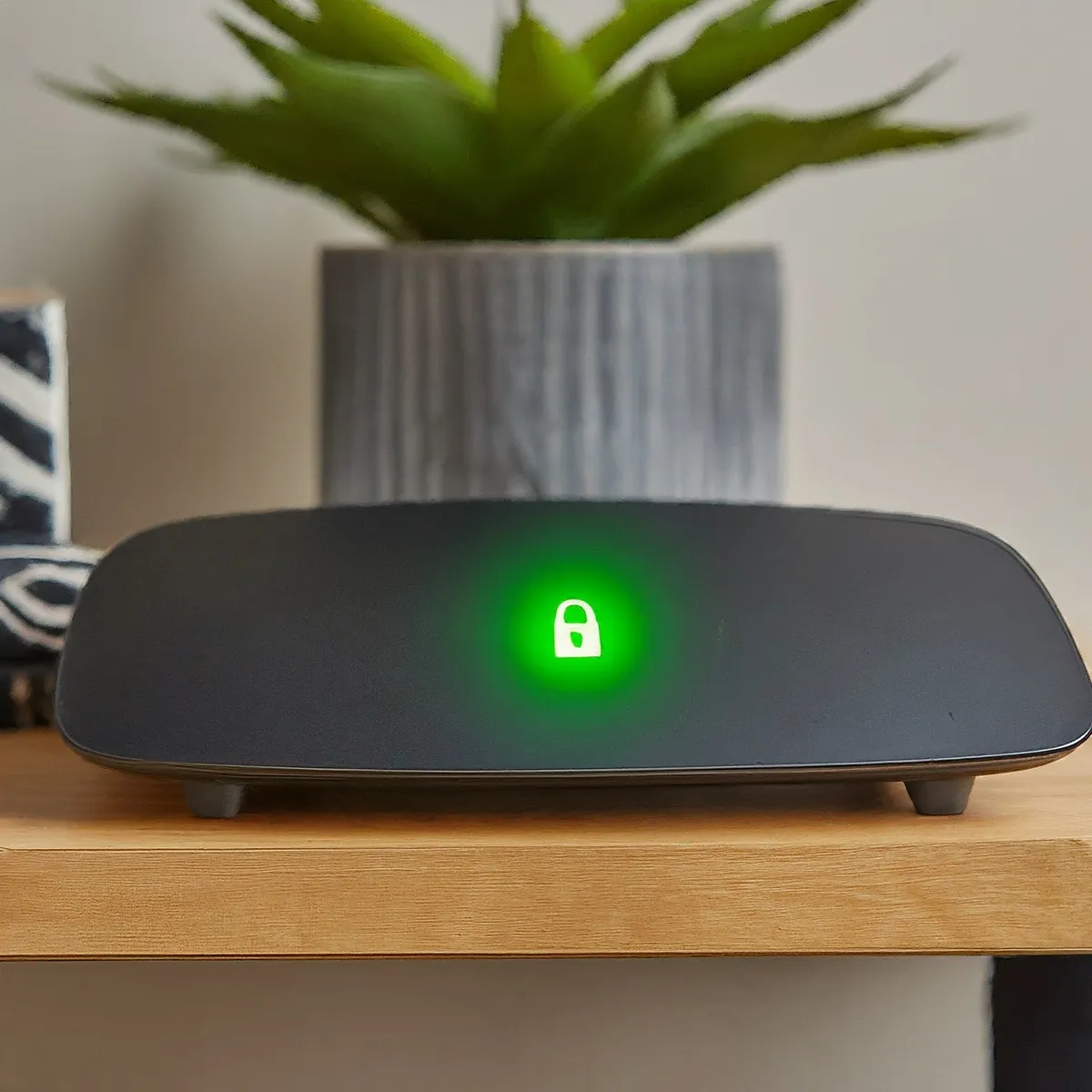
A secure network not only protects your personal information but can also improve performance by preventing unauthorized access.
Tip: Use a strong, unique Wi-Fi password and protect the administrator account separately. Choose WPA3 Personal where supported by your clients; WPA2/WPA3 transition mode can help older devices, while WPA2 with AES is preferable to obsolete WEP or TKIP. Review guest isolation as well as its password: a different network name alone does not establish a boundary from your NAS or other local services.
Bonus Tip: Embrace the App!
Most mesh Wi-Fi systems come with a user-friendly app that allows you to monitor and manage your network. Here are some things you can typically do with the app:
- Run a network check: The app can diagnose any potential issues with your network configuration, helping you identify weak spots or signal interference.
- Prioritize devices: Some apps allow you to prioritize specific devices, giving their traffic preferential treatment when the supported QoS mechanism applies. QoS does not strengthen a radio signal or create extra ISP capacity.
- Set up guest Wi-Fi: Create a separate Wi-Fi network for guests, keeping your main network secure and managing their access to your home network.
- Schedule reboots: Some apps offer scheduled reboots, but routine restarting is not a cure for weak backhaul or a persistent fault. If a reboot repeatedly fixes a problem only temporarily, check firmware, logs, power and heat; schedule any necessary restart when an interruption is acceptable.
With a little strategic placement, some awareness of common Wi-Fi foes, and the power of your mesh system's app, you can improve the experience in the rooms you actually use. Test the result rather than relying on a signal icon alone.
Practical mesh checks and settings
There is no universal RSSI value that guarantees a particular speed or proves that nodes are too close. Signal strength is one input; noise, channel width, airtime, client radios and backhaul also matter. Use your manufacturer's mesh test and repeatable measurements from the same device.
| Check | What it helps diagnose | Useful next step |
|---|---|---|
| Gateway versus satellite test | A strong client link can still sit behind weak node-to-node backhaul. | Move the satellite toward a good upstream signal and retest. |
| Wired backhaul | Radio airtime or walls limit the node connection. | Use a supported Ethernet topology and confirm the app reports a wired link. |
| Fast roaming | Reauthentication interruptions while moving between nodes. | Test supported clients with the feature enabled, then check older devices for connection problems. |
| Router or access-point mode | Two routers perform NAT, or a desired gateway feature disappears. | Decide which device handles routing and check the features available in each mode. |
Ethernet backhaul removes the wireless hop between wired nodes, but the cable, switch and node ports can still limit speed. Follow the vendor topology: in Deco router mode, satellite wiring goes downstream of the main Deco's LAN side. AP mode permits a different arrangement. TP-Link's backhaul guide explains the distinction and switch compatibility. An Ethernet cable alone does not make every wiring layout safe.
802.11r can reduce reauthentication time when both the network and client support it. TP-Link documents clients that disconnect with Fast Roaming enabled, so test IoT devices as well as your newest phone. It does not guarantee zero interruption or force every client to pick the nearest node.
If the ISP gateway is already a router, using the mesh in AP mode can avoid another NAT layer. Alternatively, a supported ISP bridge/passthrough mode can let the mesh perform routing. Check ISP authentication, voice and other service requirements before changing the gateway. AP mode also changes features: Deco's comparison lists gateway functions such as QoS and DHCP that are not available in AP mode. Double NAT can complicate incoming connections or games, but it is not automatically the cause of every slow download.
For guests, verify the exact model and mode. Deco documents different isolation controls in router and AP modes. Connect a guest device and test whether it can reach a local share you intended to protect. Keep needed isolation separate from assumptions about the guest SSID's name.
Measure one change at a time
Begin with a wired internet test at the gateway if possible, then use the same wireless client near the gateway and in the problem room. Record which node it joins, the time of day and whether other devices are busy. A router's built-in internet test measures a different path from a laptop behind a satellite.
Try a local transfer to a wired machine when you need to separate Wi-Fi from ISP performance. If local transfer is good but internet access is poor everywhere, moving a satellite may not address the bottleneck. Change one placement or setting, repeat the same test, and keep the change only when it helps. More nodes are useful for coverage only when they have good connections and appropriate spacing; they can also add airtime competition.
The Google placement guide recommends open, visible positions and checking the mesh link after moving a point. The illustrations here are placement concepts rather than measured installation examples: follow the practical guidance, not an assumption that a pictured floor or enclosed shelf is ideal.