Ever wished your friends and family could hop online without needing your main Wi-Fi password? There's a handy solution: a guest Wi-Fi network! You give visitors their own network name and password while keeping your everyday connection separate. Before setting it up, let's take a quick trip through Wi-Fi basics.
What is Wi-Fi?
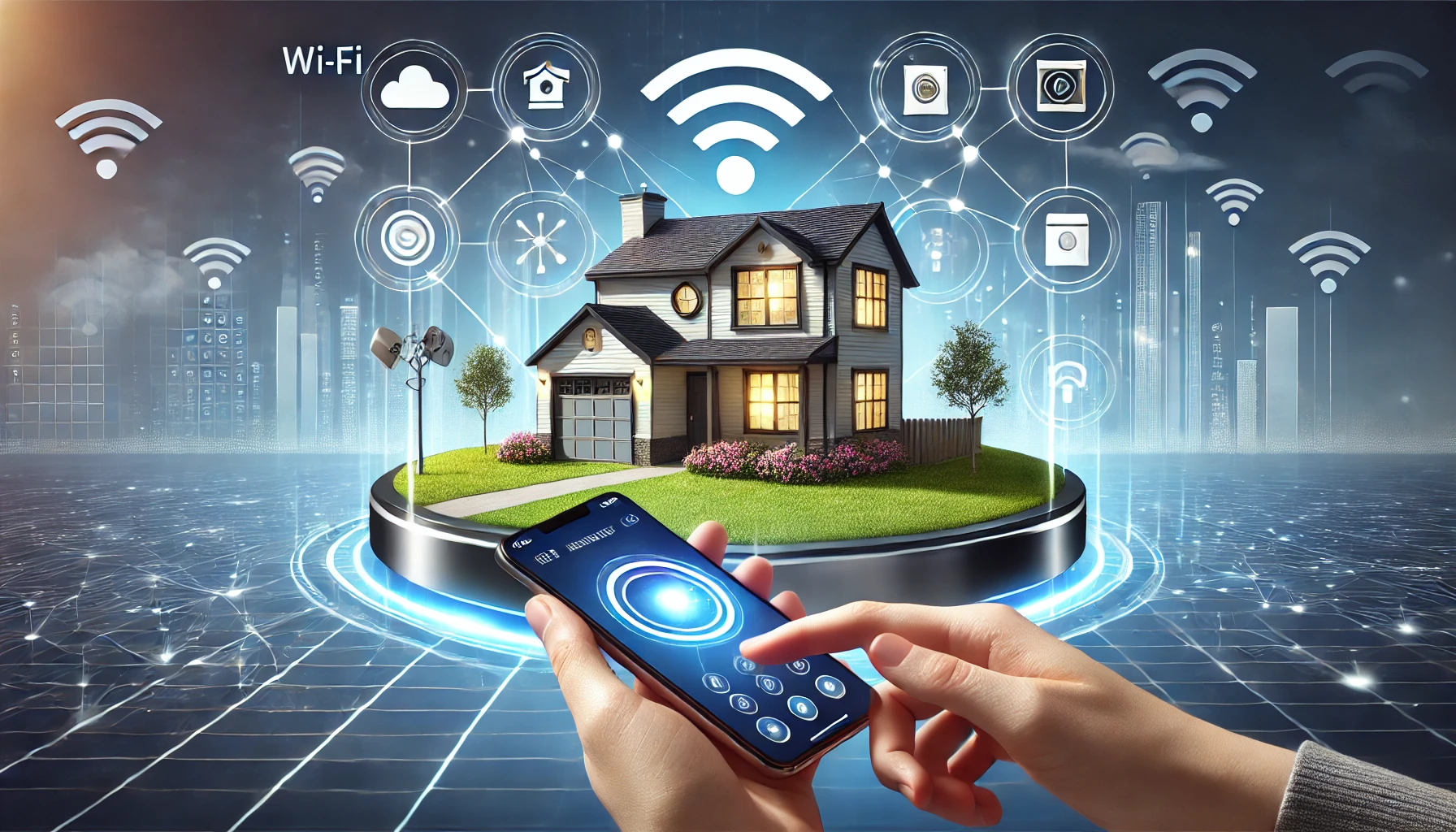
Imagine radio waves carrying information through the air. That's Wi-Fi! An access point, often built into your home router, provides a wireless connection for phones, laptops and tablets. Those devices can communicate with local services as well as use the router's internet connection. Wi-Fi and internet access are related, but a working wireless connection does not by itself mean that the internet connection is working.
What's a LAN and How Does it Play In?
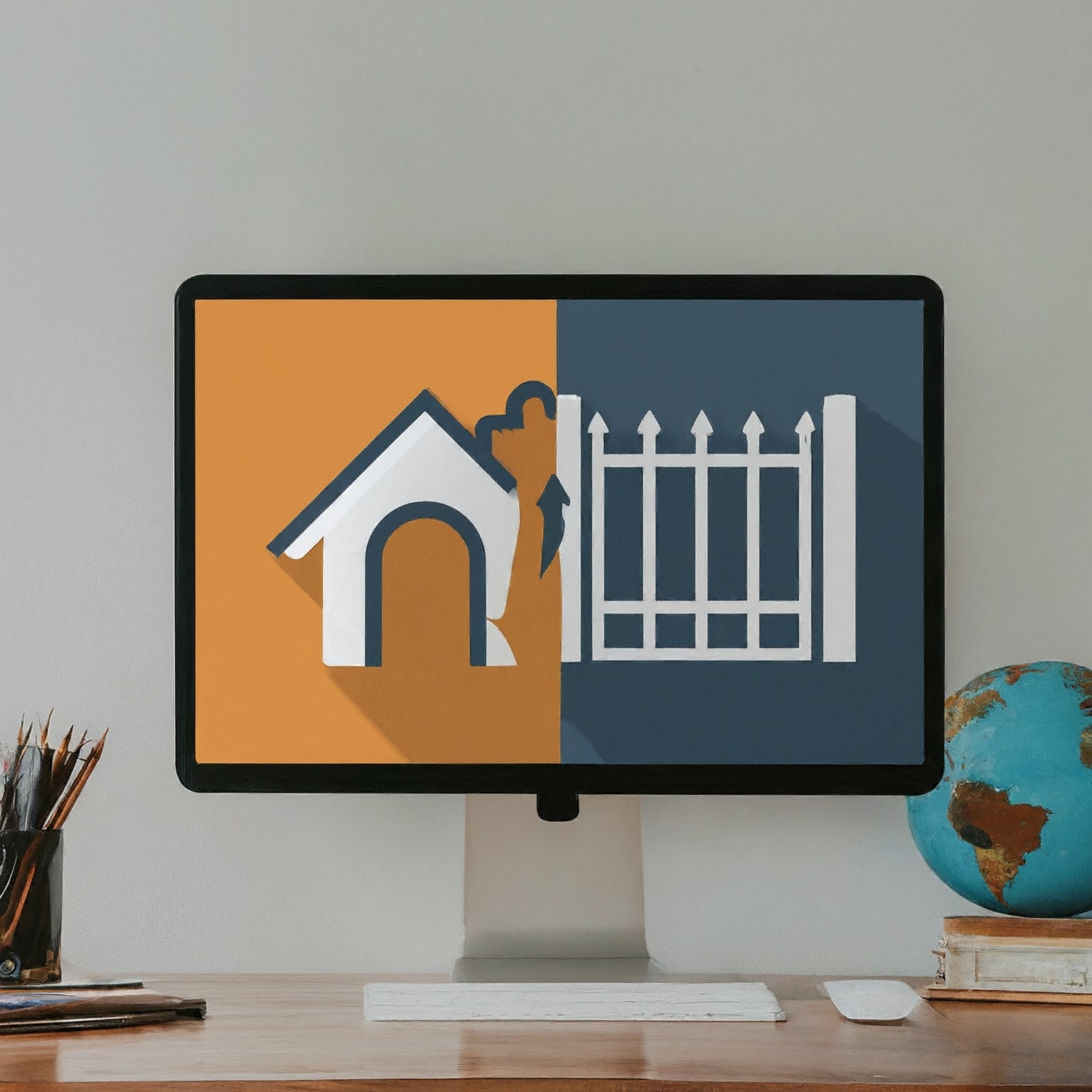
Think of your home network as a digital neighborhood. All your devices connected to the Wi-Fi are like houses on the same street. They can share resources and communicate with each other, like chatting with your neighbor over the fence. This neighborhood is called a Local Area Network (LAN). LANs are useful for things like sharing files between devices or playing multiplayer games on the same network.
Why Use a Guest Network?
Now, imagine a friendly visitor in your neighborhood. A guest network gives them a separate "street" for internet access, like a guest house in your digital neighborhood. With local access blocked, visitors cannot directly reach the computers, storage and other services on your main network. The important part is the access policy behind that network name: a second SSID alone does not prove that devices are isolated.
Why is This Important?
Sometimes devices, including our guests' devices, have security vulnerabilities. Blocking their access to your private network reduces the routes a compromised device could use to reach local services. Think of it as a useful barrier around your digital home. It does not replace software updates, secure accounts or backups, and it cannot stop every way malware spreads. For example, separation on your router does not make an infected email attachment safe or protect a cloud account whose password has been stolen.
Guest Network: Pros and Cons
Pros:
- Security: When configured to block local access, guest networking reduces visitors' access to your private devices and services. Keep the guest network encrypted and check the isolation setting instead of assuming the name alone provides protection.
- Peace of Mind: Keeping guests away from local services and router administration reduces opportunities for accidental changes. A guest can still consume shared internet capacity, so isolation and bandwidth management solve different problems.
- Control: Some routers offer guest bandwidth limits, schedules or temporary access. These options can help manage a shared connection, but availability depends on the model and firmware. A limit does not guarantee that every other device will always have enough speed.
- Privacy: Guests do not need your main Wi-Fi password. You can change the visitor password without reconnecting every device in your household.
- Easy Access: Simplifies the process of giving guests internet access without sharing your main password.
Cons:
- Setup: Allow a few minutes to configure the guest network and check its isolation settings in your router's management interface.
- Separate Network Names: Visitors need the guest SSID and password. Share these details when they arrive, or provide a Wi-Fi QR code.
- Device Limitation: Some routers do not offer guest networking, and some provide different isolation features in router and access-point modes.
Setting Up a Guest Network: Basic Steps
Menus vary, so use the manual for your exact router or mesh system. These are the settings to look for:
- Open the management interface: Use the manufacturer's app or the router's local administration page. Sign in with the administrator account; its password is separate from the password guests use to connect.
- Find Guest Network or Guest Access: Enable it and choose a clear name distinct from your main network. Avoid putting personal details into the SSID.
- Choose security and a separate password: Use WPA3 where your router and visitors' devices support it, or WPA2 with AES for compatible older devices. Use a long, unique passphrase. Leaving the password blank may create an open network rather than private guest access.
- Check local access: Disable access to your main LAN unless you deliberately need a shared resource. Review any separate guest-to-guest isolation option and whether administration remains accessible.
- Apply optional limits: Set a duration or bandwidth allocation if your router supports it. Select bands that your visitors can use; older devices may need 2.4 GHz.
- Save and test: Follow the interface's instructions. Do not reboot just for the sake of it if saving applies the changes. A restart or wireless reconfiguration can interrupt people already using the network.
For a concrete example, TP-Link's Deco guide uses the app's More > Guest Network screen. It states that main and guest networks are isolated in router mode. In AP mode, supported models expose an Allow Local Access switch under Advanced. Leave it off when visitors should have internet access only. The guide explicitly notes that menus and available features depend on the model and software version.
Sharing the Web Safely
Guest Wi-Fi offers a simple way to share your internet connection while reducing access to your private network. It's a win-win for everyone: convenient access for visitors and a separate password you can manage without disturbing your household devices. I would still recommend setting one up, with a quick check that the isolation works as intended.
Under the Hood: What Isolation Means
There are several different things a router can mean by isolation. Blocking guests from the main LAN is different from stopping two visitors from talking to each other. Blocking access to the router's administration interface is another policy to check. Guests must still be able to use necessary network services, such as obtaining an address and resolving internet names; blanket instructions to block every private address or every service on the gateway can break connectivity.
On more configurable networks, you may assign a guest SSID to a VLAN and apply firewall rules between networks. Ubiquiti's isolation guide distinguishes gateway policies, switch access-control rules and access-point client isolation. Its AP client-isolation setting separates wireless clients on the same AP. Other paths, including clients on different APs or wired devices, require the appropriate network and switch policies. Do not assume one checkbox covers every route.
Checking Your Guest Network
Use a phone or laptop you control, connect it to the guest SSID and disable mobile data during the internet check. This avoids mistaking a cellular connection for working guest Wi-Fi. Then check the following without changing permissions on your private services:
- Internet access: Open a few ordinary websites. If they fail, investigate addressing and DNS before weakening isolation.
- Main-network access: Try a known local service you own, such as your NAS web interface, using its actual local address. Guest access should fail if your policy is internet only. A missing discovery result or an unanswered ping alone does not prove that all access is blocked.
- Router administration: Check whether the local administration page is reachable from the guest connection. Follow your router's documentation if you need to restrict it; never share the administrator password with visitors.
- Guest-to-guest access: If you intend to isolate visitors from each other, check two devices you own. On a mesh system, consider both devices on one node and devices on different nodes. Where IPv6 is enabled, include it in the checks rather than checking only an IPv4 address.
Repeat the relevant checks after switching operating modes, replacing a mesh node or changing isolation rules. Keep a short note of what you intended to permit, so a later troubleshooting change does not accidentally reopen the whole LAN.
What About Smart Home Devices?
A separate IoT network can also be useful, but an IoT SSID is not automatically a security boundary. For example, TP-Link's router-versus-AP feature table lists IoT networking separately from device isolation. Check the actual access controls your model supports.
Think about what each device needs before moving it. A cloud-controlled plug may work with internet access only, whereas a locally controlled light, printer, TV or Home Assistant integration may need communication with another device in your home. Isolation can interfere with discovery, casting and local control. Start with one device, check the functions you use, and grant only the necessary access when your equipment supports that level of control. Avoid enabling full local access for every visitor just to make one printer work.
Make Guest Access Easy to Share
A long password need not mean a long typing exercise. Use the router app's built-in sharing feature where available, or your phone's supported Wi-Fi sharing option. Google's Android instructions describe opening the connected network and selecting Share to display a QR code; menus vary by Android version and device.
Share the guest network rather than your main connection. A QR code contains the connection details, so treat a printed copy like a written password. Keep it where intended visitors can see it and replace it when you change the guest password. If you only need access during a gathering, an expiry option can save you remembering to turn the network off later.