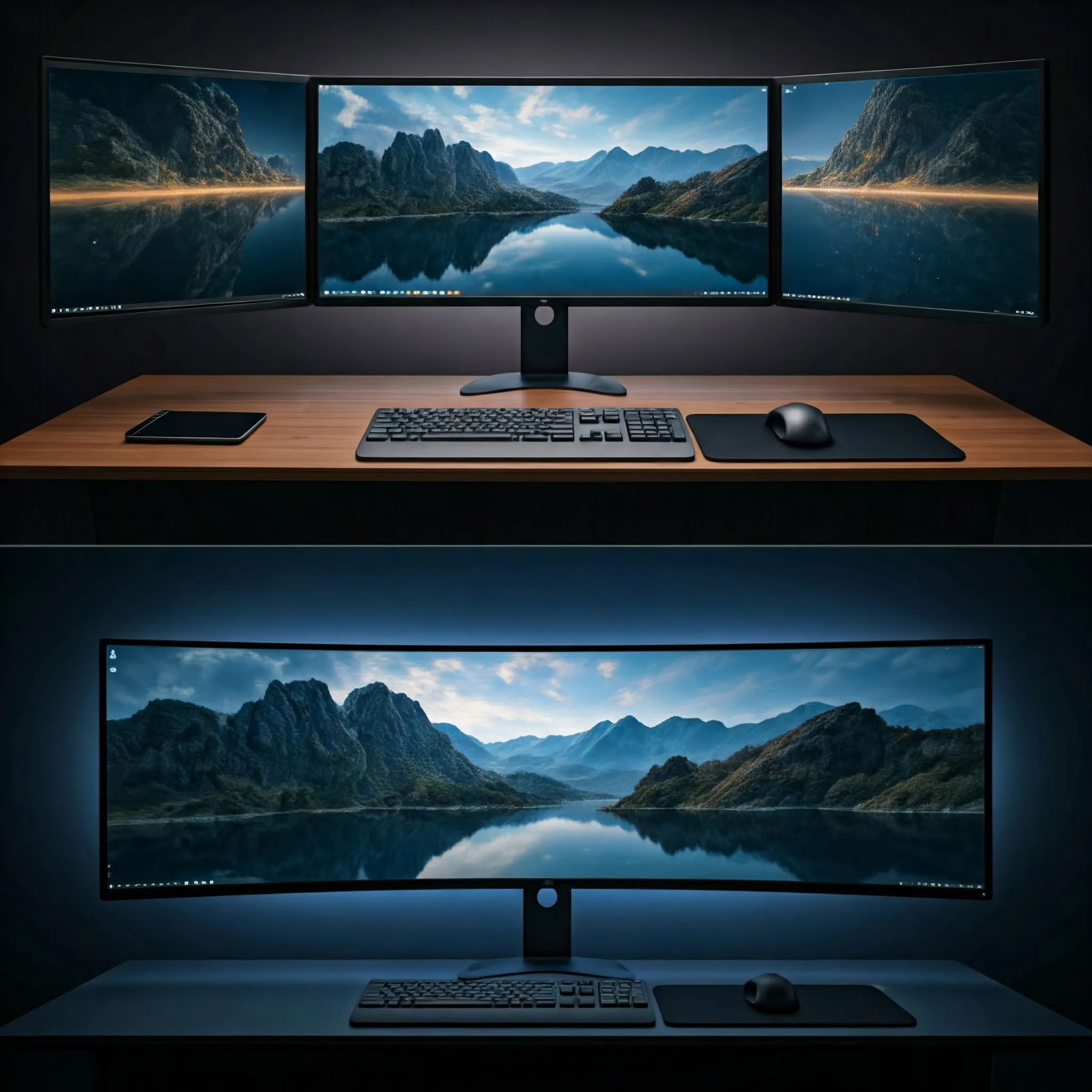
A multi-monitor setup and a single ultrawide can both make a desk more useful, but they solve different workflow problems. Separate screens offer flexible task boundaries and orientations. One wide panel offers a continuous workspace without a bezel through the middle. Choose according to the applications you use, the desk you have and the equipment that must connect.
For background, see the comparisons of VA, IPS and OLED and wide versus ultrawide displays. Panel technology and screen layout are separate decisions: a larger display is not automatically sharper, more accurate or more comfortable.
What multiple monitors offer
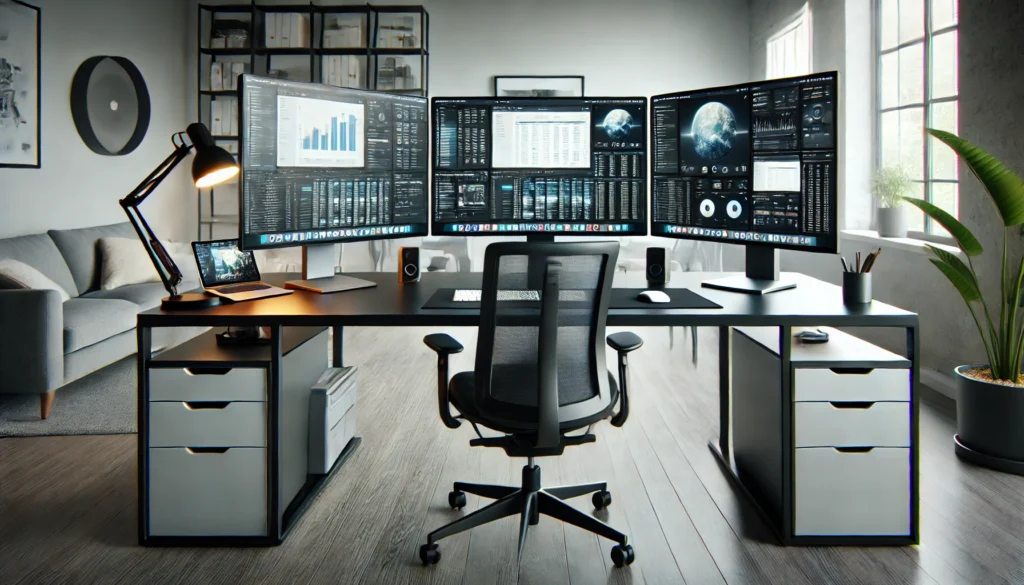
With two or more displays in an extended desktop, you can give different tasks their own screens: code and documentation, a meeting and notes, or spreadsheets and communication. A secondary display can be portrait-oriented if its stand or mount permits it, which may suit long documents or terminal output.
There are trade-offs. Bezels interrupt a continuous image, alignment can take time, and mixed resolutions or scaling can make movement between screens feel uneven. Reusing an existing monitor may save money, but budget for any required stand, arm, adapters and connections. More panels also require enough desk space and appropriate power connections.
What an ultrawide changes
An ultrawide provides one continuous area for timelines, spreadsheets or supported panoramic games. That uninterrupted view is its main attraction. You give up some flexibility to move or replace individual sections, and a display failure affects the whole workspace rather than one panel.
Do not assume it always occupies less desk space. Measure the actual width, stand depth and viewing position. A super ultrawide can be nearly as wide as two smaller panels, while its stand or mount may demand more space than expected. The right fit depends on the particular products, not just whether the setup uses one screen.
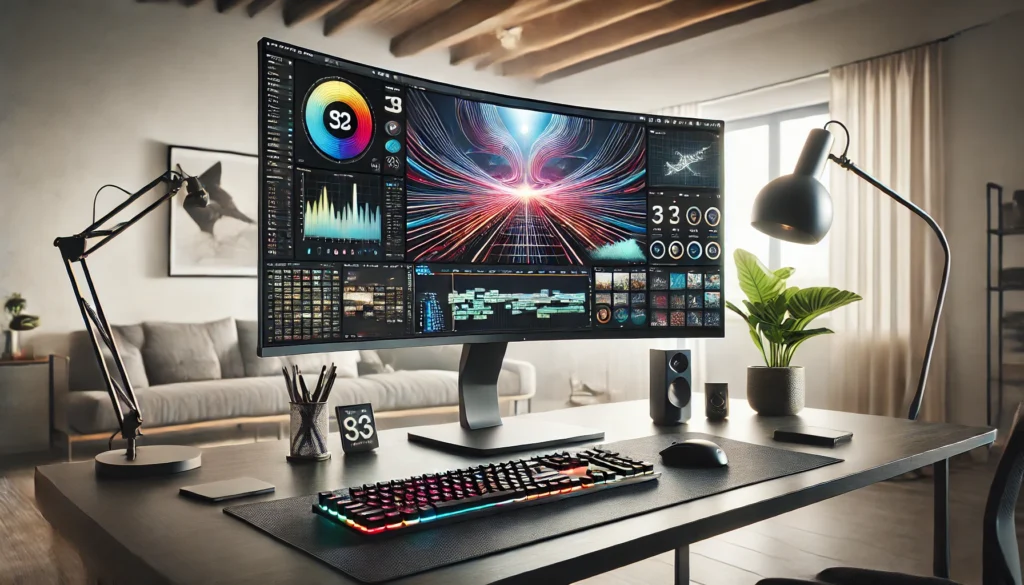
Compare useful resolution, not diagonal alone
The examples below describe pixel arrangements, not mandatory specifications for every monitor of those sizes. Text scaling and application layout determine how much information remains comfortable to use.
| Example arrangement | Pixel workspace | Practical distinction |
|---|---|---|
| Two 2,560 × 1,440 monitors side by side | 5,120 × 1,440 across two panels | Separate display boundaries with a bezel between them |
| One 3,440 × 1,440 ultrawide | 3,440 × 1,440 | Wider than one QHD panel, but less total width than two |
| One 5,120 × 1,440 super ultrawide | 5,120 × 1,440 on one panel | Same pixel count as the dual-QHD example, without the central bezel |
At the same 1,440-pixel height, 3,440 pixels provide 34.4% more width than 2,560, calculated from the resolutions. That is not twice the workspace and does not predict physical dimensions or readable application content after scaling. A 49-inch label also does not universally establish one resolution, refresh rate or curve.
Position and curvature need individual attention
OSHA's workstation guidance recommends a comfortable readable distance, generally 50–100 cm, with the top at or below eye level and the main viewing area in front of you. Adjust text size and position instead of leaning forward or holding your head to one side.
A curved screen changes its geometry but cannot promise freedom from neck movement or eye strain. For example, Dell's U4924DW specifications list a 3,800R curve, 5,120 × 1,440 resolution and 60 Hz refresh. That one model is a counterexample to treating all 49-inch panels as aggressively curved 1,000R gaming monitors.
Try the arrangement with your usual seat, keyboard and room lighting. Put the work you use most near your forward view and assess how often you must turn to read the edges. A portrait companion can help some tasks, but neither a portrait screen nor a curved ultrawide is a universal ergonomic optimum.
Verify the complete connection
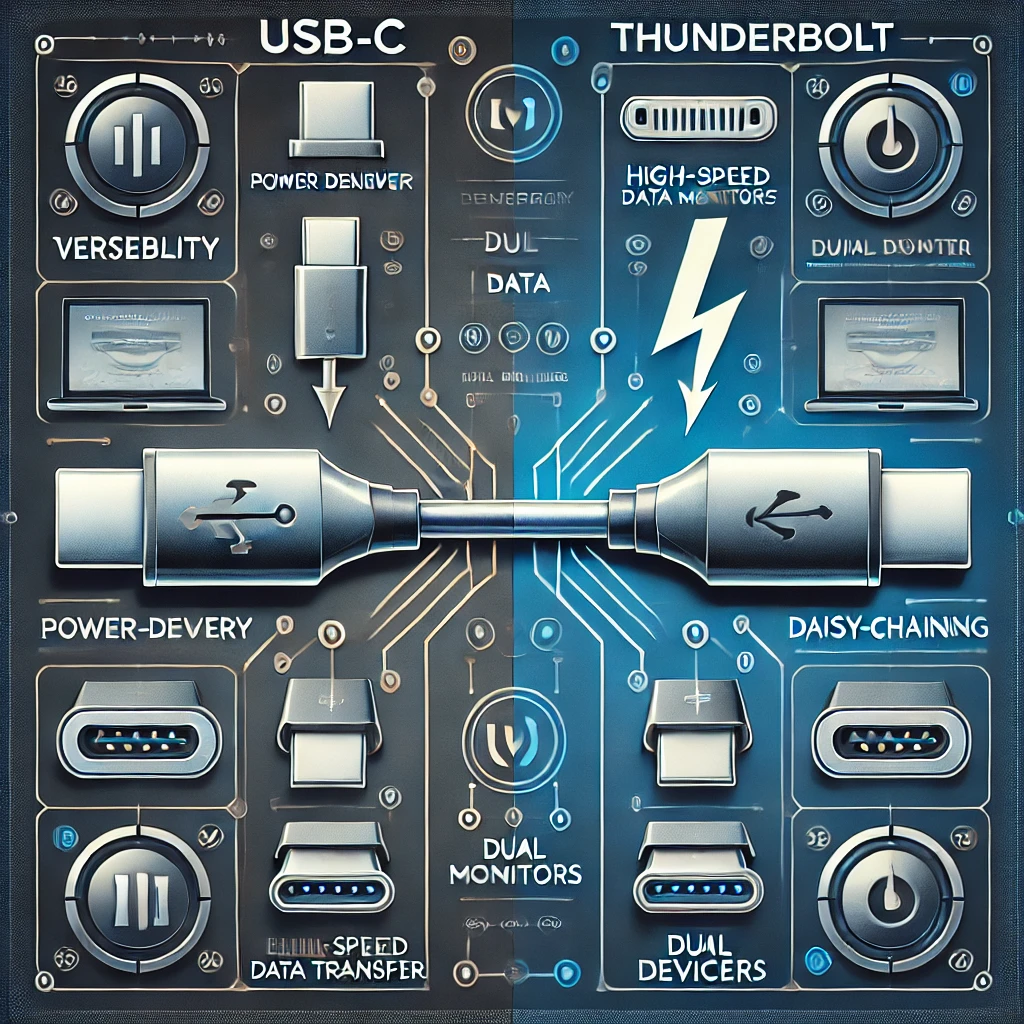
Check the computer's supported display count and combinations of resolution, refresh rate and colour depth. Then check every dock, adapter, cable and input in the path. One USB-C connector does not prove a particular video capability; its supported mode and the rest of the equipment matter.
Multiple displays do not always require separate video cables directly from the GPU. VESA describes Multi-Stream Transport for several displays over a supported interface. Whether a dock or daisy chain works at your desired settings is still a compatibility question for that hardware and operating system.
As an explicit bandwidth example, 5,120 × 1,440 at 240 frames per second with 24-bit RGB contains about 42.47 Gbps of active pixel data before blanking and transport overhead. This is arithmetic, not a measured cable rate. It explains why a high-refresh mode may need compression or another supported transport choice.
VESA's Display Stream Compression is designed to be visually lossless, but the relevant endpoints must support the intended mode. A DisplayPort version label alone is insufficient: VESA's compliance requirements allow differing link capabilities within DisplayPort 2.1 products. Use the model's actual supported-mode table.
Window management, fullscreen apps and sharing
Separate monitors give applications physical display boundaries. On an ultrawide, define zones so a maximized or oversized window does not consume space you need elsewhere. PowerToys FancyZones supports custom layouts; holding Shift while dragging is its default activation method, which can be changed in settings.
Try your actual meetings and games before deciding. Sharing a whole wide desktop can make content smaller on recipients' screens; sharing a selected application or suitable region may work better where your meeting software supports it. Verify what is included in the share preview, especially when other windows contain private information.
Picture-by-Picture is a monitor feature to verify separately. The Dell example lists it, but not every ultrawide implements the same inputs, proportions or refresh/feature combinations. PBP displaying two sources and software zones dividing one desktop are different tools, so choose according to whether you need one computer or two.
Colour and power are model-specific
One panel removes differences between separate displays but does not guarantee uniform brightness or colour across itself. EIZO's factory-report explanation describes measurements and corrections for that uniformity. If colour accuracy matters, inspect the exact calibration options and evidence rather than assuming every premium ultrawide contains a particular LUT or error limit.
Display settings can also affect GPU power behaviour. AMD's dated 23.7.1 notes addressed high idle power in selected Radeon RX 7000 display configurations. That is not a universal extra 20–30 W for two monitors, nor proof that one ultrawide always permits minimum power. Measure the actual system and include monitor consumption if energy use influences the purchase.
Choose the layout that fits the work
Multiple monitors remain a strong choice for flexible task separation, portrait views and gradual upgrades. A single ultrawide is attractive for uninterrupted timelines and supported immersive games. Both perspectives depend on the actual workflow rather than a guaranteed productivity gain.
Before buying, arrange the windows you use daily, measure the desk, confirm connections and compare the full cost. Check text readability, calls, fullscreen behaviour, sleep/wake recovery and any mount's supported load. A hybrid wide-plus-secondary layout is another option to evaluate, but adding hardware only helps when it solves a specific need. Keep the setup that makes your regular tasks comfortable and reliable.