Tired of frustrating Wi-Fi dead zones and buffering? Mesh Wi-Fi can bring useful coverage to rooms that a single router struggles to reach. Multiple nodes share one managed network, so adding coverage does not usually mean asking everyone to choose a different network name upstairs. Understanding the links between those nodes is the key to getting a good result.
Unraveling the Mesh
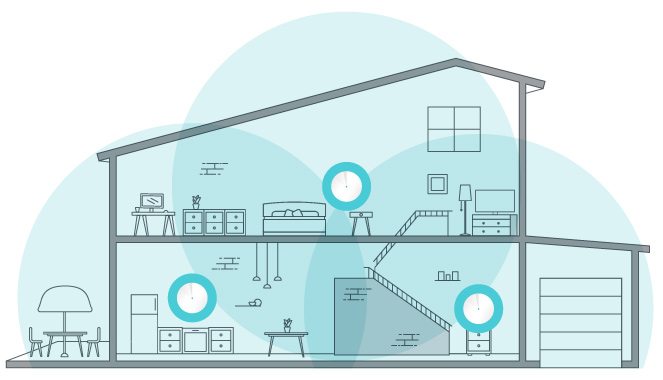
A mesh kit normally contains a main node connected to your internet equipment and additional nodes placed around the home. Each node provides Wi-Fi access nearby. The satellites also need a route back to the main node: this connection is called the backhaul. It can use wireless links, Ethernet, or another method supported by that particular system.
A strong signal from your phone to the bedroom node is only half the journey. If the bedroom node has a poor connection to the rest of the network, downloads and calls can still struggle. Mesh extends the local network; it cannot repair an unreliable internet service or turn a slower broadband subscription into a faster one.
Roaming and Band Steering
One network name makes moving around convenient, but your phone or laptop ultimately decides when to roam to another access point. A mesh system can help that decision. Standards such as 802.11k, 802.11v and 802.11r provide neighbour information, transition assistance and faster authentication on compatible equipment. They do not guarantee that every client switches immediately to the strongest signal.
Band steering is related but different: it encourages a compatible device to use an appropriate frequency band, such as 5 GHz instead of 2.4 GHz. Roaming between nodes and changing bands are separate decisions. Older devices may remain attached to a distant node or have compatibility problems with optional fast roaming. Test the actual phones, printers and smart devices in your home before enabling every advanced setting.
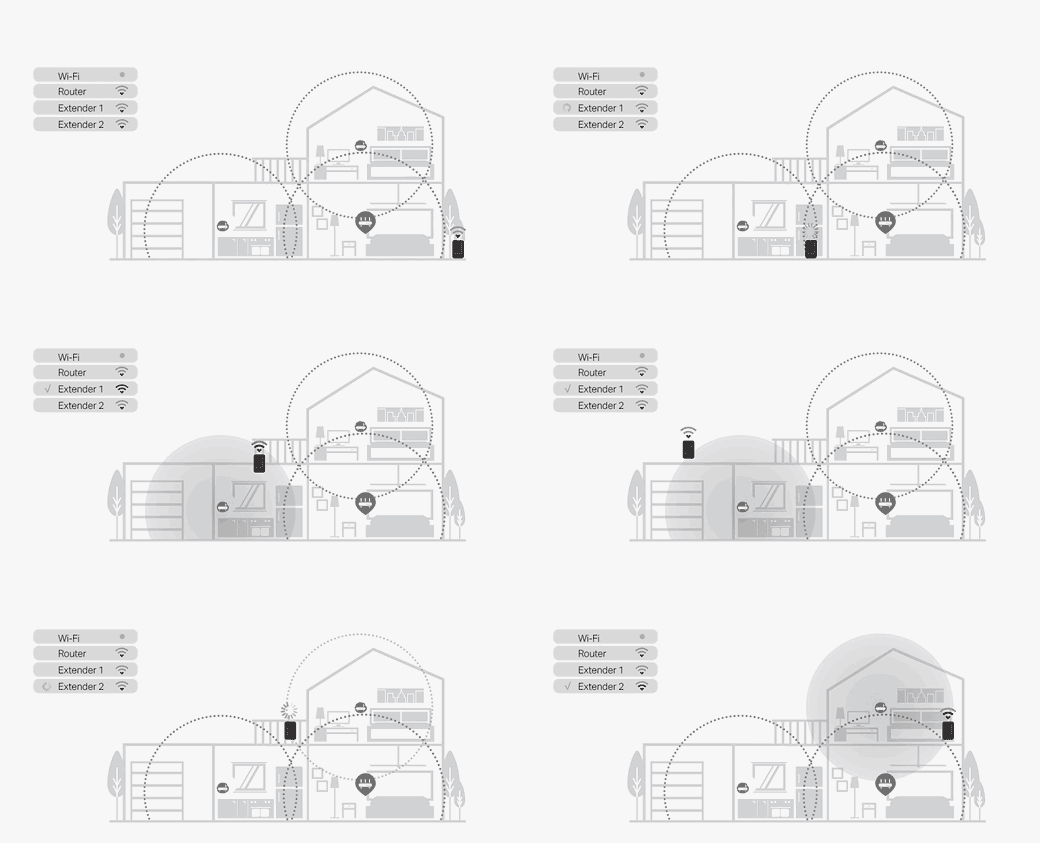
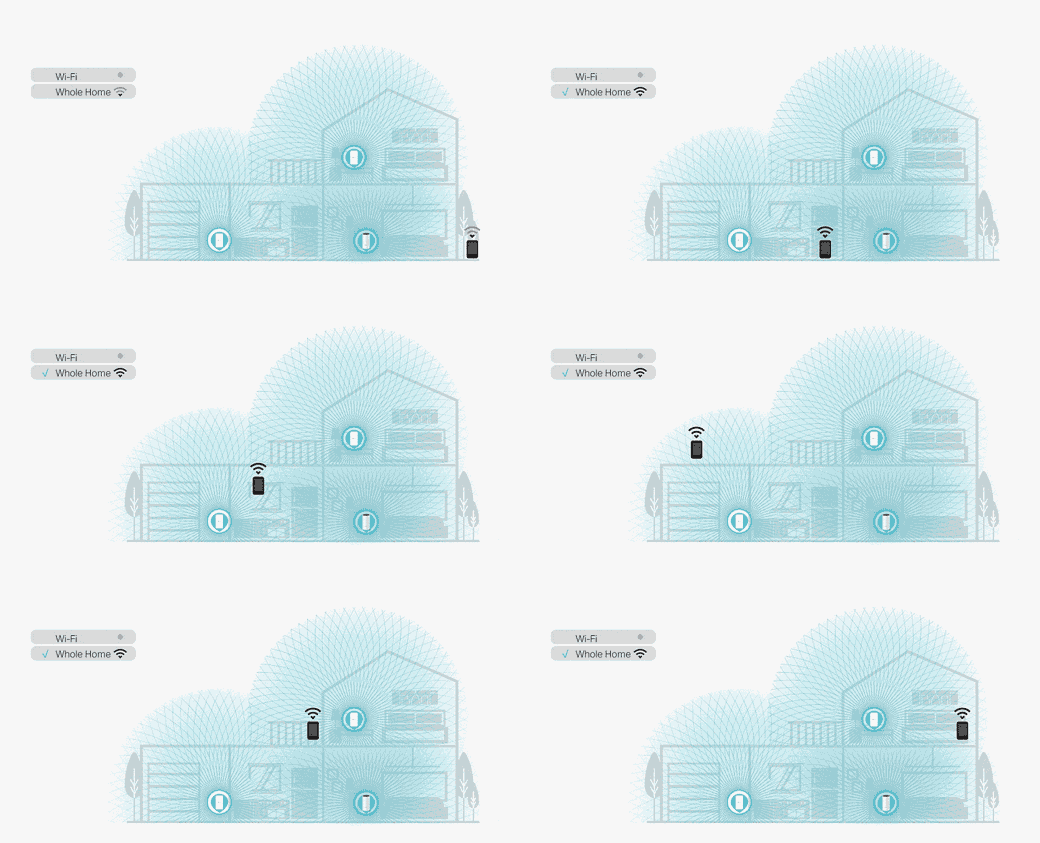
The animations illustrate the intended benefit of coordinated coverage. They are conceptual examples rather than measurements of every mesh system. A moving video call is a useful practical test because a brief handover interruption can be noticeable even when a speed test looks good.
Choosing a Wi-Fi Generation
Mesh systems span several generations. Wi-Fi 6 improves how compatible equipment shares airtime; Wi-Fi 6E adds access to 6 GHz where local regulations permit it. Wi-Fi 7 introduces further features, including Multi-Link Operation on supported combinations of hardware and software. Those features require compatible clients, and a newer label does not remove obstacles such as walls, interference or a weak backhaul.
For purchasing, read the specification for the exact regional model and hardware revision. Check the Ethernet ports, supported backhaul, security updates and device compatibility alongside the radio rates. The combined headline rate sums capacities across bands and is not the internet speed delivered to one phone. A reliable older kit can remain useful if it meets the household's needs and receives appropriate support.
Comparing Backhaul Options
| Option | What to check | Practical consequence |
|---|---|---|
| Shared wireless backhaul | Which radios carry clients and node traffic? | Those transmissions compete for airtime; placement and load matter. |
| Additional wireless radios | Is a radio reserved, shared dynamically, or configurable? | Extra radios can help, but tri-band does not automatically mean exclusive backhaul. |
| Ethernet backhaul | Port speed, cable route and the manufacturer's required topology. | Removes the wireless node-to-node hop; client Wi-Fi and other bottlenecks remain. |
There is no defensible universal percentage of router speed for these categories. The result depends on radio capabilities, channel use, interference, distance and the number of active clients. Similarly, Ethernet's advertised link rate includes protocol overhead and does not guarantee that application data transfers achieve that exact rate.
Some systems permit wired and wireless satellites together. TP-Link's Deco instructions, for example, describe mixed backhaul and specify different wiring arrangements for Router and Access Point modes. Check your own product's instructions before connecting switches: an arrangement that works in one operating mode may be wrong in another. Do not connect additional cables simply to create redundant loops.
Node Placement and Network Paths
When every satellite has a good direct link to the main node, a star arrangement avoids an intermediate wireless relay. A long house may instead need a chain through a nearer node. Another hop consumes network resources, but it does not impose the same fixed speed reduction or delay on every product. A strong shorter route can be preferable to a weak direct link through several walls.
Automatic path selection can help recover from a failed link if another usable route exists. It cannot overcome every outage: losing the main gateway, internet connection or power to all reachable nodes remains a problem. Check the app's backhaul status rather than assuming that a powered satellite has a healthy route.
Five Common Placement and Setup Mistakes
- Putting the satellite inside the dead zone. Start between the poorly covered room and an existing node, where the satellite still receives a useful upstream signal. Move it and repeat the mesh test.
- Hiding nodes behind obstacles. Keep them in an open location with ventilation. Dense walls, furniture and appliances can weaken links; there is no single percentage loss for every cabinet or room.
- Buying nodes solely from floor area. Layout, construction and placement matter. Start with the coverage you need and add a node after identifying a remaining problem, rather than using a universal room-size formula.
- Enabling settings without compatibility tests. Check calls while walking, reconnect a printer and try older smart devices. Adjust optional roaming settings if a specific device becomes unreliable.
- Leaving two routers unintentionally. If your existing gateway remains the router, a supported Access Point mode may simplify the network. Gateway features such as parental controls can change in that mode.
A Useful Setup and Verification Routine
Record performance near the existing router and in the problem room using the same device and test. Set up the kit following its app, place one satellite, and check both its backhaul and the client's connection. Repeat the room test at a similar time. An internet test includes your provider's performance; a local file transfer also helps reveal a network bottleneck without assuming the internet is responsible.
Try the activities that prompted the upgrade: a call at your desk, streaming beside the television and reconnecting a smart plug after restarting the network. Change one location or setting at a time and note the result. Keep the arrangement that improves those tasks, even if adding more nodes produces a less impressive-looking coverage map.
A Woven Conclusion
Mesh Wi-Fi is a compelling way to make a larger or awkwardly shaped home easier to connect. Its value comes from usable coverage, sensible placement and a healthy route through the network. Choose the right kit for the equipment you own, verify it in the rooms you use, and maintain it with the manufacturer's updates.