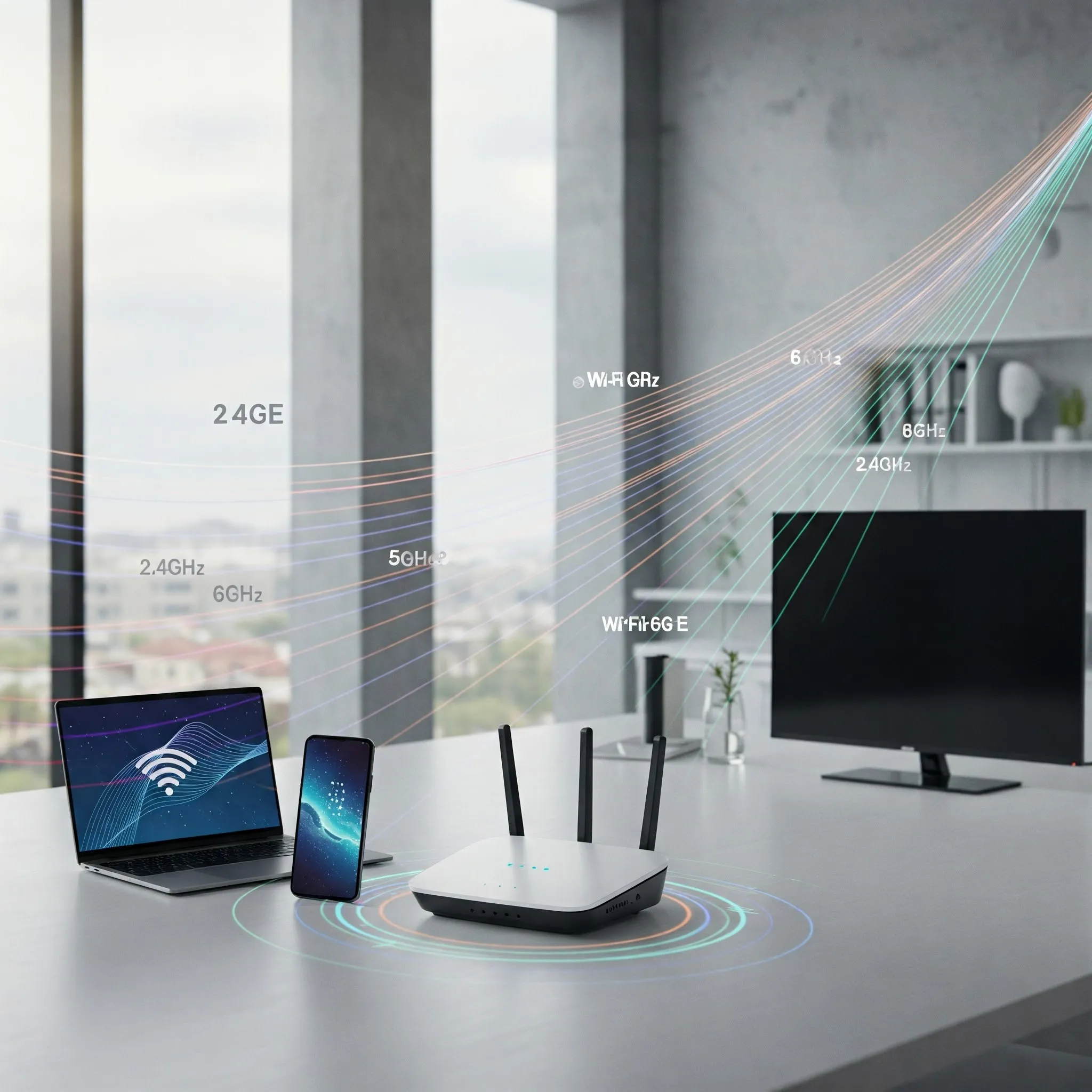
Mesh Wi-Fi can make a home network easier to use by providing several access points managed as one system. The link between those units is called the backhaul. Understanding that link helps explain why a phone can show a strong Wi-Fi signal beside a satellite while downloads still struggle.
What Is Mesh Wi-Fi?
A mesh kit typically has a main unit connected to your internet service and additional nodes placed around the home. The nodes provide coverage where one router would struggle. Performance still depends on placement, walls, radio conditions and the devices using the network; adding units does not guarantee an even connection in every room.
Roaming is also separate from backhaul. Phones and laptops decide when to move between access points, with assistance from supported roaming features. Wiring the nodes can improve their connection to the network, but does not force every client to choose the nearest node or make every handover uninterrupted.
What Is a Backhaul Connection?
The backhaul carries traffic between a satellite and the rest of the network. The client link connects your phone, laptop or other device to its access point. A download using a wireless satellite travels over both links, then the internet connection. A weak link anywhere along that path can limit the result.
The main options are wireless backhaul, wired Ethernet backhaul and a hybrid arrangement that uses both across different nodes. Some products also support other transport methods. Choose a method supported by your particular kit, rather than assuming that every mesh product can use the same cables or settings.
The Backhaul Breakdown: Three Ways to Connect Your Mesh
1. Wi-Fi Backhaul
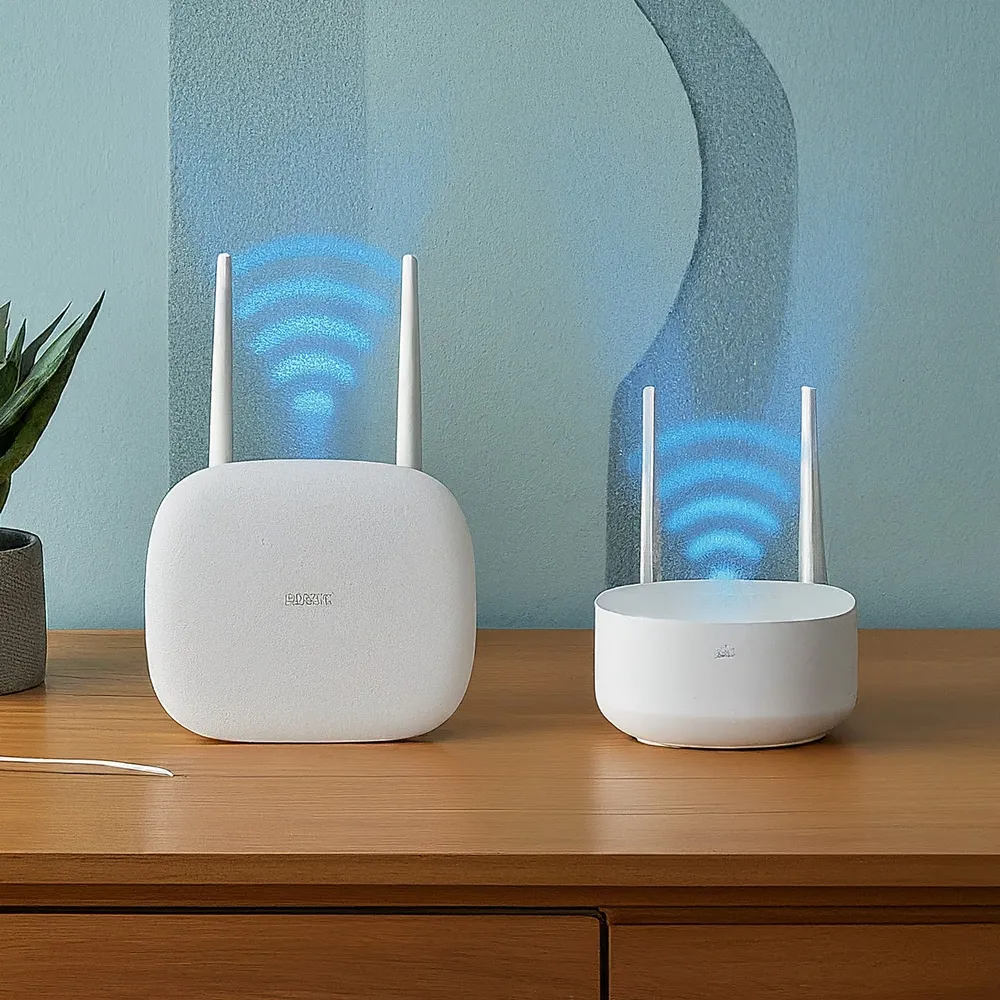
Wi-Fi backhaul avoids running Ethernet to each node. Its ease of installation and flexibility make it an appealing option for rented homes and rooms where cabling is impractical. Nodes can be moved as your layout changes, provided each has power and a usable connection back to the network.
The trade-off is shared radio capacity and sensitivity to distance, walls and neighbouring networks. When backhaul and clients use the same radio channel, their traffic competes for airtime. Additional wireless hops can make the path more demanding. There is no fixed percentage of speed lost at every hop that applies to all mesh designs.
Place a wireless satellite where it can still communicate well with its upstream node, then check coverage in the area you want to improve. Putting it directly inside a dead zone may simply give your laptop a strong connection to a satellite that has a poor upstream link.
Some systems reserve a radio for backhaul, while others share or dynamically allocate bands. “Tri-band” alone does not prove there is an exclusive backhaul radio. Wi-Fi 7 can support Multi-Link Operation across multiple bands, but the usable links depend on hardware, firmware and regional band availability. A kit's advertised combined radio rate is not a measured download speed.
2. Ethernet Cable Backhaul
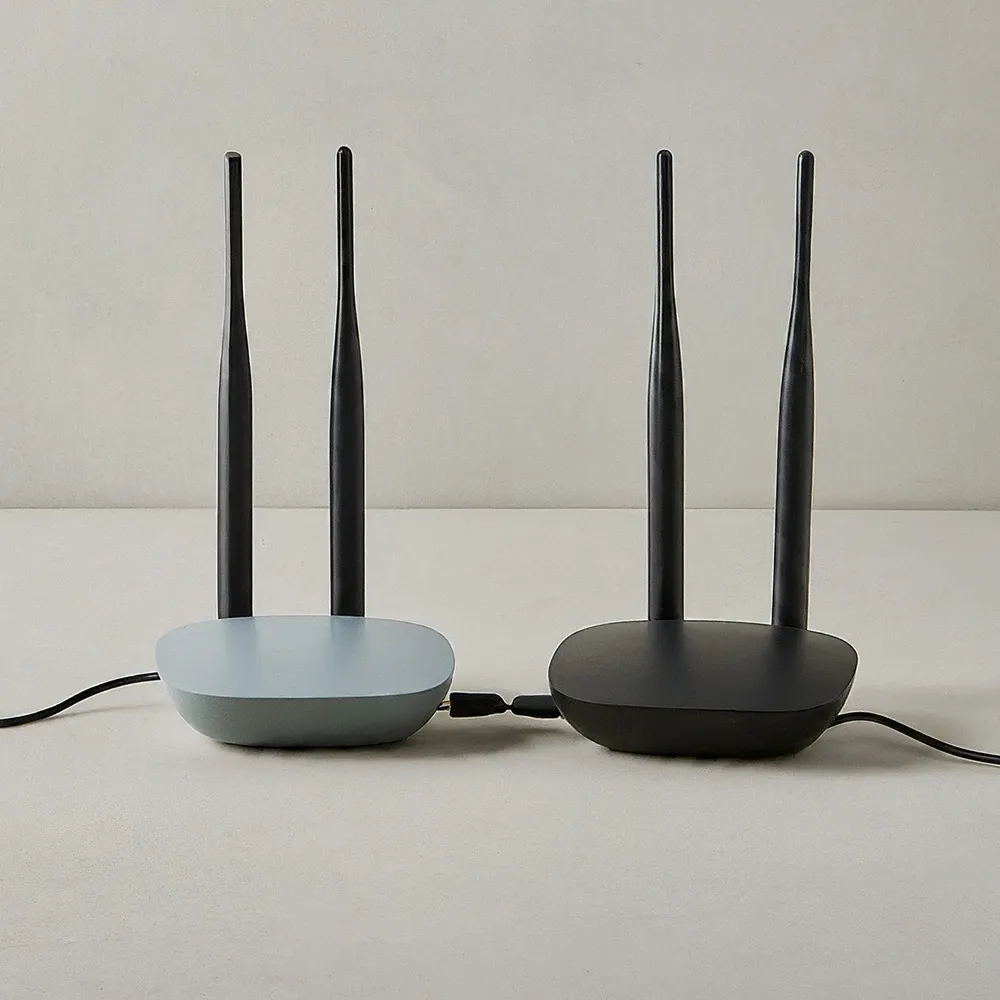
Ethernet backhaul carries node-to-node traffic over a cable, avoiding the Wi-Fi airtime needed for that hop. This is an attractive choice for large homes with thick walls and for busy rooms where consistent performance matters. It can also make placement easier because a satellite no longer needs a strong wireless connection to the main unit.
The costs are cable routing, installation and reduced freedom to move the node afterwards. Plan routes, accessible outlets and switch placement before ordering hardware. Use suitable cables and check both ends of each run. A node with a fast radio still cannot exceed a slower Ethernet link along the path.
Check the actual port allocation: the main unit needs an internet connection, satellites need a backhaul connection, and a desktop or NAS may need another port. A switch can add connections, but its uplink and ports must match the speeds you need. Ethernet also has protocol overhead and shared upstream bottlenecks; it does not mean zero packet loss or a universal latency figure.
3. Hybrid Backhaul
A hybrid network uses Ethernet for some nodes and wireless links for others. It retains the flexibility of Wi-Fi while improving the connection to rooms you can cable. Starting with wireless nodes and wiring critical areas later is a useful gradual upgrade path.
Expect differences between nodes: a wired office may work well while an unwired bedroom still has a weak upstream signal. Check each node's reported connection rather than treating the whole kit as “wired”. Hybrid does not always mean combining cable and Wi-Fi on one link; some supported Deco models separately offer backhaul aggregation that can use both at once.
Fallback behaviour also varies. ASUS distinguishes an all-wired Ethernet Backhaul Mode from per-node connection priority for mixed installations. Its documentation warns that an unwired node may lose its uplink if you enable the all-wired mode. Use the configuration appropriate to your layout and confirm recovery after a cable is disconnected.
Comparing the Practical Trade-offs
| Option | Main advantage | What to check |
|---|---|---|
| Shared wireless backhaul | No new cable runs | Signal, airtime competition and number of wireless hops |
| Separate backhaul radio | Can reduce competition with clients | Whether the product actually reserves that radio and how it behaves when wired |
| Wi-Fi 7 multi-link backhaul | Can use multiple supported wireless links | Node compatibility, firmware, available bands and the complete client path |
| Ethernet | Avoids a wireless backhaul hop | Node ports, switch uplink, cable condition and negotiated link speeds |
| MoCA over coax | May reuse existing coaxial wiring | Compatible adapters, coax layout, provider equipment and Ethernet ports |
MoCA 2.5 is specified for up to 2.5Gbps MAC throughput, with resources shared across the coax network. That does not promise 2.5Gbps internet downloads at every outlet. Before using it, check the adapter's installation guidance and compatibility with the provider's coax equipment, splitters and any required filtering. Keep provider-owned connections within the supported installation plan.
Wiring and Switch Troubleshooting
Read the manufacturer's topology for your operating mode. For Deco in Router mode, satellites connect to the main Deco's LAN side, directly or through a downstream switch. Deco Access Point mode allows a different arrangement behind the existing router. Google likewise documents downstream wiring and notes that Nest Wifi points have no Ethernet ports. These details cannot be inferred from the word “mesh”.
For Deco, add the units to the same network through the app before wiring them together. If Ethernet backhaul does not activate, check the reported connection, try another cable or port, and test a direct node-to-node connection that bypasses the switch. A working direct link helps isolate a switch compatibility or configuration problem.
TP-Link identifies IEEE 1905.1 forwarding and loop-detection issues in its switch troubleshooting guidance. Google and eero publish their own managed-switch requirements. IEEE 1905.1 traffic and spanning-tree BPDUs are different subjects; do not apply one universal “BPDU forwarding” fix to every kit. Review the exact mesh and switch models with their support instructions before changing network-wide loop protection or VLAN settings.
If connecting a cable makes the network unstable, disconnect that new connection, check the supported topology and remove unintended duplicate paths. Change one thing at a time. Preserve your working configuration so you can undo a change rather than trying several conflicting fixes together.
Choosing and Checking Your Setup
Wireless remains appealing when cable installation is impractical; Ethernet is a strong option for rooms with demanding traffic; hybrid lets you improve the most important paths first. Consider the layout, installation cost, aesthetics and household workload alongside the kit's specifications.
Test from the rooms where you actually work or stream. Record which node and backhaul each device uses, compare quiet and busy periods, and separate internet tests from local transfers to a wired computer or NAS. A slow local transfer and a slow ISP connection call for different fixes. Repeat the same test after moving or wiring one node, and keep the arrangement that reliably serves your household.
Consult the Deco Ethernet wiring guide, ASUS backhaul modes, Google mesh wiring guide and eero switch guidance for your particular system.