
Feeling bombarded by ads while browsing the web? Tired of pop-ups interrupting your videos? Pi-hole might be your answer! It's a free, open-source software that turns your Raspberry Pi into a powerful ad-blocking machine for your entire home network.
Why Block Ads at the Network DNS Level?
Ads can be more than just an annoyance. They can slow down your browsing experience, track your online activity, and even harbor malware. Pi-hole tackles these issues by acting as a DNS sinkhole. When a client uses Pi-hole for DNS, it can receive a blocking response for a domain on a denylist. The response depends on the configured blocking mode. Pi-hole does not inspect every page or selectively remove an advert served from the same domain as wanted content.
Step-by-Step: Setting Up Pi-hole on Your Raspberry Pi
Here's a step-by-step guide to get Pi-hole up and running on your Raspberry Pi:
- Prepare your Raspberry Pi: You'll need a Raspberry Pi capable of running a currently supported operating system, a micro SD card, a power supply, a network connection and a way to administer the machine. A monitor and keyboard are optional if you configure a headless installation with SSH. Download Raspberry Pi OS Lite (https://www.raspberrypi.com/software/operating-systems/) and flash it onto your SD card using a tool like Raspberry Pi Imager (https://www.raspberrypi.com/software/).
- Boot Up and Update: Once your Raspberry Pi is ready, boot it up and connect to your network. Run the following commands in the terminal window to update your system:
sudo apt update
sudo apt upgrade
- Install Pi-hole: This is the fun part! Run the following command to install Pi-hole:
curl -fsSL https://install.pi-hole.net -o basic-install.sh
less basic-install.sh
sudo bash basic-install.sh
Review the downloaded installer before running it, then follow its choices for networking and upstream DNS. Record the final web address and credentials. For current Pi-hole, use sudo pihole setpassword to set or change the web/API password interactively, without placing it in shell history.
- Configure your Router: For Pi-hole to work its magic, you need to tell your devices to use it as their DNS server. This process varies depending on your router model. Consult your router's manual or search online for specific instructions on how to set a custom DNS server.
- Access the Pi-hole Web Interface: Open a web browser on any device connected to your network and navigate to
http://192.168.1.10/admin/(replace the example address with your Pi-hole’s actual LAN address). Use the installer-provided or subsequently configured password to log in. This interface provides insights into blocked ads, lets you manage blacklists, and offers various customization options.
Core Features of Pi-hole
Pi-hole goes beyond just being an ad-blocker. Here's a closer look at some of its key features:
- Advanced Blocking: Pi-hole allows you to customize your blocking experience by creating blacklists and whitelists. You can block specific ad domains or entire categories of ads like social media trackers or malware distributors.
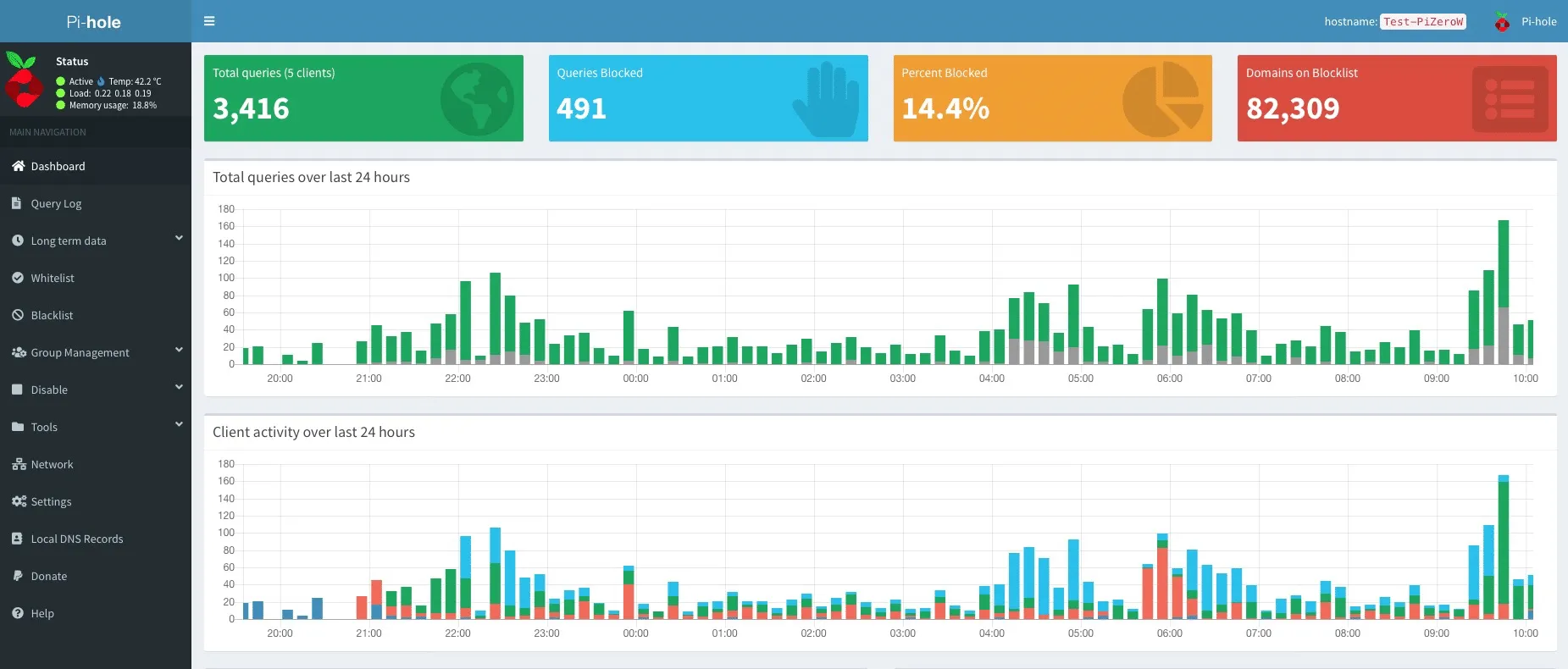
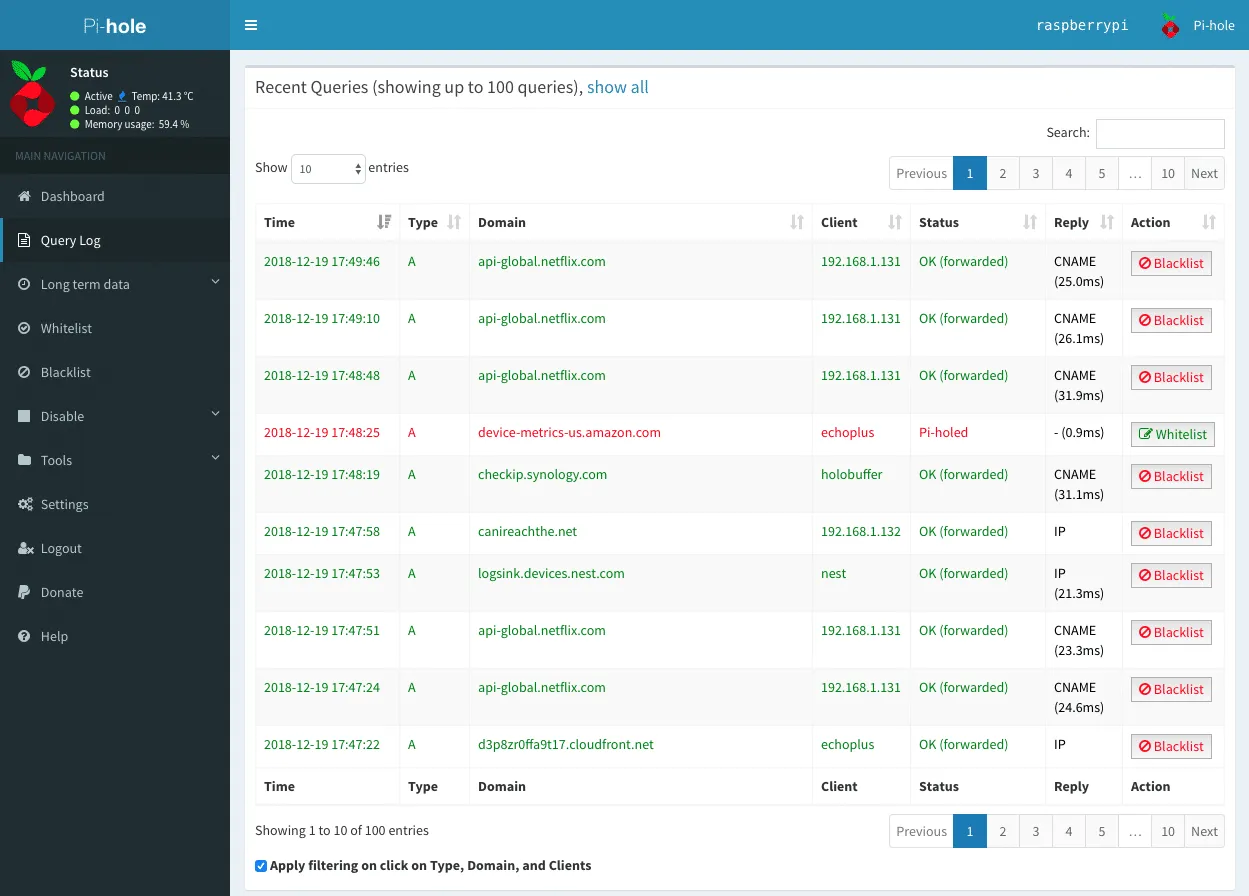
- Query Logging and Insights: The web interface provides a wealth of information. See how many ads are being blocked, which domains are the most intrusive, and even identify devices on your network that are generating the most ad requests.
- Parental Controls: Concerned about your kids encountering inappropriate content online? Pi-hole can help! Block entire websites or specific domains to create a safer browsing environment for your family.
- Gravity Database (
pihole -g): Gravity retrieves and combines your subscribed domain lists into the SQLite domain database at/etc/pihole/gravity.db. What it blocks depends on those lists and your allow/deny rules; the number of entries alone does not measure protection or accuracy. - Zero-Client Smart TV & Mobile Ad Blocking (LAN + WireGuard VPN): On your home Wi-Fi, devices that accept your DHCP-provided DNS settings can use Pi-hole without a separate ad-blocker installation. Furthermore, by pairing Pi-hole with PiVPN (WireGuard) or Tailscale on the same Raspberry Pi, you can route your smartphone's cellular DNS queries through your home Pi-hole while away from home, if the VPN and client DNS configuration support it. Pi-hole itself is not the VPN server, and DNS filtering does not guarantee an ad-free experience.
- Expandable Functionality: You can add subscribed domain lists and tailor allow/deny rules to your household. Third-party integrations have their own requirements; Pi-hole does not automatically supply a search engine or a complete threat-alert service.
By leveraging these features, Pi-hole transforms your Raspberry Pi into a useful network DNS filter, giving you more control over your online experience.
Who Can Benefit from Pi-hole?
Pi-hole is a great solution for anyone who wants to:
- Filter listed domains for compatible clients: Computers, phones, TVs and consoles can benefit when they actually use Pi-hole for DNS. Same-domain adverts and alternative resolvers remain limitations.
- Improve browsing speed: Without ads to load, webpages render faster, giving you a smoother browsing experience.
- Protect your privacy: Pi-hole helps prevent ad trackers from following your online activity.
- Create a safer browsing environment for children: Blocking malicious ads can protect your kids from inappropriate content.
Pros and Cons of Pi-hole
Pros
- Free and open-source
- Filters listed domains for clients using its DNS service
- Improves browsing speed
- Enhances privacy
- Easy to use web interface
- Wide range of customization options
Cons
- Requires a supported host; a Raspberry Pi is one option
- Initial setup might seem daunting for non-technical users
- May block some legitimate websites (easily whitelisted)
- Doesn't block video ads embedded within content
Common Pitfalls and FAQs
Q: Will Pi-hole break any websites?
A: In rare cases, Pi-hole might block a legitimate website unintentionally. You can whitelist such websites in the web interface.
Q: Does Pi-hole slow down my internet?
A: Blocking unwanted requests can reduce some page-loading work. Slow upstream DNS, a failing host or a poor network connection can also delay lookups, so compare DNS behavior separately from download bandwidth.
Q: Is Pi-hole difficult to maintain?
A: Check project release notes and supported OS updates, keep a configuration backup and plan DNS availability during maintenance. A DNS service your household depends on still needs attention.
Q: Can I use Pi-hole without a Raspberry Pi?
A: Yes, Pi-hole can be installed on other devices running compatible operating systems. However, using a Raspberry Pi is a convenient and cost-effective way to get started.
With Pi-hole, you can take control of your online experience and reduce requests to unwanted domains for clients using its DNS service. So, grab your Raspberry Pi, follow these steps, and say goodbye to those pesky ads!
For more information, or to donate to this amazing project, visit the Official Pi-hole project website.
Optional: use Unbound for local recursive DNS
Pi-hole normally forwards permitted queries to a configured upstream resolver. Unbound is an optional local recursive resolver that can instead obtain answers through the DNS hierarchy and validate DNSSEC signatures. This reduces dependence on one public recursive provider, but it is not zero-third-party privacy: authoritative servers and the network carrying unencrypted DNS still have visibility. DNSSEC validates signed DNS data; it does not encrypt DNS traffic or prove that a website is trustworthy.
Installing the Unbound package alone does not configure the port, forwarding path or validation. Follow the complete official Unbound guide, including network reachability, the local 5335 listener, validation tests and Pi-hole’s 127.0.0.1#5335 upstream setting. Caching can make repeated lookups faster, but a universal sub-millisecond result is not guaranteed.
Understand filtering limits and DNS bypasses
DNS filtering cannot distinguish an advert from a wanted video when both require the same hostname. Blocking the shared domain may break playback instead. A browser content filter operates at a different layer and can complement domain filtering where the browser supports it. Do not expect Pi-hole to remove every in-stream advert, page placeholder or sponsored search result.
Browser Secure DNS, a device’s hardcoded resolver or a VPN’s own DNS settings can bypass the advertised LAN resolver. IPv6 can advertise another resolver independently of IPv4 DHCP. Investigate the client’s actual settings before adding increasingly aggressive lists. Enforcing DNS at a router is a separate network policy and needs to account for encrypted DNS and the applications it might break.
Verify the installation before changing the whole network
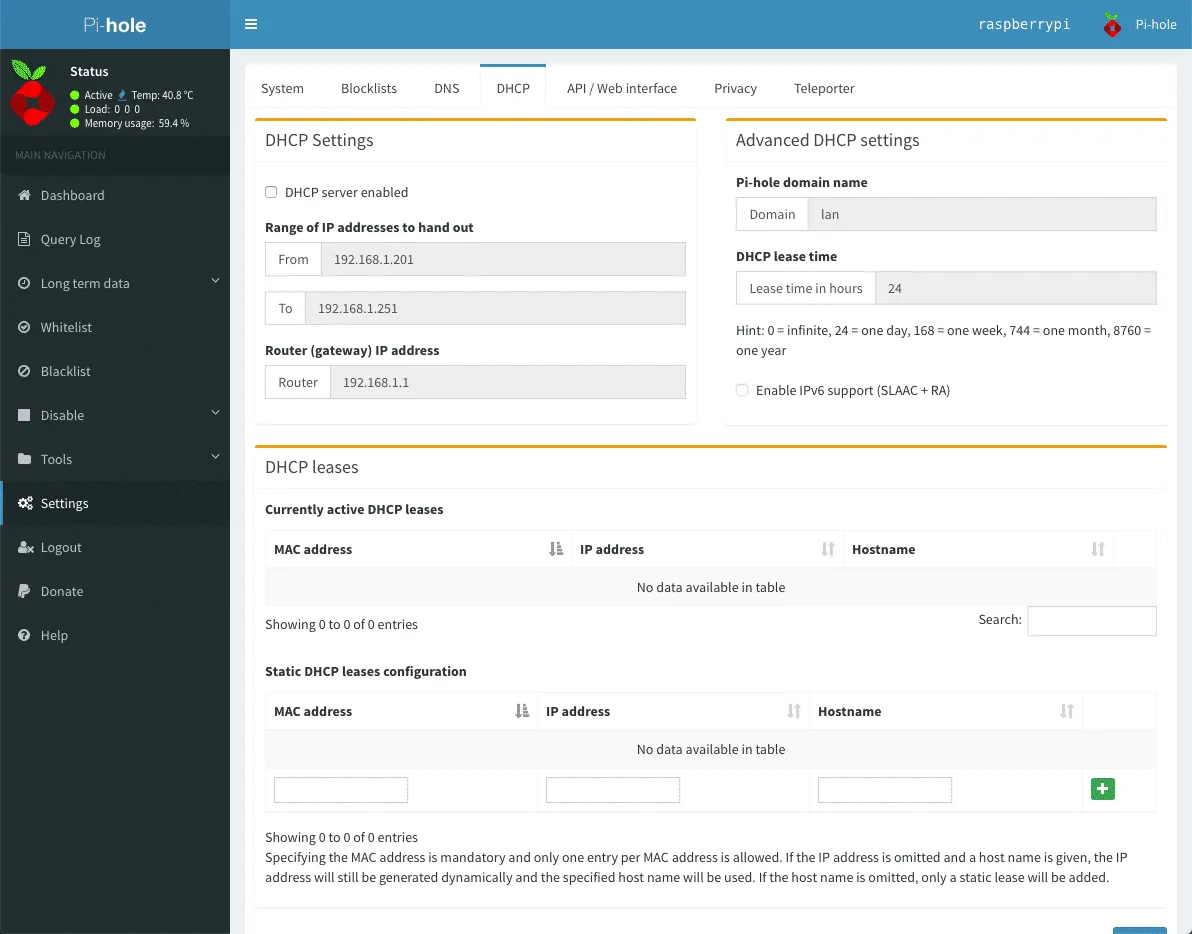
Give the Pi-hole host a stable address, such as a DHCP reservation. Test one client first, then confirm its lookups appear in the query log and that everyday services still work. Renew DHCP leases or reconnect clients after changing the advertised DNS address. If a router cannot advertise custom DNS, Pi-hole’s optional DHCP server is an alternative; disable the router’s DHCP service before enabling another server for the same LAN.
A public resolver entered as a “secondary DNS” can allow clients to bypass filtering even while Pi-hole is healthy. Two independently maintained Pi-hole instances can offer filtered redundancy, but their configuration and availability still need checking. Keep the previous router settings so you can restore ordinary resolution if the host goes offline.
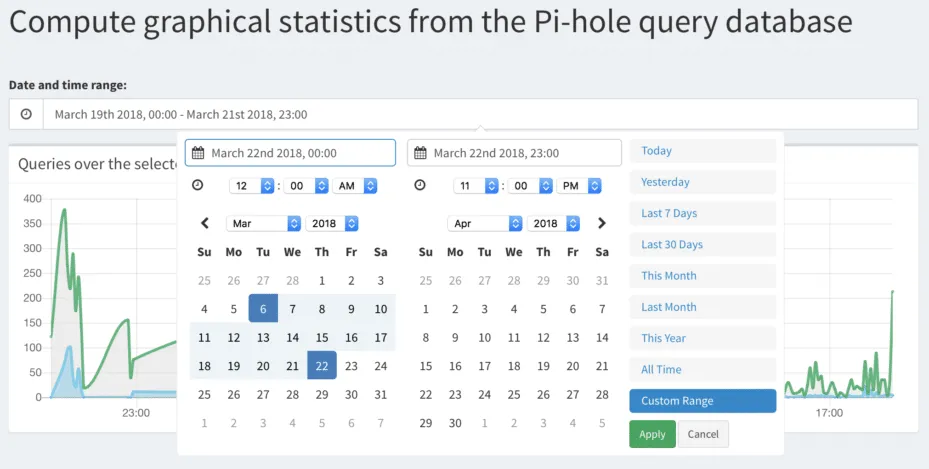
The preserved screenshots show an older Pi-hole interface, including its former whitelist/blacklist wording. They illustrate the dashboard, query log and DHCP concepts; current versions have different menus and an integrated FTL web server. Check the installer’s displayed address if the normal web ports are already occupied.
For a broken service, reproduce the problem, inspect the relevant blocked domain and allow only what is needed. Query logs can reveal household activity, so choose an appropriate privacy level and limit administrator access. Keep DNS and the admin interface accessible only through your intended LAN or private access path, rather than exposing an open resolver to the internet.