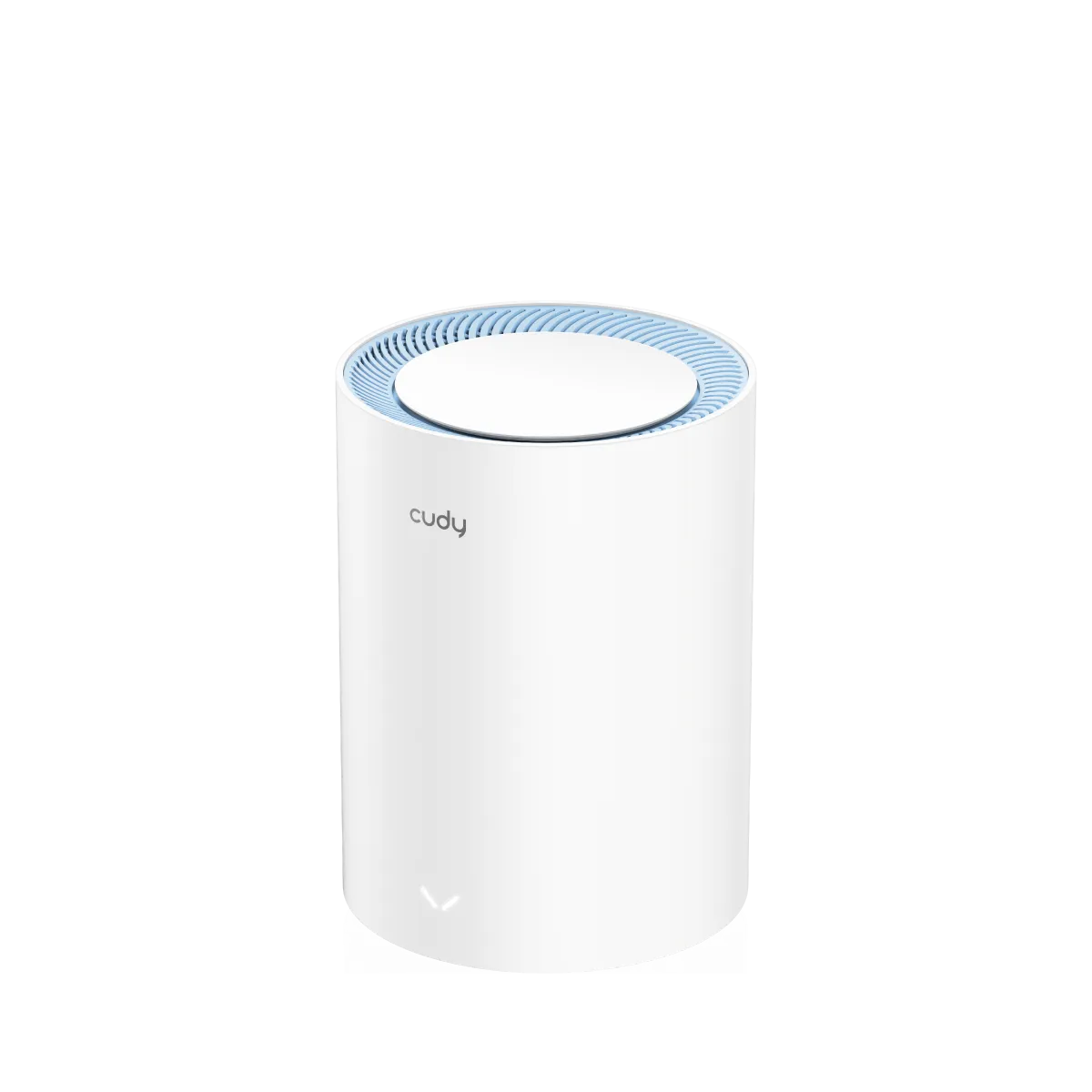
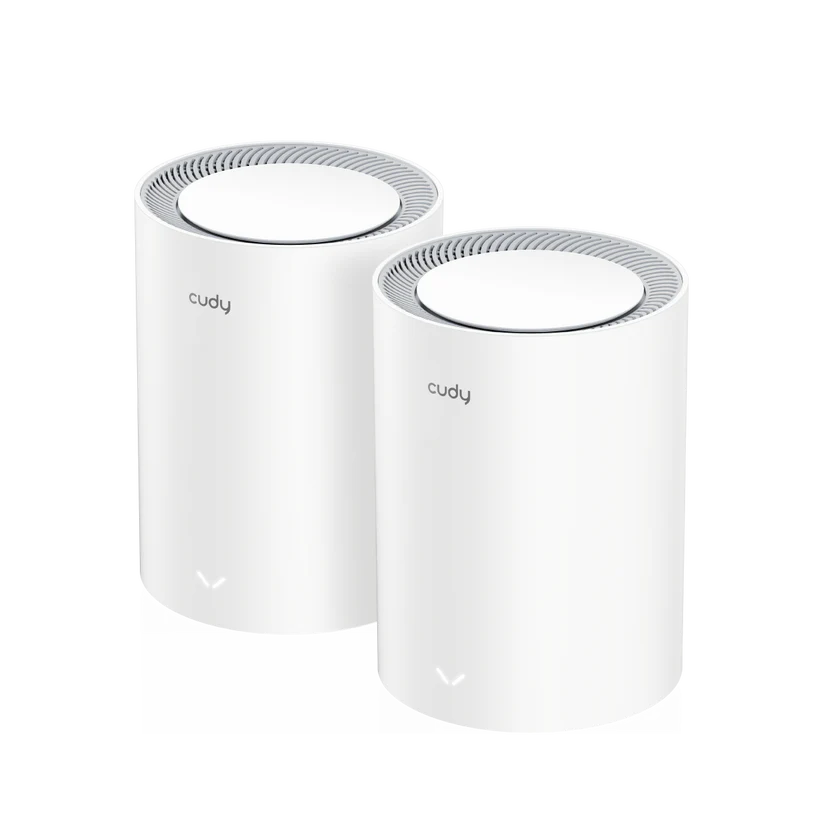
Cudy's move into Wi-Fi 7 mesh networking looked promising when the M11000 was announced: a multi-node system with faster radios and multi-gigabit wired connections could appeal to existing Cudy users as well as households starting from scratch. This is a guide to the published M11000 1.0 specification and its practical implications. It is not a hands-on speed or power-consumption test.
Our enthusiasm for the idea comes with familiar buying questions. Will your devices use the new wireless features? Where can the nodes communicate reliably? And is the wired path to your modem or storage fast enough to justify an upgrade? A large number on the box does not answer those questions by itself.
Understanding Mesh Wi-Fi
A mesh system uses several coordinated nodes to cover areas a single router struggles to reach. One node usually connects to your internet equipment, while additional nodes connect through wireless backhaul or Ethernet. A shared network name makes management convenient, but the connection between nodes is just as important as the signal between a phone and its nearest node.
Place a wireless satellite where it still receives a useful signal from the network, rather than in the middle of an existing dead zone. A phone can show a strong connection to a nearby satellite while that satellite has a poor upstream link. Start with the smallest pack that fits the layout and add nodes only where a coverage gap remains; unnecessary overlapping radios can also consume airtime.
Published M11000 1.0 Specifications
The official M11000 1.0 page lists the following. These are manufacturer ratings, not measured application throughput.
| Item | M11000 1.0 |
|---|---|
| Wireless class | Tri-band Wi-Fi 7, BE11000 |
| 6 GHz / 2.4 GHz rates | 5765 / 688 Mbps |
| 5 GHz rate | 2882 Mbps at 160 MHz; 4324 Mbps in Cudy's 240 MHz mode |
| Spatial streams | Two per band |
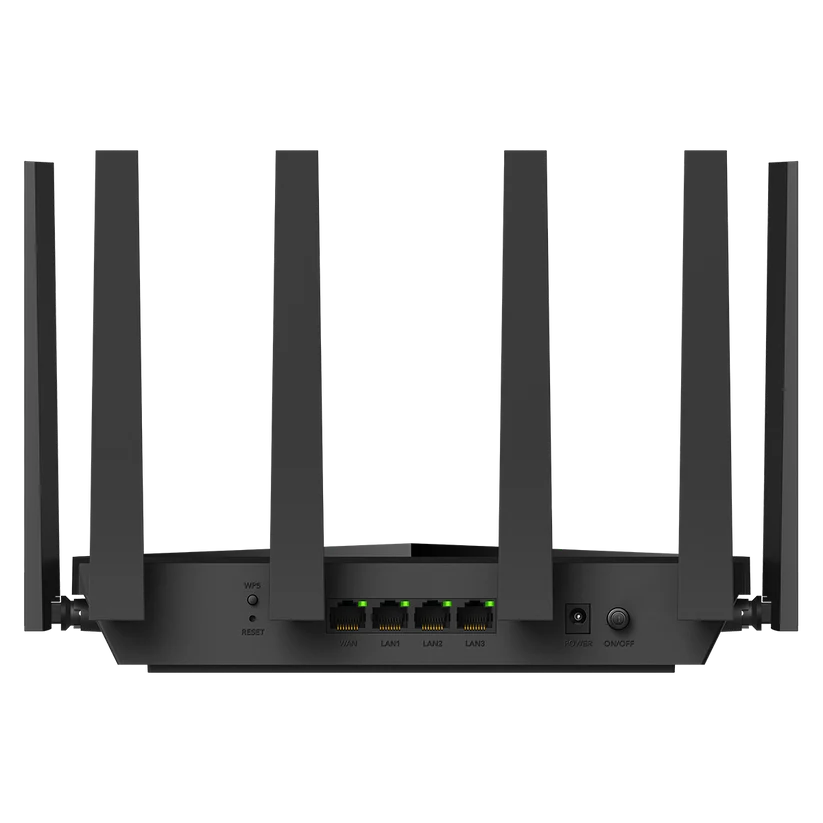
| Ethernet | Four 2.5GbE sockets: one WAN, three LAN |
| Processor and memory | 1.5 GHz quad-core; 512 MB DDR4 RAM; 128 MB NAND flash |
The distinction between the two 5 GHz ratings matters. Do not assume an ordinary 160 MHz client can achieve the advertised 240 MHz figure. Check the client, firmware and locally permitted channels. Likewise, 6 GHz and the widest available channel setting depend on the version sold in your country and compatible client support.
What Wi-Fi 7 Can Change
Wi-Fi Alliance's certification announcement describes wider 320 MHz channels, Multi-Link Operation and 4K-QAM as major Wi-Fi 7 features. A wider channel can carry more data under suitable conditions, while MLO lets compatible devices use multiple links. Neither feature upgrades an older client radio or guarantees a particular download rate.
4K-QAM carries 12 bits per symbol instead of the 10 of 1024-QAM, a 20% increase at that modulation level. Achieving a demanding modulation depends on signal quality. It does not mean every transfer becomes 20% faster through several walls. MLO can improve reliability and latency as well as throughput, but its actual behaviour depends on both ends of the link. It does not eliminate internet congestion or bufferbloat elsewhere in the path. See our MLO explanation for the distinction.
Wired Ports and Backhaul Planning
Think through the port budget before buying switches or arranging a NAS connection. On the main node, an internet connection occupies the WAN socket. A wired satellite connection then uses a LAN socket, leaving two for other wired equipment in that simple layout. With multiple downstream nodes or several computers, include a suitably fast switch in your plan.
An end-to-end transfer cannot outrun its slowest relevant link. A Gigabit switch in the path to a NAS still limits that wired segment even if the Wi-Fi link negotiates at several gigabits. Wireless backhaul also shares radio resources with other traffic; Ethernet can remove that particular wireless hop, but it cannot remove all interference or protocol overhead.
M11000 and WR11000 Photos
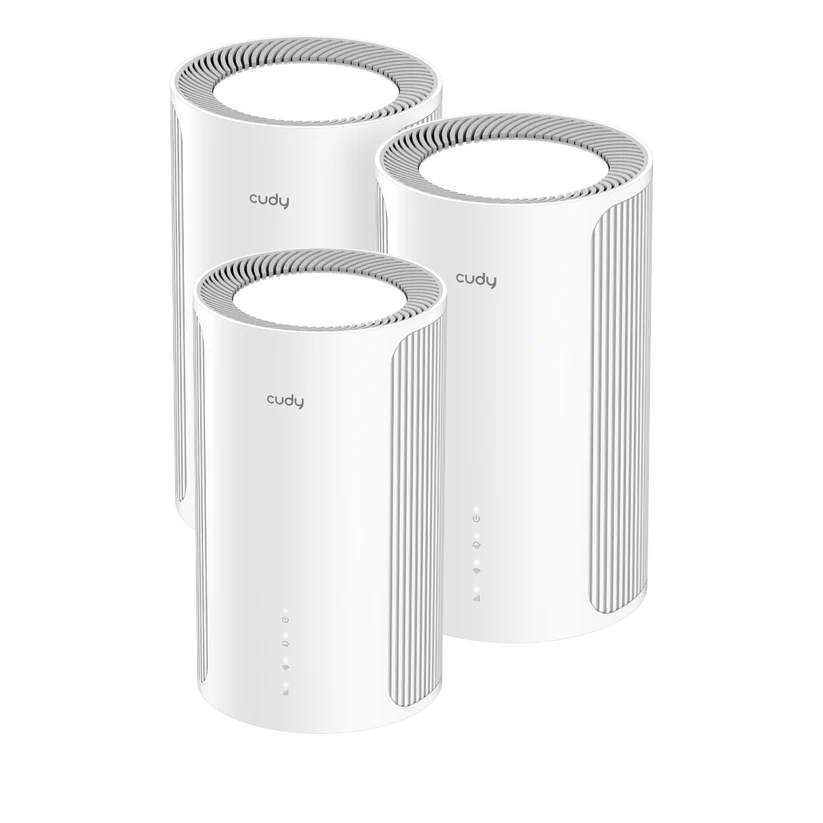
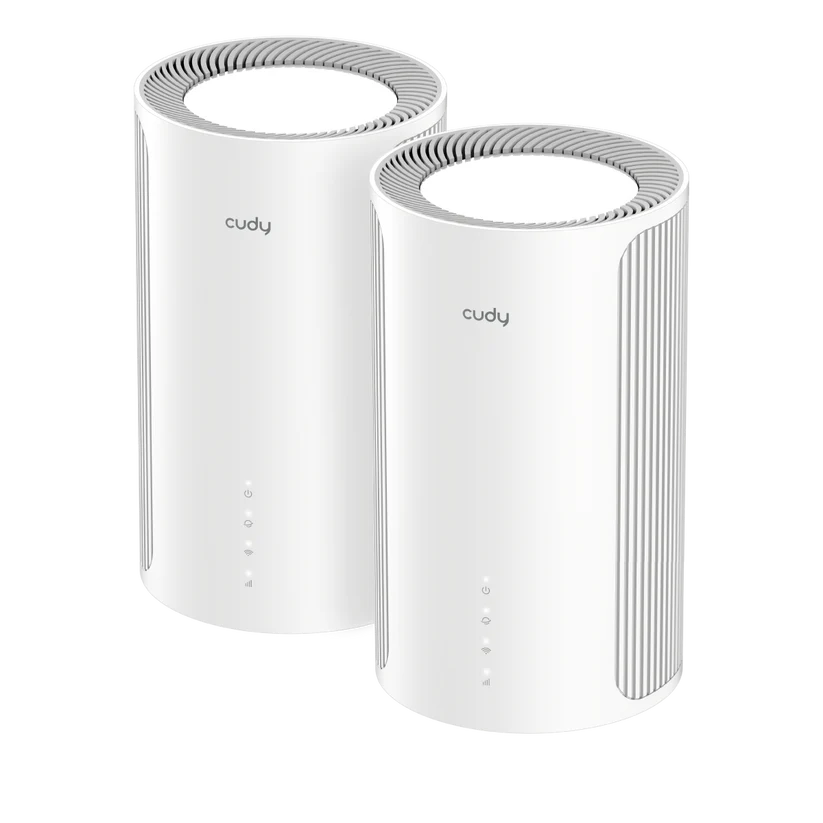
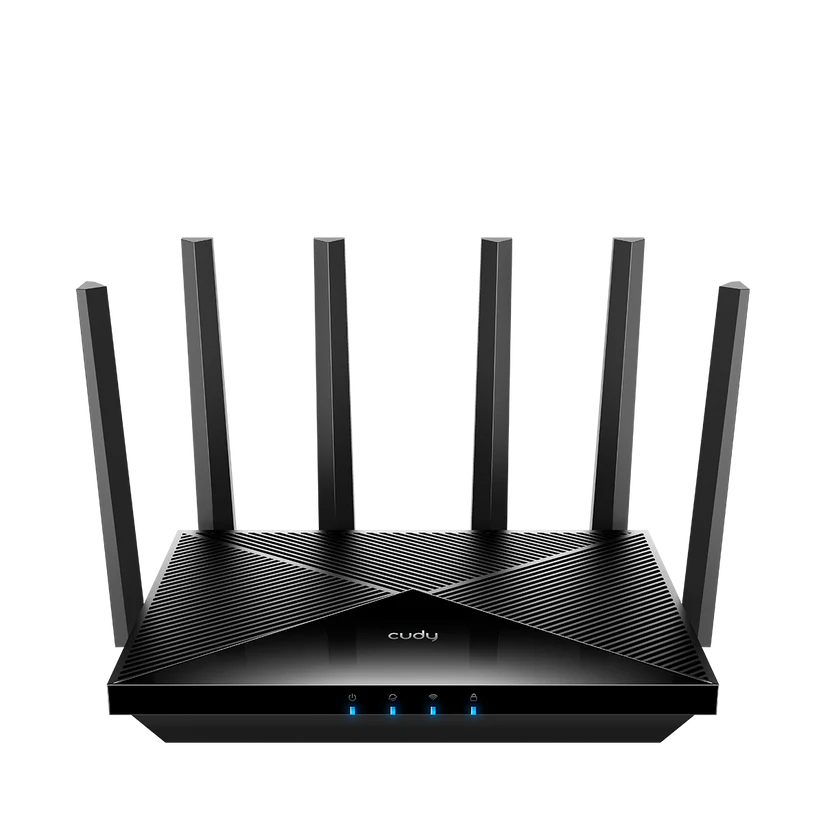
The cylindrical nodes pictured above are the M11000 mesh units. The following photos show the separate WR11000 router with external antennas. They illustrate a different Cudy hardware format, rather than showing the rear of an M11000 or proving identical firmware capabilities.
Firmware Features and Operating Mode
Cudy lists router and access-point modes, wired/wireless mesh, WireGuard client/server support and DNS-over-TLS. Use those documented functions as the starting point. A firmware feature list is not a promise of Gigabit VPN speed or proof that a particular community OpenWrt build can safely be installed on this model.
Choose which device will route the network. If the existing ISP router continues to provide DHCP and firewalling, an access-point setup can avoid a second routing layer. Cudy's AP guide explains that the management address is then assigned by the upstream router; the default address may no longer work. Record that address or find it in the upstream client list. Follow the current model's setup wizard rather than assuming menu paths from another Cudy product.
The IPTV/VLAN functions in the specification should not be read as a guarantee of arbitrary VLAN-per-SSID segmentation. If your homelab depends on that design, confirm the exact firmware options before purchasing. A guest network name alone is also not proof that guests cannot reach private services: check local access using a device you own in the selected operating mode.
Privacy, Security and Updates
Encrypted DNS protects a configured resolver connection; it does not guarantee every app uses that resolver, encrypt every local query or hide all internet activity. Keep DNS policy and VPN routing decisions separate, and test them with an intended client. For Wi-Fi authentication, choose settings compatible with your household while understanding the differences in WPA2 and WPA3.
Check for firmware updates for M11000 1.0 specifically, save a configuration backup before substantial changes and keep a way to reach the administration page. Local management and optional cloud control have different account and access requirements. Enable only the remote access you need, rather than treating an app's convenience as a complete privacy guarantee.
Coverage and a Useful Home Check
Coverage-area and connected-device figures are planning references, not a guarantee of full speed everywhere or a workload test of hundreds of active users. Brick, concrete, floor slabs, cupboards and nearby networks affect placement. Compare the exact pack size and the conditions attached to the vendor's reference area with your own layout.
To assess a purchase, record the client model, room, node, backhaul and test endpoint. Try an ordinary wired baseline first, then the same device near the main node and in the rooms you actually use. Separate an internet speed test from a local transfer to wired storage. Walk through the house during a call and check recovery after a node restart. That produces evidence relevant to your home without assuming someone else's ideal-distance result will apply.
Verdict and Buying Considerations
The M11000 is an interesting Wi-Fi 7 upgrade for a household that wants coordinated coverage and can use multi-gigabit connections. We are positive about that combination, particularly for growing smart homes, home offices and demanding local transfers. Its value still depends on the local price, supported firmware, client mix and placement possibilities.
If your devices are older and your current coverage is already satisfactory, a new Wi-Fi generation alone is a weak reason to spend money. If weak inter-floor backhaul is the problem, improving placement or adding Ethernet may matter more than the advertised aggregate rate. Confirm the exact hardware revision and local availability, then buy for a problem you can identify.