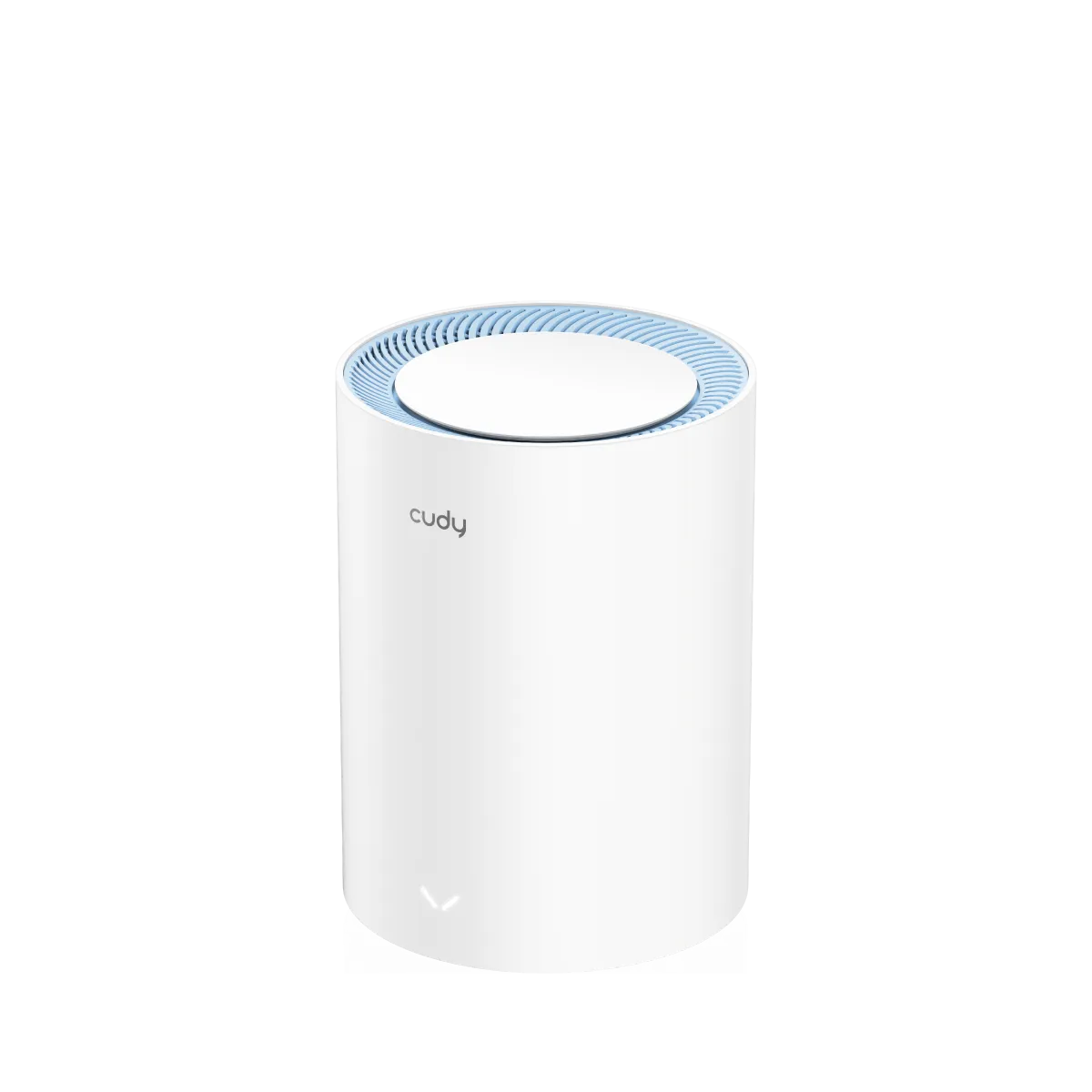
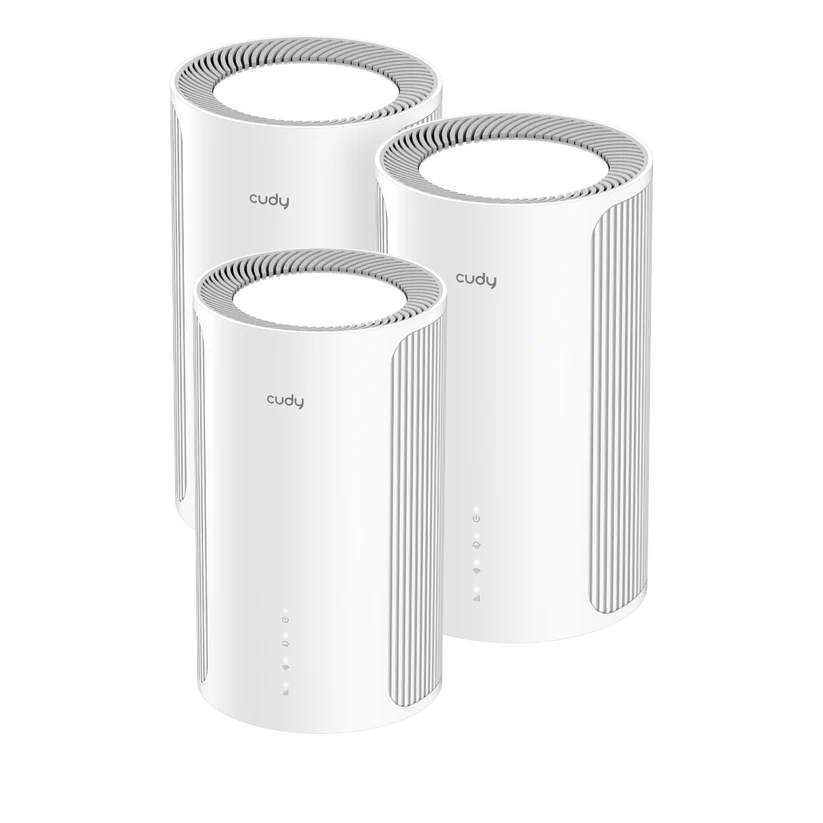
The Cudy M3600 brings Wi-Fi 7 to a dual-band mesh system aimed at homes with Gigabit Internet. It is an interesting option for extending coverage and gradually upgrading compatible devices, but its BE3600 label needs some explanation before you buy. The wireless rating, Ethernet ports and position of each node affect different parts of the connection.
This article began as a preview before the M3600 was released, rather than a hands-on review. Cudy now publishes specifications for the M3600 1.0. The discussion below uses those documented capabilities and practical planning advice; it does not report measurements from a tested unit.
Understanding Mesh Wi-Fi
Think of a mesh as several connected points spreading coverage through a home. One unit connects the network to your Internet connection; the others extend wireless access. The connection between those units is the backhaul. A phone connecting to a nearby satellite still needs a good route through that backhaul to reach the Internet or a server connected elsewhere.
A single network name makes moving between rooms convenient, but it does not force every device to use the nearest node. Clients influence roaming decisions. A phone can hold onto a weaker connection, and a poorly placed satellite can show a strong local signal while struggling to communicate with the main unit. More nodes therefore do not automatically produce better performance.
What BE3600 Means on the M3600
Cudy lists two spatial streams on each of two bands: up to 2882 Mbps at 5 GHz and 688 Mbps at 2.4 GHz. Adding them gives 3570 Mbps, rounded into the BE3600 product class. These are maximum radio link rates, not an Internet speed test or a promise that one ordinary client transfers files at that total.
The M3600 has no 6 GHz radio and supports channel widths up to 160 MHz. Wi-Fi 7 does not require every product to include 6 GHz or 320 MHz channels. Older clients can connect, but they retain their own limits. Check the capabilities of the laptop or phone you actually use before expecting an upgrade from its previous connection.
MLO, Modulation and Interference
Multi-Link Operation can use more than one link between compatible devices. Some implementations alternate between links, while others support parallel traffic. The client, its drivers and the access point must support the negotiated mode. MLO can improve resilience and responsiveness, but it cannot guarantee zero packet loss or cure an overloaded Internet connection.
4096-QAM encodes 12 bits per symbol instead of the 10 used by 1024-QAM: a 20% increase at otherwise equivalent conditions. Maintaining that modulation requires a strong, clean signal. Across walls, the radios can fall back to lower rates. Cudy also lists puncturing and multiple resource units, which help use available spectrum; these are efficiency features rather than extra Ethernet bandwidth.
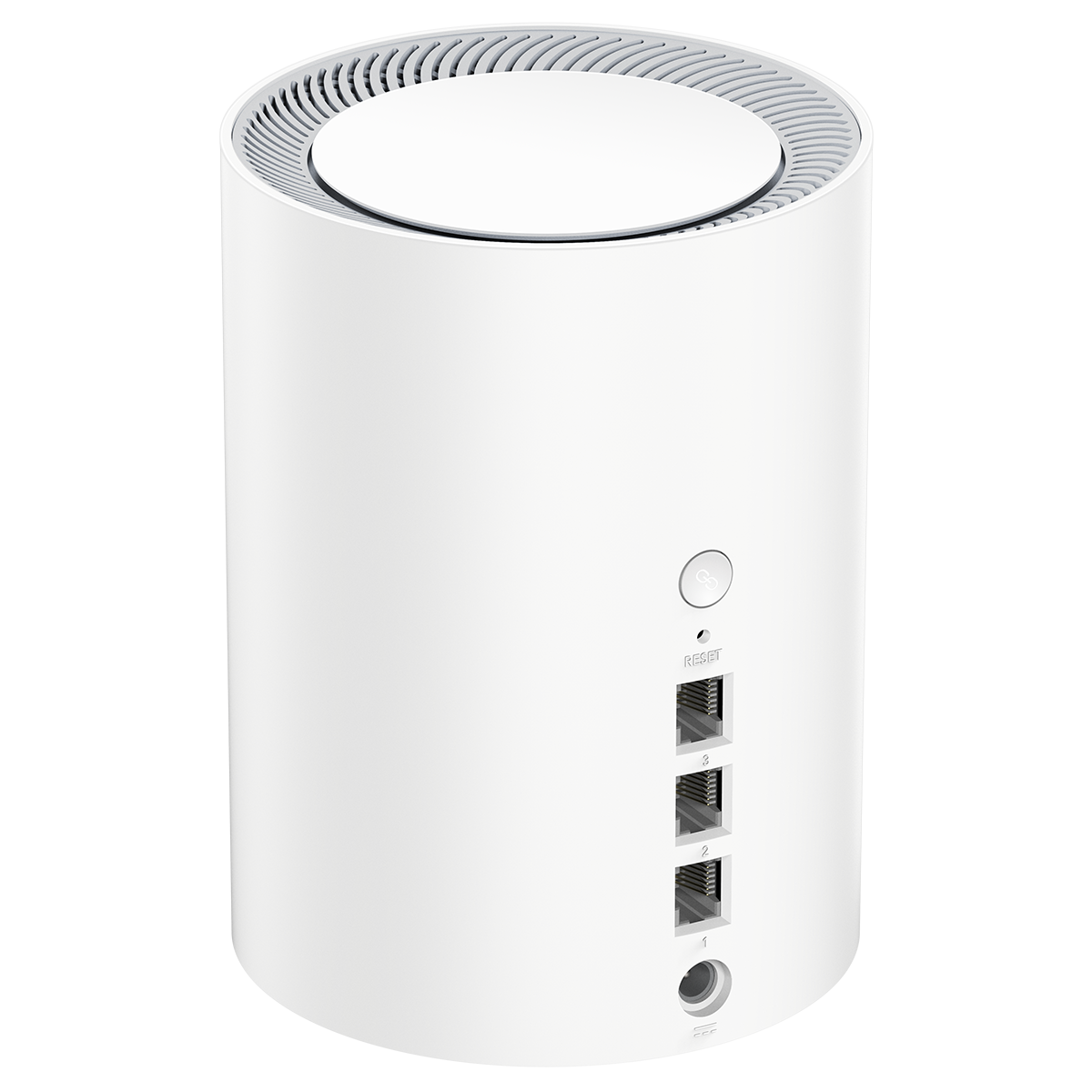
Verified M3600 1.0 Specifications
| Item | Manufacturer specification |
|---|---|
| Bands | 2.4 GHz and 5 GHz, Wi-Fi 7 |
| Ethernet | Three Gigabit ports per unit: one WAN, two LAN |
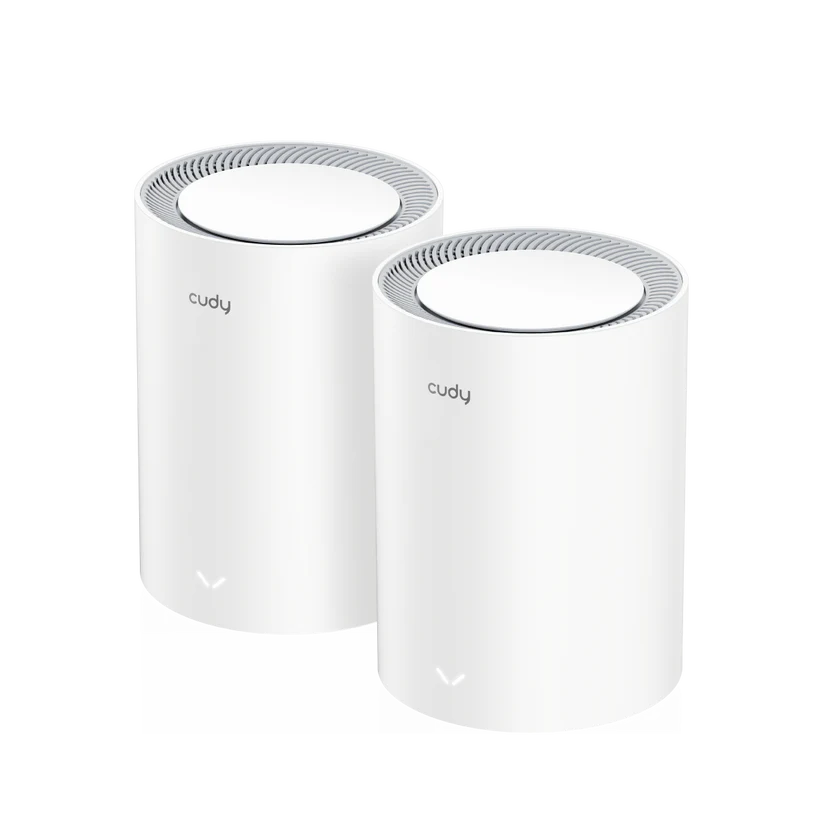
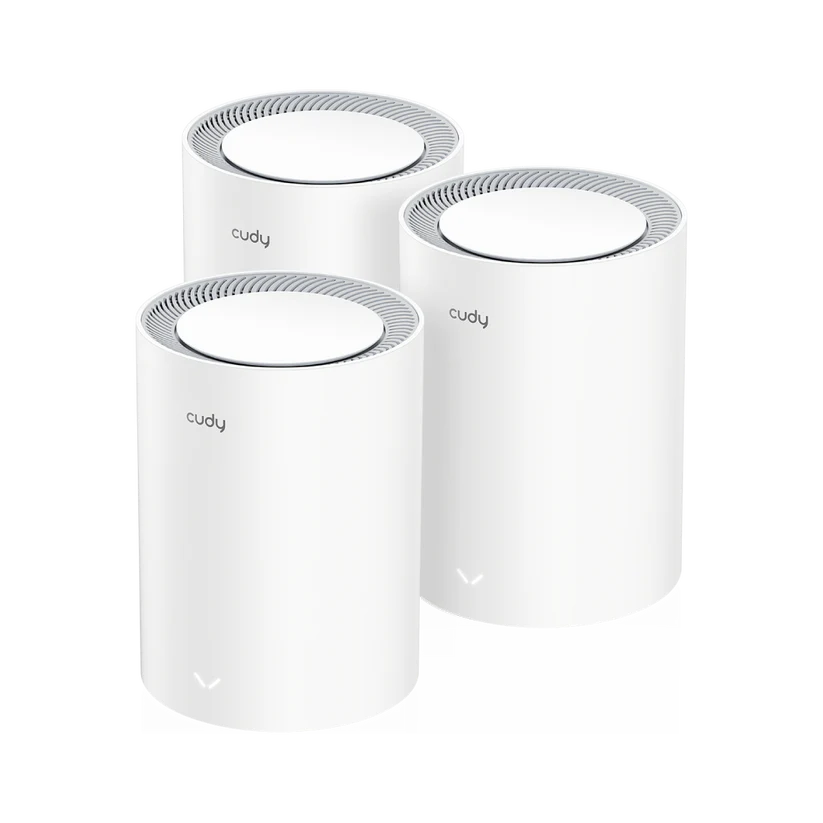
| Indoor coverage reference | Two-pack: 200 m²; three-pack: 270 m², under Cudy's stated placement conditions |
| Recommended client upper limit | 200; capacity claim, not simultaneous full-speed testing |
| Backhaul | Wireless and wired |
| Security | WPA/WPA2/WPA3; see our WPA2 versus WPA3 guide |
| Power | 12 V, 1 A input; listed maximum consumption 9 W |
Check the model and hardware revision on the seller's listing and box. Coverage figures also need context: brickwork, concrete floors and neighbouring networks can change how many usable rooms a pack reaches.
Plan the Backhaul and Ports First
For a wired computer or NAS, a Gigabit port is a Gigabit link even when the wireless class is BE3600. Protocol overhead reduces useful transfer speed below the raw line rate. A multi-gigabit Internet plan or a high-speed storage network needs suitable ports along the entire path; buying this kit alone will not remove that bottleneck.
Ethernet backhaul is attractive when you already have cabling because it keeps node-to-node traffic off the wireless link. With wireless backhaul, place the satellite somewhere it still receives a healthy connection from the main unit, then check the target room. Starting in the dead zone itself leaves the satellite with little useful signal to extend.
Count connections before ordering. The main node needs an uplink, and a wired satellite needs a backhaul connection. Desktops, televisions and other equipment may require an additional switch. Draw the route from the Internet connection to each room and account for the ports it consumes rather than assuming all three remain available for local devices.
Management, VPN and Security
Cudy documents local browser and app management, cloud app control, WireGuard and OpenVPN client/server functions, DNS over TLS, guest networks, rate limits and configuration backup. Feature availability can depend on firmware and operating mode. IPTV VLAN settings are not evidence that the mesh offers arbitrary SSID-to-VLAN mapping for a managed homelab.
VPN encryption adds work and can reduce throughput. Compare the relevant protocol's documented figures and your provider's requirements before routing every device through it. Encrypted DNS protects the resolver connection; it does not hide all browsing activity, encrypt every application or provide universal malware protection. Avoid confusing a useful privacy option with a complete security solution.
Use a unique administration password and keep firmware appropriate to the exact hardware revision. Review whether remote management is needed, separate visitors from trusted devices where the available controls permit it, and retain a configuration backup before major changes. Confirm that essential devices still work after changing security settings, especially older smart-home equipment.
Deployment and Troubleshooting
Cudy says units sold together are pre-paired. Set up the first unit with the documented app or local interface, then power the others between that unit and the rooms needing coverage. If another router already manages the home network, consider access-point mode to avoid accidentally adding another routing layer. Check which features remain available in that mode.
For a fair comparison, test the same device in the same places before and after installation. Record the connected node, band and whether backhaul is wired. Test a local transfer separately from an Internet speed test: a slow online server should not be mistaken for weak Wi-Fi. Also check video calls while another device downloads, since responsiveness can matter more than a brief peak speed.
When results disappoint, change one factor at a time. Verify the Ethernet link speed, move the satellite closer, test near the main unit and compare with a wired connection. These checks help separate a coverage problem from a cable, client or ISP limitation. Leave units ventilated and use the specified power supplies; no measured idle consumption or thermal results are claimed here.
Buying Perspective
The M3600 remains a promising choice for improving coverage while moving toward compatible Wi-Fi 7 devices. Its appeal is strongest when Gigabit ports suit your network and you value the documented management options. A reliable wired path to a work desk can be more useful than a larger wireless number on the box.
Compare the full pack price, local warranty, firmware support and return conditions with alternatives. If your current devices are Wi-Fi 6 and the main problem is a thick wall, placement or cabling may make the biggest difference. For 6 GHz access or multi-gigabit wired transfers, choose hardware that explicitly supplies those capabilities. Consult the official M3600 1.0 specifications before purchase.