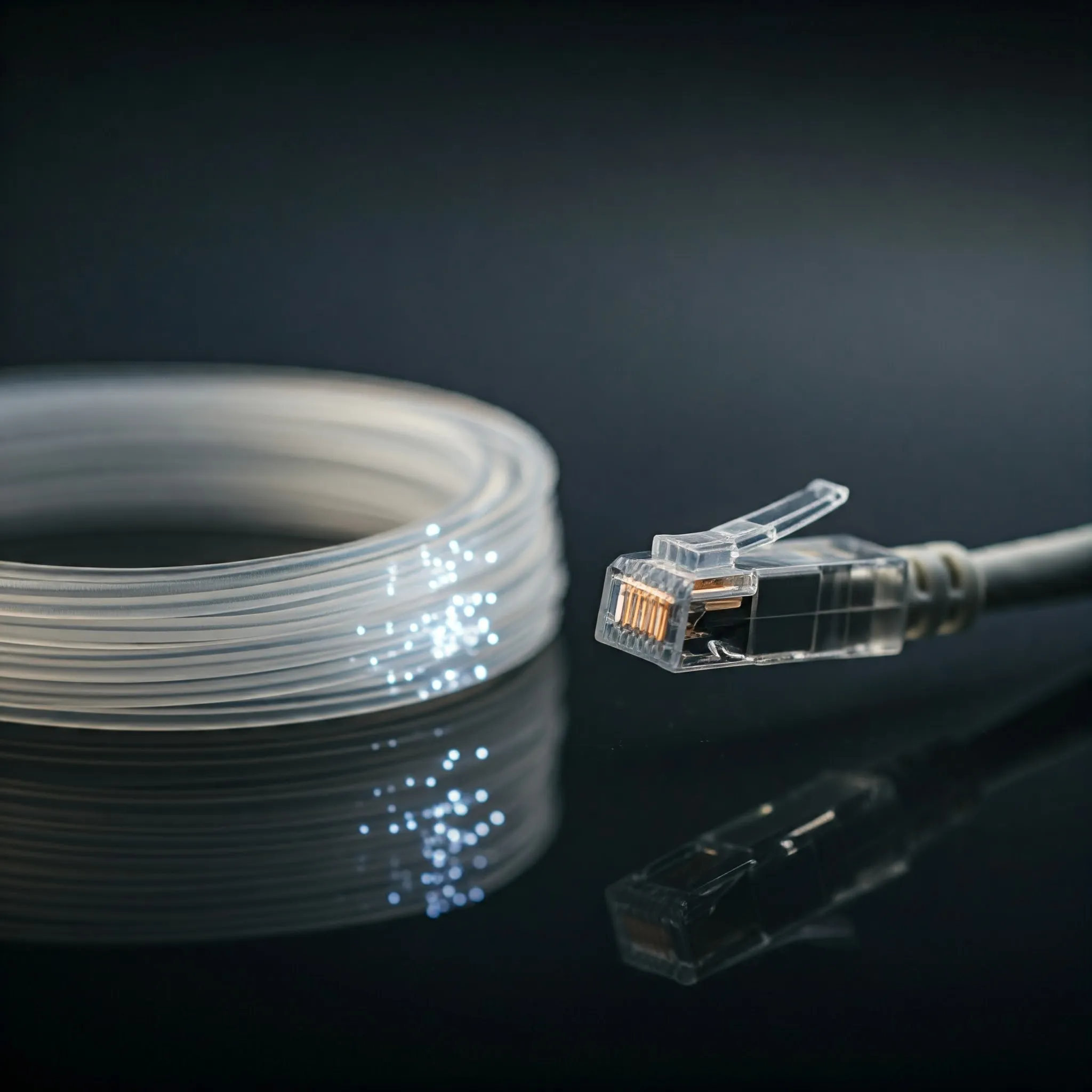
Choosing an Ethernet upgrade can be confusing: 1Gbps, 2.5Gbps, 5Gbps or 10Gbps, with Cat5e, Cat6 and Cat6a cables beside them. The useful question is which part of your network limits a task you actually perform. A faster connection can shorten large local transfers, but a new cable label alone cannot increase a computer port's speed or your internet subscription.
Speed showdown: 1Gbps, 2.5Gbps, 5Gbps and 10Gbps
- 1Gbps: A capable baseline for browsing, calls, ordinary streaming and gaming. It can still become the bottleneck when copying large files between a fast workstation and a NAS.
- 2.5Gbps: More local transfer capacity without necessarily replacing existing Cat5e. Both endpoints and every relevant switch port must support the rate.
- 5Gbps: An intermediate option for compatible computers, access points and storage. Check supported port speeds explicitly; a product advertised as 10GbE does not automatically promise every intermediate rate.
- 10Gbps: Useful when frequent large transfers, multiple busy clients or fast storage justify it. It introduces more decisions about interfaces, cabling, cooling and switch capacity.
These are link rates, not application benchmarks. A game with modest bandwidth requirements does not automatically gain a lower internet ping from 10GbE. Similarly, one video stream does not establish a need for a multi-gigabit LAN. Measure the task and any congestion before choosing a speed.
Cable categories and realistic reach
Gigabit Ethernet is not categorically impossible on old Cat5. 1000BASE-T was designed around qualified four-pair Category 5 cabling, but old installations need the relevant channel checks. For a new ordinary gigabit purchase, Cat5e or better avoids treating an unknown legacy cable as a guaranteed result.
Cat5e supports 1GbE and is a useful existing-cable option for 2.5GbE. IEEE 802.3bz, approved in 2016, added 2.5GBASE-T and 5GBASE-T. Compatible multi-gigabit equipment can also run 5GbE on suitable installed Cat5e. This does not certify every old wall run: length, termination, bundled cables and the complete channel's performance still matter.
Cat6 supports gigabit and multi-gigabit networking over a compliant 100-metre channel. For 10GBASE-T, its reach is more conditional. Fluke's explanation of TSB-155 identifies up to 37 metres, with 37–55 metres depending on alien crosstalk. Its field experience also shows why length alone is not a pass certificate. Cat6a is the clearer choice when designing a complete 100-metre 10GBASE-T channel.
A channel includes patch leads, connectors and installed cabling, rather than just the cable hidden in a wall. A typical structured layout budgets 90 metres for the permanent link and 10 metres for patching. Different cord constructions and conditions can require a shorter allowance, so check the installed system instead of adding arbitrary extensions.
Match the speed to the complete channel
| Target link | Useful cable starting point | Condition to check |
|---|---|---|
| 1Gbps | Cat5e or better for new work | Up to a compliant 100-metre channel; all four pairs correctly connected |
| 2.5Gbps | Suitable Cat5e or better | Up to 100 metres; compatible ports and a sound complete channel |
| 5Gbps | Suitable Cat5e/Cat6 installations; Cat6a for a new 10GbE-ready design | Qualify the existing channel and check equipment support rather than assuming every old run passes |
| 10Gbps | Cat6a for a 100-metre design | Existing Cat6 requires assessment, particularly around 37–55 metres and bundled runs |
Understand Cat7, Cat8 and conductor claims
Category 7 is a real ISO/IEC category associated with Class F channels, although it was not adopted into the TIA category sequence. Systems can use RJ45-compatible GG45 or TERA connectors. A marketplace label on an ordinary patch cable does not establish that the whole connection meets Class F. For a conventional RJ45 home network, clearly specified Cat6a is often easier to match to a 10GBASE-T requirement.
Category 8 is also real. Its 25/40Gbps channel design has a 30-metre limit, including patching; it is not a 100-metre 40GbE replacement for Cat6a. TIA Category 8 and ISO Category 8.1 use the familiar RJ45 interface, while Category 8.2 belongs to a different connector system. Compatible Category 8 cabling can carry lower Ethernet rates too. Buying it does not make a 1Gbps interface run faster.
Check conductor material, not just the printed category. Copper-clad aluminium, or CCA, is not a compliant substitute for the copper conductors specified for these structured LAN cabling systems. Increased resistance and resistance imbalance are particularly relevant to Power over Ethernet. Use a traceable supplier and check the cable's specifications and appropriate installation rating.
Do not turn that advice into a universal 23/24 AWG rule for every lead. Permanent installation cable and flexible patch cords have different constructions. Standards also accommodate qualified smaller-gauge patch cords with channel-length and power considerations. Choose the correct rated product for the intended use rather than assuming a thick jacket or a high category number proves quality.
What the rate means for file transfers
Divide the decimal bit rate by eight to obtain an ideal byte-rate ceiling. Actual payload transfer is lower because of protocol overhead and the participating systems. These calculations are not measurements of a particular NAS, switch or adapter:
| Link rate | Raw decimal ceiling | Ideal time for a 100GB transfer |
|---|---|---|
| 1Gbps | 125MB/s | 800 seconds: 13 minutes 20 seconds |
| 2.5Gbps | 312.5MB/s | 320 seconds: 5 minutes 20 seconds |
| 5Gbps | 625MB/s | 160 seconds: 2 minutes 40 seconds |
| 10Gbps | 1,250MB/s | 80 seconds: 1 minute 20 seconds |
A disk, USB connection, CPU, encrypted protocol or slow source can keep a transfer well below those ceilings. Many small files are a different workload from one large file. Record whether your application reports MB/s or MiB/s before comparing its display with these decimal figures.
Plan and verify an upgrade
- Map one complete path. For a workstation-to-NAS copy, list the computer interface, cable, switch ports, inter-switch uplink and NAS interface. A 1Gbps link anywhere on that path can limit that transfer even if the router has a faster internet port.
- Check compatibility before buying. Read the supported speeds, driver and operating-system requirements. A USB multi-gigabit adapter needs suitable host bandwidth and drivers. A NAS must explicitly support the chosen adapter or expansion card; a USB socket alone is insufficient.
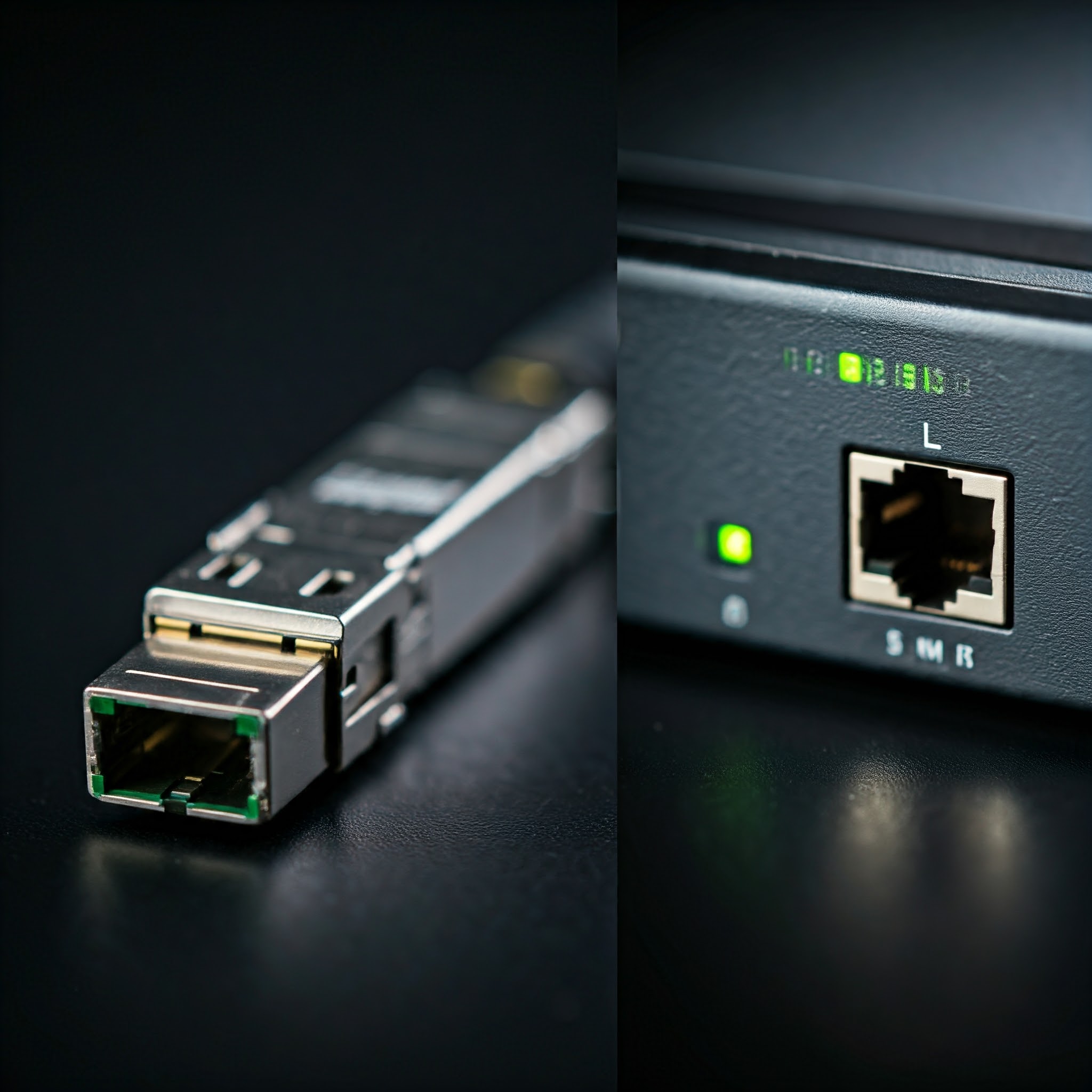
- Choose the connection type. RJ45 10GBASE-T and SFP+ are different interfaces. For nearby compatible SFP+ ports, a supported direct-attach copper cable can be convenient. Check both devices' cable support. RJ45 transceivers also need the switch's approved module, reach, power and cooling allowances; one temperature or power figure does not describe every module.
- Test locally. Confirm the negotiated link rate at both ends, then transfer a sufficiently large test file between the intended devices. Repeat after changing only one cable or port. Watch interface error counters and compare the result with storage limits.
- Check the task again. Measure the same copy or backup before and after, under comparable load. An internet speed test answers a different question and cannot by itself validate a faster local storage path.
For example, a 1Gbps internet plan and a 2.5Gbps workstation-to-NAS path can coexist: local copies may improve while internet downloads remain limited by the subscription. If the NAS storage already runs slower than the old link, upgrading that link alone may offer little benefit. Buy the capacity the measured path can use, while allowing for realistic future needs.
See Cisco's multi-gigabit cabling explanation and Fluke's 10GBASE-T field-testing guidance for the technical basis of the cable distinctions.