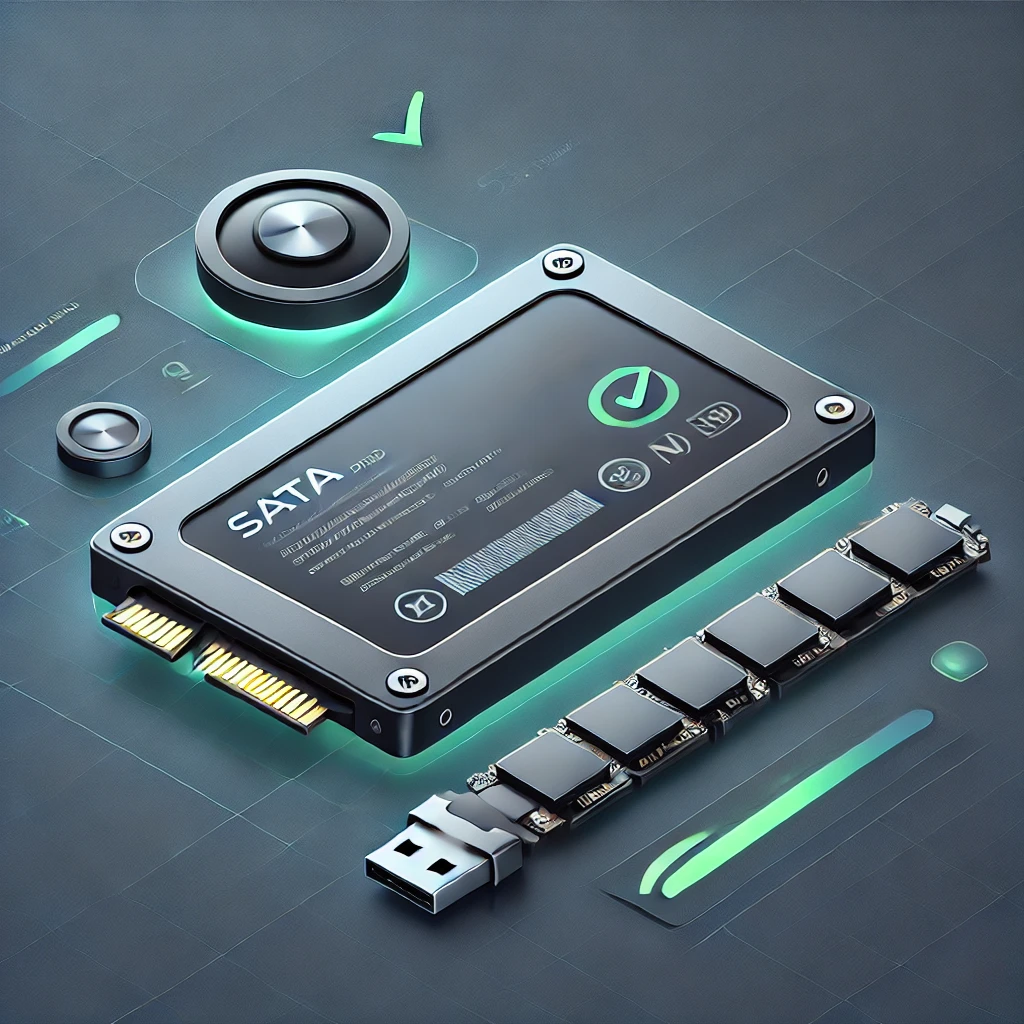
Solid State Drives are a fantastic upgrade when responsive booting, quick file access and storage without moving parts matter. They are useful for everyday PCs, gaming and many server workloads. Like any storage, however, they can fail unexpectedly. Useful maintenance combines sensible capacity planning, health monitoring and backups; no health percentage or routine can guarantee that a drive will keep your files safe.
Our HDD, SSD and NVMe comparison covers the broader differences. Here, the focus is understanding what SSD health indicators mean and deciding what to do when something changes. You do not need to spend every day worrying about ordinary writes, but you should know which drive you have, how it is monitored and where your independent backup lives.
Storage types and why flash wears
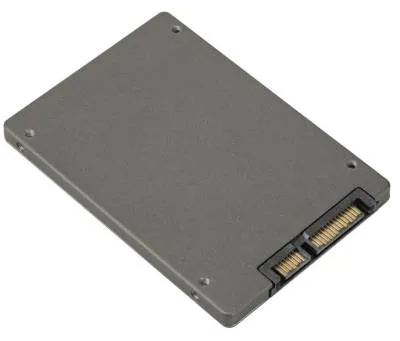
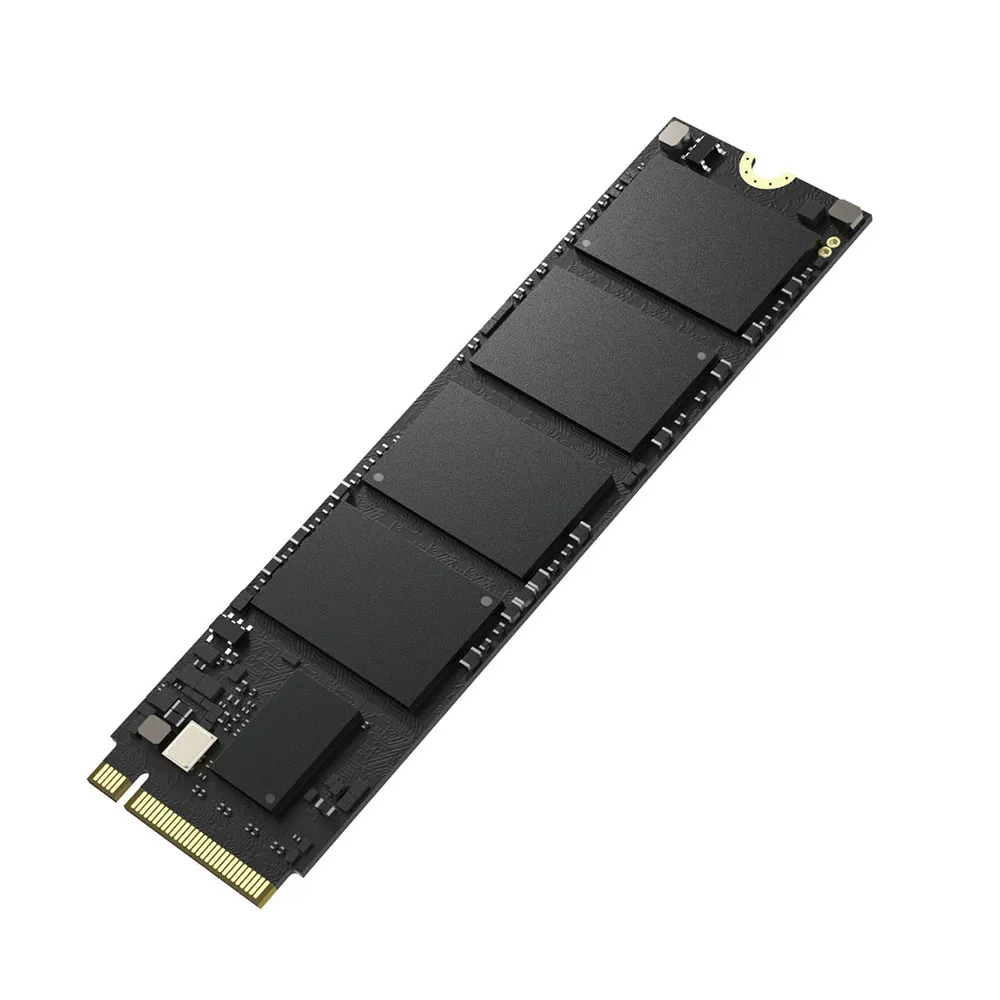
SATA and NVMe describe storage interfaces or protocols, while M.2 describes a physical format. A cased 2.5-inch SATA SSD and an M.2 NVMe module are common examples, but shape alone is not enough to identify every drive. External enclosures introduce another interface and may affect which health information reaches the computer.
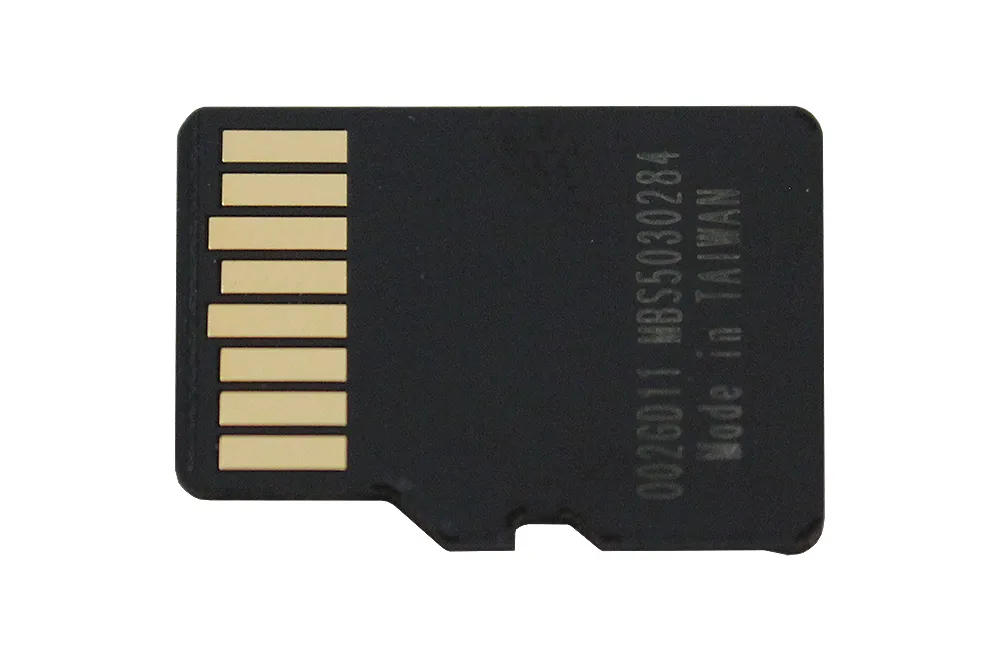
Memory cards also use solid-state storage, although they are normally described as removable flash memory cards rather than PC SSDs. Do not assume they expose the same SMART fields or use the same maintenance tools. Match your checks to the device and its documentation.
NAND flash has a finite program/erase endurance. Controllers use techniques such as wear levelling, error correction and spare capacity to manage it. Wear levelling distributes writes so a small portion of the flash does not bear all the work. Exact endurance depends on the flash, controller, workload and drive design; an SLC/TLC/QLC label alone does not establish a universal cycle count or lifespan.
TBW, DWPD and warranty are not failure dates
Terabytes Written (TBW) expresses a rated write-endurance amount. Drive Writes Per Day (DWPD) relates that amount to the drive's capacity and a specified period. For an illustrative 1 TB drive rated at 0.3 DWPD over five years, that is 300 GB of writes per day under the rating's assumptions. It is not a promise that the drive cannot fail during those years.
Check the exact model and capacity because endurance ratings vary within a product family. Samsung's warranty table, for example, states time or TBW limits, whichever comes first. Warranty coverage is a separate question from whether the device still operates, and it does not replace recovery of your files. Keep the purchase record and check the relevant regional terms if you need support.
Measure actual write growth over time rather than extrapolating from one unusually busy day. Databases, virtual machines, video scratch files and logging can create sustained writes, making workload-appropriate endurance useful. Do not disable essential logging, security tools or recovery features merely to reduce a counter. Identify unnecessary activity and choose suitable storage for work that must continue.
Read health data in context
SMART stands for Self-Monitoring, Analysis and Reporting Technology. NVMe exposes standardized health-log fields, while many SATA attribute meanings are vendor-specific. Use the drive maker's tool or documentation, and keep the monitoring software's drive database current. A SATA attribute number is not a universal diagnosis across all SSD brands.
| Indicator | How to interpret it |
|---|---|
| NVMe Critical Warning | Decode any reported warning and investigate its specific cause. |
| NVMe Percentage Used | Manufacturer estimate of endurance consumed; not a predicted failure date. |
| NVMe Available Spare | Compare with the drive's reported spare threshold, rather than a universal 10% rule. |
| Media/data integrity errors | Investigate existing or increasing errors, with backups protected first. |
| Temperature | Compare the reported sensor and warnings with the exact model's limits and workload. |
| SATA wear/reallocation attributes | Use model-specific definitions, normalized values and trends. |
NVMe's endurance estimate can reach or exceed 100% without declaring an immediate drive failure. Conversely, a low percentage used does not rule out a controller, firmware or power-related fault. Zero critical warnings means none are reported at that moment; it is not proof of future reliability. A recorded media error matters, but does not justify a universal claim that every nonzero counter means imminent death.
Linux checks and monitoring
On a conventional Debian or Ubuntu installation, smartmontools can be installed through the package manager. Use an appliance's supported storage interface and update method on managed NAS systems instead of treating every Linux-based product as a general-purpose package-install target.
sudo apt update && sudo apt install smartmontools -y
sudo smartctl --scan-open
The scan identifies accessible devices and may suggest a device type. Confirm the model and serial number. These are example diagnostic queries; replace the paths with the drive identified on your machine:
sudo smartctl -a /dev/nvme0n1
sudo smartctl -A /dev/sda
The first reads general NVMe health information; the second reads SATA attributes when that path is a SATA device. Bridges and controllers can require different options or hide information. If a field is unavailable, do not interpret missing data as a clean result. Save a baseline and compare subsequent readings from the same drive.
Automated monitoring can make changes easier to notice. Configure smartd or the platform's own alerting, then test that a notification reaches you. Supported self-tests and filesystem scrubs serve different purposes; a scrub is not a test of every controller component. Choose schedules appropriate to the platform and workload. Monitoring cannot promise days or weeks of advance warning before every failure.
TRIM, free space and normal optimisation
TRIM or discard lets the operating system tell storage which logical blocks are no longer needed. The controller's garbage collection can then reclaim space more efficiently. It requires support through the complete path, including the file system, drive and any bridge or storage layer. Deleting a file does not universally mean an immediate physical erase or an immediate TRIM command.
In an elevated Windows terminal, this policy check is useful:
fsutil behavior query DisableDeleteNotifyFor the relevant file-system result, 0 means delete notifications are enabled, while 1 disables them. This checks Windows policy, not every part of the hardware path. Keep normal Optimize Drives maintenance enabled: Microsoft's documentation includes retrim and, in scheduled SSD maintenance, some traditional optimisation. Avoid repetitive manual defragmentation rather than disabling the OS's supported maintenance wholesale.
On a systemd Linux system with fstrim configured, checking systemctl status fstrim.timer can show its scheduling state. That timer is not present or applicable to every storage setup. Consult your distribution and filesystem guidance. The fstrim manual describes weekly trimming as sufficient for many desktop/server systems, rather than recommending constant manual runs.
Leaving useful free space helps both the workload and controller housekeeping, but there is no universal safe 85% threshold. File-system free space and capacity deliberately reserved as over-provisioning are related but different. Follow the model's guidance, allow room for expected growth and avoid filling the volume completely. Do not delete important files just to chase an arbitrary target without a backup.
Firmware, cooling and a response plan
Use firmware intended for the exact model and follow the manufacturer's update instructions, with a current backup first. Keep cooling suitable for the enclosure and host rather than applying one temperature limit to all drives. Persistent warnings, increasing errors, unexplained disconnects or unreadable files deserve investigation even when a summary health score looks good.
Some drives can enter a read-only state, but not every failing SSD does so or leaves all data accessible. If a drive is behaving abnormally, protect the backup and prioritize copying irreplaceable readable files. Avoid assuming that another benchmark, repeated write test or firmware change will restore it. Plan replacement and recovery around the value of the data and the symptoms.
TRIM and later garbage collection can make deleted-file recovery difficult or impossible, depending on the situation. Keep an independent, regularly tested backup with retention suitable for your work. An SSD remains my preferred option for a responsive primary drive, while an HDD can still make sense for economical bulk storage or another backup copy. Use each for the workload it suits, and keep important files recoverable regardless of the storage type.