We have a couple of articles relating to security for your online life, and this guide focuses on a practical account-protection measure. We looked at some practical tips for securing your network and a while back we also looked at some general online safety tips. Today we will look at two-factor authentication (2FA), how different methods compare and how to retain access if a device is lost.
Protecting Your Online Accounts
In today’s digital world, securing your online accounts is more critical than ever. Passwords alone are no longer enough to keep your information safe. Even a strong password can be exposed through phishing, a breach or malware. That’s where Two-Factor Authentication (2FA) comes in. By adding an extra layer of security, 2FA helps protect your accounts and gives you peace of mind.
What Is Two-Factor Authentication?
Two-Factor Authentication, or 2FA, is a security measure that requires you to verify your identity using two different factor types before you can access your account. Think of it as a double lock on your online door. These two factors typically include:
- Something you know: Like your password.
- Something you have: Such as a code generated by an app on your phone or sent via SMS.
The goal is to make a stolen password insufficient for the protected sign-in. Two knowledge checks, such as a password and a PIN, are not automatically two different factors. Account recovery, existing sessions and compromised devices still need protection.
How Does 2FA Work?
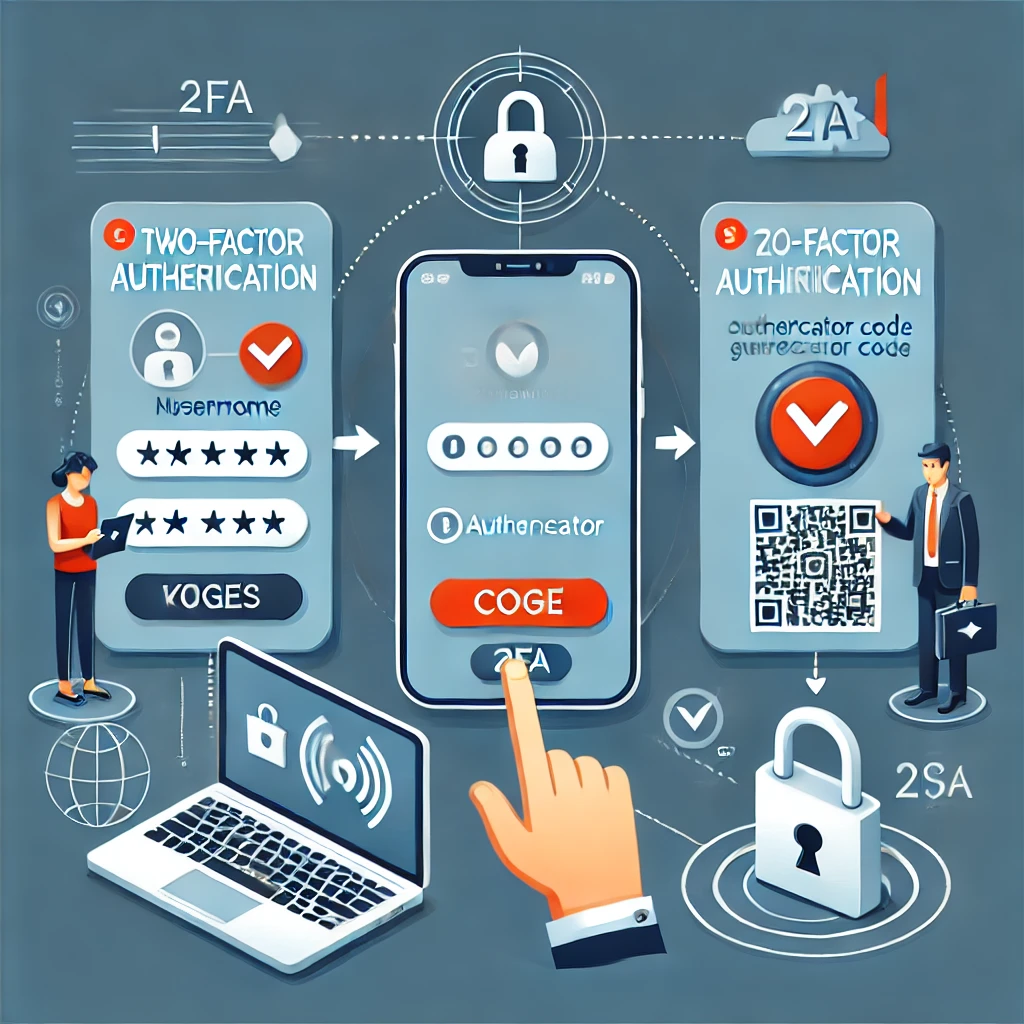
Here’s a simplified step-by-step explanation of how 2FA works:
- Log In: You start by entering your username and password.
- Second Factor: After entering your password, the system asks for a second form of verification. This could be a one-time code sent to your phone, a push notification, or a number generated by an app.
- Access Granted: Once you provide the correct second factor, you’re allowed to access your account.
How 2FA Algorithms Work
Authenticator-app codes often use TOTP. This is one method, not the algorithm behind every form of 2FA. The TOTP standard describes a shared secret and a time-step calculation:
- Shared Secret Key: When you set up 2FA, your account provider and your 2FA app (like Google Authenticator) share a secret key.
- Time-Based Code Generation: The app uses this key and the current time to generate a unique code using a secure algorithm, such as TOTP (Time-Based One-Time Password).
- Verification: When you log in, the system checks if the code you provide matches what it expects based on the same algorithm and time.
A 30-second step and six-digit display are common, but the provider can choose other supported parameters. TOTP can use HMAC-SHA-1, SHA-256 or SHA-512. Short numeric values can repeat; time-based generation does not make codes universally unique or resistant to a phishing site that relays them immediately.
How to Enable 2FA on Your Accounts
Enabling 2FA is easier than you might think. Here’s a general guide:
- Check for 2FA Support: Visit your account settings and look for a “Security” or “Two-Factor Authentication” section.
- Select Your Method: Choose your preferred 2FA method. Options usually include:
- Authentication apps (e.g., Google Authenticator, Authy, Microsoft Authenticator).
- SMS (codes sent via text).
- Hardware security keys (like YubiKey).
- Scan the QR Code: If using an app, you’ll typically scan a QR code displayed on the account’s website.
- Enter the Code: The app will generate a code for you to enter as part of the setup.
- Backup Options: Save backup codes or enable alternative methods in case you lose access to your phone.
Popular 2FA Apps
These are examples from the original guide. Check the provider’s supported method and the app’s current platform, backup and export documentation before selecting one:
- Google Authenticator: Simple and widely supported. (Google Play Store | Apple App Store)
- Authy: Offers cloud backups and multi-device support. (Web Link)
- Microsoft Authenticator: Integrates well with Microsoft accounts. (Google Play Store | Apple App Store)
- Duo Mobile: Used with services that support its authentication workflow. (Website Link)
- LastPass Authenticator: An authenticator option; evaluate its supported backup and recovery process rather than assuming password-manager membership is required. (Google Play Store | Apple App Store)
Not All 2FA Is Created Equal: Comparing Verification Methods
CISA's MFA guidance favours phishing-resistant FIDO/WebAuthn authentication. Where it is unavailable, an authenticator or supported number-matching workflow can still add protection. Avoid interpreting a rating table as a guarantee that an account cannot be compromised.
| Method | What it provides | Important boundary |
|---|---|---|
| FIDO security key or passkey | Public-key sign-in bound to the legitimate service | Phishing-resistant, rather than a universal guarantee; protect devices and recovery. |
| TOTP authenticator | Codes generated from the enrolled secret and time | A phishing page can relay a code; protect the setup secret and backup. |
| Push with number matching | An approval linked to the intended sign-in request | Check the request; unexpected approvals and social engineering remain concerns. |
| SMS or voice code | An additional check using the registered phone number | Carrier/account takeover and phishing are risks; prefer a stronger supported option. |
The FIDO passkey explanation distinguishes synced and device-bound credentials. A passkey can replace a password rather than act as a code after it. User verification, such as a device PIN or biometric unlock, is part of the supported sign-in design; do not assume every passwordless button is the same method.
When comparing authenticator apps, check whether a backup is encrypted, where it is stored, how its recovery secret is protected and whether export is supported on your platform. A local-only vault and a synchronised vault have different recovery needs. Do not assume that copying the app to a new phone also copies every enrolled account.
Why You Should Enable 2FA
Using 2FA significantly reduces the chances of your accounts being hacked. It’s especially important for sensitive accounts like:
- Email accounts (e.g., Gmail, Outlook).
- Financial accounts (e.g., online banking, PayPal).
- Social media accounts (e.g., Facebook, Instagram).
Enabling 2FA shows that you’re proactive about protecting your personal information.
Set Up Recovery Before You Need It
Start with the email account used to reset your other accounts, then protect your password manager and other important services. Open security settings through a known address or app, not a link in an unexpected message. Keep your current signed-in session while enrolling a new method.
- Choose a supported method and follow the service's enrolment steps. For TOTP, scan the account's own setup code and complete its confirmation check.
- Save recovery codes in a protected place you can reach without the lost phone. Treat them as sign-in credentials, not ordinary notes.
- Register a backup key or another supported recovery method where appropriate. Check that its strength fits the account; a weak fallback can undermine a stronger everyday sign-in.
- Use a fresh browser session to test the new sign-in before removing an older working method. Confirm you can identify the correct account in your app.
- Record the recovery process and repeat the check after changing phones or keys. Follow the provider's transfer instructions before wiping the old device.
The setup QR code contains or represents an enrolment secret. Do not publish it in a screenshot, paste it into a public chat or share an authenticator export. A photograph of a hardware key is different from a copy of a TOTP seed; the latter can allow someone else to generate your codes.
Handle Common Sign-In Problems
If a TOTP code fails, check that you selected the correct account and that the device's date/time synchronisation is enabled. Try a fresh code and the service's documented troubleshooting. Do not disable protection or send your seed to someone claiming to be support.
If a push prompt appears when you did not initiate sign-in, deny it and review the account through its known security page. Number matching helps connect an approval to an intended request; it is not a reason to approve a number supplied by an unexpected caller.
If a phone is lost, use the prepared recovery method from a trusted device, revoke the missing device's sessions or credentials where supported, and review recent account activity. If recovery codes were used or exposed, generate a replacement set according to the service's instructions and update your protected copy.
2FA is most useful when enrolment, daily sign-in and recovery all work. Keep unique passwords where passwords remain in use, maintain trusted devices and prefer a phishing-resistant option supported by the account. The practical goal is stronger protection that you have verified without locking yourself out.