Passkeys replace a reusable password with a cryptographic credential tied to the service you are signing into. They can make everyday sign-in easier and resist common credential-phishing attacks. The important practical question is what happens when your usual phone, computer or security key is unavailable.
A good setup covers three things: where the credential lives, which devices can use it, and how you retain access if one part fails. This guide explains those choices and a staged adoption plan. It describes documented mechanisms and proposed checks, rather than a claimed hands-on test of every platform.
What a passkey actually does
A passkey uses a public/private key pair. When you register one, the service associates its public key with your account. The private key remains under the control of the authenticator or passkey provider. During sign-in, the service supplies a fresh challenge and receives a signed response that it can verify using the registered public key.
The WebAuthn standard also requires checks of the expected challenge, origin and relying party identifier. Successful sign-in is more than checking that some signature exists. The response must fit this account and authentication request.
You normally approve use through a device PIN, biometric check or another supported unlock method. Biometrics are not mandatory: a compatible PIN-based flow can work. As Apple’s security explanation describes, the website does not receive the private key. Local biometric processing also does not send your fingerprint or face template to the website.
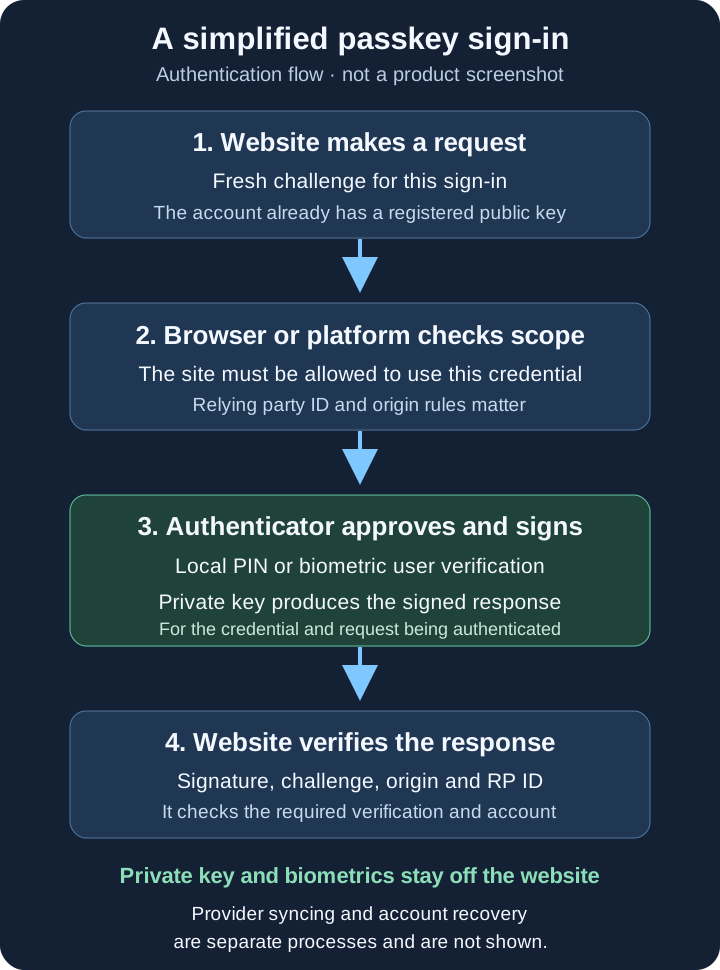
A passkey with the required user verification can combine possession of the credential with a PIN or biometric activation factor. The service’s policy determines whether additional checks are needed. A passwordless button or a simple security-key touch does not, by itself, establish the same assurance in every system.
Why a copied login page cannot simply steal it
Passwords and one-time codes can be typed into a convincing fake page and relayed to a real service. A WebAuthn credential is scoped to a relying party identifier, usually a domain, and the browser applies origin rules before using it. NIST describes this as verifier name binding.
For an illustrative credential scoped to example.com, a correctly configured browser can permit its use from an authorised origin such as accounts.example.com. A lookalike at accounts.example.net cannot simply request that credential for example.com. These are reserved example domains, not suggested account services.
This protection reduces reliance on spotting every imitation page yourself. It does not make an account unhackable. Compromised devices, malicious browser software, weak recovery procedures and stolen authenticated sessions are separate threats. Continue opening important services through known addresses and reading the account and action shown in a legitimate prompt.
Synced and device-bound passkeys have different recovery needs
The FIDO Alliance distinguishes synced passkeys from device-bound credentials. The choice concerns storage and availability, not whether the everyday sign-in uses public-key authentication.
| Storage choice | Useful property | Recovery responsibility |
|---|---|---|
| Synced provider | Credential can become available on supported devices using that provider | Protect and understand the provider account and encrypted-data recovery requirements |
| Device-bound computer credential | Credential stays with that device rather than a sync service | Prepare another registered credential or service recovery route before losing or reinstalling it |
| Device-bound FIDO2 security key | A portable credential independent of a phone’s sync account | Register a spare or another supported route; a lost or reset key does not recreate its credentials |
Apple documents end-to-end encrypted iCloud Keychain syncing and recovery protections. Google’s September 2024 announcement similarly describes encrypted Google Password Manager syncing and recovery factors. Syncing moves protected credential material through the provider; it is separate from sending a signed response to the website.
Check the actual save destination. A Windows computer may offer Windows Hello and a password-manager provider. Chrome’s documentation distinguishes local Windows Hello credentials from synced Google Password Manager credentials. Merely using Chrome or signing into a browser account does not make every locally stored passkey recoverable.
There are two different recovery problems
Website-account recovery restores access to an individual service. It may involve another passkey, a recovery code, an existing verified channel or the service’s recovery procedure. Provider recovery restores access to the manager or platform holding a collection of synced passkeys. Solving one does not automatically solve the other.
For example, another approved device may already have a usable synced credential when a phone is lost. If all devices are gone, the provider may require additional evidence or secrets before restoring encrypted data. Apple describes iCloud Keychain recovery conditions and account recovery contacts; do not assume its procedure also applies to another provider.
Google Password Manager’s documented recovery factors include its PIN or an Android device screen lock in supported circumstances. That PIN is not the website’s old password. Understand which secret a prompt requests and protect it accordingly; never disclose recovery information to an unexpected caller.
Watch for a dependency loop: the only way to enter your provider account is a credential stored only on the lost device, while the only backup codes are inside the inaccessible provider. Keep an appropriate independently accessible route where the service supports it. Independence matters more than having several copies that all fail together.
Register and test spare authenticators
Where supported, add a second credential to important accounts before you need it. A FIDO2 security key can provide a useful alternative to a synced phone credential. Confirm the service supports that key’s protocol and your devices support its USB or NFC connection before buying.
A spare device-bound key needs registration with each relevant service. It is not automatically a clone of the first key. Yubico’s guidance explicitly separates spare passkey registration from copying TOTP setup material. Follow the account’s passkey enrolment process for the spare, then check it actually signs in.
Store the spare separately from the primary phone or key. Record meaningful labels, such as “daily phone provider” and “spare security key”, so you can identify registrations later. Keep an account inventory without writing private keys into ordinary notes. Recovery codes, when issued, are sensitive sign-in material and need protected storage accessible during the loss scenario you are planning for.
QR codes and Bluetooth authorise a nearby sign-in
FIDO cross-device authentication lets a credential on a nearby phone approve sign-in on another device. In a supported flow, the computer displays a QR code, the phone scans it, and you verify the request on the phone. This is different from syncing the credential into the computer’s manager.
Microsoft’s Windows documentation requires Bluetooth and internet connectivity on both devices for its phone-based cross-device scenario. FIDO explains that Bluetooth Low Energy checks proximity, while the hybrid transport adds cryptographic protection; the sign-in is not secured solely by ordinary Bluetooth pairing.
The passkey is not copied to the computer by that authentication flow. Nevertheless, the computer receives an authenticated website session, so its trustworthiness still matters. Scan a code from the sign-in you initiated on a device you intend to use. A code forwarded by a stranger is not a suitable shortcut.
A passkey sign-in QR code also differs from a TOTP enrolment QR code containing an authenticator seed. Saving or sharing a screenshot is not a general backup method for passkeys. Our two-factor guide explains the code-based methods separately.
Use a staged adoption checklist
Start with one supported account on a device you control, while you still have a working sign-in route. Practise with an account you can afford to troubleshoot, then apply the same verified plan to your recovery email, provider account and other important services.
- Check support. Read the service and provider requirements for your actual browser, operating system and credential store. Work or school policies may restrict the available methods.
- Prepare recovery. Confirm contact information and existing recovery arrangements. Add an independent supported route and know where protected recovery material is kept.
- Create deliberately. Open the service through its known address, confirm the account, and select the intended passkey destination. Avoid registering it on a shared computer.
- Test a fresh sign-in. Use a separate trusted browser profile or supported session where the site is not already signed in. Keep the original working session available until the test succeeds.
- Test the alternative. Set aside the primary authenticator and use the spare or another prepared route. Confirm which device or provider actually supplied the credential.
- Document and expand. Note the storage choice, registered backup, recovery instructions and date checked. Repeat for the next account once the first works.
Google’s account documentation says adding a passkey does not remove existing authentication or recovery factors. Other services differ. Retain unique passwords and appropriate MFA wherever they remain usable; do not assume enabling a passkey closes every older route.
When a device is lost or replaced
For a planned upgrade, establish access on the new device and test important accounts before wiping the old one. If the provider does not make credentials available across those platforms, a supported cross-device sign-in can let you enter an account and register a new credential. Check migration or export support rather than assuming a password CSV includes passkeys.
For an unexpected loss, use the prepared independent route from a trusted device. Review the website’s credential registrations and active sessions, and the provider’s trusted-device controls. Remove or revoke affected access according to their documentation. For synced credentials, confirm what deleting a registration or provider entry will do across your devices before acting.
Deleting a credential from a manager and revoking it at a website are distinct operations. Google documents checking third-party managers when a removed account passkey still appears as an option. Likewise, a credential change should not be assumed to terminate every existing session.
If a passkey is missing, check the selected account, save provider, screen lock, browser support and any organisational policy first. Resetting a security key, clearing a manager or reinstalling an operating system can destroy useful local credentials. Use the provider’s troubleshooting and keep remaining working methods available.
Keep the rest of account security in place
Passkeys strengthen authentication; they do not encrypt your documents or decide which actions an authenticated user should be allowed to perform. OWASP’s session guidance explains why a valid session token can confer the access established by strong authentication. Protect browsers, extensions and devices as well as the sign-in credential.
Support and recovery remain service-specific. Consumer synced credentials and organisation-managed hardware credentials can have different policy requirements. There is no universal reason to remove a working recovery option before verifying its replacement, or to treat every cloud-backed provider as equivalent.
The useful goal is stronger everyday sign-in with a recovery plan you understand. Know the credential’s storage location, confirm an independent route, and revisit the plan after changing a device or provider. That gives passkeys a practical role without turning one convenient prompt into a promise of invulnerability.
Sources and artwork
The FIDO passkey overview, WebAuthn specification and linked platform documentation support the technical explanations. Follow the service’s current help for exact interfaces and recovery policies. The header is original AI-generated conceptual artwork; it is not a product screenshot or protocol diagram. The sign-in SVG is original TechDecode artwork.