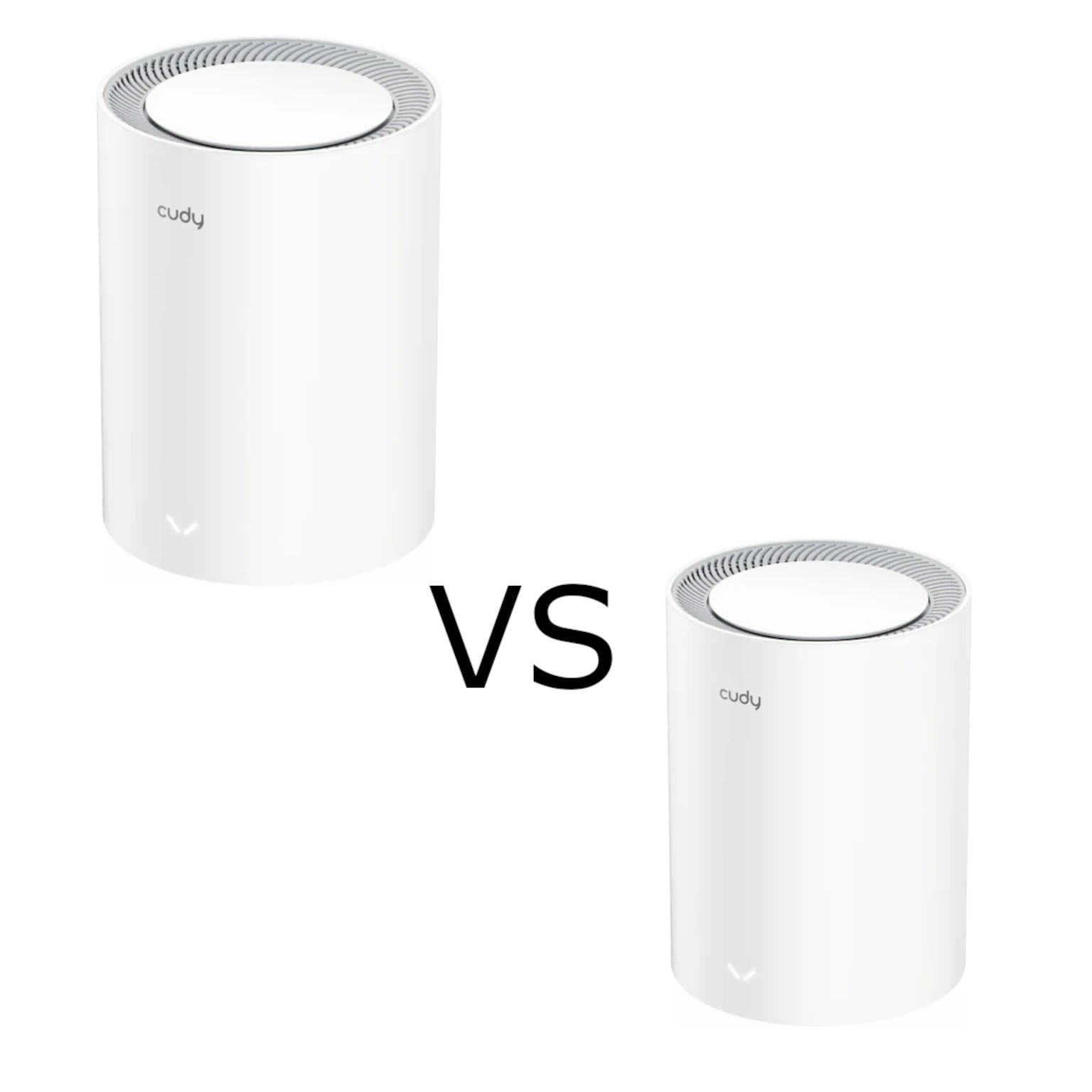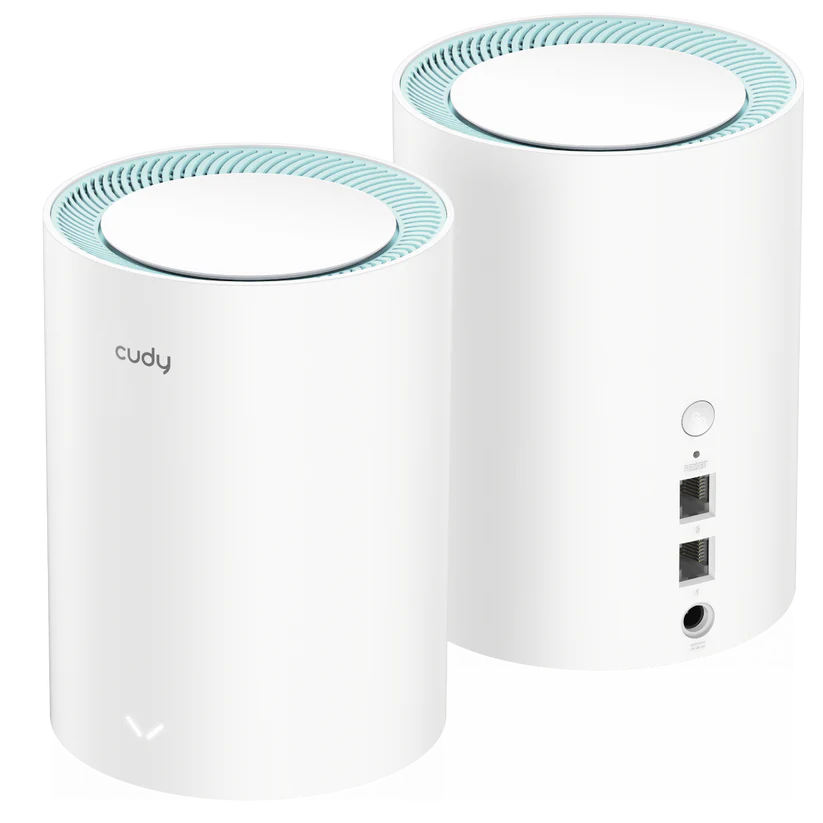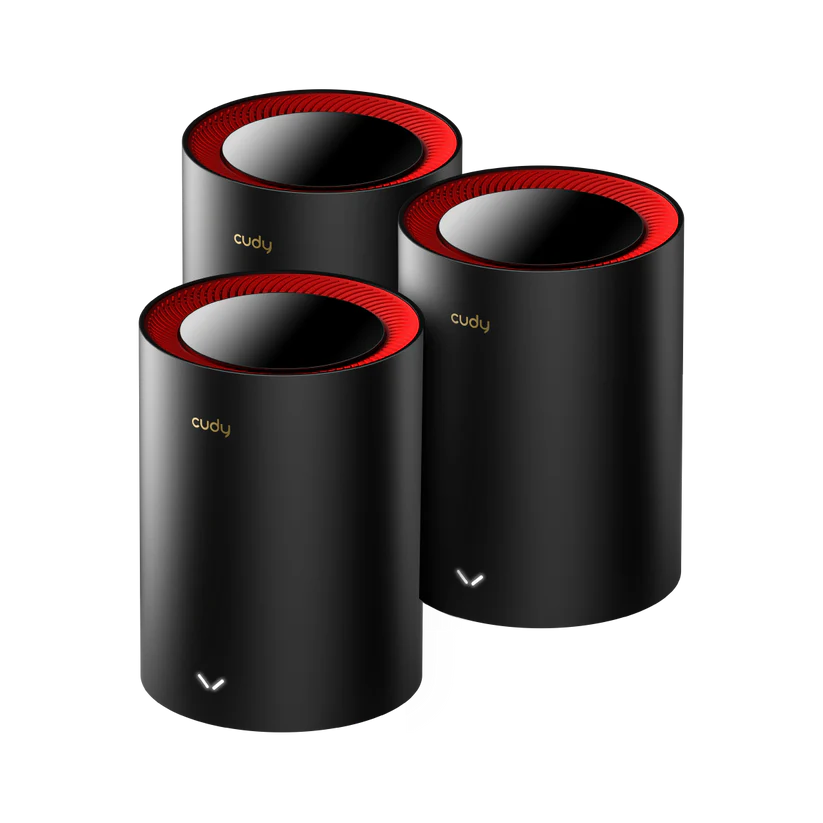
The Cudy M3000 is a dual-band Wi-Fi 6 mesh option for homes that need several coverage points and straightforward network management. It combines AX3000-class radios with a 2.5 GbE connection, but that fast socket does not make every wired path multi-gigabit.
The original view remains positive: this is a capable option for larger homes, smart devices and home offices when the price and setup suit the household. Before buying, confirm the hardware revision, plan your node placement and count the ports needed for internet, backhaul and local devices.
What mesh provides
A main unit connects to your internet service or existing gateway, while additional units extend managed Wi-Fi into more rooms. This is useful when one centrally placed router cannot reach the places where you work or stream. The nodes still need reliable connections to each other.
That upstream connection is backhaul. A laptop can have a strong signal from a nearby satellite even when the satellite's link to the main unit is weak. Place the satellite within useful upstream coverage, then test the room beyond it. Where Ethernet is practical, a wired link can avoid reliance on a difficult wireless hop.
Roaming involves the client as well as the mesh. Do not assume every phone always chooses the strongest node or that every call remains uninterrupted while walking between rooms. Test the devices and route you actually use rather than equating one network name with guaranteed performance.
Wi-Fi 6 features and client limits
Wi-Fi 6 is based on 802.11ax. Its supported scheduling features, including OFDMA and MU-MIMO, can help compatible networks use radio time efficiently. They do not promise higher internet speed when the subscription or another link is limiting performance.
M3000 is dual-band, using 2.4 GHz and 5 GHz. It does not have a Wi-Fi 6E 6 GHz radio, Wi-Fi 7 MLO or 320 MHz channels. Cudy lists widths up to 160 MHz, but the client, local channel availability and radio conditions must also suit the selected mode.
A Wi-Fi 6 client does not necessarily support every channel width or feature. An older device can remain useful on the network without reaching the headline rate. For smart sensors and cameras, stable placement and compatible security settings are often more important than the generation label.
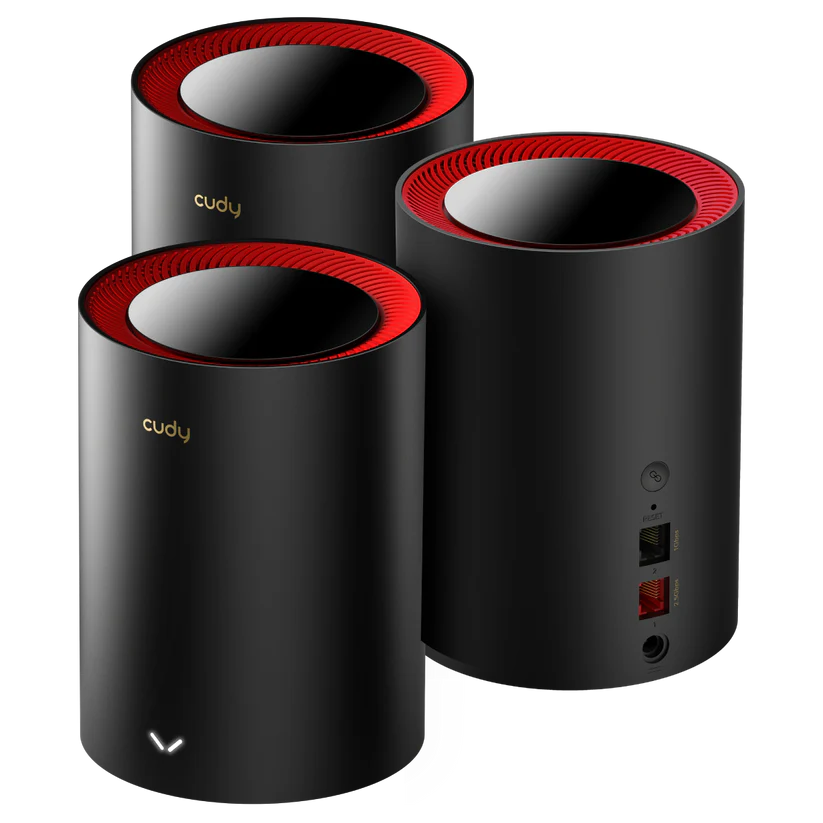
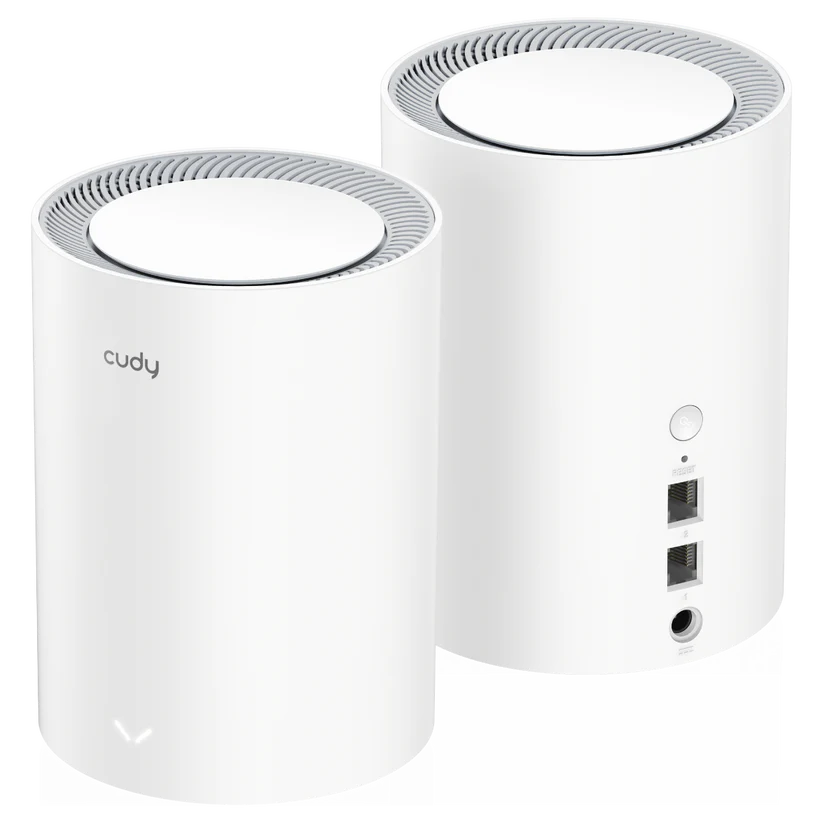
Specifications: identify the revision first
| Item | M3000 1.0 | M3000 2.0 |
|---|---|---|
| Wireless class | Dual-band AX3000: 2,402 + 574 Mbps. | Dual-band AX3000: 2,402 + 574 Mbps. |
| Spatial streams | Two on 5 GHz with a documented 3T3R configuration; two on 2.4 GHz. | Two on 5 GHz and two on 2.4 GHz. |
| Antennas | Five internal. | Five internal. |
| Processor and memory | 1.3 GHz dual-core Cortex-A53; 256 MB DDR3 and 128 MB NAND. | Same listed processor and capacities. |
| Ethernet per unit | One 2.5 GbE and one Gigabit socket. | One 2.5 GbE and one Gigabit socket. |
This is a comparison of Cudy's current published specifications, not an internal teardown or benchmark. The V1 table's 3T3R notation should not be converted into a claim of three independent spatial streams: Cudy explicitly lists two. Likewise, the white V2 enclosure does not establish improved thermal performance or higher throughput without evidence.
Cudy marks the old V1 product page EOL and links to the newer version. That is a buying and support consideration, not proof that a working V1 must be discarded or that its firmware has already stopped receiving fixes. Check the correct download entry and supplier support for the unit you own.
Current V2 indoor references are 200 m² / 2,100 ft² for two units and 270 m² / 2,900 ft² for three. Cudy explains that older retail coverage figures were based on wooden structures while the current website uses concrete-structure conditions. Neither set guarantees results in your particular building.
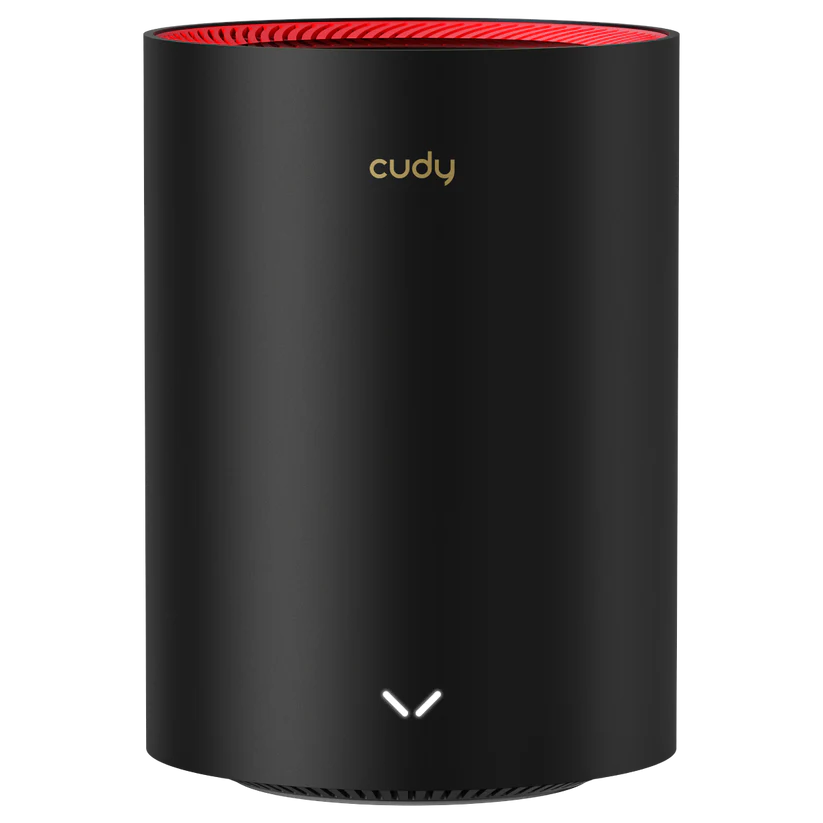
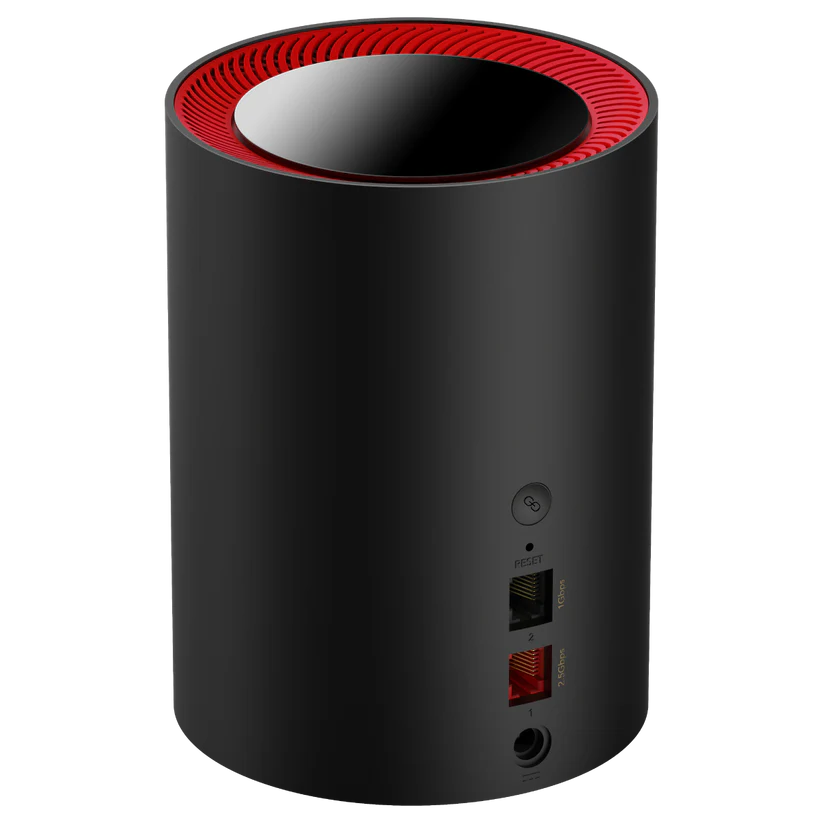
The important two-port tradeoff
Cudy's tables describe the 2.5 GbE socket as WAN and the Gigabit socket as LAN. For a main unit with the fast socket connected to a multi-gigabit internet service, its wired LAN path is still Gigabit. A directly attached desktop or downstream Ethernet backhaul therefore does not bypass that limit.
If several local devices need sockets, budget for a suitable switch on the LAN side. Devices on that switch may communicate according to the switch and their own links, but their connection through the main router retains its actual uplink speed. A fast WAN port is not a promise of multi-gigabit NAS performance throughout the home.
Operating modes and port reassignment can vary. Do not infer a particular fast LAN arrangement from a generic Cudy menu description without checking the actual M3000 firmware and documentation. Draw the modem, main node, switch, satellites and clients before buying; it will reveal constraints that a radio-rate number hides.
The system supports wired and wireless backhaul. Its two-band radio design should not be described as having a separate third radio dedicated to satellites. Evaluate backhaul quality alongside the client's local link, especially when several rooms are active at once.
Setup and mode choices
The M3000 guide links to Cudy's mesh quick-start instructions for creating a network and adding units. They describe browser or app setup, selecting the internet connection and pairing nearby units before relocating them. The generic guide uses M1200 as its illustrated example, so use the M3000 label and revision-specific interface details.
Know which device should route the network. If you retain the existing gateway, check the supported access-point arrangement and the controls available there. Cudy's M3000 guide says parental controls work in Wireless Router mode, so verify that requirement before buying it for a network that will run entirely as access points.
Give units and clients meaningful names and inspect the status page when a room is slow. Cudy exposes node, WAN, LAN, wireless and device information, making it easier to identify whether the problem is the provider connection, a satellite or one client. Pairing successfully is only the start of useful placement.
Management, VPN and security
The listed stock features include browser/app management, VPN server and client options such as WireGuard and OpenVPN, and DNS over TLS. Those are useful options to evaluate, rather than evidence that every VPN provider or protocol reaches the ordinary internet link's speed.
Check your provider's supported manual configuration and test the actual traffic route if a VPN is required. Keep backup access to the router before changing its routing. VPN encryption and encrypted DNS serve different purposes; neither is a guarantee that all application traffic is anonymous or that every security threat is prevented.
Use supported firmware and a strong administrator password. WPA3 is helpful where clients support it; Learn why WPA3 is important. Check guest access against the local devices you intend to protect and review any remote-management functions before enabling them.
For updates, use the correct revision's supported method, back up settings and allow a planned interruption. Keep a recovery path rather than assuming an image for a related model will work. Changing to third-party firmware is a separate project with its own hardware, feature and recovery checks; it is not required for the stock mesh functions described here.
Evaluate the actual household workload
For a large home, begin with the problematic rooms and paths through walls or floors. For a home office, test calls and uploads from the desk. For a smart home, test camera uploads and device discovery. For gaming, assess consistency while other people use the network, and consider Ethernet for a fixed PC or console.
Use the same client near the main node and each satellite, keeping band and backhaul information with the result. Compare a wired internet baseline against the wireless result so a provider bottleneck is not mistaken for a mesh fault. Local transfers can also help separate the local network from internet service limits.
If only one room is weak, try improving its satellite's upstream position before purchasing another unit. If only one client fails, check that client's driver and security compatibility. Factory resets erase configuration, so inspect status, cabling and the current firmware before taking that step.
Buying advice and conclusion
The M3000 remains an appealing feature-rich option when dual-band Wi-Fi 6, several managed nodes and its stock controls meet your needs. Its 2.5 GbE WAN capability can help the right setup, but the two-port layout and Gigabit LAN deserve equal attention.
The original practical advice still applies: check compatibility, placement, subscription speed and total budget. Compare equal pack sizes and include any switch or cables needed. Wi-Fi 6E and Wi-Fi 7 products are available, so weigh their actual local price and useful features rather than promising that one purchase is permanently future-proof.
Choose the revision and complete topology that fit the home, then validate performance where it matters. Visit the official Cudy M3000 Website