For those of us who have ventured down the rabbit hole of self-hosting (especially those building their own homelab), the journey often starts with a simple desire: to have more control over our digital lives. We build homelabs, not just as a hobby, but as a declaration of digital independence. It's about learning, experimenting, and ultimately, building a digital home that is truly our own. From media servers to ad-blockers, the satisfaction of running your own services is immense. And if you're a bookworm, a comic aficionado, or a manga enthusiast, then a self-hosted digital library is a must-have addition to your homelab. Enter Kavita, a powerful and user-friendly solution that will revolutionize the way you read and manage your digital collection.
What is Kavita and How Does it Work?
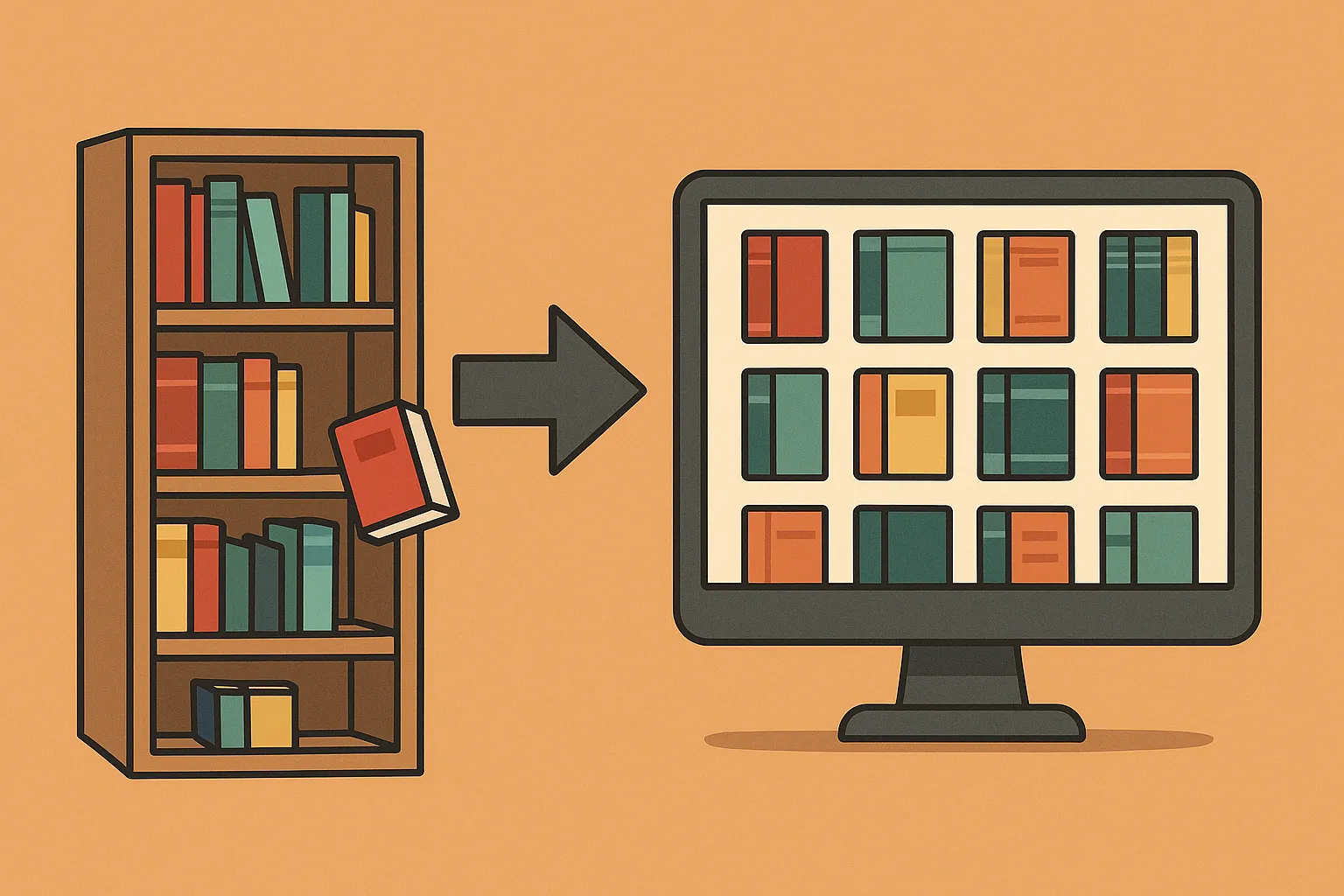
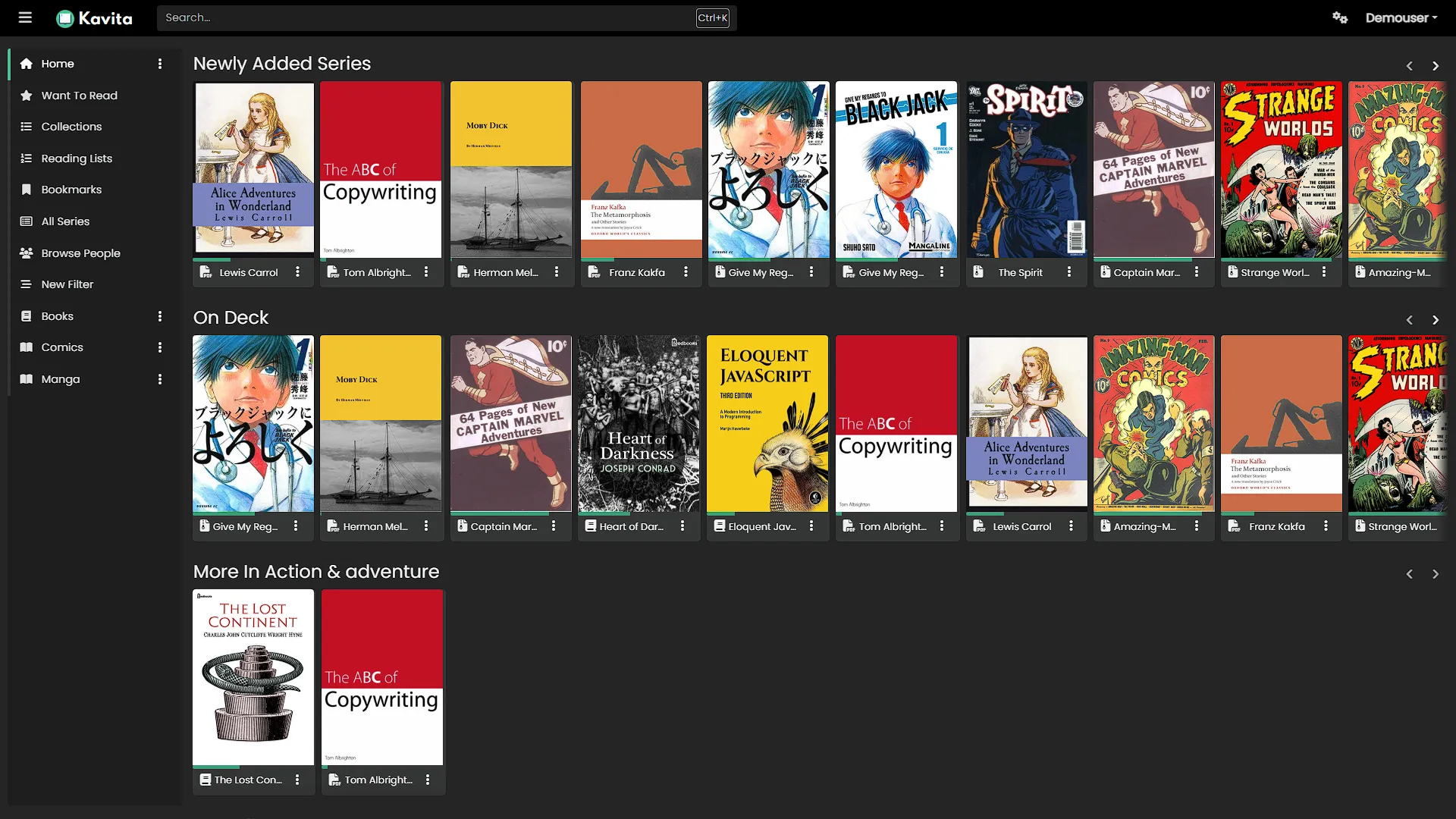
Kavita is a self-hosted digital library that allows you to manage and read your ebooks, comics, and manga from a single, beautiful interface. Think of it as a "Plex for your books." You install the Kavita server on your homelab, point it to your digital library, and let it scan supported files into series and books. Good filenames and embedded metadata help the scanner group them correctly. Read through its web interface or connect a supported third-party reader, following that client’s current integration instructions.
Kavita's server-client model means that your entire library is centralized in one place, but accessible from anywhere. Whether you're at home on your computer or on the go with your tablet, the web reader stores reading progress on the server. Third-party clients have different progress-sync capabilities, and the server must be reachable for online browsing.
The Joys of a Self-Hosted Digital Library
Why go to the trouble of self-hosting your digital library when you could just use a commercial service? The answer is simple: control. When you self-host your library with Kavita, you are in complete control of your data. You're not at the mercy of a corporation that could change its terms of service, discontinue a feature, or even lose your data. Your supported books and comics remain on storage you manage. Reading through the local server does not need internet access, but it does need a working connection to that server. Offline travel reading requires a client that downloads the files and supports their format.
And let's not forget the cost savings. While many commercial services require a subscription fee, Kavita’s base application is free and open source. Optional Kavita+ services add features such as external metadata downloading. Existing hardware can reduce the initial outlay, but storage, backups, electricity and maintenance still have a cost.
Kavita's Standout Features
Kavita is packed with features that make it a joy to use. Here are just a few of the highlights:
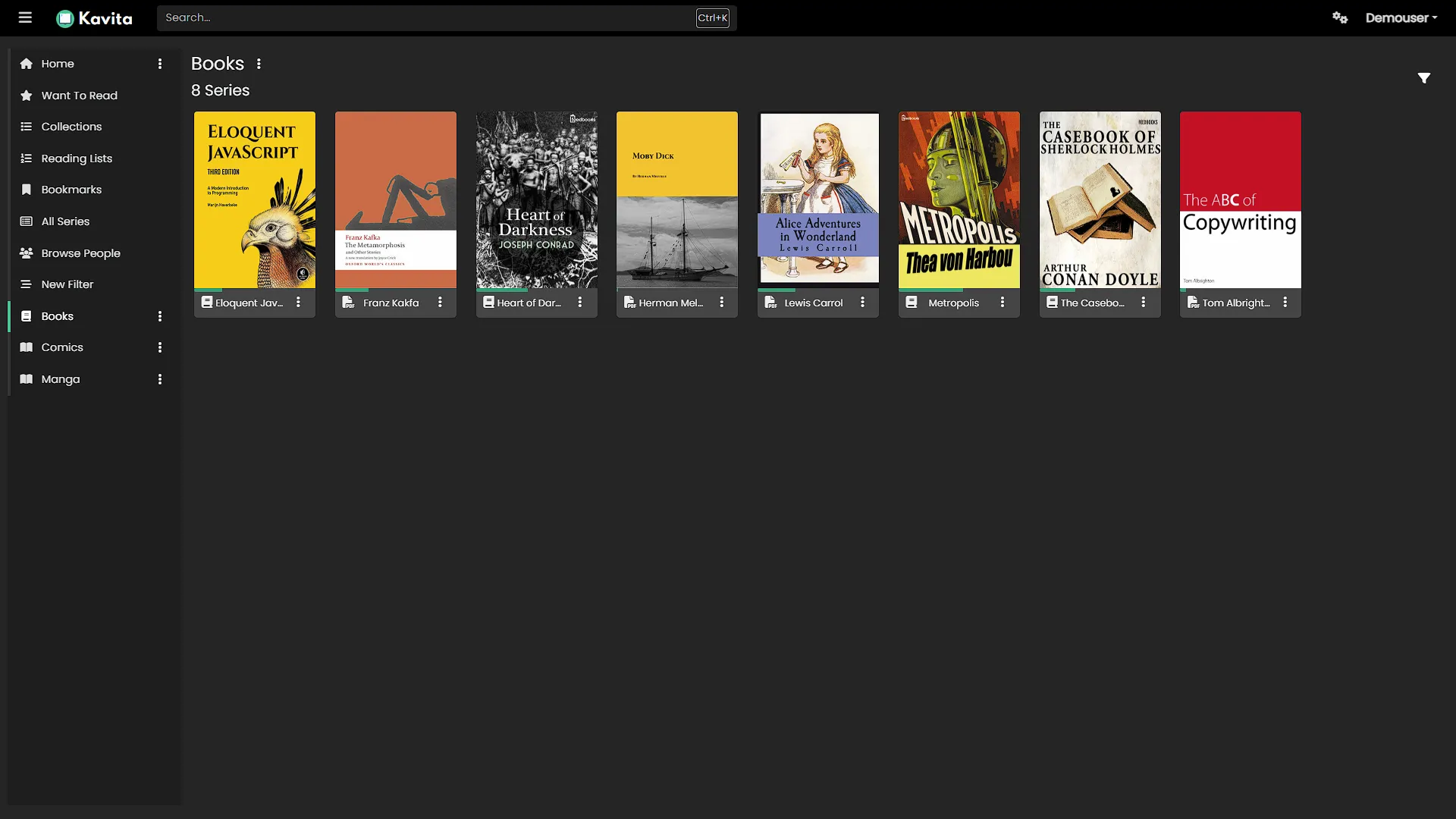
- Broad File Support: Kavita supports a wide range of file formats, including ZIP, RAR, CBR, CBZ, EPUB, and PDF.
- Beautiful and Responsive Readers: Whether you're reading on a desktop, tablet, or phone, Kavita's built-in readers provide a seamless and enjoyable experience.
- User and Library Management: Create multiple user accounts, manage permissions, and organize your library with collections, reading lists, and more.
- Metadata and Filtering: Kavita reads embedded metadata and parses filenames to organize books and comics. External metadata downloading is a Kavita+ feature; it should not be confused with reading metadata already present in your files. Filters help you browse the fields available in your collection.
- Cross-Platform Accessibility: Access your library from anywhere with a web browser or through dedicated apps.
- Active Development: Kavita is actively developed, with new features and improvements being added all the time.
Alternatives to Kavita
While Kavita is an excellent choice for self-hosting your digital library, it's not the only option out there. Here are a few alternatives to consider:
- Calibre-Web: A web-based interface for the popular Calibre ebook management software. Calibre-Web is a great choice if you already use Calibre to manage your library.
- Komga: A media server for comics, mangas, and BDs. Komga is a strong contender to Kavita, with a focus on providing a great reading experience for comics.
- Ubooquity: Another popular choice for self-hosting comics and ebooks. Ubooquity is known for its simplicity and ease of use.
While these are all great options, Kavita stands out for its modern and user-friendly interface, its active development, and its excellent support for a wide range of file formats.
Installing Kavita
Getting started with Kavita is surprisingly easy. You have a few options for installing it on your homelab:
- Docker: The easiest way to get started with Kavita is to use the official Docker image. It packages the application dependencies, while you still need to configure storage, permissions, networking and updates.
- Native Binary: If you prefer not to use Docker, you can download a native binary for your operating system. Kavita supports Windows, macOS, and Linux.
- Raspberry Pi: Check that the current release supports your Raspberry Pi’s operating system and architecture. Library scans, large PDFs and simultaneous readers can need more resources than an idle server, so start with a small representative collection.
No matter which installation method you choose, the Kavita documentation provides clear and easy-to-follow instructions.
Docker Compose Starter for Kavita
The official Docker documentation identifies the application’s media mounts and persistent /kavita/config directory. This starter uses the DockerHub image layout; other supported images can use different paths and environment settings. Choose a released image version and set KAVITA_IMAGE in your Compose environment before deployment.
services:
  kavita:
    image: ${KAVITA_IMAGE:?Set a released jvmilazz0/kavita image tag}
    restart: unless-stopped
    ports:
      - "127.0.0.1:5000:5000"
    environment:
      TZ: Africa/Johannesburg
    volumes:
      - ./kavita-config:/kavita/config
      - /mnt/nas/media/manga:/manga:ro
      - /mnt/nas/media/comics:/comics:ro
      - /mnt/nas/media/ebooks:/books:ro
Replace the host media paths with existing directories on your Docker host. The right-hand paths are the locations to choose when creating libraries inside Kavita. The configuration directory must be writable by the container, while the media must be readable. Confirm that network storage is mounted before starting the service; an empty mountpoint can look like an empty collection.
This binds the web port to the host’s loopback address for initial setup at http://localhost:5000. It is not a complete remote-access configuration. If you later add authenticated HTTPS access through a reverse proxy or another suitable arrangement, test it separately. The read-only media mounts restrict writes through those mounts; they do not replace backups or protect files from other applications and administrators.
Getting Scans and Metadata Right
Kavita requires each series to have its own folder and no loose files at the library root. The scanner uses parsed information to determine series membership; folder separation alone will not override conflicting embedded metadata. For manga, a structure such as /manga/Series Name/Series Name Vol. 01 Ch. 001.cbz makes the intended series, volume and chapter clearer. Check the scanner rules for the library type you select.
A ComicInfo.xml at the root of a supported comic archive, or an embedded EPUB .opf, can override filename-derived values. Consistent series names and numbering help prevent unwanted splits or merges. Embedded metadata is useful, but it is not bulletproof: incorrectly tagged editions can still be grouped incorrectly. The metadata guide explains which fields Kavita reads.
Import a few examples first: a multi-volume series, a standalone book, a special issue and a PDF if you use them. Check titles, covers, ordering and page rendering before scanning the whole collection. If a series groups incorrectly, compare its filename, embedded metadata and selected library type before repeatedly rescanning it. Keep an untouched source copy before changing archive contents with a tagging tool.
Kavita+ metadata downloading matches items against external providers. Inspect the edition and result rather than assuming a match is correct. A subscription feature or external provider may change its coverage; local embedded metadata remains a separate part of the workflow.
Choosing a Reader and Testing Progress
The browser reader is a straightforward starting point because it communicates directly with Kavita. Third-party readers can offer a preferred interface or offline downloads, but support differs by format and protocol. OPDS provides catalogue access; OPDS-PS adds page streaming where the client supports it. Neither means that every reader synchronizes every page position.
The current client capability table lists Panels as supporting OPDS-PS and progress sync. Mihon and Paperback use API-based integrations rather than OPDS-PS; their documented sync works at chapter or issue completion, not page position. Use each client’s setup guide and protect its authentication key like a password. For an EPUB-focused reader, check EPUB and sync support explicitly instead of assuming a comic client handles both.
Email delivery to a supported device is another workflow: the administrator must configure sending, and the reader account must accept the file. It is not the same as a continuously synchronized catalogue. KOReader has its own documented catalogue and progress-sync setup; that should not be described as universal native Kobo shelf synchronization.
Test with one book and two devices. Read part of it, reconnect, and check what position or completion state is actually shared. For offline use, verify that the downloaded file opens without the server and determine how the chosen client handles progress on reconnection. Avoid promising instant synchronization when the client only reports a completed chapter.
Keeping Your Library Recoverable
Protect both the original media and Kavita’s persistent configuration. Restoring only the books may not restore users, progress, collections and server settings; restoring only configuration will not recreate missing archives. Keep an independent copy and use a consistent backup method for the database, such as the application’s supported backup process or a backup taken while the service is stopped.
Before an update, record the image version and check release notes for migrations. Test that representative books still open and that client connections work afterward. Compare alternatives using your own collection and reading habits: our preference for Kavita’s interface remains, while scan speed and reader comfort depend on your files and hardware. Calibre-Web follows a different library-management approach; its database requirement should not be confused with proprietary ownership of your books.
Conclusion: Take Control of Your Reading Life
In a world where our data is increasingly controlled by large corporations, self-hosting offers a path to digital independence. By setting up your own services, you can take back control of your data, save money, and learn valuable new skills. Kavita is a shining example of the power of self-hosting. It's a polished, feature-rich, and user-friendly application that will transform the way you read and manage your digital library. So, what are you waiting for? Fire up your homelab, install Kavita, and take control of your reading life.