For the full explanation of a Mesh Wifi system click here, or to see how it compares to multiple hotspots, click here.
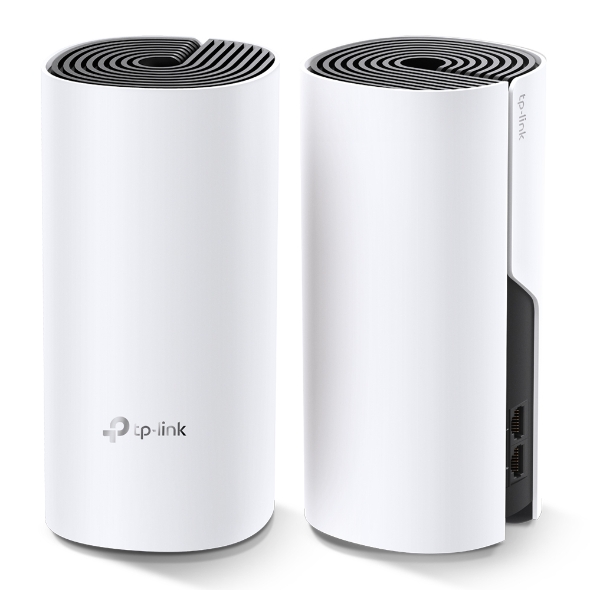
The Deco M4 is a product that uses multiple units to create a unified and powerful Wi-Fi network for your home. It is designed to improve coverage. TP-Link’s device-capacity figure is a manufacturer claim, rather than a guarantee of equal performance for 100 busy clients. Placement, backhaul and the devices’ radios determine the result.
Deco M4 Features and Benefits
Deco M4 has many features that make it a versatile and convenient product, such as:
- Easy Setup and Management. You can install and control Deco M4 with a simple app that guides you through every step.
- Parental Controls. You can create profiles for each family member and set online time limits and content filters to keep your children safe.
- Supported voice-assistant features. Check the current TP-Link integration for your model, region and account. Do not assume that every assistant or every network setting can be controlled by voice.
- Router or Access Point Mode. You can choose the mode that suits your network needs and enjoy the flexibility of Deco M4.
Deco M4 Performance and Compatibility
Deco M4 uses advanced Deco Mesh Technology to advertise combined wireless link rates of 1,167 Mbps: 867 Mbps on 5 GHz plus 300 Mbps on 2.4 GHz. Those bands are not combined into a 1,167 Mbps connection for one ordinary client. It can work with an appropriate ISP modem or Ethernet handoff, subject to the provider’s connection requirements, and can be expanded with other Deco models to cover larger areas.
Specs:
- Coverage: Pack- and region-specific. The cited international page lists up to 4,000 sq ft for an EU three-pack; the US V1 page lists 5,500 sq ft for its three-pack. These are manufacturer estimates, not measured coverage in your home.
- Wireless Speeds: Up to AC1200 (1167 Mbps) - Dual-band Wi-Fi (2.4 GHz and 5 GHz)
- Ports: Two Gigabit Ethernet ports per unit, with WAN/LAN auto-sensing. A main unit in Router mode uses one upstream, leaving one LAN port; a satellite can use a port for Ethernet backhaul.
- Supported Features: Parental Controls, Guest Network, Voice control with Alexa
- App Support: TP-Link Deco app (Android & iOS)
Pros:
- Easy Setup: Setting up the Deco M4 is a breeze using the intuitive Deco app, guiding you through the process step-by-step.
- Seamless Roaming: Deco units work together to form a unified network, using a common network name. Handoff behaviour depends on the client and supported roaming settings; it is not an absolute interruption-free guarantee.
- Parental Controls: Add a layer of online management by setting up parental controls to manage screen time and filter inappropriate content.
- Guest Network: Provide separate Wi-Fi access for guests, checking local-network access settings in the selected operating mode rather than assuming that a different SSID proves isolation.
- Voice Control: Enjoy the convenience of voice control with Alexa, allowing you to manage your network with simple voice commands.
Cons:
- Limited Coverage: While offering decent coverage for smaller homes, the Deco M4 might struggle in larger houses with multiple floors. You might need additional Deco units to extend coverage.
- Limited Gigabit Ports: Each Deco unit only offers two Gigabit Ethernet ports, which might be limiting for users with multiple wired devices.
- Shared wireless backhaul: The two wireless bands also carry traffic between unwired units. A strong client signal cannot compensate for a weak or congested backhaul.
Overall:
The TP-Link Deco M4 is a user-friendly and affordable mesh Wi-Fi system, ideal for smaller homes and apartments. Its seamless roaming, parental controls, and guest network features are valuable additions. However, if you have a larger home or require extensive wired connectivity, exploring models with wider coverage and more Gigabit ports might be necessary. Consider your specific needs and weigh the pros and cons before making your decision.
To access the full specs, visit: Deco M4 | AC1200 Whole Home Mesh Wi-Fi System | TP-Link
Read the hardware specification carefully
TP-Link's M4 specification lists MU-MIMO and beamforming. The earlier no-MU-MIMO description was therefore incorrect. Compatible clients and suitable conditions are required to benefit; the feature name does not establish how many households or active video streams a system can handle.
The cited specification lists WPA/WPA2 security. Check the exact hardware version and its supported firmware instead of assuming newer-model encryption or VPN features exist on every M4. Update using the matching regional support page. Keep the version and selected Router/AP mode in your notes when troubleshooting.
The important budget distinction: M4 versus E4 ports
The similarly shaped Deco E4 also has an AC1200 rating, but its wired ports are Fast Ethernet. That distinction matters when the main mesh unit receives internet over Ethernet:
| Feature | Deco M4 | Deco E4 |
|---|---|---|
| Advertised 5 GHz / 2.4 GHz rates | 867 / 300 Mbps | 867 / 300 Mbps |
| Ethernet ports | Two Gigabit | Two 10/100 Mbps |
| Wired uplink implication | Can negotiate a Gigabit link with suitable equipment | 100 Mbps link limit even if the ISP plan is faster |
The E4's link limit is a concrete specification. A precise internet result such as 94 Mbps still depends on overhead and the test. Similarly, the M4's Gigabit link does not guarantee 940 Mbps throughout the mesh or a fixed 350–550 Mbps Wi-Fi result. There is no manufacturer-derived ISP-plan range that makes one model universally suitable up to a particular wireless speed.
For a modest broadband connection, improving the troublesome room may matter more than the largest radio number. For frequent wired NAS transfers, port count and the entire wired path matter. If you need multi-Gigabit networking, these Gigabit M4 ports remain a limitation even with a fast switch elsewhere.
Plan placement and backhaul
A wireless satellite needs a usable link to the existing mesh. Try a location with good upstream reception that also serves the weak room, then inspect the app's connection information and repeat your task. “Exactly halfway” is not a universal rule: floors, walls and interference can make a different position better.
For Ethernet backhaul in Router mode, connect the main M4's upstream port to the provider equipment and its LAN side to the switch serving satellites. Do not connect those satellites on the upstream side of the main router. In Access Point mode, the upstream router remains responsible for routing and DHCP, and supported wiring choices differ. Follow the Ethernet backhaul guide for the chosen mode.
A Gigabit switch can provide more local ports, but each M4 still has a Gigabit uplink and its own wireless limits. Cable negotiation, switch compatibility and available switch ports also matter. Ethernet backhaul reduces dependence on the shared wireless link; it does not force every Wi-Fi client to receive the full fibre-plan speed.
Compare total cost and check the outcome
The original assessment remains favourable for budget-conscious smaller homes, with the warning that larger layouts or many wired devices may need a different arrangement. Compare the kit size, any switch/cabling costs and support for the required features. A sale price alone cannot tell you whether enough ports or suitable backhaul are included.
Test one consistent client near the main unit, at a satellite and in the original weak spot. Check a call or stream during normal household use, and a local transfer if that matters to you. Compare wired and wireless results separately. This helps distinguish the ISP connection, client capability and mesh transport rather than attributing every slow test to the M4 itself. Keep those observations for future placement changes instead of treating an advertised coverage area as a floor plan.