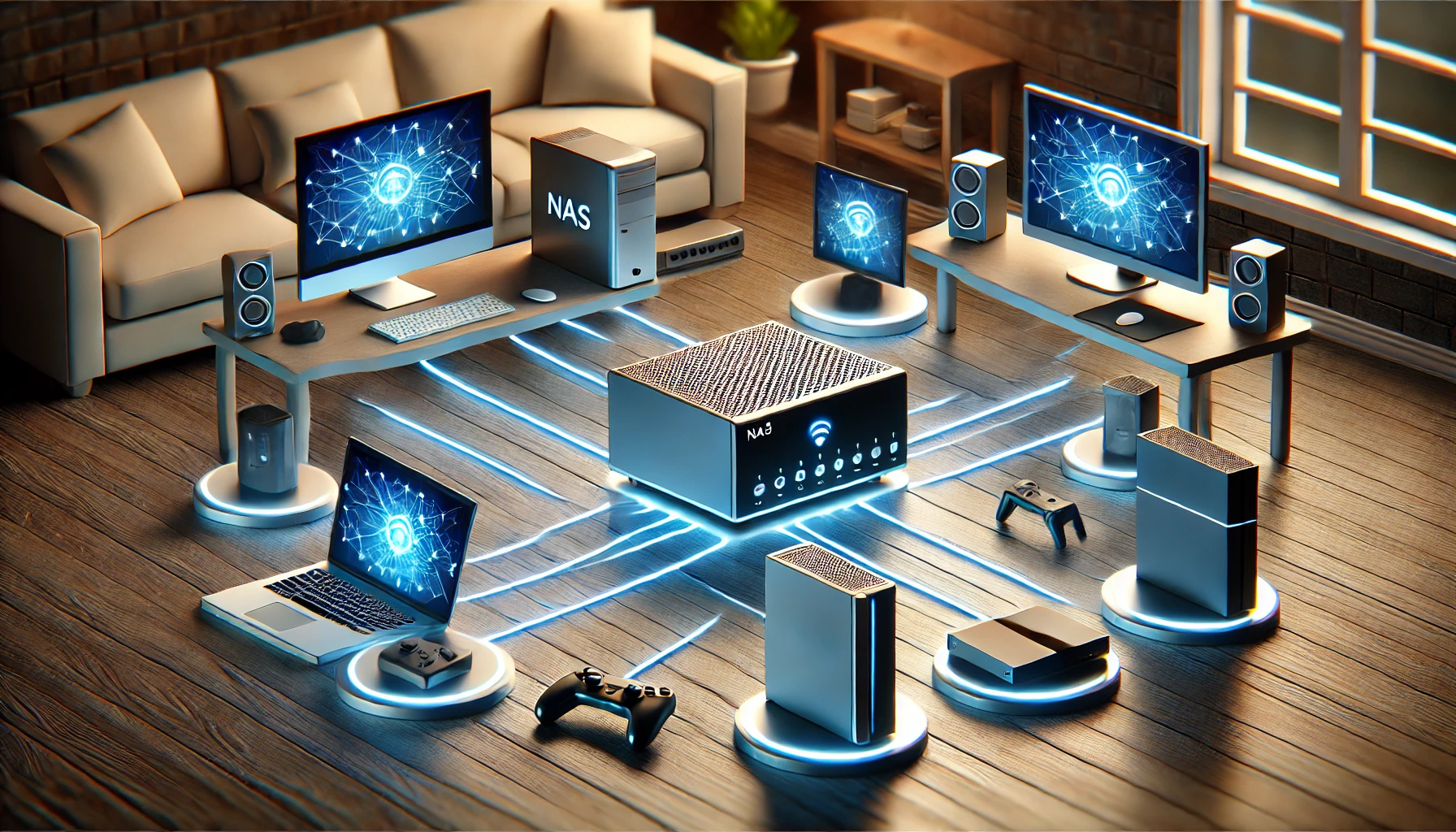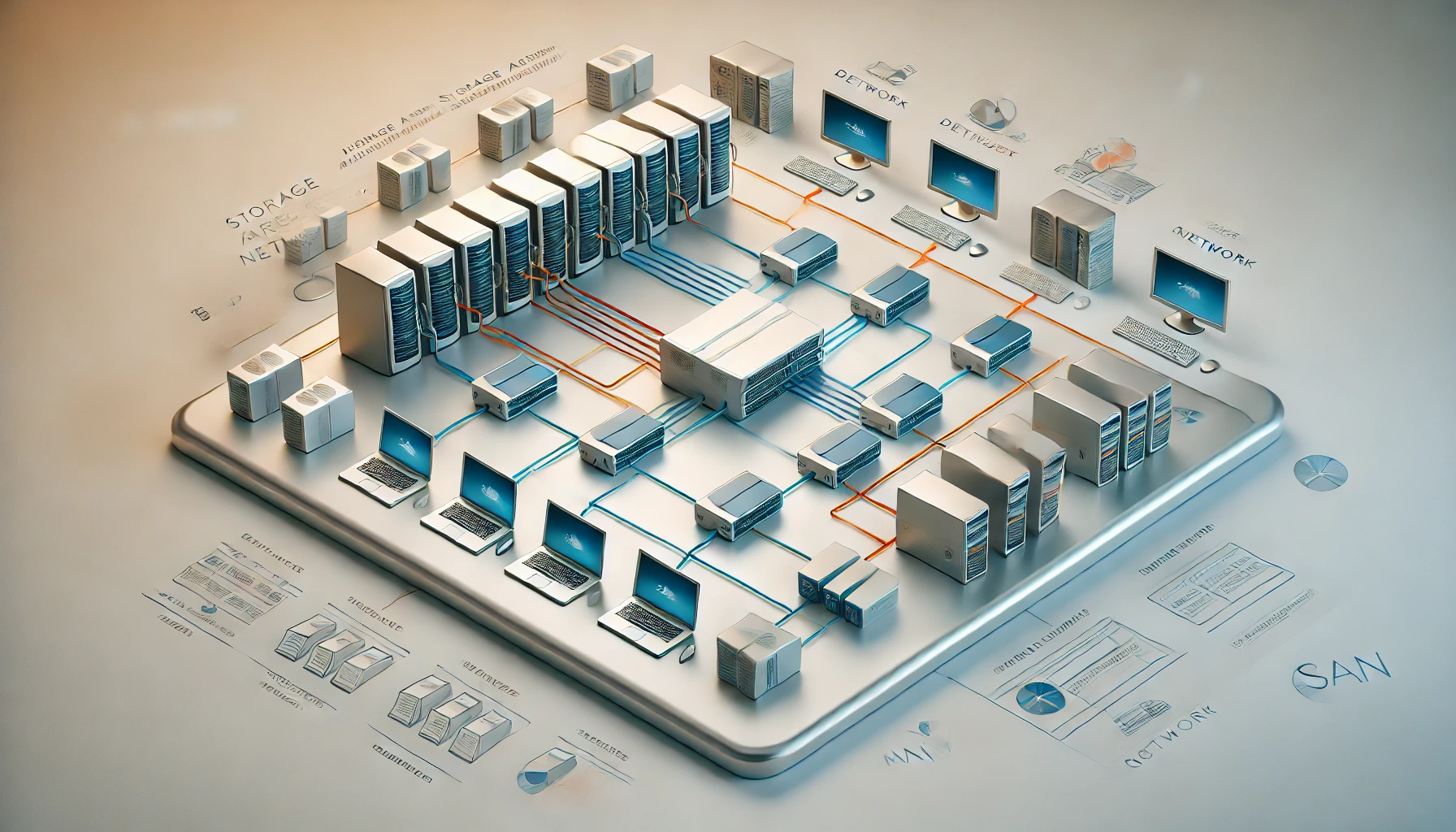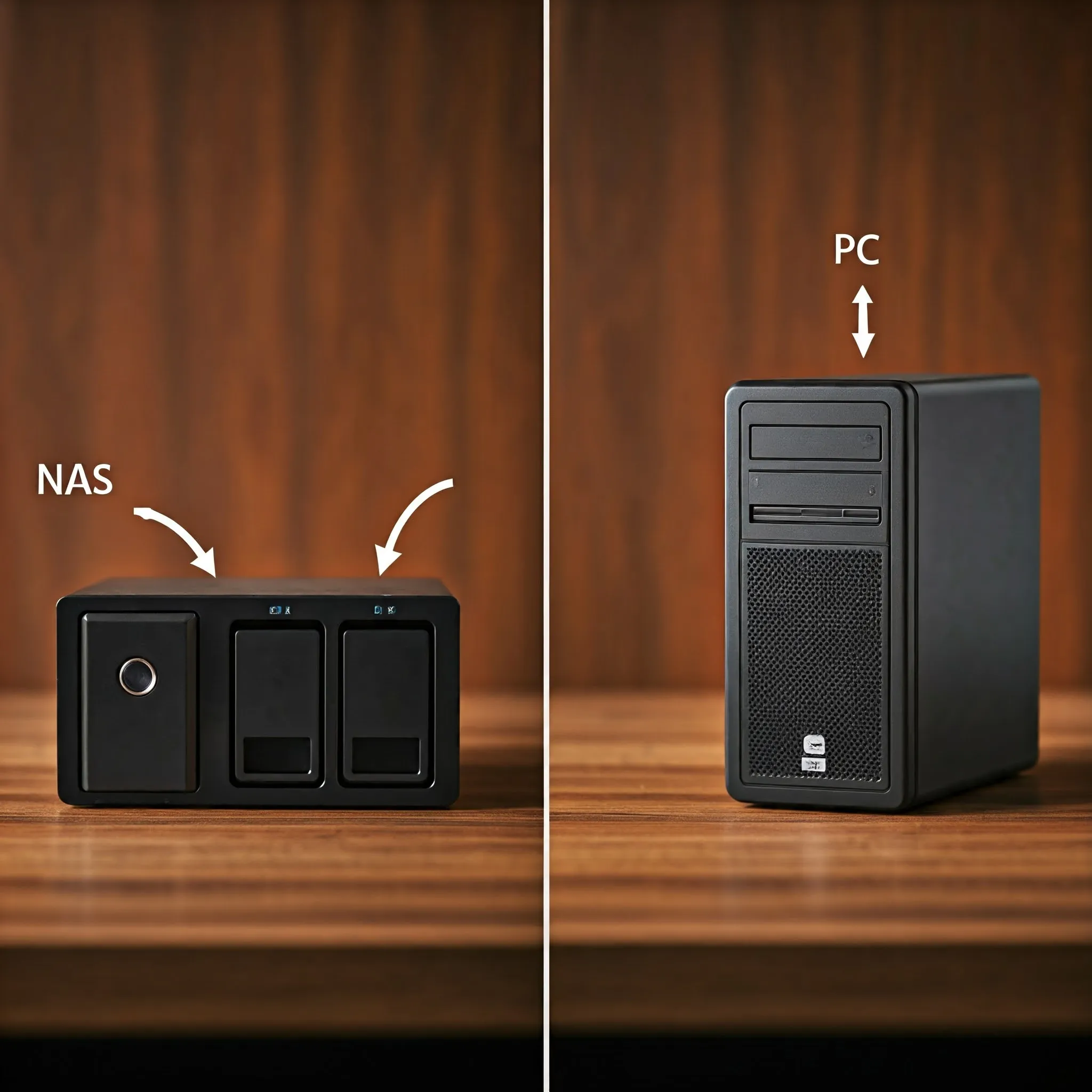
Choosing between a prebuilt NAS and a PC running storage software is mainly a choice about integration, hardware flexibility and ongoing administration. Both can provide Network Attached Storage (NAS). A PC configured to serve files over the network is itself a NAS; the useful comparison is a ready-made appliance versus a system you assemble and maintain.
Define the Storage Job First
Write down what the system must do before choosing hardware. Sharing family documents, backing up computers, serving media and storing virtual-machine disks have different performance and availability needs. Include the number of users, usable capacity, expected growth and acceptable downtime. Decide whether someone else must be able to recover the system when its usual administrator is unavailable.
A browser-based application such as Nextcloud adds file synchronization, sharing and collaboration to a server. It is not a NAS operating system and does not by itself choose a reliable disk layout. You can run an application alongside or above storage services, but its database, permissions and update requirements add another layer to maintain.
Separate those requirements into essential and optional jobs. If reliable backups are essential but media transcoding is optional, avoid letting an ambitious application list consume the budget for a second backup copy. Storage that protects your work is a stronger starting point than a powerful server without a recovery plan.
Compare What You Will Actually Operate
| Decision | Prebuilt NAS appliance | PC with NAS software |
|---|---|---|
| Initial setup | Integrated enclosure, supported firmware and guided administration; exact capabilities depend on model. | You select compatible hardware, operating system, storage layout and sharing configuration. |
| Expansion | Limited by bays, ports, supported memory and model-specific expansion. | Potentially flexible, but limited by chassis, controllers, power supply and cooling. |
| Applications | Check the vendor's supported packages, CPU architecture and update policy. | More hardware choices, with responsibility for application compatibility and isolation. |
| Support | Hardware warranty and software support vary by vendor and purchase. | Community help or commercial support depends on software and hardware choices. |
| Running costs | Measure the actual model with installed drives and workloads. | Measure the complete reused or new system, including controllers and idle devices. |
Neither column guarantees better speed, quieter operation or lower cost. Compare actual configurations at the usable capacity you need. A diskless appliance price is not a complete storage-system price, and a free old PC may still need drives, a suitable controller, a boot device or replacement fans.
Check Hardware Compatibility and Recovery Access
For a DIY system, inventory the drive bays, SATA or HBA ports, power connectors, cooling and network interface. Confirm that your chosen operating-system release supports the hardware. The TrueNAS 25.10 hardware guide, for example, recommends at least 8 GB RAM for basic use and discusses extra resources for demanding workloads. That is product-specific guidance, not a universal memory requirement for every NAS platform.
When using TrueNAS/ZFS, follow its guidance for direct disk visibility and suitable controller firmware. Do not place a hardware RAID abstraction in front of ZFS simply because the controller offers it. The guide also discourages USB-connected drives as primary TrueNAS storage. A laptop plus several improvised USB adapters should not be assumed equivalent to a purpose-designed storage enclosure.
ECC memory can contribute to an appropriate system design, but it does not replace backups or turn every component failure into a recoverable event. Check the CPU, motherboard and memory combination rather than relying on one component's label. Also consider how you will identify and replace a failed drive without confusing it with a healthy one.
For an appliance, check the supported drives, maximum usable capacity, network ports, replacement availability and software-support lifecycle. For either approach, keep console or administrative access available during a network fault. A storage system whose only recovery instructions live on its inaccessible share is difficult to repair.
Keep RAID, Snapshots and Backups Distinct
A redundant disk layout can tolerate specified drive failures; the tolerance depends on the layout and failure pattern. RAID is not a guarantee that files cannot be lost. Accidental deletion, ransomware, theft, fire and controller or operator errors remain possible. Synology's protection guidance includes regular backups alongside drive monitoring and redundancy.
Snapshots can help recover earlier data when the storage platform supports them, but a snapshot on the same failed pool cannot rescue that pool. Keep another protected copy, with an off-site copy when losing the whole location is a concern. Choose retention that can recover an older version rather than only mirror the latest damaged file.
Synchronization is a separate workflow. Nextcloud's client documentation describes synchronizing files between client and server. Changes can propagate, so a current synchronized folder should not be treated as the only recovery copy. The server backup manual includes configuration, data and database requirements for restoring the application.
Test recovery with representative files and the accounts that will use them. Restoring a photo with the wrong permissions or losing an encrypted dataset's key can make a nominal backup useless. Keep protected recovery information separate from the system it unlocks, and document where the independent copy is held.
Compare Total Cost and Measured Power
Include drives, usable-capacity overhead, boot storage, UPS where needed, networking, backup destination, software licences and maintenance time. Reuse can be economical when hardware is suitable and dependable. It can also move the cost into power consumption, repairs or time spent diagnosing compatibility problems.
Measure wall power with the installed drives and normal services running. As an illustrative calculation, a system averaging 40 W instead of 15 W uses an additional 25 W. Continuous operation adds 25 × 24 × 365 ÷ 1,000 = 219 kWh per year. Multiply that by your actual applicable electricity tariff to estimate the energy-cost difference. These assumed wattages are not benchmarks for a PC or NAS model.
Measure noise where the machine will live, and observe temperatures during realistic activity. Idle power, busy power and disk-spindown behavior can differ. Avoid selecting a platform from a universal claim that appliances are always efficient or desktop hardware is always faster.
Test the Actual Workload
Compare transfers using the same client, wired network and representative data. A single large file tests a different workload from thousands of small files. Record read and write behavior, simultaneous users and whether application activity changes responsiveness. Consider the network path and client storage before buying faster server disks.
Check permissions with separate normal users, restart the system and confirm shares return, and test the backup schedule. For virtual-machine storage, verify the hypervisor's supported protocol and failure behavior. A successful file copy is a useful start, but it does not establish suitability for every database or VM workload.
Choose a Platform and Migrate Carefully
A household wanting shared documents with limited administration may prefer a suitable prebuilt appliance. A builder who needs specific controllers, networking or applications may prefer a dedicated DIY system. An available PC is a sensible trial platform when it meets the software requirements and someone will maintain it. The decision should follow the workload and recovery constraints, rather than the NAS label alone.
Trial the chosen platform on spare hardware or empty test disks. Installing an operating system or creating a pool can erase disks, so preserve a verified independent copy before repurposing a machine containing data. Do not assume existing files remain accessible when changing storage systems.
Copy data to the new system, verify important contents and permissions, and test a restore before retiring the old storage. Keep the original source until the new system has passed normal-use checks. Record configuration, keys, versions and ownership of maintenance tasks. The stronger choice is the system you can operate, monitor and recover reliably at the capacity you need.