Omarchy is a Linux desktop for people who want a coherent working environment without choosing every component themselves. It combines Arch Linux, the Hyprland window manager and a coordinated set of applications, shortcuts and settings. The result asks you to learn a different way of using a computer: launch from the keyboard, arrange work in tiles and workspaces, and change settings through menus and readable configuration files.
This guide covers Omarchy 4 “Quattro”, using release 4.0.4 from 15 September 2026. That matters because older guides describe a different desktop shell. The 4.0.4 release provides the version reference; use documentation matching your installation when following detailed instructions.
DHH, 37signals and the idea behind Omarchy
David Heinemeier Hansson, usually known as DHH, announced Omarchy on 26 June 2025. He is the creator of Ruby on Rails and co-owner and CTO of 37signals, the company behind Basecamp and HEY. His original goal was to share his configured Arch and Hyprland developer environment. It followed Omakub, his Ubuntu setup, as a sister project rather than replacing it.
The guiding idea is omakase: let someone choose and coordinate a useful starting set. Omarchy picks more than a wallpaper. It connects application launchers, terminal tools, window management, themes and maintenance into a recognisable workflow. Those choices reduce the number of setup decisions, but you still need to decide whether they fit your work.
In August 2026, Quattro changed the desktop substantially. It brought an integrated Quickshell shell and moved Omarchy internals into system packages. A tutorial that tells you to edit Waybar or Walker for every desktop change may describe the earlier generation.
What Arch, Hyprland and Quickshell each do
Arch Linux supplies the underlying operating system and Pacman package manager. It follows a rolling release model: packages evolve through updates rather than a traditional sequence of large distribution upgrades. Omarchy adds its own packages, selected defaults and maintenance process; it is more than installing a bare Arch system and choosing a wallpaper.
Hyprland is the Wayland compositor responsible for windows and workspaces. Its tiling layout divides the available area among applications, although individual windows can float. Quickshell provides Omarchy 4’s coordinated desktop surfaces, including the bar, menus, notifications and control panels. The applications themselves remain distinct programs.
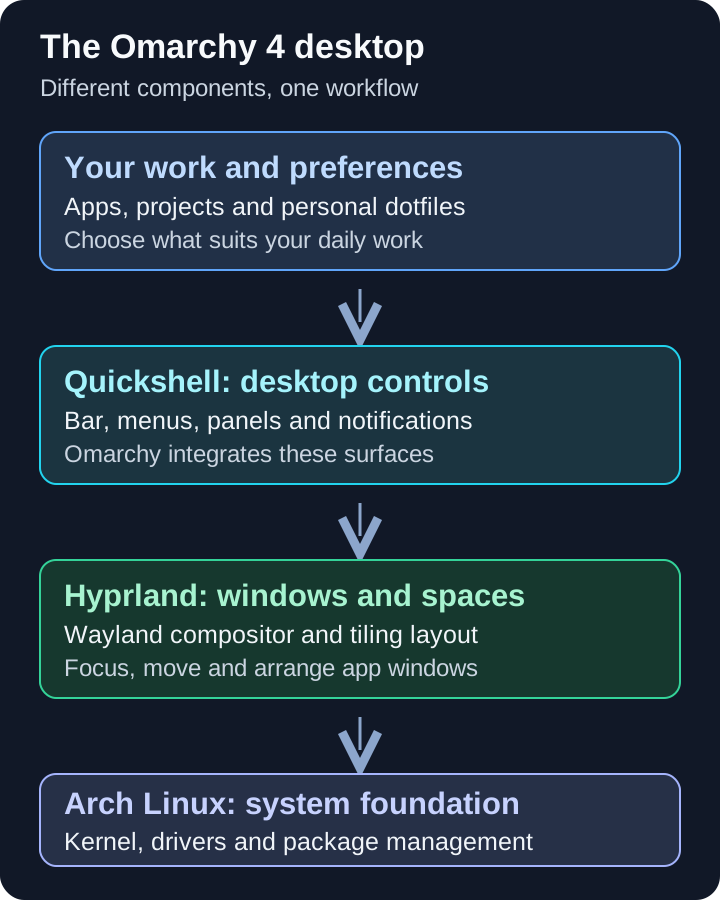
This distinction helps with troubleshooting. A missing network panel is a different problem from a Wi-Fi driver failure. Incorrect window placement points toward compositor settings; a program failing to start may involve its package or configuration. Record the symptom before changing several layers at once.
Hardware and planning before installation
The September ISO profile targets x86-64. Start with a PC or a suitably configured virtual machine, and check its graphics, Wi-Fi, audio and boot support. Do not treat an Apple Silicon Mac or Raspberry Pi as interchangeable with that ISO. The versioned platform chapter describes separate community routes for other environments.
Size memory and storage for your applications, not just an empty desktop. A browser, editor and local containers can have very different needs from a light browsing session. Include room for projects, package caches and system snapshots. The installation sources used here do not establish one universal RAM or storage minimum, so a small-machine demonstration should not become a guarantee for your workload.
Prepare firmware access, backups and a keyboard that works before the desktop starts. The installation manual requires adjusting boot-security settings and calls for disabling Secure Boot. TPM settings are separate; do not clear hardware keys as a generic troubleshooting step. For a Windows machine, retrieve the BitLocker recovery key before firmware or boot changes.
Use a built-in or wired keyboard, or a compatible USB receiver, for the encryption prompt. A Bluetooth keyboard alone is not a dependable preboot input method. Keep another device available for reading instructions if the new machine cannot connect.
Choose the installation path deliberately
The supported starting point is the Omarchy ISO. The historical ISO instructions describe a bundled package mirror, so the base installation does not depend on downloading every package live. Updates, optional software and online account authentication still need appropriate connectivity.
- Choose the target. A spare machine or disposable VM provides a useful first trial. Check the hypervisor’s graphics configuration before interpreting VM behaviour as physical-PC performance.
- Verify the ISO. Download the selected release and its matching checksum from the official project. Check it before writing the USB stick; a mismatched checksum means the download needs resolving first.
- Check the disk choice. Full-disk installation erases the selected drive. Free-space installation uses unallocated space alongside an existing system. Confirm the actual drive and available space before accepting.
- Keep encryption and recovery deliberate. The normal installation defaults to LUKS encryption. Record how you will retain the unlock credentials and restore your separate backups.
- Validate the finished machine. Check networking, sound, microphone, display scaling, suspend and restart before moving important work across.
For a download saved in your Linux Downloads folder, this example checks the 4.0.4 ISO against its matching checksum file:
cd "$HOME/Downloads"
sha256sum -c omarchy-4.0.4.iso.sha256
A checksum checks matching bytes; the project also publishes an ISO signature for verification against its signing key. For Windows dual boot, follow the free-space installation guide, including its BitLocker decryption requirement. This is an installer compatibility instruction: BitLocker protects volumes, rather than automatically encrypting every partition on a physical disk.
Learn a small set of keyboard actions first
Super normally means the Windows key on a PC keyboard. Start with the versioned hotkey reference, then practise a few actions until they become comfortable:
| Action | Default shortcut in 4.0.4 |
|---|---|
| Open the Omarchy menu | Super + Space |
| Open a terminal | Super + Return |
| Open a browser | Super + Shift + Return |
| Show the keybindings | Super + K |
| Focus the adjacent window | Super + Arrow |
| Go to workspace 2 | Super + 2 |
| Move the focused window to workspace 2 | Super + Shift + 2 |
| Toggle tiling or floating | Super + T |
| Close the focused window | Super + W |
Try the terminal and browser side by side, move one to a second workspace, then return to the first. Use an empty document for experiments and save work before closing windows. You can still use the mouse; the useful change is having predictable keyboard paths for frequent actions.
The default dwindle layout keeps tiled windows visible, while the scrolling layout is an alternative for a workspace. Learn focus and workspace movement before changing layouts. A large collection of shortcuts is less useful than a handful you can confidently recover from.
Turn the defaults into a working environment
The terminal chapter identifies Foot as the default, with Alacritty, Ghostty and Kitty as alternatives. Foot does not provide native tabs or splits; Tmux supplies panes and persistent sessions if that suits your workflow. Choosing a terminal through the Omarchy menu keeps the normal launch shortcut aligned with that choice.
Neovim is the default editor, but the development menu offers alternatives. Set your preferred editor under Setup > Defaults rather than learning two unfamiliar interfaces at once. Install the runtime needed for one real project and check its version before adding a collection of tools. Mise manages many of the supported language environments.
For homelab work, use one workspace for documentation and another for terminals or dashboards. Keep your server configuration separate from desktop experiments. Omarchy can provide an administration workstation, but its desktop defaults are not a reason to replace a stable NAS or server operating system.
Quattro also integrates coding-agent launchers. They are optional tools with their own installation, authentication and service terms. Some Omarchy launch paths use unattended approval modes, so inspect the proposed changes and available permissions before letting an agent alter system configuration. The versioned AI chapter explains that boundary.
Customise through personal configuration
Start with Style > Theme for a coordinated appearance. Themes reach across several supported applications and the shell, but individual programs may need their own selection; the theme guide calls out Obsidian specifically. Then adjust display scaling and input settings to match your screen and keyboard.
The important distinction is between your files under ~/.config and Omarchy’s packaged files under /usr/share/omarchy. Use personal overrides for ordinary changes. Editing the packaged internals directly risks having those edits replaced by an update. Quattro’s Hyprland configuration uses Lua, so do not paste an older hyprland.conf recipe into a Lua file.
| Personal file | Purpose |
|---|---|
~/.config/hypr/bindings.lua | Keyboard overrides |
~/.config/hypr/monitors.lua | Display arrangement and scaling |
~/.config/hypr/input.lua | Keyboard, mouse and trackpad settings |
~/.config/hypr/looknfeel.lua | Gaps, borders and appearance |
Use the Setup menu’s configuration entries to open the correct file. Save a copy before changing it, make one change and check the result. Keep a known working binding for the menu and terminal. Store useful dotfiles in private version control, excluding passwords and tokens; a recoverable change is easier to understand than a large pasted replacement.
Updates, snapshots and recovery
Use Update > Omarchy for normal maintenance. It coordinates package changes and migrations, rather than just upgrading Arch packages independently. The update guide describes stable, RC, edge and dev channels. Stable is the sensible starting point for an ordinary workstation; development channels assume a willingness to diagnose breakage.
The stable mirror is deliberately staged behind upstream Arch. That reduces some integration surprises, but it does not mean every upstream fix appears immediately or every update is risk-free. Read release notes, keep free disk space and update when you have time to address an error.
Updates attempt a system snapshot before proceeding. Check the output: the 4.0.4 updater can continue without a snapshot when creation fails. A completed upgrade therefore does not prove you have a working rollback point.
The documented recovery path selects a snapshot through Limine, boots it and starts restoration. It restores the root filesystem, not /home. Personal files and ~/.config remain as they were. A restored older application may therefore still meet a newer user configuration. Keep separate backups for projects and dotfiles; snapshots are not a substitute.
Before asking for help, collect a small, relevant set of observations from the installed machine:
omarchy --help
pacman -Q omarchy omarchy-settings hyprland
hyprctl monitors all
These read-only checks show available commands, installed package versions and display information. They help distinguish a version mismatch from a monitor setup problem. Resetting configurations or reinstalling Omarchy can overwrite personal changes, so retain copies before choosing those recovery actions.
Who is Omarchy a good fit for?
Omarchy is appealing if you like coordinated defaults, terminal tools, visible configuration and a desktop organised around the keyboard. It can save initial assembly work for a developer or an interested Linux user. Its freedom also brings responsibility: you still need to understand updates, backups and the effects of your changes.
Be more cautious when your daily work depends on an unverified Windows application, specialist peripheral or employer-managed security setup. Test that requirement before changing your main machine. A successful installation does not establish reliable conferencing, docking, printing or application compatibility. A VM is useful for learning the interface; it cannot settle every physical-hardware question.
For a first Linux experience, DHH’s launch article itself calls Ubuntu an easier landing. A familiar desktop may be a better choice when learning window management would distract from the job you need to finish. Conversely, if arranging terminals and browsers is already a large part of your day, Omarchy’s workflow deserves a practical trial.
Choose one representative task, use the defaults first, and judge whether the workflow helps you complete it comfortably. Keep the system you depend on available until the essential checks pass. The reason to choose Omarchy is that its decisions suit your work, with enough understanding to maintain and recover it.
Sources and further reading
- DHH’s original announcement and Quattro release notes explain the origins and desktop changes.
- The official manual at version 4.0.4 is the historical reference for this guide; the online manual follows the evolving project.
- Release 4.0.4 and Arch’s overview explain the version and underlying system.
- Microsoft’s BitLocker overview explains volume encryption when planning a Windows dual boot.
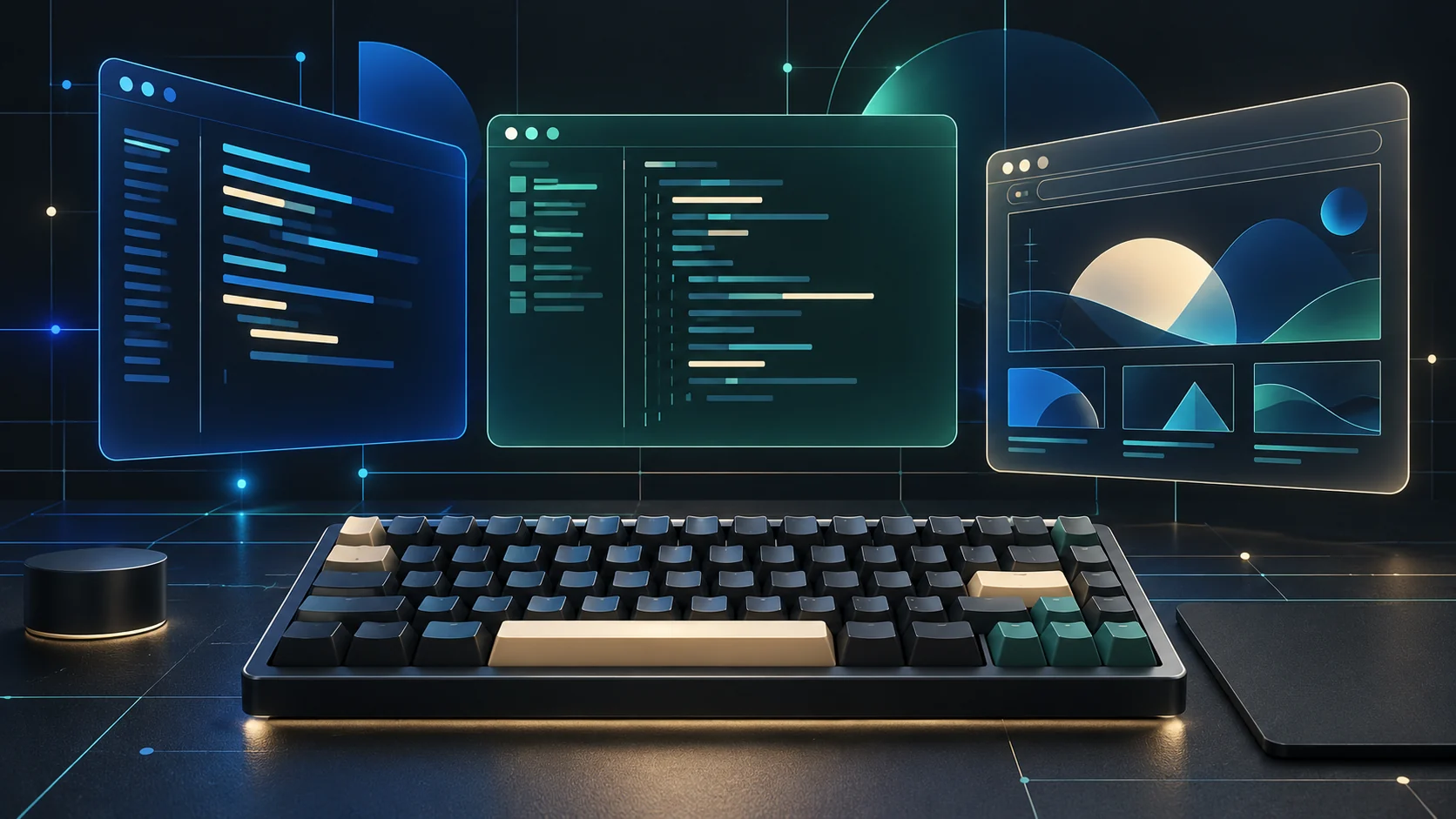
Artwork: The header image is an original conceptual illustration, not an Omarchy screenshot. The component diagram is an original TechDecode SVG.