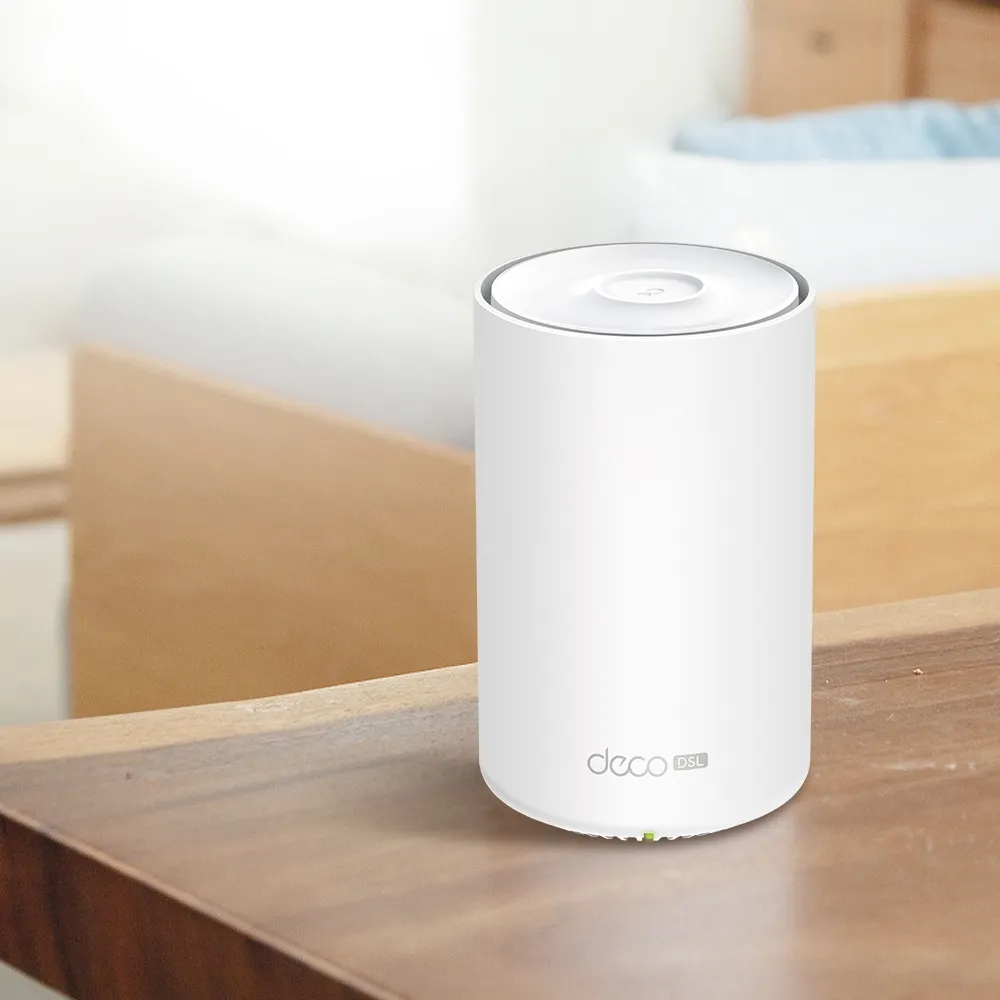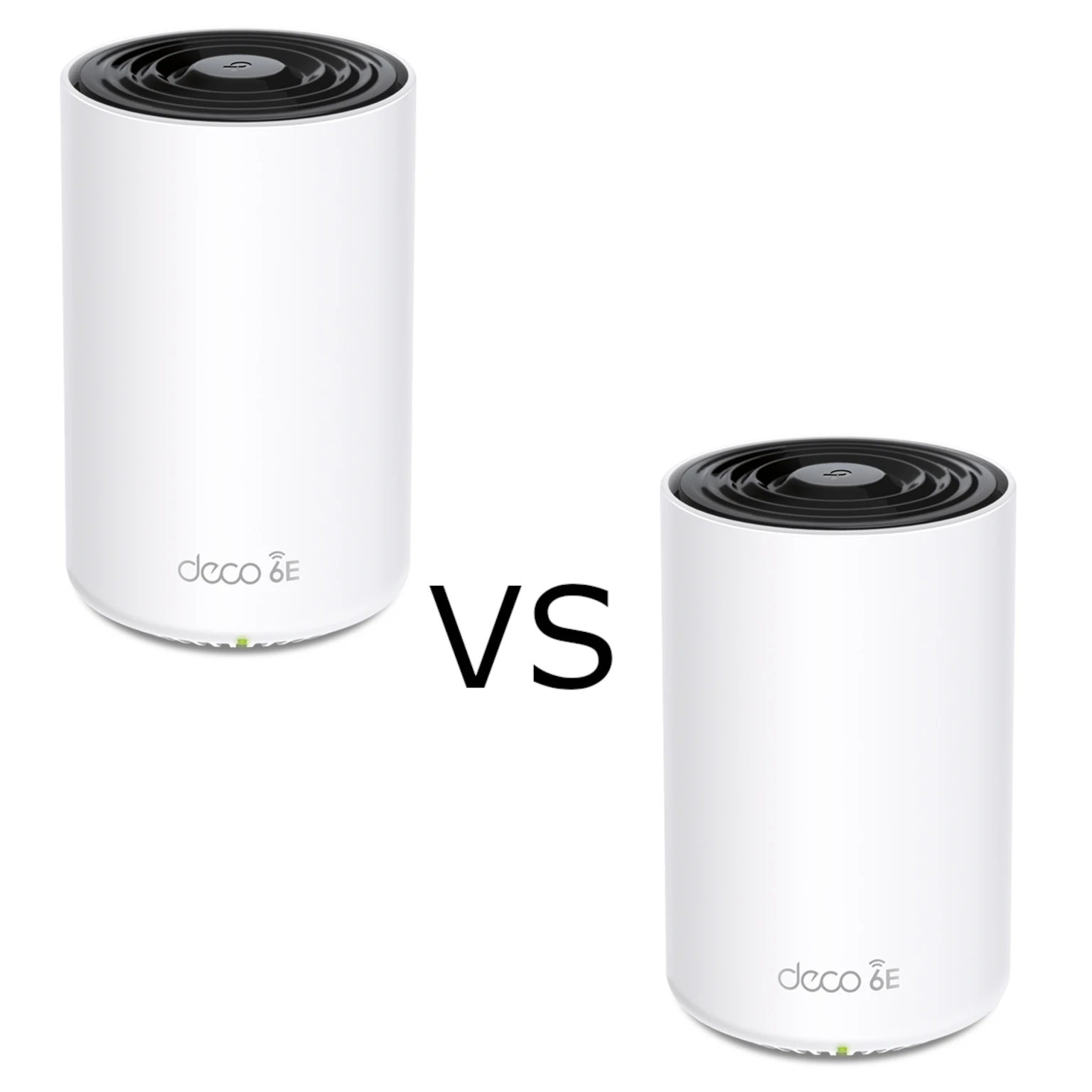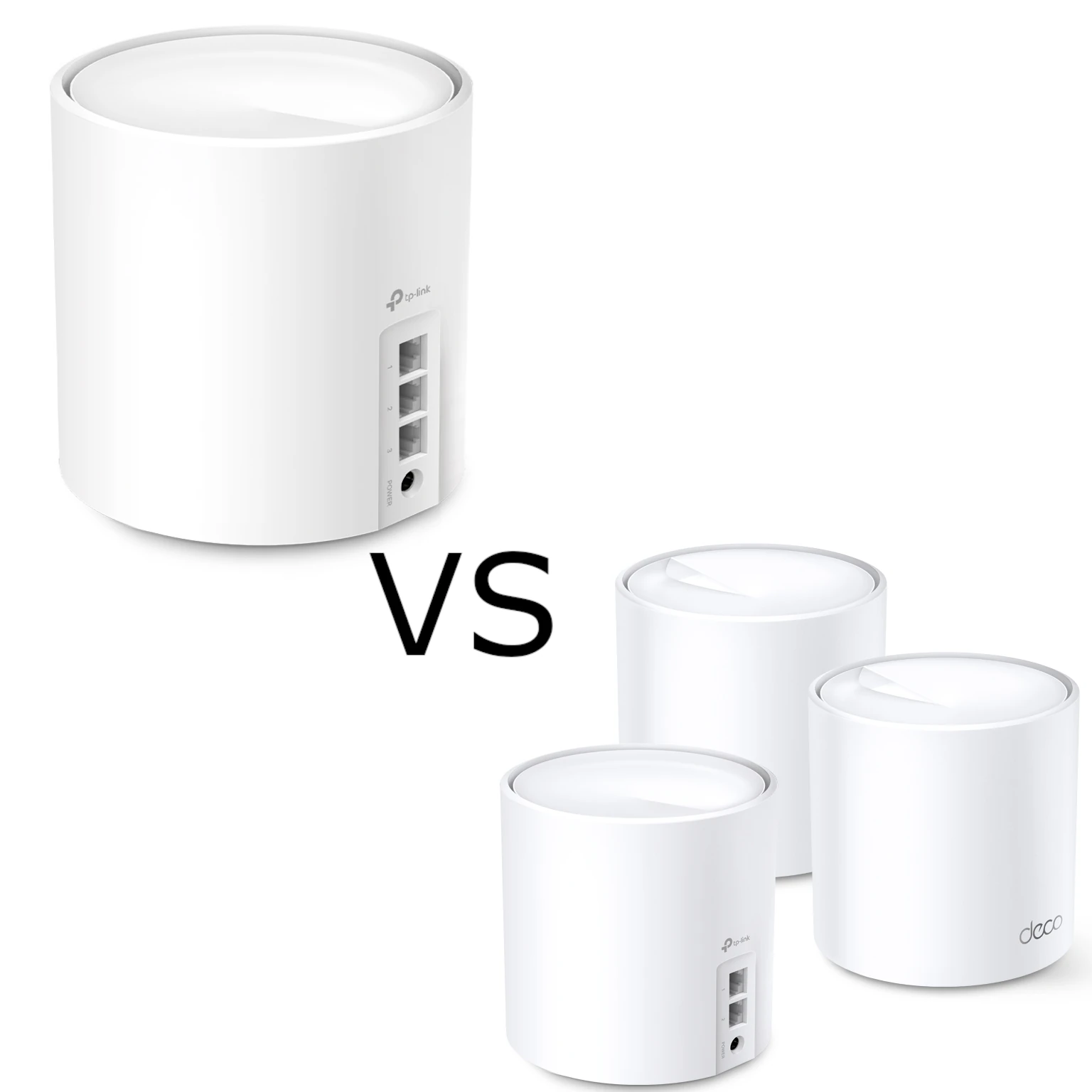
Ever find yourself battling for a decent Wi-Fi signal in certain corners of your house? Traditional routers often struggle to deliver consistent coverage, especially in larger homes or those with thick walls. Here's where mesh Wi-Fi comes in, offering a whole-home solution to eliminate those pesky Wi-Fi dead zones.
What is Mesh Wi-Fi and Why is it Great?
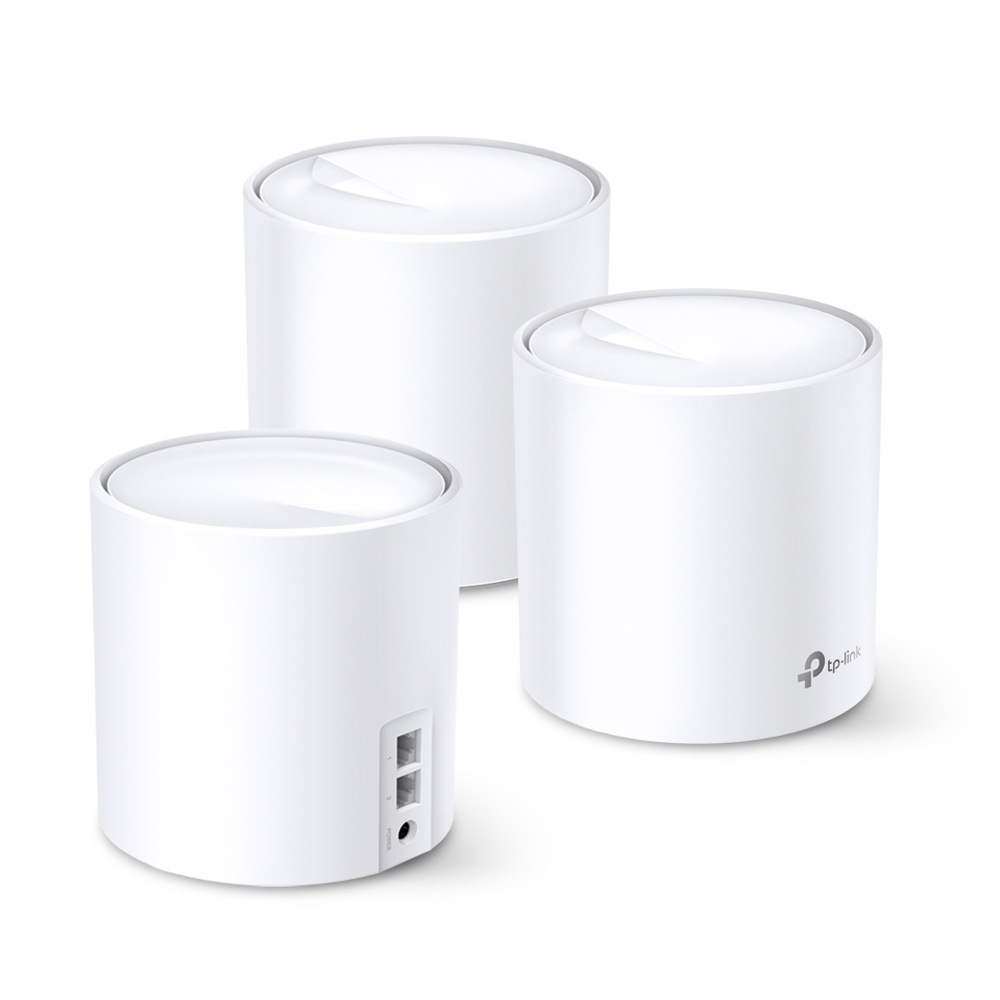
Traditional routers work by broadcasting a Wi-Fi signal outwards in all directions. This can be problematic for larger homes or those with obstacles like walls and floors that can weaken the signal. Mesh Wi-Fi systems take a different approach. They use multiple units, called Deco units, strategically placed around your home to create a blanket of Wi-Fi coverage. Imagine it like a blanket of Wi-Fi that reaches every corner, unlike a single router that pushes the signal outwards in all directions, often leaving pockets with weak or no signal.
Each Deco unit communicates with the others, forming a unified network. The units share a network name, while connection quality depends on placement and backhaul. Clients make roaming decisions; the physically closest unit is not always the selected one, and uninterrupted handoff is not guaranteed for every device.
Here's why mesh Wi-Fi is fantastic:
- Eliminates Dead Zones: Mesh can extend coverage when the units have suitable upstream links; walls, floors and layout still affect the result.
- Seamless Roaming: As you move around your house, compatible devices can move between access points using the same network name. Test actual clients and calls before relying on roaming behaviour.
- Scalability: Need more coverage? Simply add another Deco unit to your network and extend your Wi-Fi even further.
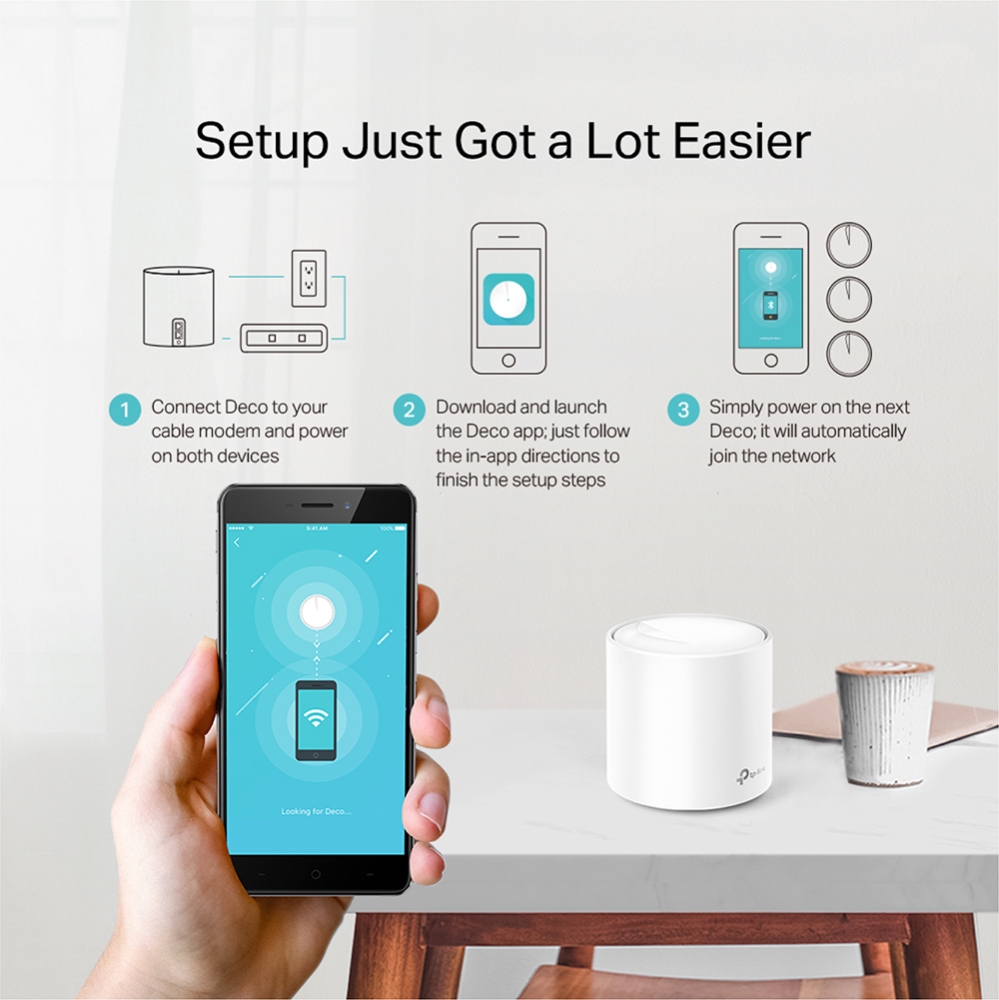
- Easy Setup: Setting up a mesh Wi-Fi system is generally much easier than configuring a traditional router.
Introducing the TP-Link Deco X20: Your Wi-Fi 6 Mesh Champion
The TP-Link Deco X20 is an AX1800 whole-home mesh Wi-Fi system that leverages the power of Wi-Fi 6 technology. Wi-Fi 6, also known as 802.11ax, is the Wi-Fi 6 generation; newer Wi-Fi generations also exist. Its efficiency features can be useful with compatible clients, but the X20’s particular radios and Ethernet ports define its limits. Here's a breakdown of the key improvements Wi-Fi 6 brings to the table:
- Faster Speeds: Experience blazing-fast Wi-Fi speeds that can handle even the most demanding tasks, such as 4K streaming, online gaming, and large file downloads. For the X20, use its actual advertised rates: 1,201 Mbps on 5 GHz and 574 Mbps on 2.4 GHz. Neither a standards-wide maximum nor their rounded AX1800 sum is one client’s expected download speed.
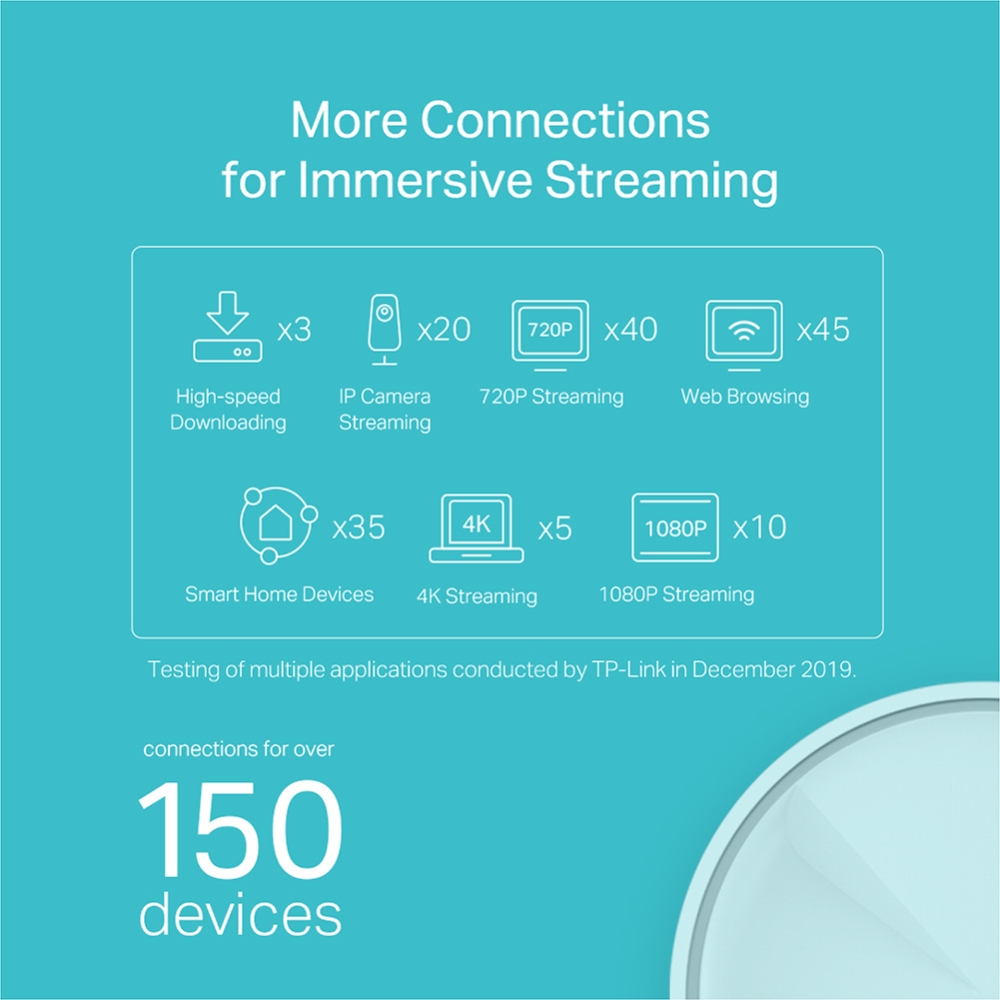
- Increased Capacity: With the ever-growing number of Wi-Fi devices in our homes, traditional Wi-Fi networks can become congested, leading to slowdowns and buffering. Wi-Fi 6 utilizes smarter technologies like MU-MIMO (Multi-User, Multiple-Input, Multiple-Output) and OFDMA (Orthogonal Frequency-Division Multiple Access) to efficiently communicate with multiple devices simultaneously. This translates to a smoother and more responsive Wi-Fi experience for everyone in your home, even when multiple devices are streaming, gaming, or browsing online at the same time.
- Improved Efficiency: Wi-Fi 6 introduces features like Target Wake Time (TWT) that help to conserve battery life on your Wi-Fi devices. With supported scheduling, devices can spend more time asleep between communications. This depends on client support and workload; it is not a promise that every connected phone or sensor gains the same battery life.
TP-Link Deco X20 Specifications:
| Feature | Specification |
|---|---|
| Wi-Fi Standard | Wi-Fi 6 AX1800 (Dual-Band) |
| Speeds | Total 1800Mbps Up to 1201 Mbps (5 GHz) + 574 Mbps (2.4 GHz) |
| Kit coverage estimate | Manufacturer claim: up to 5,800 sq ft for the cited three-pack. Check region and kit size; not guaranteed coverage in a particular home. |
| Ports | 2 x Gigabit Ethernet Ports (per unit) |
| Supported Devices | Manufacturer capacity claim: over 150 devices under its test conditions; not equal performance for 150 busy clients |
| Security Features | WPA3 encryption |
| Management | Deco app for easy setup and control |
TP-Link Deco X20: Pros and Cons
Pros:
- Designed to improve coverage in weak areas
- A shared network name with supported roaming assistance
- Easy setup and management
- Supports a large number of devices (over 150)
- Affordable compared to other mesh systems
Cons:
- Individual Deco units are not as powerful as high-end routers
- May be overkill for small homes
Who Needs the TP-Link Deco X20?
- Homeowners with large or multi-story houses struggling with Wi-Fi dead zones
- Gamers who want to improve a weak connection and can test backhaul and latency under load
- Families with multiple devices streaming and browsing simultaneously
- Anyone who wants a simple and user-friendly way to manage their home Wi-Fi
Summary: Conquer Your Wi-Fi Woes with the TP-Link Deco X20
The TP-Link Deco X20 offers a compelling mesh Wi-Fi solution for those seeking to eliminate dead zones and create a seamless Wi-Fi experience throughout their home. With Wi-Fi 6 support, it offers efficiency features for compatible clients, with actual performance depending on the environment. While not the most powerful option on the market, the Deco X20 strikes a great balance between affordability, ease of use, and whole-home coverage, making it a perfect choice for families and those seeking a hassle-free Wi-Fi upgrade.
Hardware revisions and feature support
The current international specification lists two Gigabit Ethernet ports and a 110×110×114 mm enclosure. It does not establish one processor model, a measured 10 W load figure or identical features for every historical hardware revision. Check the underside label before downloading firmware or comparing a used kit.
TP-Link staff distinguish HomeCare on X20 V1/V2 from HomeShield on V3. Regional support pages now list additional revisions, including V5. HomeShield has a free basic tier and additional paid features; inspect the actual app and required function rather than assuming the older HomeCare package is included unchanged.
Software additions also depend on firmware. For example, the US V3.60 release notes describe VPN additions, including WireGuard support on applicable firmware. This does not prove every X20 has every VPN client/server role. Use only the regional image intended for your exact revision, and confirm the required menu after updating. Router versus Access Point mode can also affect available controls.
Compare useful differences in the budget range
The following maximum link rates and port counts come from the cited X10, X20 and X55 specifications:
| Feature | Deco X10 reference | Deco X20 reference | Deco X55 reference |
|---|---|---|---|
| 5 GHz advertised maximum | 1,201 Mbps | 1,201 Mbps | 2,402 Mbps |
| 2.4 GHz advertised maximum | 300 Mbps, 802.11n | 574 Mbps, 802.11ax | 574 Mbps, 802.11ax |
| Gigabit ports per unit | 2 | 2 | 3 |
The X55's higher 5 GHz rate requires a suitable client and channel width; it does not double every device's performance. Likewise, the X20's newer 2.4 GHz capability does not change an older sensor's own radio. The M4 remains another comparison point when assessing budget, existing devices and wired ports.
Do not select an ISP plan from fixed model-specific wireless ranges. A wired path is limited by the Gigabit ports; a wireless satellite adds backhaul and client-radio constraints. Identify whether the household needs better coverage, more ports, a particular router feature or faster local transfers. Those are different reasons to change hardware.
Verify placement and backhaul
Start with feasible satellite locations where the upstream connection is still usable. A strong phone-to-satellite signal does not establish a good satellite-to-main link. Inspect the app's connection information and test the same client in the weak room, rather than assuming a coverage estimate equals a floor plan.
Ethernet backhaul avoids using the shared wireless transport between wired units. Follow the mode-specific wiring guide: in Router mode, satellites and their switch belong downstream of the main unit's LAN side. Count the uplink/backhaul as an occupied port when deciding whether a switch is needed. A newer main unit does not upgrade every older satellite's radio.
Compare a wired baseline at the main unit, a wireless task near it and the same task at a satellite. Include ordinary simultaneous household use and a moving video call if roaming matters. Check compatibility before enabling Fast Roaming; TP-Link documents failures with some unsupported clients. Keep the original favourable view of the X20's value in mind, but validate the required task instead of treating “best entry level” as a measured winner in every home.