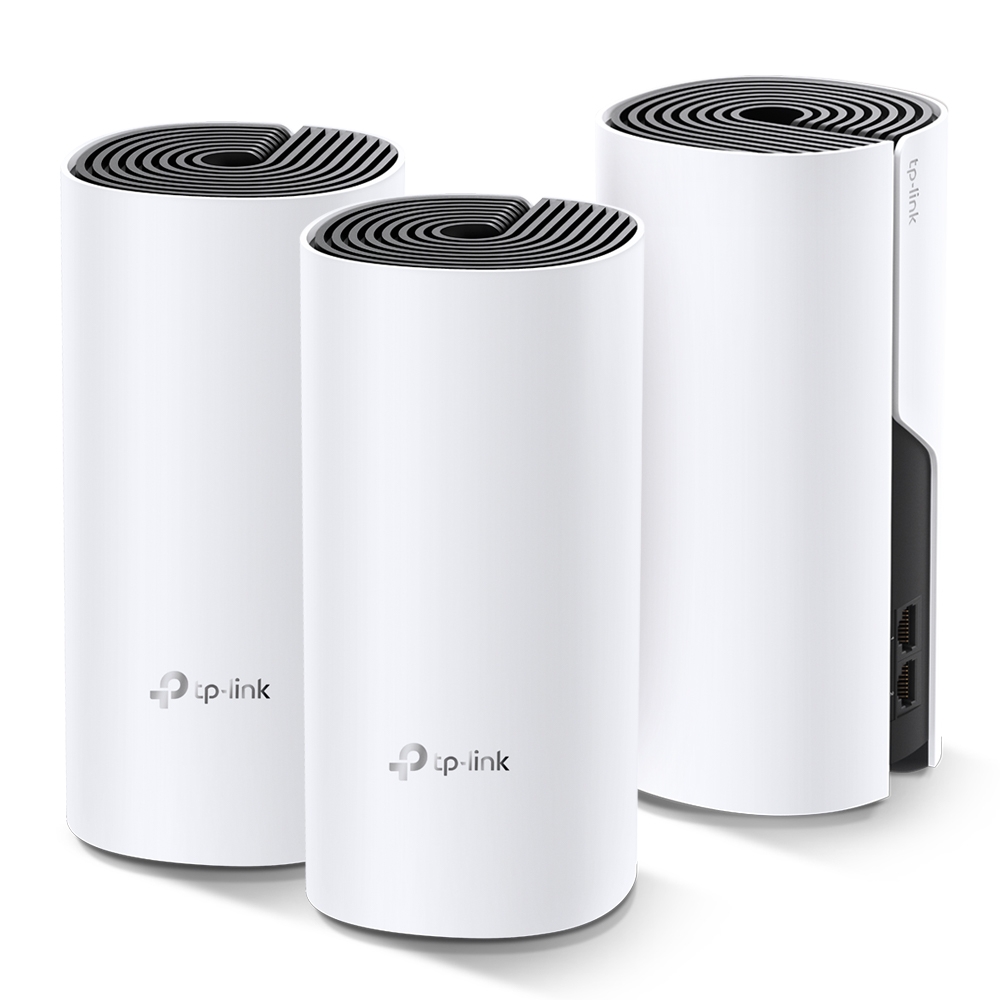
Ever walk around your house and find yourself constantly dropping connection on your phone or laptop? Blame those pesky Wi-Fi dead zones! Luckily, there's a solution that won't break the bank: mesh Wi-Fi systems. Today, we're diving into the TP-Link Deco M4, an affordable mesh Wi-Fi system that aims to improve coverage around your home. Placement and building materials still determine the result.
What is Mesh Wi-Fi and Why Do I Need It?
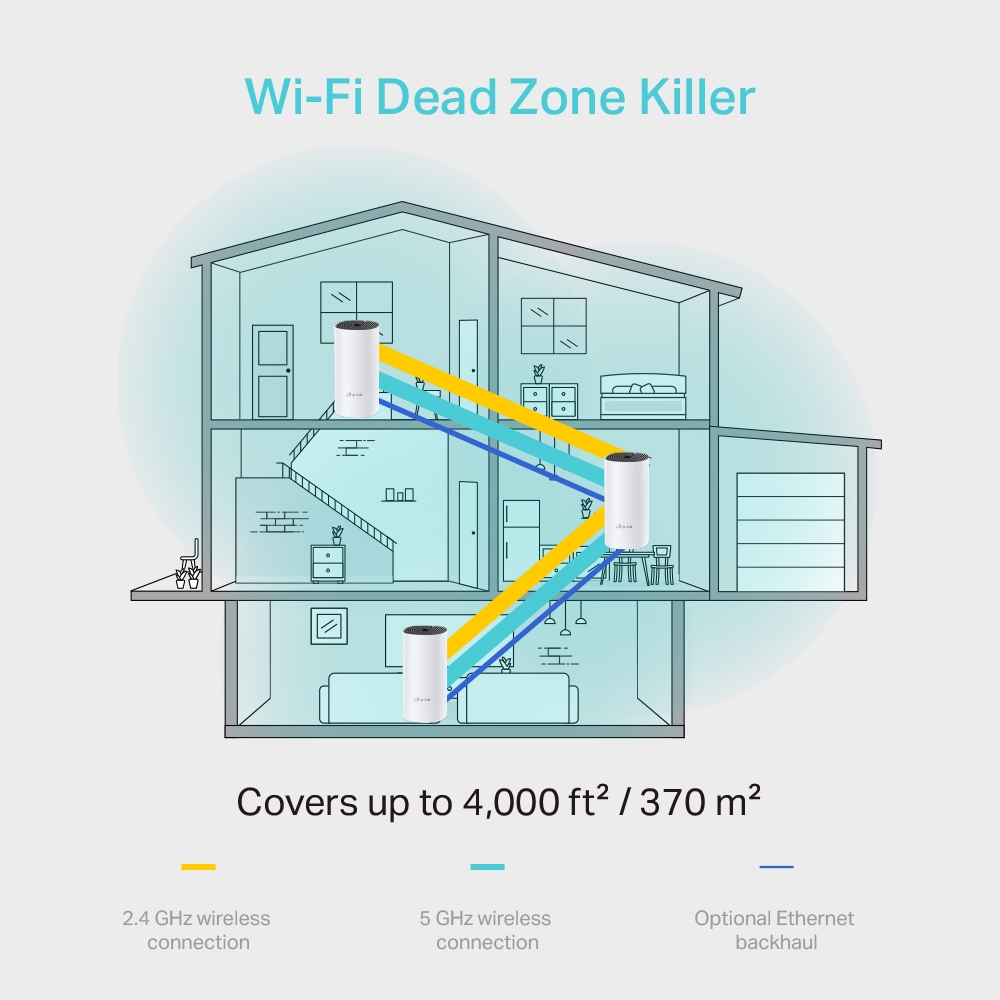
Traditional routers are designed to blast a signal outwards from a single location. This works well in smaller spaces, but in larger homes or those with thick walls, the signal can weaken as it travels, creating areas with weak or no connection – the dreaded dead zones. Mesh Wi-Fi systems, on the other hand, take a different approach. They use multiple units, strategically placed around your home, to create a blanket of Wi-Fi coverage. These units work together to form a single, unified network with a single network name (SSID). As you move through your home, Deco can help compatible devices roam between units. The client ultimately decides when to move; a single network name does not guarantee the strongest connection or a completely uninterrupted call.
TP-Link Deco M4: Specs at a Glance
| Feature | Specification |
|---|---|
| Wi-Fi standard and rating | Wi-Fi 5, AC1200; 2.4GHz and 5GHz |
| Coverage estimate | Pack and region dependent; current US V1 page advertises up to 5,500 sq. ft. for three units |
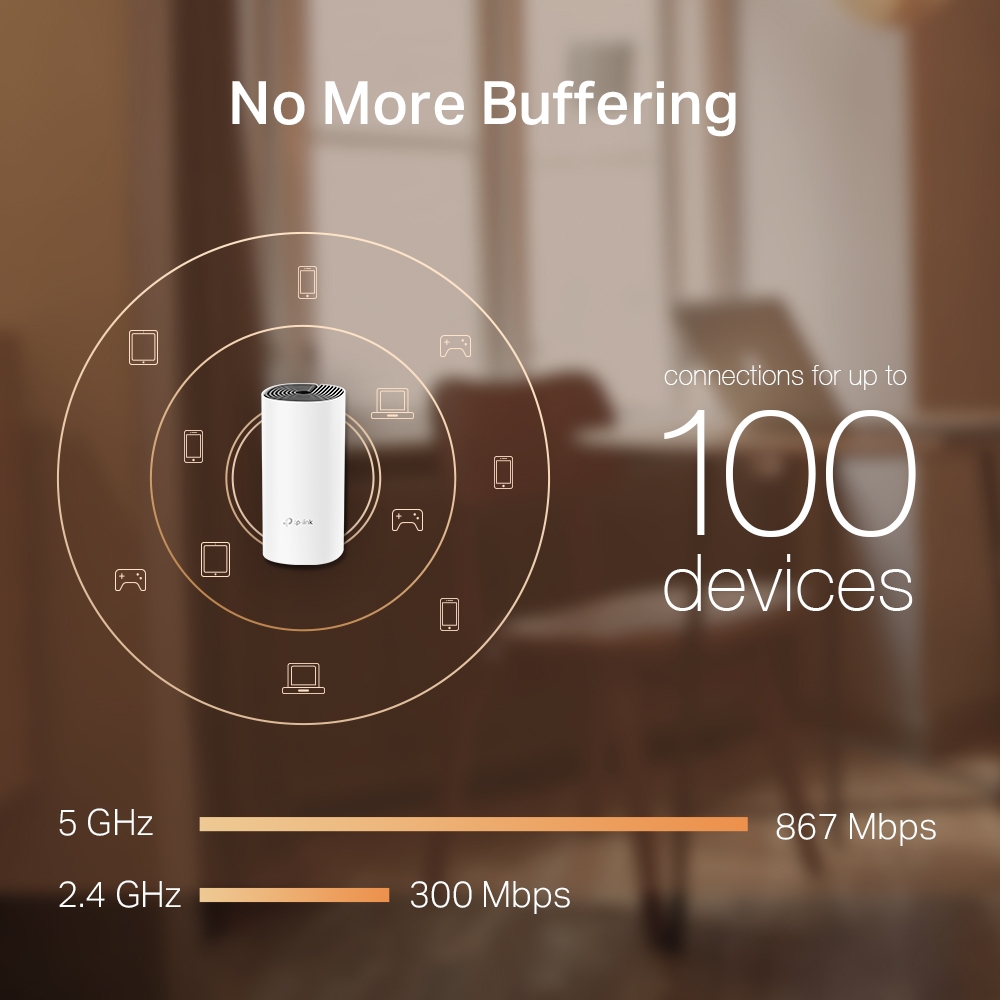
| Advertised band rates | 867Mbps on 5GHz plus 300Mbps on 2.4GHz; not 1,167Mbps for one client |
| Ports | 2 Gigabit Ethernet Ports (per unit) |
| Device-count claim | Manufacturer advertises up to 100; workload and conditions affect capacity |
Pros of TP-Link Deco M4
- Affordable: Compared to other mesh Wi-Fi systems, the Deco M4 is a budget-friendly option that delivers on performance.
- Easy Setup: Setting up the Deco M4 is a breeze with the user-friendly Deco app. No tech wizardry required!
- Whole-Home Coverage: The Deco M4 units work together to reduce weak signal areas when positioned with a useful connection between them.
- Seamless Roaming: Compatible devices can move between nodes under one network name. Roaming performance depends on the device and settings.
- Parental Controls: The Deco app lets you manage your family's internet usage, set time limits, and block inappropriate websites.
Cons of TP-Link Deco M4
- Limited Speed: While sufficient for most households, the Deco M4 doesn't offer the fastest Wi-Fi speeds on the market. Fast local transfers or heavily loaded wireless backhaul can expose its limits. Gaming suitability depends on latency and stability, rather than the Wi-Fi generation alone.
- Shared wireless backhaul: The M4 has no separate backhaul radio, but it does support wired Ethernet backhaul through its Gigabit ports. Wireless links share airtime with connected clients.
Who is the TP-Link Deco M4 For?
The Deco M4 is perfect for:
- Average-sized homes: Choose the number of nodes around the rooms, floors and walls you need to serve. A square-footage estimate is a starting point, rather than a promise for a particular house.
- Budget-conscious users: Don't want to spend a fortune on good Wi-Fi? The Deco M4 offers excellent value for the price.
- Families: The Deco app offers time controls and URL filtering in supported Router-mode configurations. Treat them as useful tools alongside supervision and device settings.
Additional Notes on Ease of Setup
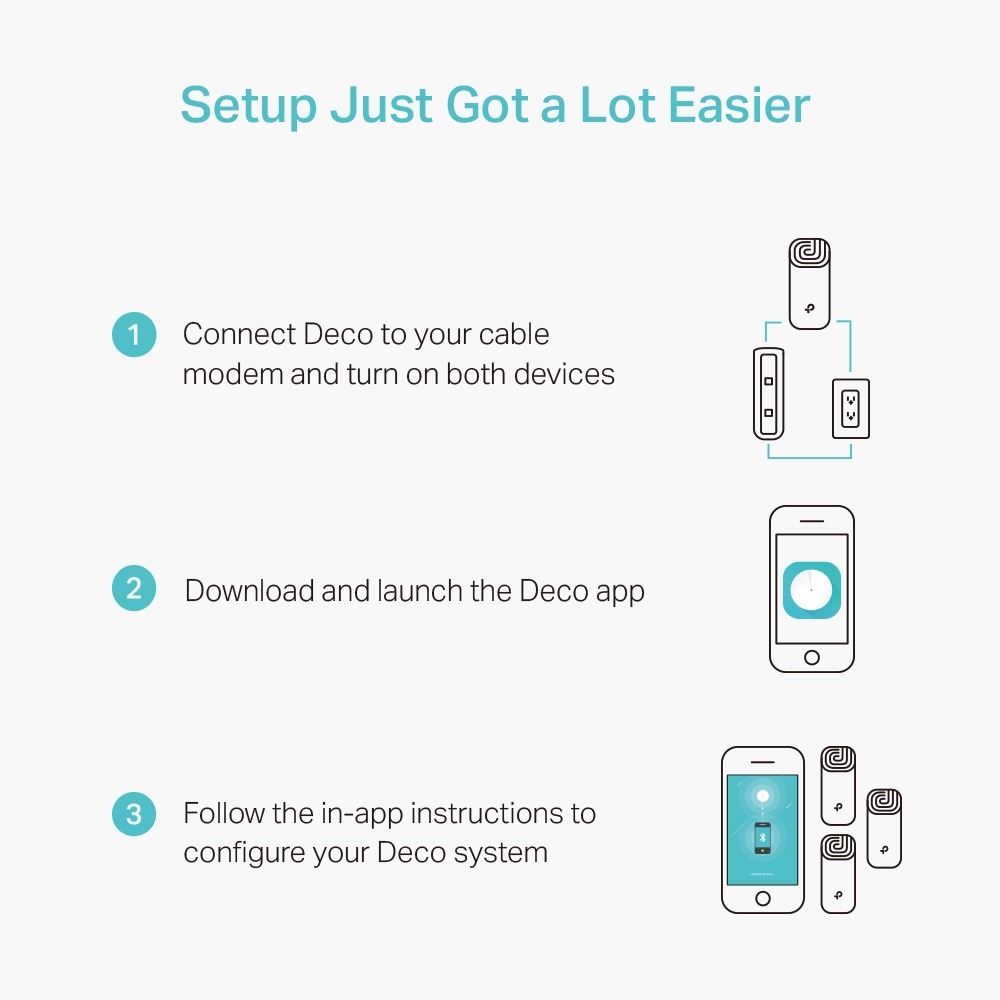
Even if you're not the most tech-savvy person, setting up the Deco M4 is a breeze. The Deco app does all the hard work for you. The app provides instructions and helpful visuals to guide you through the process. The main unit still needs power and an Ethernet connection to your internet source; wireless satellites need their own power. Think of it like following a recipe – nice and easy to understand. If you can download an app and follow on-screen instructions, you can set up the Deco M4 system.
While we're on the topic of the app, the Deco app also allows you to easily manage your Wi-Fi network after it's set up. You can see which devices are connected, set up guest Wi-Fi for visitors, and use the diagnostic options available on your firmware. A router-side internet test and a speed test from a phone in a distant room measure different paths.
For a full tutorial on the setup, visit our guide.
The Verdict: Affordable Wi-Fi Bliss
If you're looking for an affordable way to eliminate Wi-Fi dead zones in your home, the TP-Link Deco M4 is an excellent choice. Its app-guided setup, expandable coverage and parental-control features are appealing for everyday use. Check the operating mode and actual firmware for the features you need. While it might not be the best option for speed demons, for everyday internet use, the Deco M4 proves that strong Wi-Fi doesn't have to come at a premium price.
For the full product page, visit: https://www.tp-link.com/en/home-networking/deco/deco-m4/
Check your hardware revision and firmware
Look at the hardware version on each unit's label, then choose its matching regional support page. A model name alone cannot establish the internal processor, power supply or every menu feature. Use the supplied compatible adapter and the published specification for that revision. Firmware for a different region or hardware revision is not an interchangeable upgrade.
For example, TP-Link's US M4 V4 release notes for version 1.1.0 explicitly add satellite signal-source selection and client connection preference. They also explain that mixed-model networks may not expose every new feature until other units receive appropriate updates. That is useful evidence for those functions, rather than a reason to claim all M4 versions have identical menus. The checked M4 product specification lists WPA/WPA2-Personal; do not assume WPA3 from a V4 label alone.
Deco models can be combined in one network, but the main model affects the app's feature set and each node keeps its own radio and port limits. Adding a faster satellite does not turn an M4 radio into Wi-Fi 6. Check the main unit as well as the satellite when a menu seems absent.
Use the Gigabit ports and choose the operating mode
Ethernet backhaul is available on the M4. Set up the nodes in the same Deco network first, then connect the Ethernet links and confirm the connection type in the app. In Router mode, satellites belong downstream of the main Deco's LAN port, directly or through a switch. Connecting them to the upstream modem or router instead is not the same topology.
In Access Point mode, an existing router continues to handle routing and DHCP, and wired satellites can connect through that LAN. This can avoid adding a second NAT layer when keeping an ISP router or a dedicated OPNsense or pfSense firewall. TP-Link's mode comparison also shows that Deco routing-dependent features such as its parental controls and QoS are unavailable in AP mode. Decide where those functions will live before changing modes.
Each M4 has two Gigabit ports. The main unit's internet uplink uses one; a satellite's Ethernet backhaul also occupies a port. Add a compatible switch when more local wired connections are needed. Wired backhaul frees the node-to-node traffic from the wireless link, but cannot remove a slow internet plan, a poor client connection or a storage bottleneck.
Settings and a practical coverage check
Start with a satellite somewhere that still receives a useful main-node signal, rather than at the very edge of a dead zone. Keep it out of enclosed cabinets and adjust one location at a time. Try the same laptop or phone in the rooms that matter, including the room where calls currently drop.
Fast Roaming can shorten authentication transitions for compatible clients. If an older phone, printer or smart device cannot connect after enabling it, test with Fast Roaming off; TP-Link documents that compatibility issue. Connection Preference, when supported, lets you request a suitable node or band for a stationary device. The closest node is not automatically the best radio path through walls, and this setting does not make every client behaviour predictable.
For an acceptance check, record the connected node and band, make a call while walking the normal route, and repeat a local transfer or internet test from the troublesome room. Then compare a wired test at the main unit. If that is also poor, investigate the upstream connection before adding more mesh nodes. These are checks readers can perform, not performance measurements claimed for this article.
The M4 remains an attractive budget option in our view when coverage and straightforward setup matter more than headline wireless rates. A correctly placed system with the features your household uses is more valuable than a larger advertised number that the actual connection cannot deliver.