If you've ever wished for a secure, centralized place to store and access all your files—photos, videos, documents—across multiple devices in your home, a Network Attached Storage (NAS) system might be exactly what you need. TrueNAS is a popular software solution for setting up your own NAS. This article will explain what a NAS is, how it works, and how you can set up TrueNAS in a way that's easy to understand, even if you're not tech-savvy.
What is a NAS?
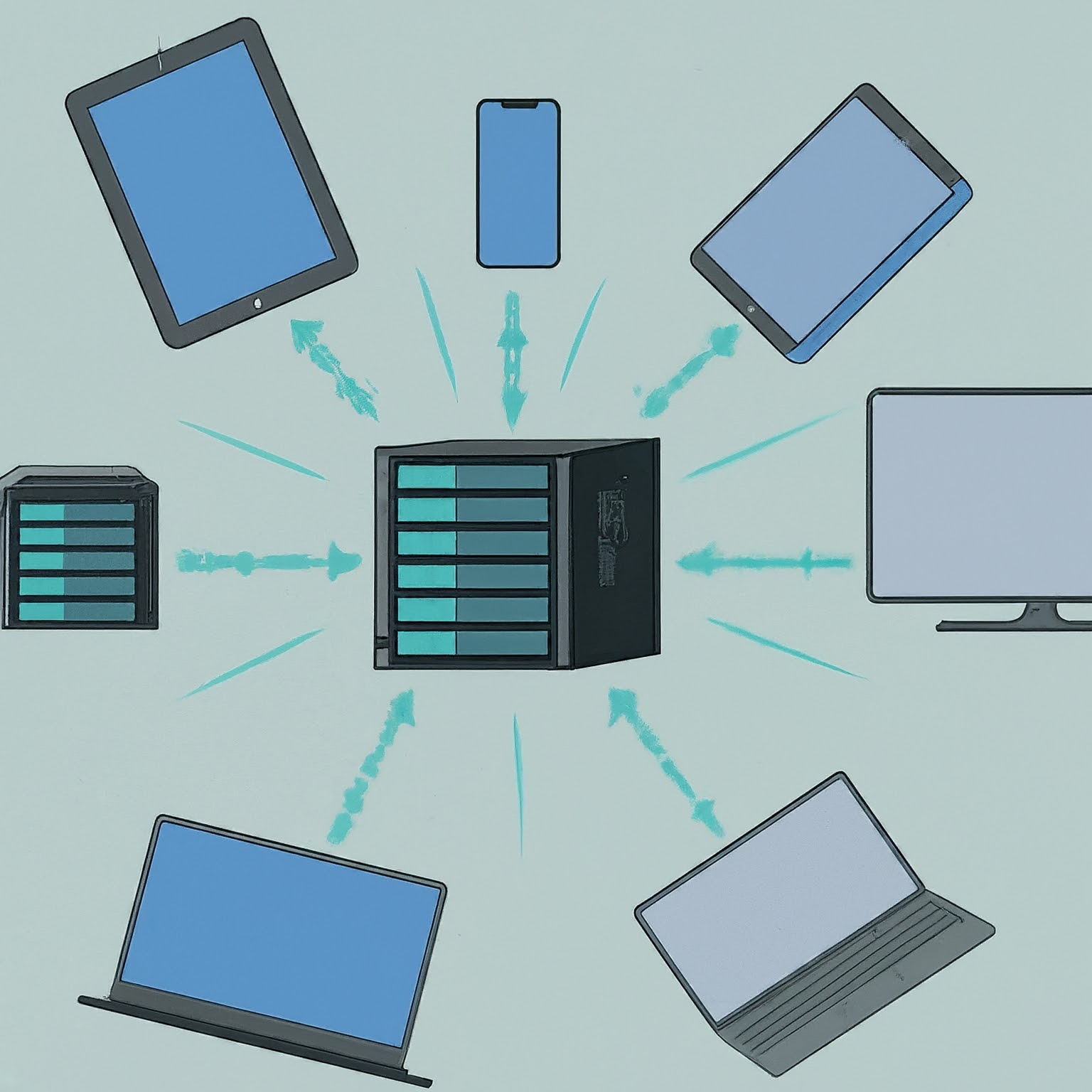
A NAS, or Network Attached Storage, is essentially a dedicated device for storing and sharing digital files within a home network. Imagine it as a supercharged, always-on filing cabinet for your digital world. Unlike traditional external hard drives that connect to a single computer, a NAS is designed to be accessed by multiple devices simultaneously. This means you can store your entire digital library – photos, videos, music, documents, and more – in one central location and access it from any device connected to your home network, whether it's your laptop, desktop, smartphone, or smart TV.
A NAS works by connecting to your home router, becoming an integral part of your network infrastructure. The NAS normally receives an IP address from your DHCP server, or uses an address you configure. Clients still need a supported sharing protocol, network access and suitable permissions. This allows for seamless file sharing, streaming, and backup without the need for physical connections or complex setups.
Think of your NAS as a personal cloud storage solution within the confines of your home.
Advantages over traditional storage methods:
- Centralized Storage: Consolidate all your digital files in one place for easy management and organization.
- Enhanced Accessibility: Access your files from any device on your network, eliminating the need to carry around external drives.
- Improved Performance: NAS devices are optimized for file transfers and streaming, but transfer speed depends on the disks, network link and workload; a directly connected drive can be faster.
- Data Protection: Regularly back up your important files to prevent data loss due to hardware failures or accidental deletion.
- Media Streaming: Create a home media server to stream movies, TV shows, and music to different devices throughout your home.
- Remote Access: With the right setup, you can access your NAS and files remotely, even when you're away from home.
How a NAS Works:
- Centralized Storage: All your files are stored on the NAS device, which is connected to your home network.
- File Sharing: You can share files between different devices without needing to transfer them via USB sticks or external hard drives.
- Data Backup: NAS software can schedule backup tasks, but you must configure, monitor and test them. A single NAS copy is still vulnerable to deletion, theft and failure.
Read our in-depth explanation of Network Attached Storage

Why Use a NAS?
- Centralized Backup: Protect your precious memories and important documents in one safe place.
- Media Server: Stream movies, music, and photos to any device in your home.
- Convenience: Easily access your files from any device in your home.
- Improved Performance: Shared access without moving a drive between devices; speed depends on your storage and network.
- Security: Keep your data safe with password protection and encrypted storage.
Introducing TrueNAS: Your Personal Cloud
TrueNAS is a powerful operating system that turns your computer into a NAS. Think of it as the software that makes your filing cabinet smart and efficient. It's like having your own personal cloud storage right at home.
TrueNAS CORE: The FreeBSD-based platform discussed when this article was first published in 2024. Its storage-focused interface and community were the basis of our positive recommendation. CORE 13.3 is now archived and end-of-life, with 13.3-U1.2 its final release; use its documentation for existing systems and migration planning rather than assuming it is the current beginner download.
TrueNAS Community Edition: The Linux-based line previously called SCALE provides OpenZFS storage and application/virtualization features. It is available without a licence fee. For a new installation, consult the publisher's current software-status recommendations and the documentation for the selected stable release.
TrueNAS Enterprise: The supported appliance offering combines qualified hardware, support and enterprise capabilities. It is not simply an extra-feature installer to apply indiscriminately to any home PC.
Planning a TrueNAS Installation
The basic storage workflow is approachable, but plan the disks and recovery first. Menu names vary by release; the following is an overview, not a replacement for the version-specific installation guide:
- Choose Your Hardware:
- You’ll need a computer with a minimum of 8GB of RAM, a compatible x86-64 processor, a separate boot device and data disks. The TrueNAS 25.10 hardware guide lists 8 GB RAM, a 16 GB SSD boot device and two same-sized storage devices as its starting configuration. Apps and virtual machines can require more memory.
- You can repurpose an old PC, but make sure it’s compatible with TrueNAS.
- Download and Install Your Selected Release:
- Visit the TrueNAS website and choose the stable release appropriate for your use case.
- Create a bootable USB drive using a tool like Rufus.
- Boot the computer from the USB drive and follow the on-screen instructions to install onto the dedicated boot device. Verify the disk model, capacity and serial number first: installation erases that target.
- Configure Your NAS:
- Once installed, access the TrueNAS web interface from another device on your network by entering the IP address of your NAS in a web browser.
- Set up your storage pools (a group of hard drives that work together) and create datasets. A dataset is a ZFS filesystem with its own settings, permissions, quotas and snapshots; it can contain ordinary folders.
- Enable network sharing protocols like SMB (for Windows, macOS, and Linux—including macOS Time Machine backups) or NFSv4 (for Linux servers and Proxmox VMs) so your devices can connect to the NAS. (Note: Legacy Apple AFP has been deprecated by Apple and TrueNAS in favor of modern SMB3!)
- Access and Use Your NAS:
- Map the NAS as a network drive on your devices to easily access your files.
- Set up user accounts and permissions to control who can access what.
- Explore additional features like setting up automatic backups or media streaming.
Alternatives to TrueNAS
If you’re looking for alternatives to TrueNAS, here are a few options:
- FreeNAS (historical name):
- Cost: Free
- FreeNAS became TrueNAS CORE; it is not a separate current alternative to install.
- OpenMediaVault:
- Cost: Free
- Best for: Users who want a lightweight, easy-to-use NAS solution with good plugin support.
- Unraid:
- Cost: Paid (with a trial available)
- Best for: Users who want a flexible system that’s easy to expand and has excellent support for media servers.
- Synology DSM:
- Cost: Paid (with Synology hardware)
- Best for: Users who prefer an all-in-one, ready-made NAS solution with a user-friendly interface.
- QNAP QTS:
- Cost: Paid (with QNAP hardware)
- Best for: Users looking for a NAS solution with powerful apps and hardware options.
Conclusion
Setting up a NAS with TrueNAS is a great way to take control of your data, making shared storage and backup administration easier when permissions and recovery are configured carefully. Whether you’re a media enthusiast, a work-from-home professional, or just someone who wants a reliable backup solution, TrueNAS has you covered. And with the support of a strong community, getting started is easier than you might think.
If TrueNAS doesn’t seem like the right fit for you, alternatives like OpenMediaVault or Unraid might suit your needs better. Regardless of the option you choose, having a NAS at home is a game-changer for managing your digital life.
Visit the official TrueNAS website.
Understanding the CORE and Community Edition Transition
Both lines use OpenZFS, but operating-system drivers, application platforms and upgrade paths differ. Linux support does not guarantee that every GPU, network adapter or USB controller works with the selected TrueNAS release. Check the actual device, not just its advertised speed.
TrueNAS 24.10 changed the Apps backend from Kubernetes to Docker and introduced custom application deployment with Compose YAML. That historical transition does not mean every old jail, VM or third-party application migrates automatically. Read the supported migration path, preserve application data and confirm backups before changing editions or major versions. Avoid upgrading the appliance's base system with ordinary Debian package commands.
OpenZFS Layouts and Data Protection
ZFS checksums help detect corruption. Repair requires a valid redundant copy or parity; a single-disk pool cannot reconstruct arbitrary damaged data just because checksums exist. The default checksum is not universally a cryptographic algorithm, and a scrub is not a backup.
| Layout | Protection within that vdev | Planning consideration |
|---|---|---|
| Two-disk mirror | One disk can fail while the other contains the data. | Approximately one disk's capacity before overhead, assuming equal sizes. |
| RAIDZ1 | One failed disk. | Weigh capacity against rebuild exposure and backup/recovery needs. |
| RAIDZ2 | Two failed disks. | More parity capacity cost, with tolerance for another failure during rebuilding. |
These limits apply to each vdev. Losing a required top-level data vdev can lose the pool, so adding an unprotected disk to a redundant pool is not a safe way to extend its protection. Rebuild time depends on data, disks, load and layout; there is no universal 24-hour threshold or drive-size cutoff that determines the right choice.
Newer TrueNAS releases support RAIDZ expansion by adding disks individually to an existing RAIDZ vdev. This expands capacity without changing its parity level: expanding RAIDZ1 does not make it RAIDZ2. Older data can retain its previous data-to-parity ratio, so reported capacity can differ from a freshly created layout. Check the release's expansion requirements and keep backups before beginning.
First Share and Recovery Checks
Create a dataset for a small test share, assign a normal user and grant only the needed access. Connect from a real client and test creating, reading, renaming and deleting a disposable file. Test a second user who should be denied access. Keep administration credentials separate from routine file-sharing accounts.
Then configure snapshots for quick recovery from unwanted file changes and a backup or replication destination independent of the main pool. Restore a test file and verify its contents. Export the TrueNAS configuration and protect encryption keys or passphrases separately; losing those keys can make encrypted data unrecoverable even if the disks survive.
Keep an eye on capacity, drive health and alerts. Use an appropriate private remote-access design rather than exposing SMB or the administration interface directly to the internet. A NAS can simplify home storage, but its long-term value comes from a setup you can maintain and restore.