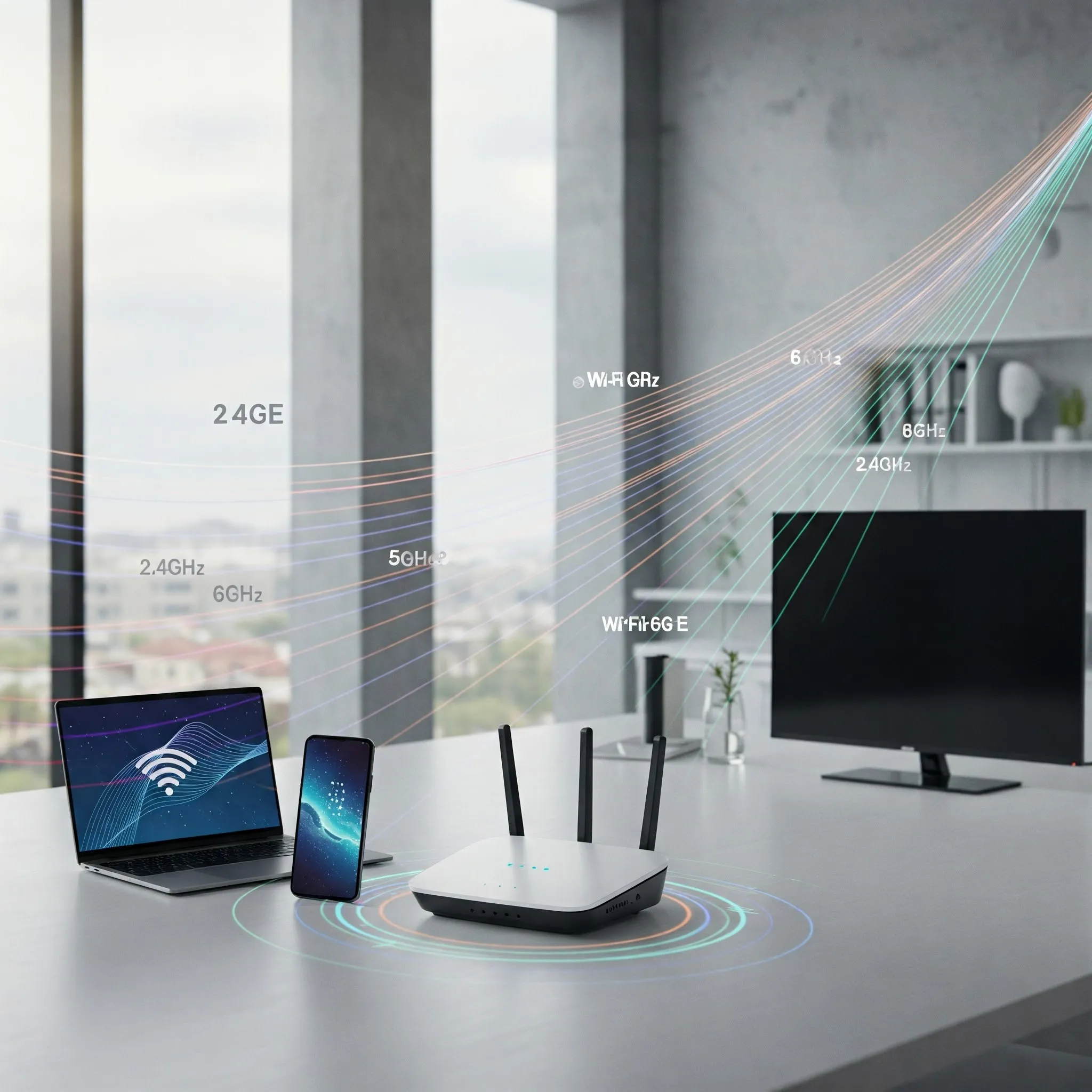
A Wi-Fi repeater, often sold as a range extender, can be a convenient way to improve reception in a difficult room. Our recommendation remains to consider a managed mesh system for a broader home upgrade, while a suitable extender can still be useful for a smaller coverage problem.
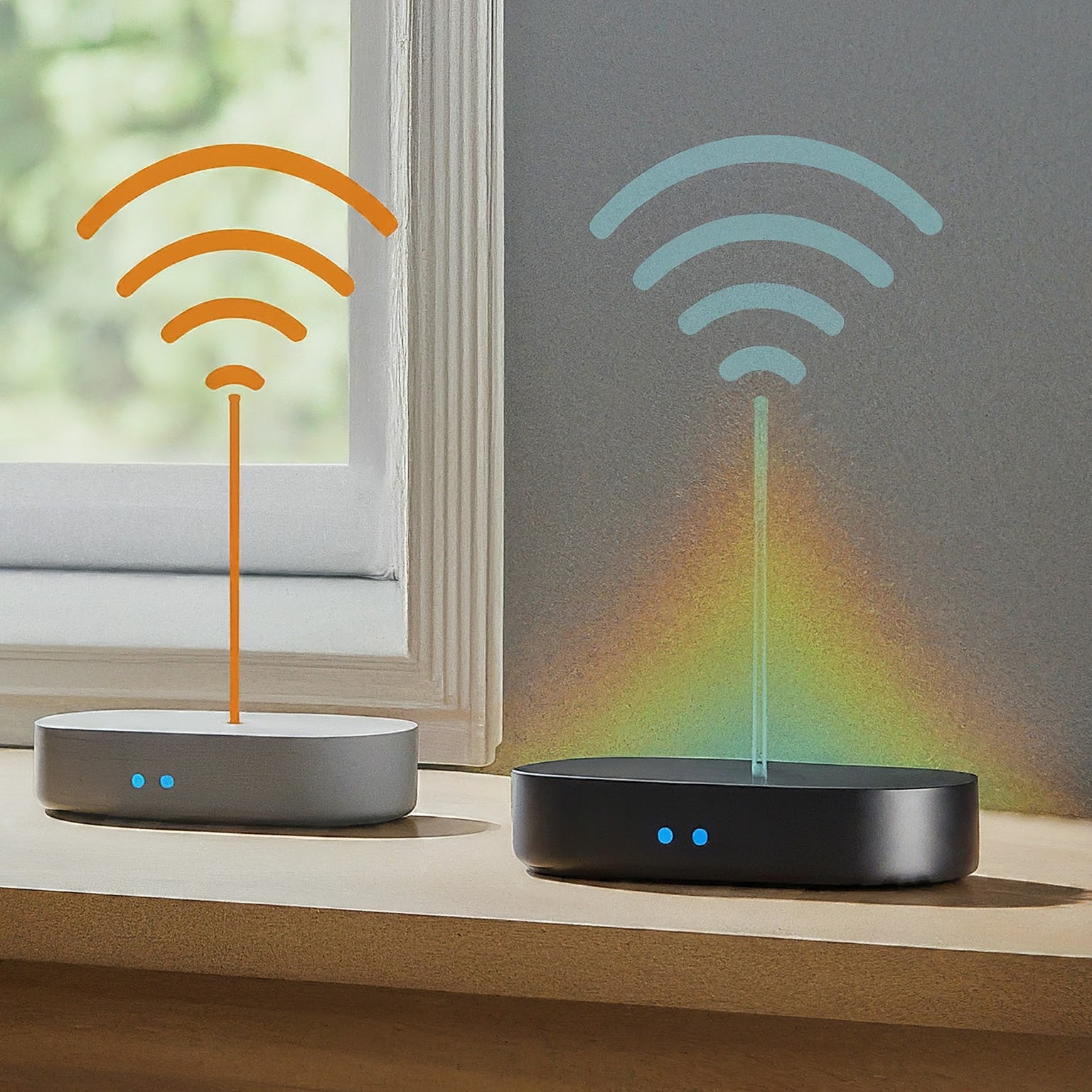
The right choice depends on where the upstream signal is usable, the traffic you need to carry and whether you can run a cable. A strong Wi-Fi icon beside an extender does not tell you how well that extender connects to the router.
What Is a Wi-Fi Repeater?
A typical home range extender connects to an existing wireless network and provides another connection point for clients. It receives and forwards traffic. The megaphone analogy is useful for thinking about coverage, but it is not simply an analogue amplifier making every weak frame stronger without another transmission.
Some products can also work as wired access points or participate in a compatible mesh system. These are distinct modes, so check the exact model and firmware. An Ethernet socket alone does not establish which modes are supported.
Both Hops Matter
With a wireless extender, client traffic crosses the client-to-extender link and the extender-to-router link. The upstream link can be weak even when the client is close enough to show strong signal bars. Moving the extender into the room with no usable router reception may therefore achieve little.
Place it between useful coverage and the area that needs help, then check its documented signal indicator and actual performance. Halfway is a starting idea, not a fixed mathematical location; walls, doors, appliances and the chosen band change which position works.
A wired client connected to an extender's LAN port avoids the last wireless client hop, but can still depend on the extender's wireless upstream link. It does not turn the whole path into Ethernet.
Why Repeating Can Reduce Throughput
If both hops use the same radio resources, forwarding the traffic takes additional airtime. In a simplified example where each hop takes an equal amount of time, the forwarding stage doubles the airtime needed for the same payload. That explains why roughly halving throughput can occur under particular conditions.
It is not a universal minimum 50% loss, nor a guarantee that latency or jitter doubles. Different link rates, multiple radios, cross-band designs, interference and traffic change the result. An extender may improve a client's performance compared with a very weak direct connection even while offering less throughput than a client beside the main router.
Compare the actual path rather than a fixed retention percentage. TP-Link's speed explanation describes the extra-hop tradeoff and explicitly qualifies its example by device and environmental differences.
Real Examples Show Why Specifications Matter
| Cited TP-Link example | Ethernet interface | Supported use in the cited profile |
|---|---|---|
| RE215 | One 10/100 Mbps port | Range Extender and Access Point modes |
| RE615X | One Gigabit port | Range extension and built-in Access Point mode |
The port speed matters when you plan a wired upstream or wired client connection. A 100 Mbps port does not become Gigabit in AP mode, and a Gigabit socket does not guarantee a Gigabit application transfer. These examples illustrate capabilities, not a current-price or universal performance ranking.
Brands such as TP-Link, Netgear and Linksys sell different extender designs. Check the exact product, current support, compatible router features and installation options rather than buying solely on a combined wireless rate.
Pros and Cons
- Convenience: a wall-plug design can be straightforward to install when an appropriate outlet is available.
- Limited cabling: wireless extension avoids a new data cable to that location, though power is still required.
- Reuse: an existing supported extender may solve a modest problem or become a wired access point.
- Tradeoffs: an extra wireless hop can consume airtime and adds another placement and maintenance dependency.
- Network-name behaviour: some designs create a separate SSID; others use a matching name or a supported mesh function. Neither name alone guarantees seamless roaming.
A price advantage depends on local prices and what you already own. Avoid spending money on a second extender if a different location, supported setting or available cable solves the original problem.
Compare Coverage Options by the Required Path
| Option | Useful when | Check first |
|---|---|---|
| Move the router | An open, more central location is available | Internet/power connections and coverage in the other rooms |
| Wireless extender | One area needs help and a usable upstream signal exists | Both radio hops and supported modes |
| Managed mesh | You want several coordinated nodes and simpler central administration | Actual backhaul path, node placement and client behaviour |
| Powerline with a remote access point | Suitable electrical wiring can carry the link | Adapter compatibility, outlet placement and electrical noise |
| MoCA with an access point | Compatible coaxial cabling is available | Coax topology and coexistence with existing services |
| Ethernet with an access point | A suitable cable route is practical | Port speeds, power and wireless placement |
These options do not have fixed universal latency or speed-retention values. Mesh can also use Ethernet, and a wired uplink does not decide how well a phone roams between access points. Match the design to the building and clients instead of treating the table as a worst-to-best league.
Test Placement with the Same Client
- Record the weak location and the activity that fails, such as a call, stream or local transfer.
- Measure normal use near the main router, then in the weak room, with the same client.
- Try an extender position that still has a useful upstream signal, using its model-specific indicator where available.
- Retest normal traffic, including busy household periods. Change one location or setting at a time.
- Inspect the upstream connection as well as client signal bars; keep the arrangement that helps consistently.
A local transfer can reveal a radio bottleneck that an internet speed test hides behind an ISP limit. Also check whether the client remains attached to the main router or actually uses the extender during the test.
Reuse a Supported Extender as an Access Point
Confirm AP mode in the manual before connecting a wired uplink. TP-Link's guide notes that an Ethernet port is required and that some extender models still lack this mode. Its Tether method uses Tools, Operation Mode, Access Point, followed by the Ethernet connection and wireless settings.
Back up or record the current settings before switching modes. A factory reset is not a universal first step; it erases configuration and its button procedure is model-specific. Follow the documented setup interface, and keep the main network's DHCP and address plan consistent.
After configuring AP mode, verify the client's gateway and DNS settings, local-service access, negotiated cable speed and actual wireless performance. This removes the wireless upstream hop for that design, but it does not remove Wi-Fi airtime limits or a slow Ethernet port.
Our View on a Broader Upgrade
We still favour considering mesh when several rooms need coverage and central management is valuable. It is not guaranteed to eliminate every dead zone or outperform every standalone extender arrangement. A good backhaul path and suitable placement remain essential.
For more context, read our mesh network guide, RE215 specifications and RE615X specifications. Use a simple extender where it meets a real need; choose a larger design when the whole connection plan justifies it.