If you have connected a device to your home Wi-Fi and wondered how it automatically receives an IP address, a DHCP server usually handles that job. We have previously looked at what DHCP does and running a DNS server at home. This guide explains when a separate DHCP server is useful and how to plan the change without losing access to your network.
What Is a DHCP Server?
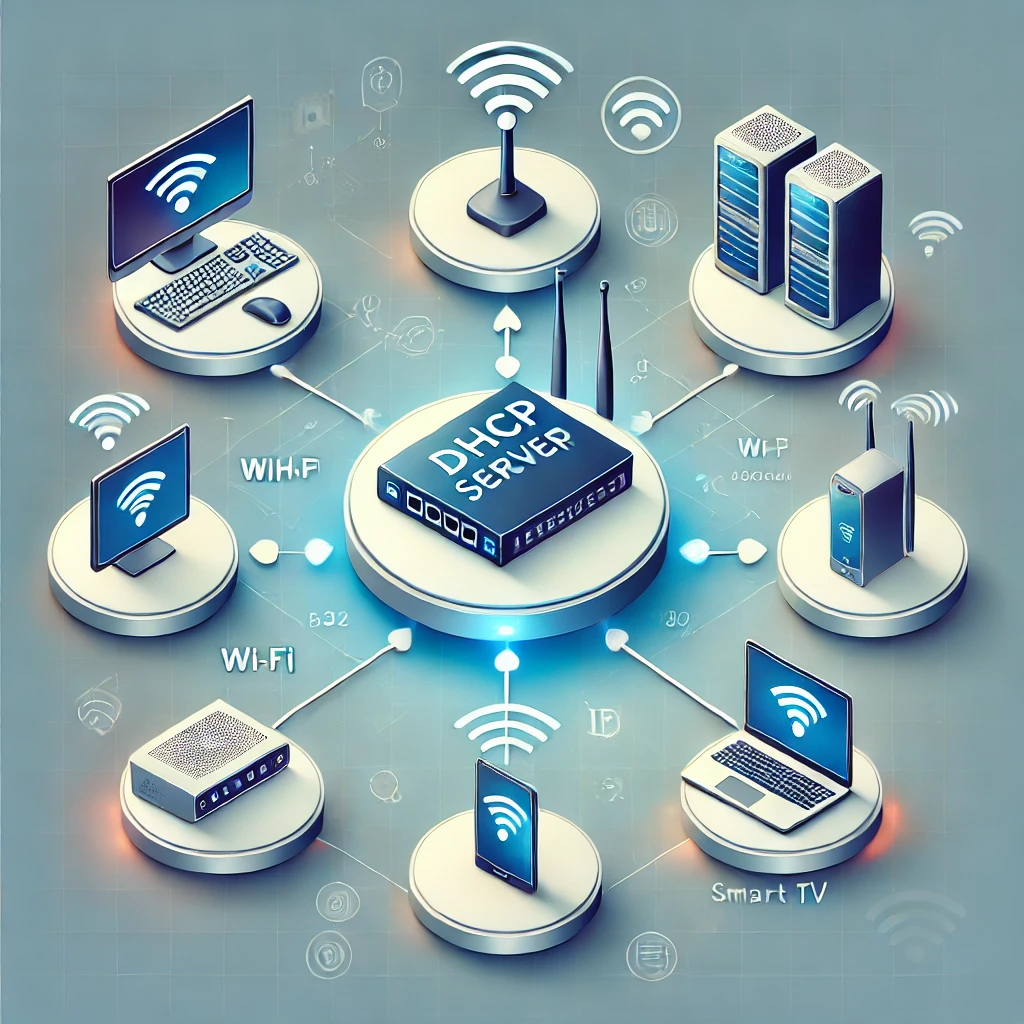
DHCP stands for Dynamic Host Configuration Protocol. On an ordinary IPv4 home network, it supplies a client with an address, subnet mask, lease duration and other settings such as its default gateway and DNS servers. Think of the server as a host assigning seats at a party: the lease records help it avoid offering the same seat to different guests.
That analogy has limits. A device with a manually configured address can still conflict with a DHCP lease if its address has not been excluded from the pool. DHCP also does not provide a firewall or decide which devices may communicate. Your router continues to handle routing and its security rules when another machine supplies DHCP.
How Is It Different from DNS?
DNS resolves names into records, including IP addresses. DHCP distributes network configuration. They can run on the same machine, but they are separate services. A DHCP server can advertise your existing router or another resolver as the DNS server; it need not resolve names itself.
DHCP is convenient rather than compulsory for every network: IPv4 devices can use manually assigned settings. IPv6 also has its own addressing mechanisms, including router advertisements and stateless address autoconfiguration. Moving IPv4 DHCP does not automatically change IPv6 DNS advertisements or ensure every application uses your chosen resolver.
Your Router Already Does This
For most households, the router's built-in DHCP service is sufficient. Before adding another server, check whether the router already supports reservations, an adjustable address pool and the DNS settings you need. A separate machine adds maintenance and another dependency, so there should be a specific benefit.
- More configuration control: you need options that the router does not expose.
- Several networks: you want separate scopes for routed subnets or VLANs.
- Learning: you want to inspect leases, reservations and network boot options in a controlled lab.
- Integrated administration: a maintained DNS/DHCP tool gives you a more useful management interface.
Plan the Change in Six Stages
1. Choose a Reliable Platform
A small Linux computer, a Raspberry Pi, a virtual machine or supported network equipment can host DHCP. Give that host a stable address and arrange for the service to start after a reboot. A wired connection is usually easier to keep dependable than a machine that changes Wi-Fi networks.
Consider startup dependencies. If your DHCP virtual machine lives on storage that needs DHCP before it becomes reachable, recovery can be awkward. Document how to access the router and server with a temporary static address, and keep a copy of that procedure somewhere accessible during a network outage.
2. Choose Maintained Software
The original ISC DHCP is historical software: ISC ended its maintenance in 2022. Its presence in a distribution repository does not make it a maintained choice for a new deployment. ISC recommends planning a migration to Kea or another supported server. Kea uses its own configuration format; an old dhcpd.conf is not a drop-in Kea configuration.
Pi-hole includes an optional DHCP server, which can be useful when your router cannot advertise the desired DNS address. Our Pi-hole article provides related context. The DHCP Server for Windows project is another original reference; assess its current releases, support and operating-system requirements before choosing it. This overview is not a platform-specific installation recipe.
3. Document the Address Plan
Record your current subnet, gateway, DNS servers, dynamic pool, reservations and active leases before changing anything. For illustration, a 192.168.1.0/24 network might use gateway 192.168.1.1 and a pool from 192.168.1.100 through 192.168.1.200. Those values are examples, not settings to copy onto a different network.
Keep manually addressed infrastructure outside the dynamic pool, or explicitly exclude those addresses. Reservations are server-side mappings for clients that still request DHCP; they are different from manually configuring an address on the device. Some clients use private or rotating Wi-Fi MAC addresses, so confirm the identifier your selected server actually sees before creating a reservation.
For multiple subnets, create the appropriate scope and options for each network. Ordinary DHCP broadcasts do not cross routers automatically. A supported relay or a server interface on the relevant network is needed; also confirm VLAN tagging, interface binding and firewall rules using the chosen software's documentation.
4. Prepare a Controlled Cutover
Back up the router settings and stage the new configuration before disabling anything. For a simple home LAN, stop the old DHCP service before enabling the new one. Two independent servers responding on the same network can hand out conflicting addresses or inconsistent gateways and DNS settings. Coordinated high availability is a separate, deliberately configured design.
Existing leases do not disappear when the old server stops. Account for them during migration: use the server's documented lease-import procedure, or a planned non-overlapping transition pool. Simply copying the old range while ignoring active leases can create conflicts. Test a new server on an isolated lab network if you need to learn its behaviour first.
5. Start and Verify with One Client
Check service status and logs, then reconnect or renew one test client using its operating system's supported method. Inspect its assigned address, mask, gateway, DNS servers and DHCP server identity. Test access to the router, a local service and an internet name. A valid-looking address alone does not prove the DNS or gateway options are correct.
A first IPv4 lease commonly follows Discover, Offer, Request and Acknowledge, often called DORA. Renewing or reusing an existing lease can follow a shorter exchange. DHCPv4 uses UDP server port 67 and client port 68; renewal may be unicast rather than a fresh four-message broadcast sequence.
6. Maintain and Keep a Rollback Plan
Monitor free addresses, lease activity, logs and unexpected server identities. Back up reservations and configuration, apply supported updates, and verify a reboot does not silently leave the service stopped. A lease remains valid for its remaining duration when the server becomes unavailable; new clients and later renewals are affected first. The usual renewal timer defaults to halfway through the lease, but the server can configure it.
For rollback, stop the new DHCP service before restoring the original one. Restore the documented pool and reservations, account for leases issued during the transition, and verify a test client's complete configuration again. DHCP failure and DNS failure can look similar, so check the two services independently.
Is a Separate DHCP Server Worth It?
Running your own server can provide useful control and a practical way to learn networking. It also makes you responsible for availability, address planning and recovery. Keep the router's service when it already meets your needs; move DHCP when the extra capabilities justify that work.
Protocol details are documented in RFC 2131. For implementation guidance, use the Kea DHCPv4 manual or Pi-hole's post-install documentation for the software you actually choose.