The Intel N100 and N150 appear in many compact PCs, firewall appliances and small home servers. Their appeal is straightforward: a modest processor, integrated graphics and an enclosure that takes little space. Choosing between them is less straightforward because the CPU name tells you very little about the memory, storage, networking or cooling around it.
For a new purchase, the N150 is a sensible preference when the complete machines are otherwise equivalent. An existing N100 rarely needs replacing just for the newer number. The useful question is whether the replacement fixes a limit in your actual workload. This is a specification-based comparison, not a claim of hands-on testing or measured performance.
What changed between the N100 and N150?
Intel lists the N100 as an Alder Lake-N product launched in the first quarter of 2023, and the N150 as Twin Lake, launched in the first quarter of 2025. Both use Intel 7 manufacturing. Intel's original N-series launch material describes the N100's four Gracemont Efficient cores; its later specification update groups Alder Lake-N and Twin Lake in the same N-series document family.
The most visible changes are maximum clock speeds. These are the exact values in the N100 specifications and N150 specifications:
| Specification | Intel N100 | Intel N150 |
|---|---|---|
| Cores / threads | 4 / 4 | 4 / 4 |
| Maximum CPU turbo | 3.40 GHz | 3.60 GHz |
| Intel Smart Cache | 6 MB | 6 MB |
| Published processor power | 6 W TDP | 6 W Processor Base Power |
| Graphics name | Intel UHD Graphics | Intel Graphics |
| Graphics execution units | 24 | 24 |
| Maximum graphics clock | 750 MHz | 1,000 MHz |
| Memory channel count | 1 | 1 |
| Intel-listed maximum memory | 16 GB | 16 GB |
| Memory types | DDR4-3200, DDR5-4800, LPDDR5-4800 | DDR4-3200, DDR5-4800, LPDDR5-4800 |
| ECC support | No | No |
| PCIe revision / maximum lanes | Gen 3 / 9 | Gen 3 / 9 |
| Quick Sync Video | Yes | Yes |
| VT-x / VT-d / EPT | Yes / yes / yes | Yes / yes / yes |
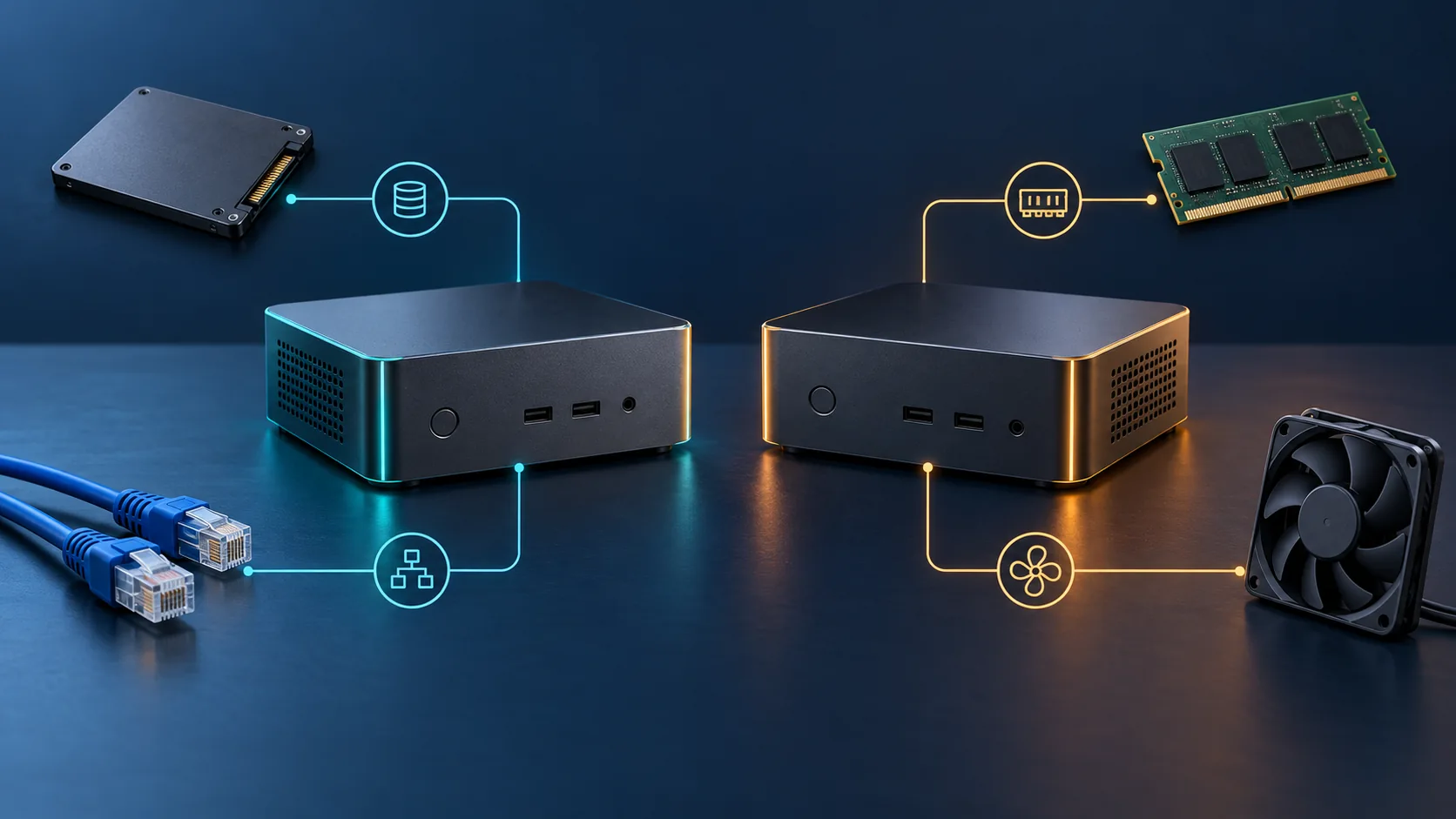
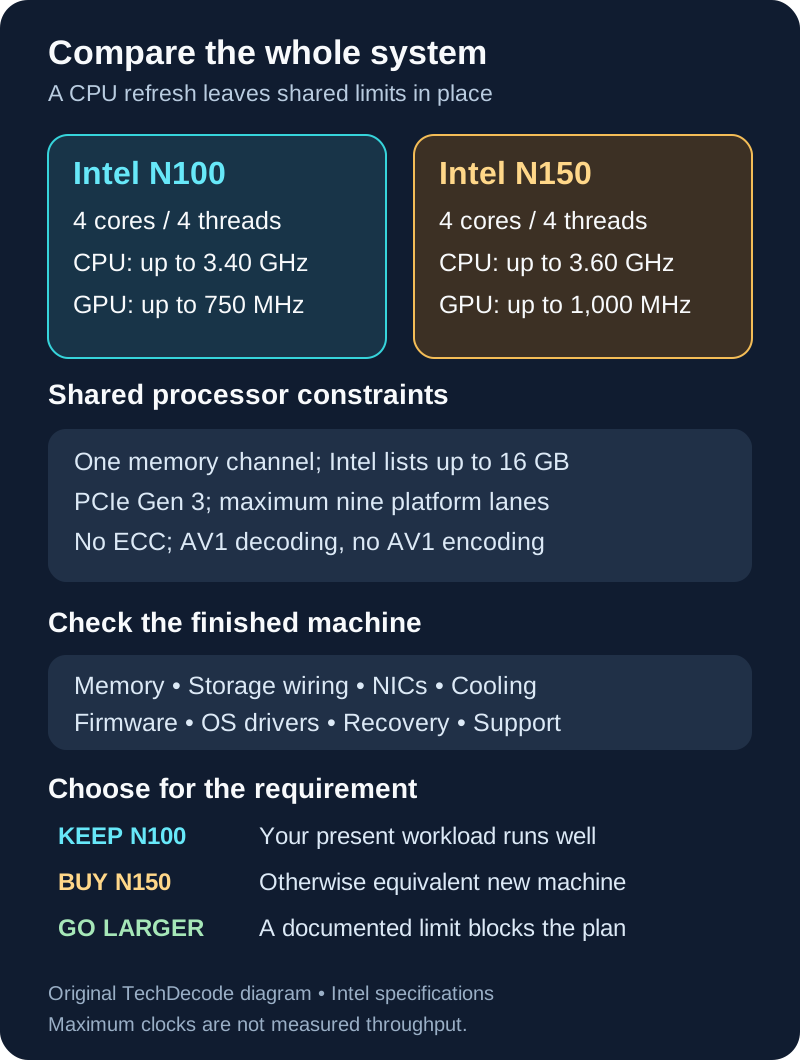
The N150 has no extra CPU threads or memory channels in this comparison. Both use the FCBGA1264 package, so treat a typical mini-PC upgrade as a machine or motherboard replacement rather than a socketed CPU swap. The featured artwork is a conceptual illustration of complete-system choices, not a photograph of either product.
Higher clocks need the right power and cooling
Moving from 3.40 to 3.60 GHz is about a 5.9% increase in the advertised maximum CPU frequency. That calculation is not a benchmark result. Maximum turbo does not mean that all four cores maintain that frequency throughout a long compilation, database import or backup compression job.
Similarly, a higher graphics clock with the same execution-unit count does not establish a proportional increase in game frame rates or transcoding capacity. Memory bandwidth, drivers, the workload and the manufacturer's power settings still matter. A well-cooled N100 and a tightly restricted N150 need not follow the ordering suggested by their peak clocks.
Look for sustained-load testing of the exact finished model, with its firmware, memory and power mode identified. Ask whether the enclosure has a fan, how easily it can be cleaned and whether the seller publishes BIOS updates. A fanless case needs a suitable environment and airflow around it; hiding it in a warm cupboard does not become safe simply because the processor is labelled 6 W.
Memory and expansion remain the important limits
Each processor supports one memory channel. Buying a DDR5 machine changes the supported memory speed and module type, but does not give this platform a second channel. You also cannot assume that a computer advertising the CPU's three supported memory types accepts all three: the motherboard chooses its socket or soldered memory arrangement.
Intel lists 16 GB as the maximum for both processors. Some system vendors advertise more. For example, ASRock specifies 32 GB for its N100DC-ITX, and GMKtec lists up to 32 GB for the G3 Plus. Those are vendor-specific claims beyond Intel's listed capacity, not a guarantee that an arbitrary N100 or N150 box will work with your chosen 32 GB module. Get confirmation for the exact board revision, BIOS and memory module, and a return policy if that capacity is essential.
For a small virtualisation host, budget memory for the host, every guest and peak application demand. Avoid allocating the entire installed capacity to guests on paper. If your plan already needs several memory-heavy VMs, a platform with a documented larger memory ceiling is a more useful upgrade than another four-thread machine.
Nine PCIe Gen 3 lanes is a platform maximum, not nine spare lanes for expansion. Network controllers and storage consume the board's available connectivity. The length of a connector also does not establish its electrical bandwidth.
The ASRock N100DC-ITX manual makes this concrete: its physical PCIe ×4 slot operates at ×2, its NVMe socket is Gen 3 ×2, and its Key E socket accepts specified CNVio modules rather than ordinary PCIe M.2 cards. It also provides two SATA ports and Gigabit Ethernet. ASRock marks this board discontinued in January 2026, so it is an example of wiring to inspect, not an assurance of new stock.
By contrast, the GMKtec G3 Plus EU specification lists one 2.5GbE port, a 2280 NVMe slot and a second 2242 SATA slot. A short SATA SSD is not interchangeable with a short NVMe SSD just because both are M.2. Confirm the exact regional configuration and slot protocol before ordering; none of these ports is guaranteed by the N150 name.
A 6 W processor is not a 6 W computer
Intel's TDP explanation describes a thermal design target and distinguishes it from short periods above that target. The shared 6 W figure is neither an idle-power measurement nor a maximum for the entire computer. The SSD, memory, network interfaces, fan and power conversion all contribute to wall consumption.
An adapter rating is different again. The G3 Plus EU page lists 12 V at 3 A: a nominal 36 W supply capacity. That does not mean it consumes 36 W continuously, and it supplies no evidence that this N150 system idles below an N100 system.
For an always-on server, compare measurements made with the same peripherals, Ethernet link state and enabled services. Measure after startup activity settles, then sample the normal workload and longer busy periods. Processor-package telemetry alone omits other system loads. Monitor sleep, drive power management and wake-up reliability can also change the practical result.
A useful budgeting example is a hypothetical 3 W difference in average whole-system consumption. Over a full year, 3 × 24 × 365 ÷ 1,000 equals 26.28 kWh. Multiply by your own tariff to estimate the running-cost difference. This is arithmetic for evaluating measurements, not a measured saving from choosing either processor.
Match the complete machine to its job
Desktop work and light home services
Both are reasonable candidates for basic office work, browsing and modest services such as DNS filtering, dashboards or home automation, provided the chosen operating system and applications support the machine. Avoid interpreting that as unlimited multitasking: busy browser tabs, background updates and media work share the same resources.
For this role, useful RAM, a dependable SSD and suitable display outputs often matter more than the small CPU-clock difference. Check the actual HDMI or DisplayPort modes in the computer's manual rather than copying the processor's maximum display count. For the wider choice between these PCs and an SBC, see SBC versus mini-PC.
Virtual machines and a small storage server
Both processors list hardware virtualisation features, but the board and firmware must expose the required support. The Proxmox VE 9.2 manual explains that PCI passthrough also depends on motherboard IOMMU support and suitable device grouping. A VT-d tick in ARK does not prove that you can pass through one NIC while leaving its neighbouring controller available to the host.
A few carefully sized guests can be a sensible learning project. For storage, check drive bays, power connectors, controller bandwidth and SSD endurance before choosing the CPU. An appliance with several NVMe sockets can still have shared bandwidth or narrow links; ask for its block diagram. Neither chip supplies ECC support, and adding storage redundancy still does not replace a separate backup.
Keep a bootable recovery path, network configuration notes and copies of important guest data outside the machine. If it also runs your router, restarting the host can interrupt the network needed to repair it. That dependency deserves attention before consolidating more services.
Jellyfin and video transcoding
Both include Quick Sync. Their media hardware supports H.264 and HEVC acceleration for supported profiles and AV1 8/10-bit decoding; AV1 hardware encoding is not a capability of these two chips. Decode support helps read an AV1 source, whereas encoding support determines which output can be produced in hardware. Intel's versioned media-driver capability table distinguishes these operations.
The Jellyfin Intel acceleration guide covers the required software path. On Linux, check the driver, render-device access, container permissions and selected acceleration method. HDR tone mapping and subtitle burn-in add work beyond decoding and encoding; a working desktop display does not prove that Jellyfin is using the video engine.
Prefer direct playback when the client supports the file. To assess a purchase, test representative codecs, bit depths, subtitles and simultaneous sessions during the return period, and inspect transcoding logs. There is no defensible universal “number of 4K streams” from the CPU name, and the N150's higher graphics frequency alone does not establish one.
Router and firewall appliances
For a dedicated router, start with the exact NIC models, required port count and driver support in your intended OS. OPNsense's hardware guidance ties sizing to throughput, feature set and interfaces, and explains its FreeBSD driver dependency.
A 2.5GbE socket describes a link rate, not guaranteed firewall, VPN or intrusion-prevention throughput. Packet sizes, rules, inspection and encryption change the workload. Request results for the features you plan to enable rather than a simple forwarding demonstration. Choose a supported appliance with sensible cooling and a recovery plan; the N150 badge cannot repair a problematic network controller or firmware.
Should you buy an N150 or replace an N100?
Use this order when comparing listings:
- Define the limiting workload: identify whether you lack CPU time, memory, storage capacity, network ports or video capability.
- Compare exact configurations: record fitted RAM and SSD, slot protocols and lane widths, NIC models, display outputs and included power supply. Separate barebone listings from complete systems.
- Check maintenance: find firmware downloads, OS drivers, memory validation and warranty terms for the actual revision. Confirm recovery after power loss if it will run unattended.
- Compare evidence: favour sustained performance, noise and wall-power measurements for that machine, with test conditions disclosed.
- Budget the whole purchase: include missing memory, drives, adapters and migration time, then compare current local offers rather than a historical launch price.
When buying from scratch and those checks produce equivalent machines at a similar total cost, the N150 is a reasonable choice for its higher advertised clocks. A better-equipped or better-supported N100 remains a valid choice. This is an editorial recommendation based on documented limits, not a benchmark verdict.
If your N100 already performs its job, keep it unless you can name the improvement the replacement delivers. For additional RAM capacity, many heavy VMs, AV1 encoding or substantial storage expansion, consider a different platform that explicitly supports the requirement. Replacing one constrained system with a newer constrained system is an expensive way to leave the original problem unsolved.