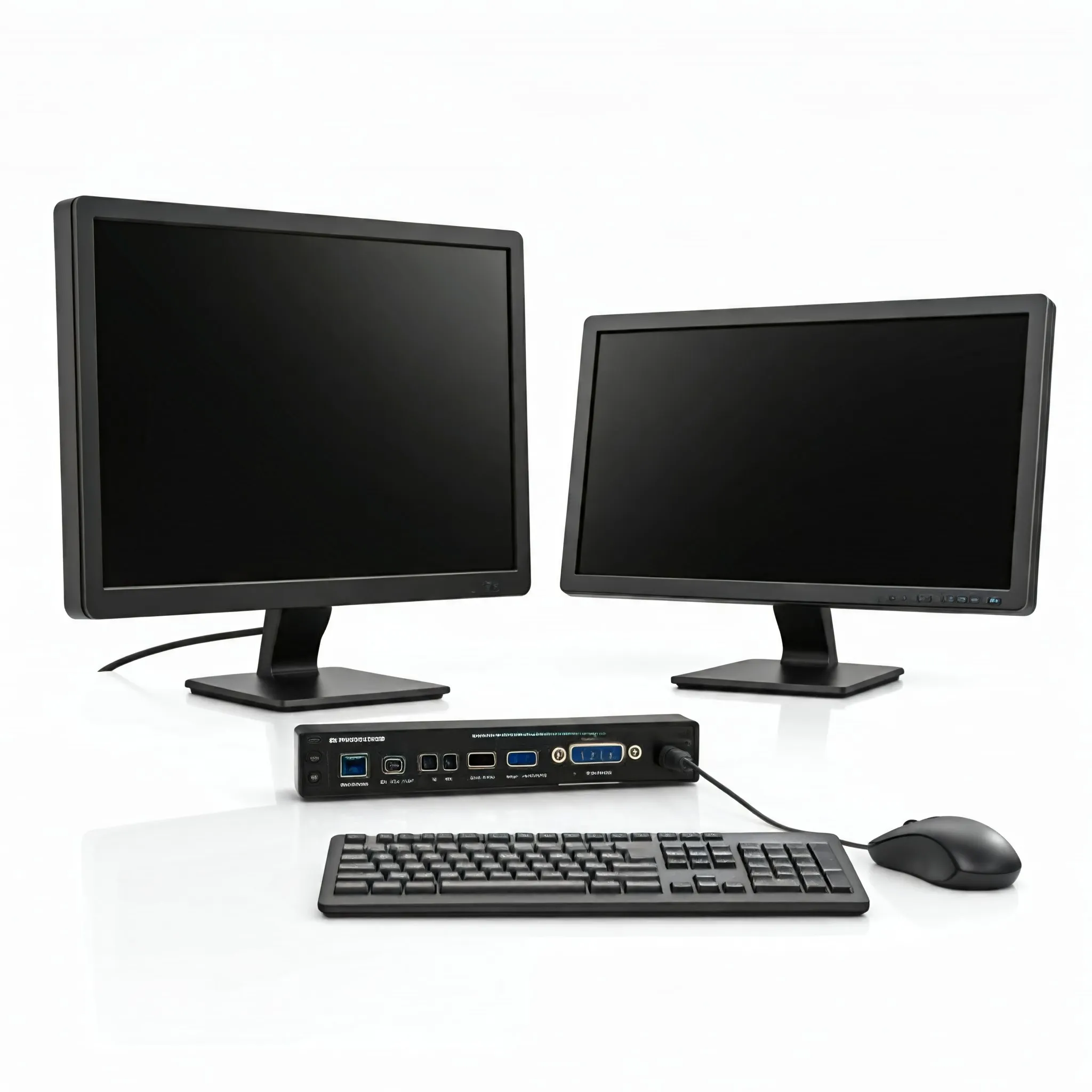
A KVM switch lets several computers share a keyboard, monitor and mouse. If your work laptop, personal desktop and home server occupy the same desk, it can reduce duplicate peripherals and make switching between them more convenient. The machines remain independent: sharing a console does not combine their processors, storage or operating systems.
KVM stands for keyboard, video and mouse. A desktop model might serve two computers and one monitor; a rack unit can connect more servers; an IP KVM can provide a remote console through a browser. Buying the right type begins with your actual computers, displays and peripherals, rather than the highest number printed on a box.
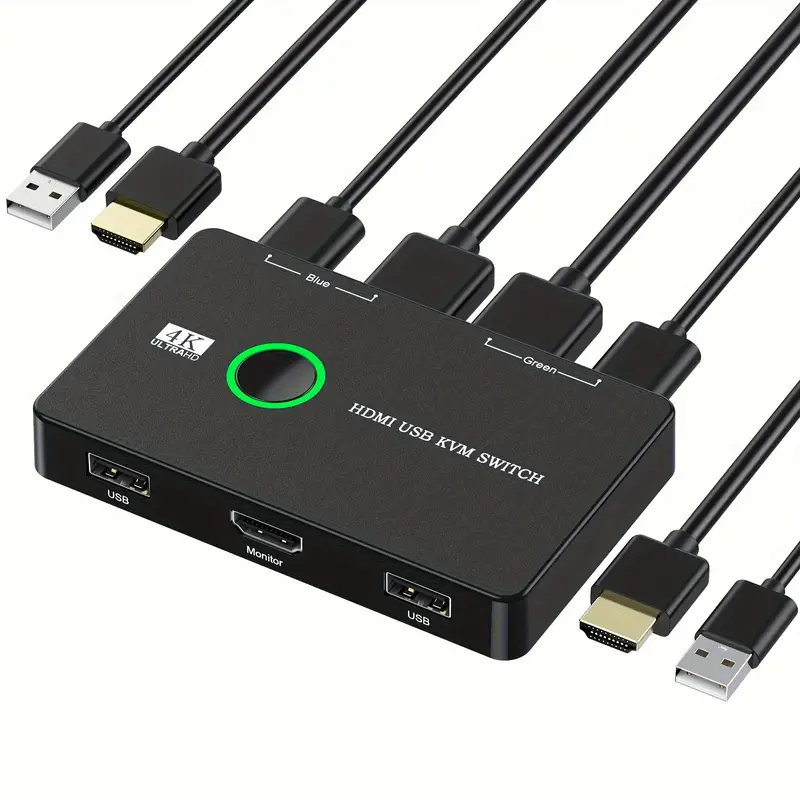
How a hardware KVM works
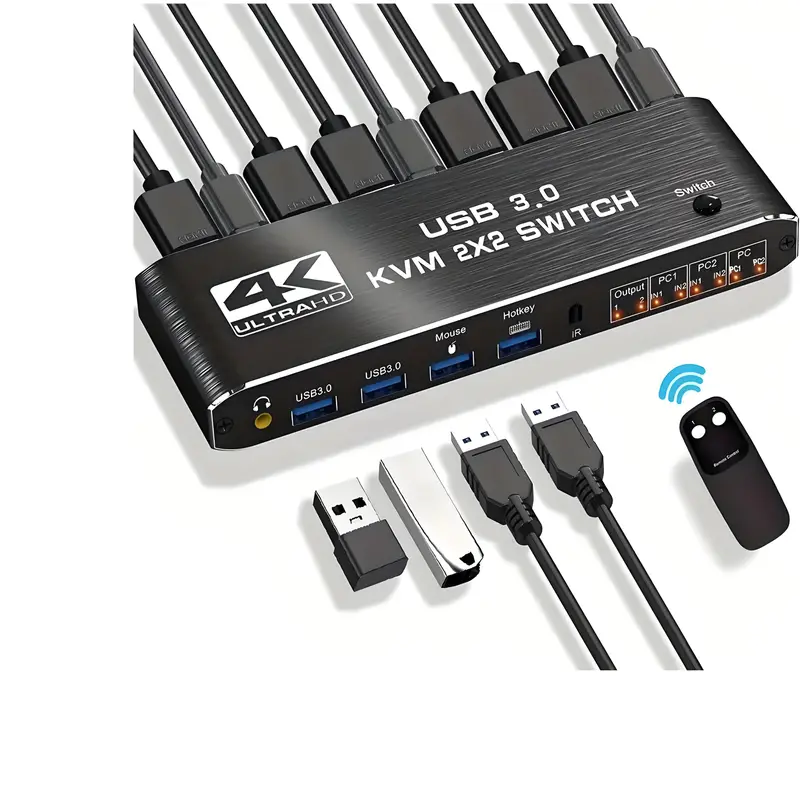
The switch connects a shared console to the selected host. Typically each computer needs a video connection and a USB upstream connection. USB carries keyboard and mouse data; HDMI or DisplayPort carries the display signal. A USB-C design can combine some connections, but only when the computer and KVM support the required video and data functions.
Keep those connections paired. If a laptop's video enters host port one while its USB cable enters host port two, the screen and keyboard can end up controlling different machines. Dual-monitor KVMs also need the appropriate video feeds from each computer. Two output sockets do not establish that your laptop can drive two independent external displays through its dock.
Selection methods vary: a front button, wired remote, keyboard hotkey or on-screen menu may be available. Follow the exact manual instead of assuming every unit responds to the same Scroll Lock sequence. Switching can require display negotiation and USB reconnection; a brief blank screen does not by itself prove a fault. Supported BIOS access is useful when the host operating system is unavailable.
Display identification and USB emulation
EDID is the display information used to identify supported modes. A KVM may copy or emulate that information so an inactive host still sees an appropriate display configuration. This can help with window rearrangement, but EDID behavior is a model feature, not a guarantee that all applications and operating systems will preserve every window position.
USB keyboard and mouse emulation is a separate issue. Dedicated HID ports may present a consistent input device to the hosts, while a shared USB hub switches the attached device itself. Neither approach guarantees that every gaming keyboard, wireless receiver, webcam or audio interface will work identically to a direct connection.
ATEN's guidance describes a keyboard-emulation bypass for compatible equipment, with the tradeoff that certain hotkeys stop working. That illustrates why the manual matters: a setting that helps a specialist keyboard may remove a convenient switching method. Check required polling rates, extra buttons and vendor software against the exact unit, and retain its physical selector as a fallback.
What to verify before buying
| Connection or feature | Check on the exact KVM and complete setup |
|---|---|
| HDMI or DisplayPort | Resolution, refresh rate, color depth, HDR, variable refresh and any compression requirements for your actual monitor count. |
| USB-C laptop input | Host video support, USB data speed, charging output and whether the supplied cable carries all required functions. |
| Multiple displays | Independent video inputs per host, dock capabilities and the computer's supported external-display count. |
| USB peripherals | HID versus switched hub ports, power requirements and documented compatibility for specialist devices. |
| IP access | Capture resolution, streaming frame rate, remote keyboard support, virtual media and authentication. |
Interface names alone do not promise every feature of that standard. For a concrete example, StarTech's P2AD122-KVM-SWITCH datasheet specifies DisplayPort 1.2, one monitor, two computers, 4K at 60 Hz and a 5 Gbps USB hub. Its documentation should not be applied to the unbranded examples pictured above or to every DisplayPort KVM.
For a gaming display, obtain confirmation of the exact mode you need, including HDR and variable refresh if important. Display Stream Compression support must work through the whole path when the requested mode relies on it. A USB-C socket does not automatically supply laptop charging, and a charging figure does not establish video capability.
Hardware versus software sharing
Software tools such as Synergy, Barrier and Microsoft Mouse Without Borders can share input across networked computers. They can be convenient when each system already has a usable display arrangement. They do not themselves route a physical HDMI or DisplayPort signal; using one monitor still requires a way to change its input or view the other machine.
Microsoft documents Mouse Without Borders control for up to four Windows computers, plus clipboard and file sharing. Its optional service can support elevated applications and the lock screen. Those capabilities should not be confused with control of firmware before Windows starts: the software still depends on its supported operating-system environment.
A hardware KVM can be useful for installation, recovery and switching between Windows, Linux and macOS, subject to peripheral and preboot compatibility. On a managed work laptop, ask IT about permitted peripherals and sharing tools. A standard USB connection is not permission to bypass an employer's device policy.
Remote consoles and PiKVM
An IP KVM captures the host's display and sends remote keyboard and mouse input over a network. It is useful for a server that needs BIOS changes, recovery or an operating-system installation when ordinary remote desktop software cannot run. Supported PiKVM hardware uses video capture and USB emulation; the host still needs compatible video output and USB behavior.
PiKVM's V4 documentation describes an HDMI input, a USB connection to the target and optional ATX power control. Its supported virtual media can present installation images as a virtual drive. Compatibility is not universal: the documentation identifies firmware-specific issues and warns that some UEFI implementations cannot detect a bootable virtual drive through a USB hub.
Streaming specifications also depend on the model. PiKVM documents 1080p at 30 frames per second as the default V4 setting, with optional 60 fps H.264 support on V4 rather than every V3 or DIY build. Remote console streaming is different from a local gaming monitor's refresh rate.
Treat this as privileged management access. Restrict access to trusted users and networks, change default credentials and keep the appliance maintained. PiKVM documents separate Linux root and web accounts; web two-factor authentication does not secure the Linux root or SSH account automatically.
Cables, docks and the total cost
A KVM reduces duplicate equipment but can add several host cables. Budget for the required video leads, USB upstream leads, laptop adapters and power supply. Check what is included before comparing prices. A cheap switch plus incompatible adapters can cost more than a suitable complete kit.
Use the manufacturer's supported cable lengths and appropriate certified cables for the intended mode. There is no universal two-meter limit: the cited StarTech model specifies a three-meter maximum. That number applies to that product, not every high-refresh setup. Each extra dock, converter and cable introduces another capability to check.
For home offices, sharing peripherals can save space and make work/personal transitions easier. For IT support and development, a console can simplify access to several systems. Gaming and streaming setups need particular care with displays, capture devices and USB audio. Rack and remote access arrangements solve a different problem from a two-computer desk switch.
A practical setup and troubleshooting check
First verify that each computer drives the display and peripherals correctly without the KVM. Connect one host through the switch at a conservative display mode, then add the second host and any extra monitors. Confirm selection, cold boot, sleep and wake before adding demanding webcams, hubs or audio devices.
If video fails, separate it from USB troubleshooting: verify the selected input, host video output, cable pairing and supported mode. Try a documented lower refresh rate or simpler cable path. If the keyboard fails, compare its dedicated HID port with a supported shared USB port and check any emulation setting. Do not promise zero latency or assume a USB hub eliminates audio interruptions.
Safely eject shared storage and stop transfers before switching its USB connection to another host. Test the actual tasks you need during the return period, including firmware access and two-screen operation. This gives better evidence than a generic claim of seamless switching.
Choosing a useful KVM
A KVM is a handy way to organize multiple computers around one console. Choose it for the specific problem you want to solve: fewer duplicate peripherals, convenient desktop switching or remote server recovery. Match the full connection path and documented features to that workload. The result can be a cleaner, more practical desk without assuming that every switch supports every display, peripheral or remote-management feature.