
If you run services at home, an inventory of the devices your network can observe is useful for finding unfamiliar arrivals and investigating missing servers. NetAlertX helps turn those observations into a history and actionable notifications. It cannot tell you everything happening inside each connection, but it gives you a practical starting point for checking your home network. Let's take a look.
What is NetAlert X?
NetAlertX is a useful tool for keeping track of devices on your home network. It combines network discovery and presence monitoring with optional plugins. Its core inventory shows observed devices and changes; it is not a general vulnerability scanner or a traffic-inspection firewall. When a configured discovery source detects a relevant change, NetAlertX can record it and send a notification through an enabled publisher.
Think of it as an attendance register for the devices visible to its configured discovery sources, including wired clients. Entries depend on scanner access, timing and device behavior. Useful observations include:
- Newly observed devices: Get notified when a configured scan or import discovers an unfamiliar phone, laptop or smart appliance. Investigate its owner and the observation source before treating it as unauthorized access.
- Inventory changes: Compare newly observed devices with the household or homelab inventory. Per-device bandwidth diagnosis requires a router or another tool with the relevant traffic measurements.
- Presence changes: Notice that an expected device has not been observed. A sleeping device or missed scan can look like an outage, so verify the cause.
- Unexpected inventory changes: A server appearing under another address or an unfamiliar client deserves attention. The observation does not establish that an exploit or attack occurred.
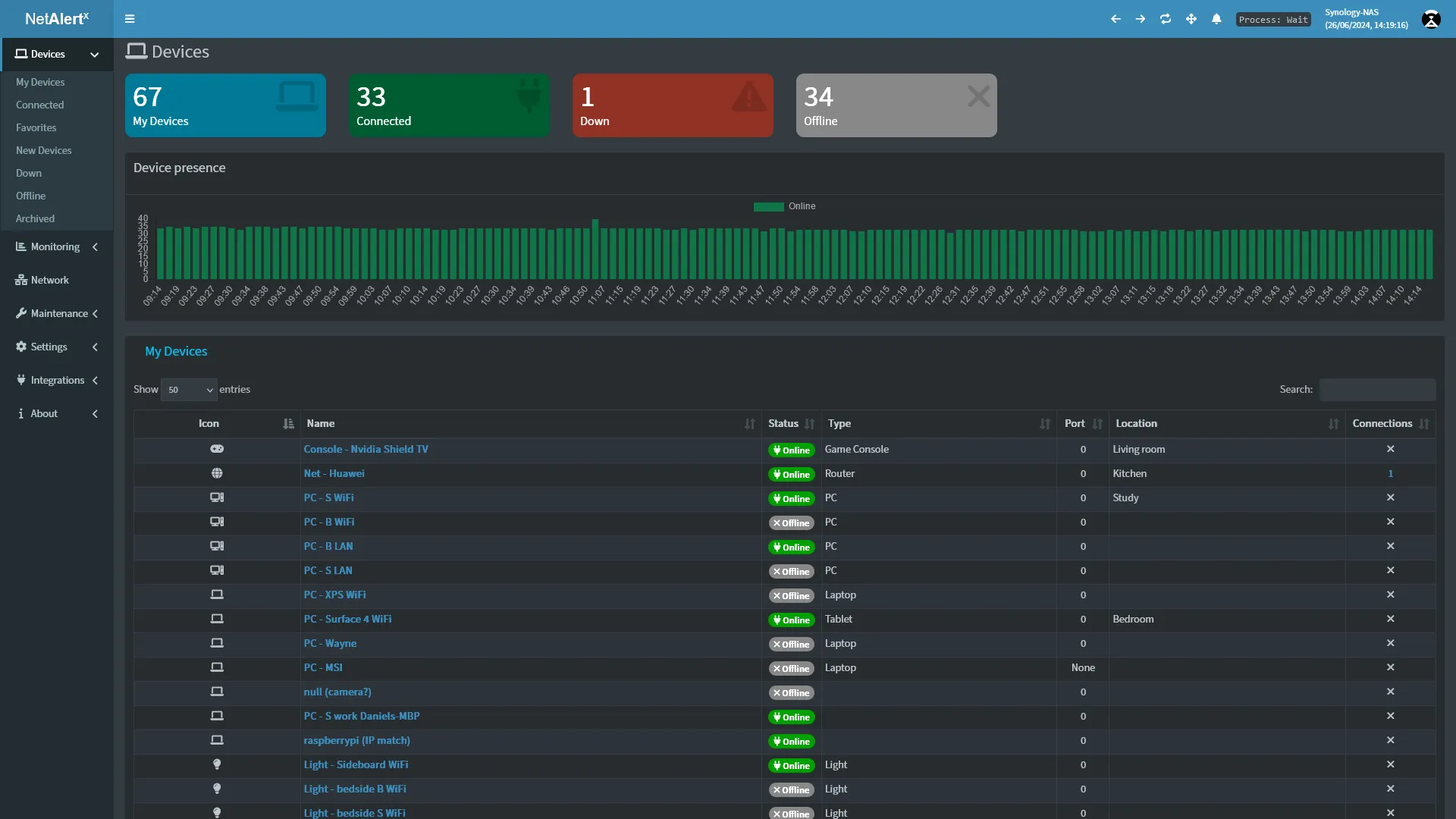
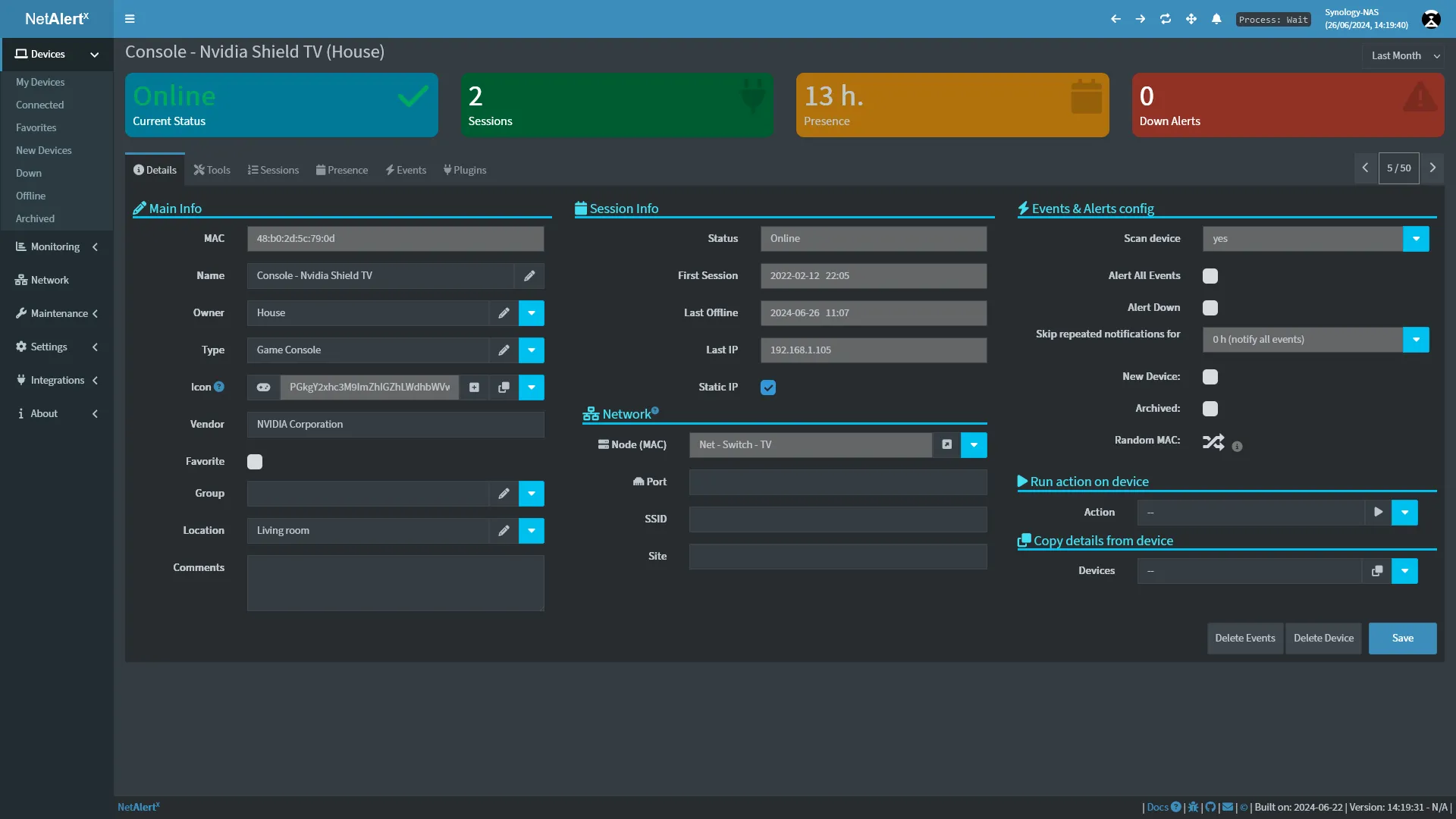
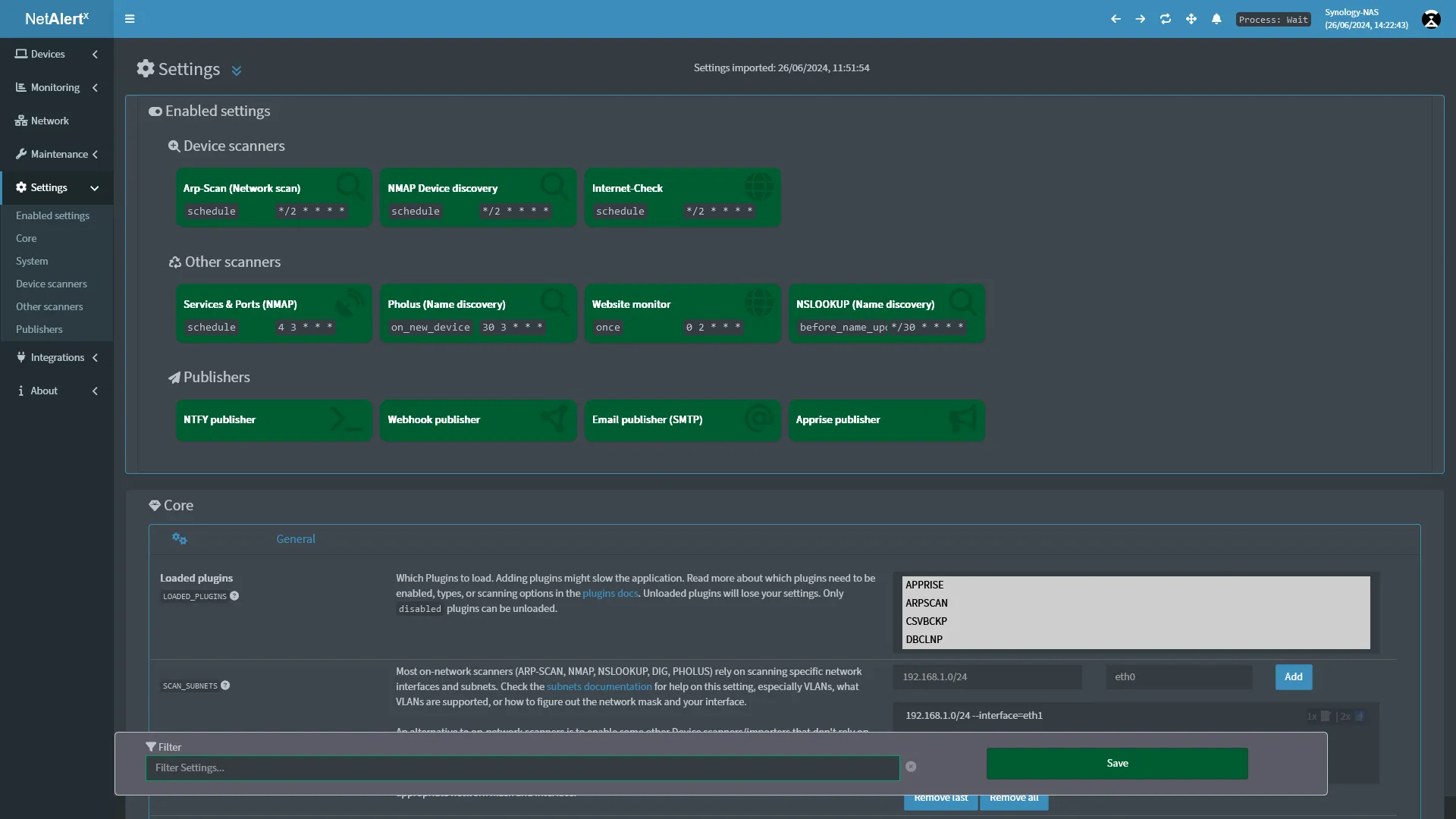
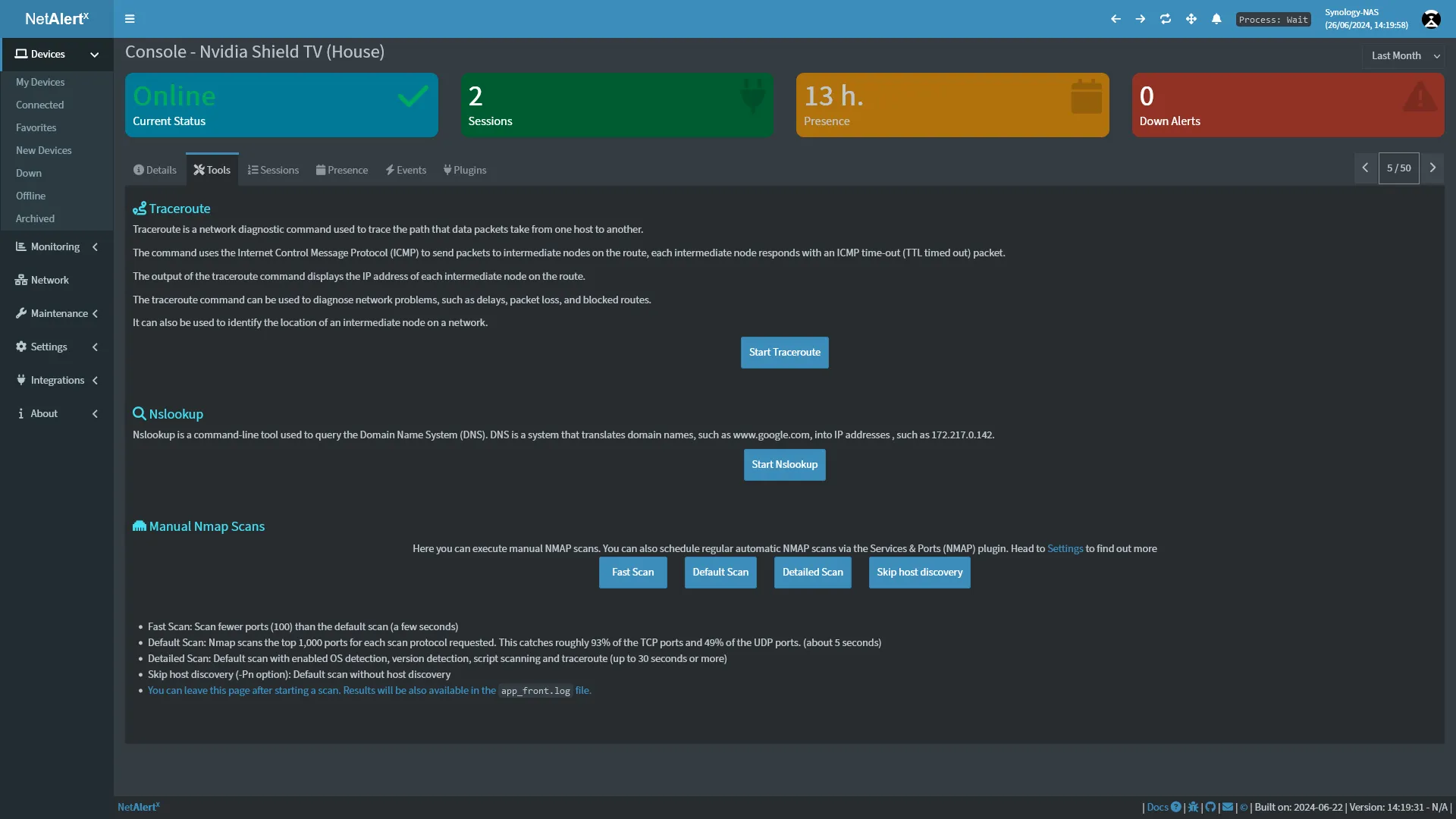
The screenshots illustrate an older interface. Use the current documentation for setting names and deployment requirements; the inventory, device details, settings and tools views show the kinds of information to look for rather than an exact match to every current release.
Where NetAlertX Fits in a Homelab
NetAlertX grew from Pi.Alert into a plugin-driven inventory and monitoring project. Choose data sources for the visibility you need: local discovery, a supported router/controller integration, DHCP information or an optional service check. Enabling a plugin and choosing an appropriate scope are part of setup; installing the container alone does not turn on every possible monitor.
For local ARP discovery, the scanner needs access to the relevant layer-2 network. The project's Docker guide uses Linux host networking and does not support a Windows host for that baseline. Docker Desktop host networking is limited to layer-4 TCP/UDP traffic, so enabling it does not provide the ARP access required for this Linux baseline. A Linux VM also needs the intended LAN connection, not merely an isolated virtual network. Another subnet may require a suitable interface, sensor or supported inventory import rather than a broader CIDR entry alone.
Home Assistant integration uses MQTT to publish discovered devices and statistics. A community add-on is a separate installation option for supported Home Assistant setups; Home Assistant Container users can run NetAlertX alongside it in another container. Verify what your installation supports instead of assuming the add-on is available everywhere.
Install from the Current Official Compose Baseline
The storage and security baseline have changed since older examples that mounted /app/config and /app/db. The current documented layout persists data under /data. For an existing deployment, follow the migration guide and back up the database and configuration before changing mounts. Otherwise, the application can start against an empty location and make a valid old inventory appear to have disappeared.
Our articles on Docker and Unraid explain the surrounding platforms. Use Docker’s official site for its installation documentation. The commands below assume Docker Engine and the Compose plugin are already installed on a Linux host.
Download the maintained example, then inspect and adjust it before starting anything:
mkdir -p "$HOME/netalertx"
cd "$HOME/netalertx"
curl --fail --show-error --location \
  https://raw.githubusercontent.com/netalertx/NetAlertX/main/install/docker/docker-compose.yml \
  --output compose.yaml
Check the downloaded service’s sysctls: section before starting. The upstream example includes net.ipv4.conf.all.arp_ignore and net.ipv4.conf.all.arp_announce alongside host networking. Docker does not allow networking sysctls in a host-network container. Remove that service-level block for this baseline. If ARP-flux mitigation is needed, have the host administrator review existing values and the NetAlertX guide’s host-level alternative; these settings affect the shared host network and should not be applied blindly.
The upstream Compose file is a maintained starting point, and the main branch can change. Save the copy you reviewed with your deployment notes. Its image uses a moving tag; for reproducible upgrades, select a published release tag or digest after checking the project's release and migration guidance. After reviewing mounts, capabilities, listener addresses and the sysctl issue, validate the rendered configuration and start from the same directory. Configuration validation checks the Compose document; it does not prove the host will permit every runtime setting.
docker compose config
docker compose up -d
docker compose logs --tail=100 netalertx
Confirm successful startup in the logs before opening the interface.
Review the security settings as a whole: read-only container filesystem, limited capabilities, temporary storage and persistent data. Do not replace them with privileged: true just to silence an error. Read the startup message and correct the specific permission, mount or network issue. Host networking also means a Docker ports: mapping is not the control that restricts dashboard access.
The baseline uses dashboard port 20211 and GraphQL API port 20212, with LISTEN_ADDR defaulting to 0.0.0.0. Open the dashboard using the Linux server's actual private address and restrict access to both listeners with the host firewall. The project treats interface users as trusted administrators. Its UI password option is disabled by default: enable it and set your own password, then verify the protection actually applied. Do not assume a dashboard login protects the separate API. Inventory and notification credentials are sensitive operational data; keep this service on a trusted management network or reach it through an authenticated private connection.
Verify the First Scan Before Enabling Alerts
Name a known, awake device and confirm that it appears with the expected address and source. Then compare the inventory with the router's own client list. The ARP-scan plugin guide describes SCAN_SUBNETS, scheduling and interface selection. Check those settings and wait for a completed scan before interpreting an empty dashboard as an empty network.
Use a small intended subnet for the first pass. Expanding a scan to every private range can increase work without providing access to networks the host cannot actually observe. For VLANs, verify the real network path and consider supported imports from the controller or DHCP source when the scanner is not present on that segment.
Build Alerts Around a Useful Response
Start with unfamiliar-device notifications and an offline rule for one genuinely always-on server. Name devices, mark expected entries and choose a scan/alert interval that suits the device. A battery-powered phone should not use the same availability expectation as a NAS.
| Alert | Check first | Useful response |
|---|---|---|
| Unknown device | Guest activity, a new family device or a changed private MAC | Identify its owner before blocking it |
| Server appears offline | Scheduled maintenance, scan completion and network path | Verify the service independently |
| Repeated address changes | DHCP lease behavior and the selected discovery source | Correlate observations rather than treating every row as a new intruder |
Private MAC addresses can make a phone appear as a new device. Avoid disabling that privacy feature everywhere just to tidy a dashboard. Apple’s private-address settings distinguish a fixed private address for a network from one that rotates. Check the device’s actual setting rather than assuming every private address changes on every connection. Identify the device from its network settings or another reliable inventory source. An unfamiliar address is a reason to investigate, not proof of an intrusion.
If a known, awake server appears offline, inspect scan completion, timeouts, interface selection and the server’s responses before changing alert rules. A supported complementary discovery method may improve coverage, but presence in an inventory still does not prove that the server’s application is healthy. Check that service directly.
Test Notification Delivery and Preserve the History
Create one harmless, expected test event and check that the configured notification reaches its destination. Distinguish an event that was never discovered from an event recorded in NetAlertX but not delivered. Those failures belong to different parts of the workflow. Protect webhook tokens and MQTT credentials, and remove integrations you no longer use.
Before an upgrade, back up persistent data and retain the previous configuration. After restarting, check existing inventory, a new scan and one notification. Review repeat alerts regularly so noise does not train you to ignore the genuinely unfamiliar device. NetAlertX is valuable when it supports an inventory you act on; it does not replace a firewall, endpoint protection or application-specific vulnerability review.
Conclusion
NetAlertX is worth trying if you want a clearer picture of the devices your home network can observe. Its value comes from a reliable inventory, sensible alert rules and a response when something changes. Choose a deployment your host supports, keep its management interfaces private and check discovery coverage before relying on notifications.
Sources and Further Reading
- NetAlertX Docker baseline
- Maintained official Compose file
- NetAlertX migration guide
- ARP-scan setup and scope
- Private MAC address troubleshooting
- Home Assistant integration
For deployment details, also read the NetAlertX security guidance, offline-detection troubleshooting and Docker host-network limitations.