A local model is much easier to use when you can open a browser, find an earlier conversation and attach a document. Open WebUI supplies that everyday interface around a model server. It is useful whether the server is on your desktop, a separate homelab machine or another trusted device on your network.
This guide uses Open WebUI v0.11.4, released on 21 September 2026, for a reproducible setup available by 3 October. Check newer releases and security fixes before deploying today. The featured artwork is an original conceptual illustration; it does not show the product's actual interface.
The interface and model server have different jobs
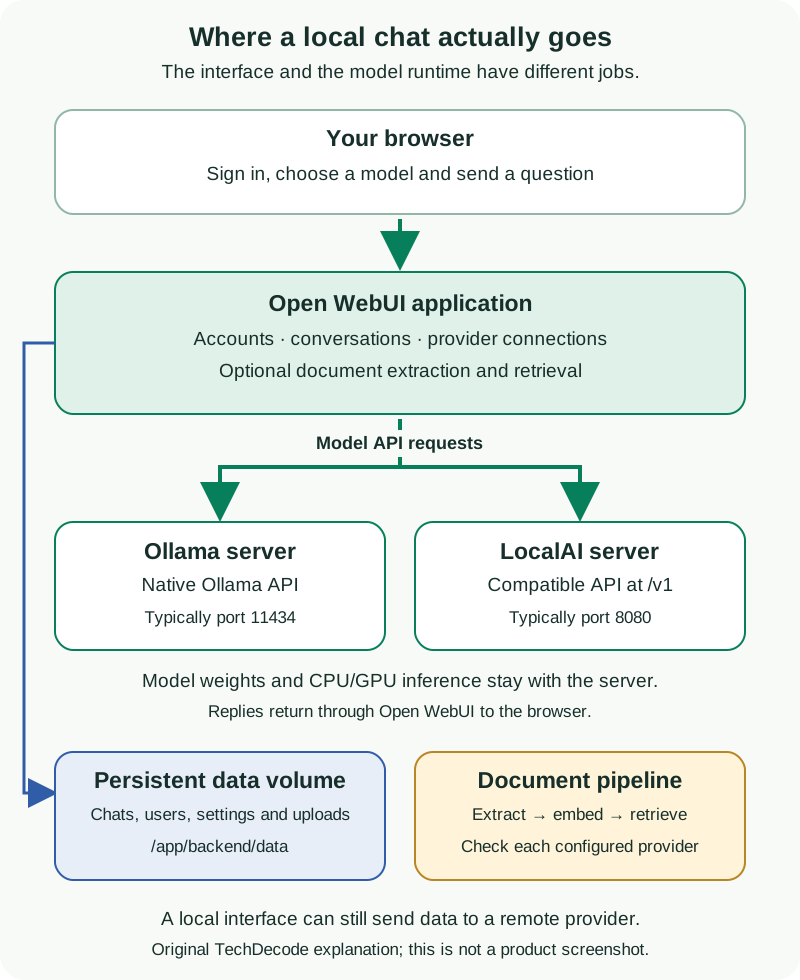
Open WebUI includes a browser interface and an application backend. The backend handles accounts, conversations, settings and connections to model providers. Ollama or LocalAI normally loads the language model and generates its replies. Installing the standard Open WebUI image does not install a complete collection of chat models, and choosing a different interface does not make an unsuitable model fit your hardware.
The versioned project overview documents Ollama and OpenAI-compatible connections. Open WebUI can also perform supporting work, such as document extraction and embeddings, so it still needs resources even when generation runs elsewhere. Its license includes conditions concerning Open WebUI branding and exceptions; read those terms before redistributing or rebranding it.
Prepare a small, recoverable setup
Start with a Docker host, Docker Compose v2 and one working model-server endpoint. Confirm that the model server can answer a simple chat request before adding another layer. This guide sets up the interface; it assumes your chosen model runtime and at least one suitable model already exist.
Keep three things separate: the Open WebUI image, its persistent application data and the model server's files. The application volume stores chats, users, settings and uploads. It does not automatically back up Ollama's or LocalAI's model configuration. Record the image version, endpoint, credentials and storage locations before the first upgrade.
The official quick start identifies /app/backend/data as the persistent mount. Use a named volume rather than leaving important data in a disposable container. For first use, bind the interface to localhost and claim the administrator account before making the service available to anyone else.
Docker first start with persistent data
Save this as compose.yaml in a dedicated project folder. It uses the standard versioned image and deliberately starts with both provider types disabled; you will enable the one you need in the administrator settings.
services:
  open-webui:
    image: ghcr.io/open-webui/open-webui:v0.11.4
    restart: unless-stopped
    ports:
      - "127.0.0.1:3000:8080"
    extra_hosts:
      - "host.docker.internal:host-gateway"
    environment:
      WEBUI_AUTH: "True"
      WEBUI_SECRET_KEY: "${WEBUI_SECRET_KEY:?Set WEBUI_SECRET_KEY in .env}"
      ENABLE_OLLAMA_API: "False"
      ENABLE_OPENAI_API: "False"
    volumes:
      - open-webui-data:/app/backend/data

volumes:
  open-webui-data:
Generate a long random application secret with openssl rand -hex 32 in a terminal with OpenSSL available. Put the result in a .env file beside the Compose file as WEBUI_SECRET_KEY=your-generated-value. Protect that file and keep the same key across recreations. It is an application secret, separate from your account password and model-provider API key.
Run these commands from that project folder:
docker compose config --quiet
docker compose up -d
docker compose ps
docker compose logs --tail 100 open-webui
The quiet configuration check validates without printing the resolved secret. The host's port 3000 forwards to the application's port 8080; change the left port if it is occupied. Visit http://127.0.0.1:3000 on the Docker host. For a headless server, use an SSH tunnel to that loopback port. Use a supported Docker release; Docker documents a localhost-exposure caveat for versions older than 28.0.0 in its port-publishing guide.
Claim the administrator account and control access
On a fresh empty database, register your intended administrator with a strong unique password. The v0.11.4 authentication code promotes the sole first user to administrator and disables signup. Confirm the signup policy under Settings → Admin → Authentication before sharing access. Reusing an existing data volume preserves its accounts; it does not create a new first-admin opportunity.
Create ordinary accounts for other users and grant only needed capabilities. If you deliberately reopen registration, keep new accounts pending until approved. Review access to models, knowledge collections, uploads and sharing using the roles and permissions guidance. A restricted group cannot cancel permissions already granted broadly by the default policy.
Keep WEBUI_AUTH enabled. For access beyond the host, prefer a controlled VPN or a properly configured HTTPS reverse proxy, with restricted access and secure cookies. A proxy running in another container needs a shared Docker network; its own 127.0.0.1 points to itself. Follow the hardening guidance for your exact topology.
Connect Ollama or LocalAI
Open your profile's Settings, then Admin → Connections. Enable the relevant provider type and add its address. These are administrator-configured backend connections: the address must be reachable from the Open WebUI container, not merely from your laptop.
| Backend | Connection type | Example on a reachable host |
|---|---|---|
| Ollama | Ollama API | http://host.docker.internal:11434 |
| LocalAI | OpenAI-compatible API | http://host.docker.internal:8080/v1 |
For Ollama, use the native connection rather than adding /v1. For LocalAI, enable the OpenAI connection section and use its compatible API base, including /v1, rather than the full /chat/completions path. This connection type does not require an OpenAI account. Remove or disable unwanted default provider connections.
Use the actual provider key if your LocalAI server requires authentication. Leave it blank only when that server intentionally accepts unauthenticated requests on a restricted network. Verify the connection, save it, select an installed model and send a short prompt. Match the exact served model ID; a friendly display name is not necessarily its API identifier.
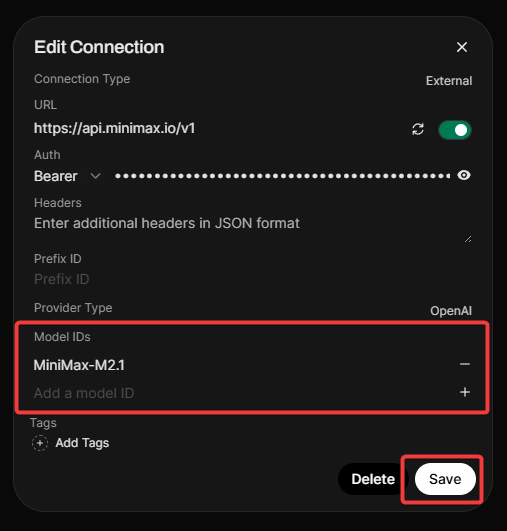
The Ollama connection guide, compatible-provider guide and LocalAI authentication documentation describe the respective protocols and credentials.
Why container localhost causes connection errors
Inside the Open WebUI container, localhost means that container. It does not identify a separate LocalAI container, your desktop or a Proxmox host. Docker Desktop supplies host.docker.internal; the Compose extra_hosts entry supplies a host-gateway mapping on Linux.
A hostname mapping does not change the model server's bind address. Ollama normally listens on 127.0.0.1:11434, which a Linux bridge container cannot reach through the host's gateway address. Configure a deliberately reachable private interface and appropriate firewall rules, or put both services on the same user-defined Docker network. Do not solve the problem by exposing an unauthenticated model API to the internet. Open WebUI's login protects its interface, not a separately accessible backend.
On a shared user-defined network, use a service name such as http://ollama:11434 or http://localai:8080/v1 and the backend's container port. Both services must actually join that network. Docker's bridge documentation explains service-name resolution; the Ollama FAQ documents its default binding.
History and documents: useful context, with limits
Saved conversations make the interface useful across sessions, but saved history is not unlimited model memory. The runtime's context limit still applies to the system prompt, conversation and supplied document content. Start a focused conversation when an old thread contains too much unrelated material.
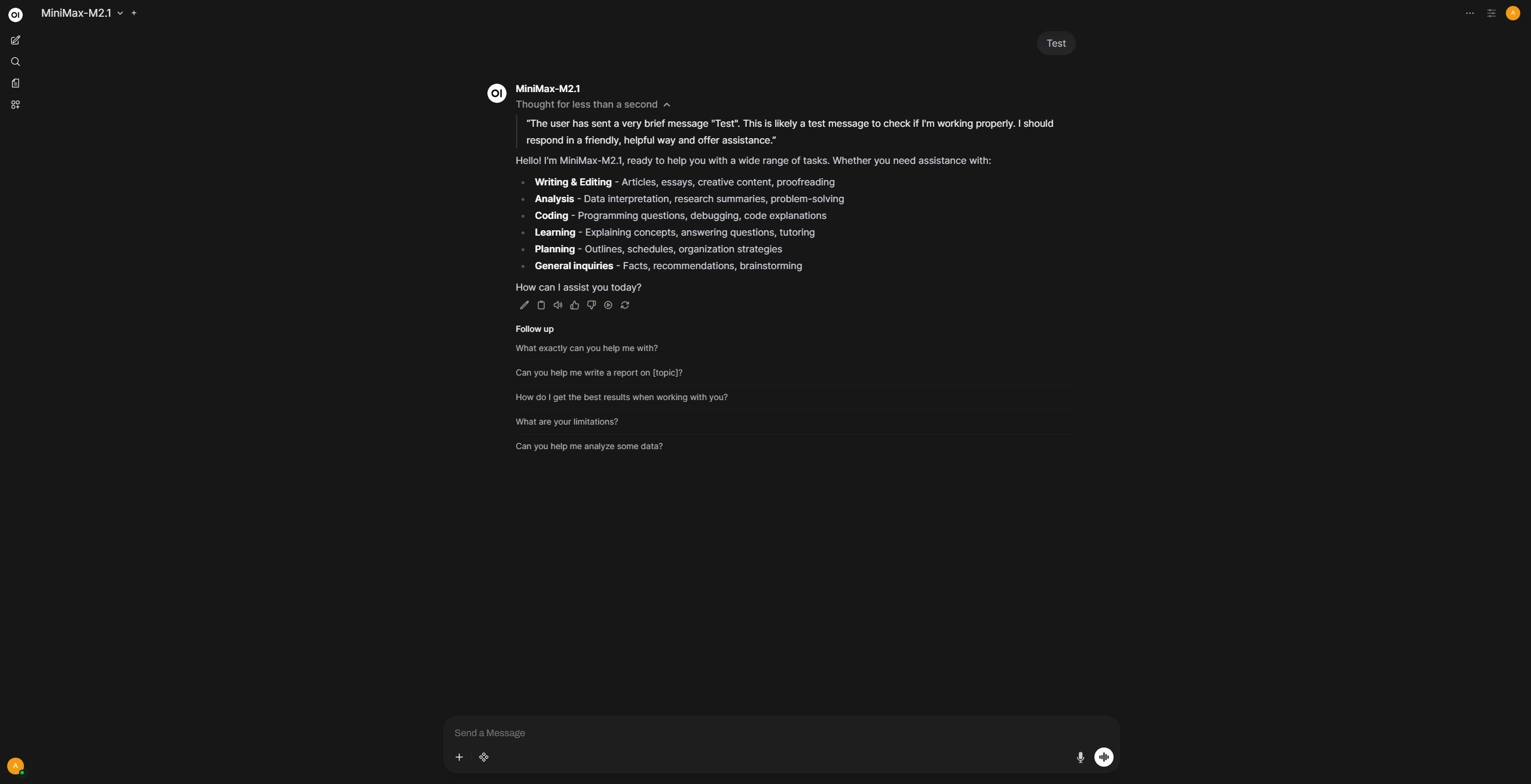
For a first document exercise, use a short non-sensitive text file with a fact you can check. Upload it to a chat, wait for processing, ask a precise question and compare the answer with the file. Reusable collections belong under Workspace → Knowledge, subject to your permissions. The knowledge guide explains attaching collections to conversations or model configurations.
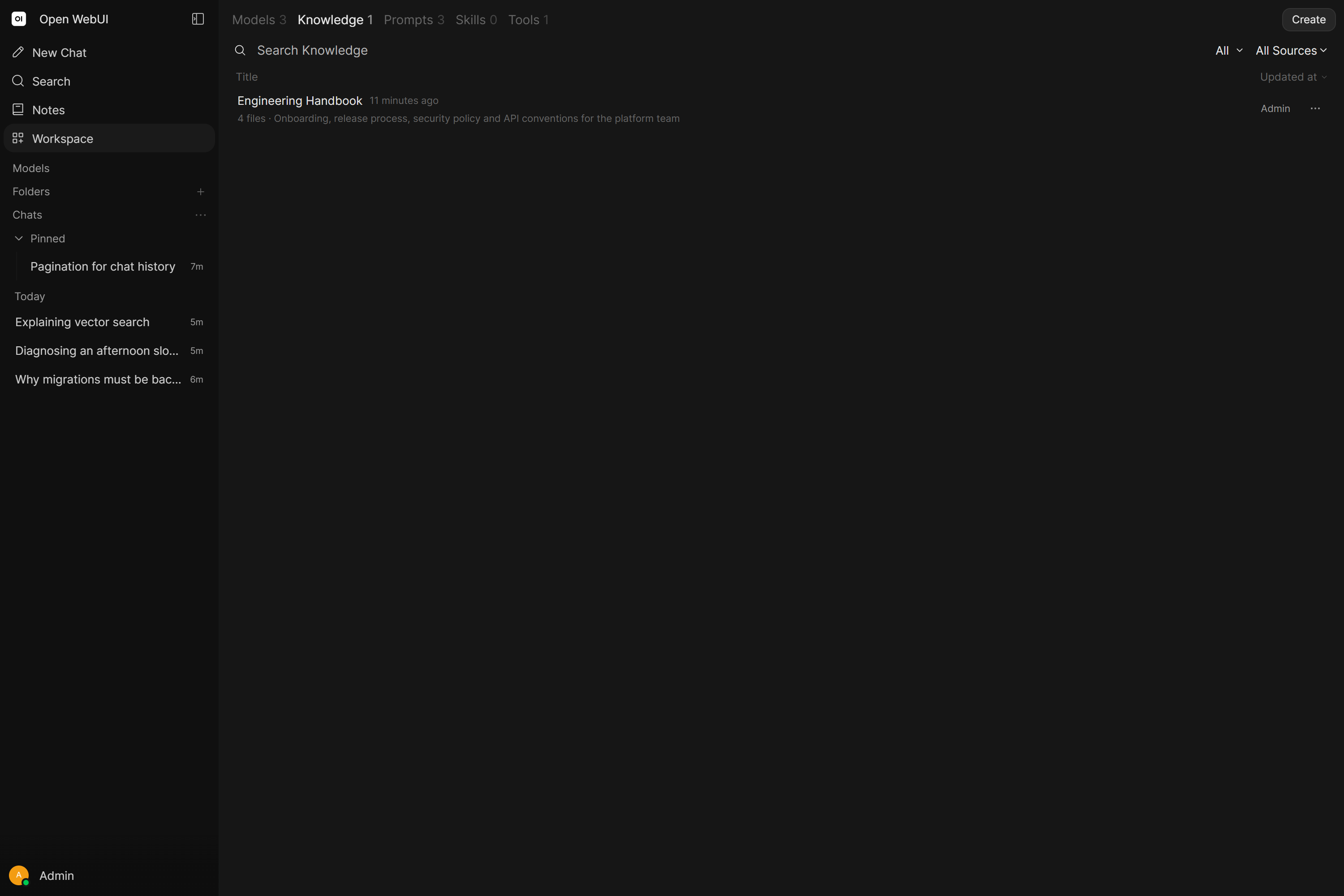
Retrieval-augmented generation, or RAG, extracts text, indexes it through embeddings and supplies relevant material to the model. It does not train the model on your library. Missing extraction, poor retrieval or an unsupported model/tool combination can still produce incomplete or invented answers. A citation is a pointer to inspect, not proof that the interpretation is correct.
Check scanned PDFs, tables and diagrams against the extracted text. Keep document material within the model's context budget. If changing embedding models, reindex the collection rather than mixing incompatible indexes. The RAG troubleshooting guide covers extraction and reindexing. Confirm both a known answer and a question the document cannot answer before trusting a collection.
Privacy depends on every configured connection
A local browser interface can still send prompts or document extracts to a remote generation, embedding or extraction provider. Web search, speech services and extensions add further paths. Review all of them before uploading private material. Running a local chat model alone does not make the entire document workflow local or offline.
Uploads, database contents, logs and backups deserve the same care as the original documents. Server operators with host or database access remain inside your trust boundary; ordinary account separation does not prevent that access. Read the privacy guidance and review sharing permissions. Keep executable tools and functions restricted to trusted administrators. Treat community imports as code to inspect before installation, rather than harmless conversation presets.
Backups, upgrades and recovery
Back up the complete application volume, Compose configuration and separately protected application secret. For this single-instance SQLite setup, stop the application while taking a filesystem copy so the database and associated files form a consistent set; restart afterward. A chat export is useful portability, but does not preserve every account, setting, upload and index.
Before changing the pinned image, read release notes and keep a pre-upgrade backup. Change the version in Compose, pull it and recreate the service while retaining the same volume. Confirm login, a known conversation, one model response and document retrieval. Do not use docker compose down -v during routine upgrades: it removes the project's named volumes.
Database migrations can make an older image incompatible with upgraded data. A reliable rollback may therefore need the old image and its matching pre-upgrade data, not simply a tag change. Test restoration in a separate instance with a different volume and port. The update guide documents these boundaries.
Troubleshoot the first chat in layers
- No page: inspect container status, startup logs, the published host port and whether you are browsing on the intended host or tunnel.
- No models: check the enabled provider, exact base URL, credentials, model installation and network reachability from the container. A successful list request does not prove generation will fit available memory.
- Wrong settings after restart: inspect the administrator configuration. Many settings persist in the database and take precedence over changed environment defaults, as the versioned configuration source shows.
- Replies stop or documents fail: check backend logs, context size and extraction/embedding settings. For a proxy, check streaming and WebSocket support before increasing timeouts.
Build confidence with one model, one account and one document first. Then add users or optional features when that small workflow survives a restart and a recovery exercise.
Sources and related reading
- Open WebUI v0.11.4 release and versioned overview: the historical setup used here.
- Official setup, hardening and upgrades: check the guidance matching your deployed release.
- Our LocalAI explainer (published 13 October 2026): a later companion article covering the model-serving side.