
For self-hosting enthusiasts like us, building a robust and secure homelab is a rewarding journey. Check out our step-by-step guide on building your own homelab. At the heart of any well-designed network lies a powerful and configurable firewall and router. This is where pfSense shines: a FreeBSD-based firewall and router distribution. pfSense Community Edition (CE) is the free, open-source edition; pfSense Plus has separate licensing and features. It's a favourite among homelabbers for good reason, offering enterprise-grade features without the enterprise price tag.
What Exactly is pfSense and How Does It Work?
At its core, pfSense is a specialized operating system designed to turn compatible hardware or a supported virtual machine into a dedicated firewall and router. Think of it as the gatekeeper for your entire network, meticulously inspecting incoming and outgoing traffic, enforcing security rules, and managing how your devices connect to the internet and each other.
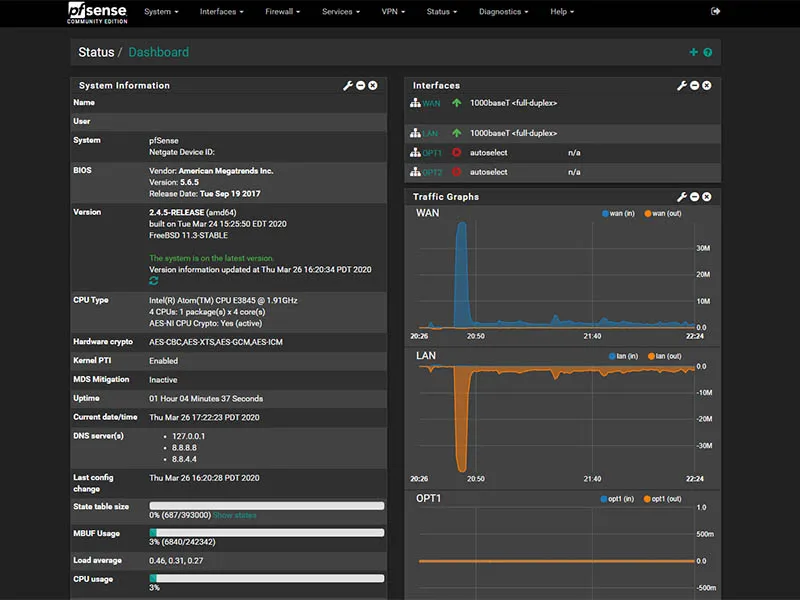
The dashboard above shows pfSense CE 2.4.5 from 2020. It illustrates the interface and traffic graphs, not a current installation target or a tested deployment for this guide. Menu details and supported features can differ in current releases.
Breakdown of key functionalities:
- Firewall: This is pfSense's primary role. It uses a stateful packet inspection (SPI) firewall, meaning it keeps track of the state of network connections (e.g., TCP streams, UDP communication) and makes decisions based on the context of the traffic, not just individual packets. You can define granular rules to allow or block traffic based on source/destination IP addresses, ports, protocols, and more.
- Router: pfSense handles all the routing needs of your network. This includes assigning IP addresses to your devices (DHCP server), resolving domain names (DNS server/forwarder), and ensuring data packets reach their intended destinations, both within your local network and out to the internet.
- VPN Server/Client: Securely connect to your homelab from anywhere in the world or link multiple sites together using OpenVPN or IPsec, or the supported WireGuard add-on package. VPN routes and firewall rules determine which services a remote peer can reach.
- Intrusion Detection/Prevention (IDS/IPS): With packages like Suricata or Snort, pfSense can inspect traffic and, when configured for prevention on compatible interfaces, block matching traffic. Rules need tuning and monitoring; encrypted payloads and missed detections limit what inspection can establish.
- Traffic Shaping/Quality of Service (QoS): Prioritize certain types of traffic (e.g., gaming, VoIP) over others (e.g., large downloads) to improve how competing traffic shares a constrained connection. Shaping needs appropriate settings and cannot create additional bandwidth or guarantee low latency.
- Reporting and Monitoring: Get detailed insights into your network traffic, system health, and potential security events through comprehensive logging and graphing tools.
- Extensibility with Packages: pfSense boasts a robust package manager, allowing you to install additional features and services like ad blockers (pfBlockerNG), reverse proxies (HAProxy), network monitoring tools, and much more.
How it fits into your homelab: Typically, you'll install pfSense on a dedicated piece of hardware (an old PC, a small form-factor computer, or a virtual machine) with at least two network interface cards (NICs). One NIC connects to your modem (WAN port – the internet) and the other connects to your local network switch (LAN port – your homelab devices). Traffic that actually traverses this gateway is subject to its routing and firewall policy. Devices on the same LAN can communicate without passing through it, so firewall placement matters as much as the rules.
The Perks of Running pfSense in Your Homelab
Integrating pfSense into your homelab offers a multitude of advantages:
- Enhanced Security: Gain granular control over your network traffic. Create specific rules to protect your self-hosted services from unwanted access and common internet threats. The IDS/IPS capabilities add another robust layer of defense.
- Advanced Networking Features: Unlock features typically found in expensive commercial hardware. VLANs (Virtual Local Area Networks) for network segmentation, sophisticated routing policies, multi-WAN (using multiple internet connections for failover or load balancing), and powerful VPN options are all at your fingertips.
- Learning Opportunity: pfSense is an excellent tool for learning about networking concepts in a practical, hands-on way. You'll gain a deeper understanding of firewalls, routing, VPNs, and network security.
- Customization and Flexibility: Tailor pfSense to your exact needs through its extensive configuration options and package system. Whether you need a simple firewall or a complex network security appliance, pfSense can adapt.
- Cost-Effective: CE has no software license charge. Budget for hardware, electricity, maintenance and any paid support; Plus has different licensing, so compare the edition and deployment you intend to use.
- Strong Community Support: Being a popular open-source project, pfSense has a large and active community. You'll find plenty of documentation, forums, and tutorials to help you along the way.
- Stability and Reliability: Based on FreeBSD, pfSense has a strong reputation for stability, although compatibility, configuration and maintenance affect reliability, which is crucial for an always-on homelab.
Considerations Before You Dive In
While pfSense is powerful, keep these points in mind:
- Hardware Requirements: While it can run on modest hardware, performance (especially with many packages or high-speed internet) depends on the CPU, RAM, and NIC quality. For gigabit speeds with IDS/IPS, you'll need a reasonably capable machine.
- Learning Curve: While the web interface is user-friendly, mastering its advanced features requires some networking knowledge and a willingness to learn. It's more involved than your typical consumer router setup.
- Potential Downtime During Configuration: Misconfigurations can lead to network outages. It's advisable to have a backup plan or perform significant changes during off-peak hours, especially if others rely on the internet connection.
- Dedicated Hardware (Recommended): While virtualization is possible, running pfSense on dedicated hardware is often recommended for optimal performance and stability, especially for beginners. This adds to the initial setup cost if you don't have a spare machine.
- Power Consumption: If you're repurposing an old, power-hungry desktop, be mindful of the electricity costs. Purpose-built, low-power appliances are often more efficient in the long run.
pfSense and Your Self-Hosted Services: A Symphony of Connectivity
pfSense plays a crucial role in how your self-hosted services interact with both the internet and your local network:
- Port Forwarding (NAT): To make your self-hosted services (like a web server, Plex, or Nextcloud) accessible from the internet, you'll configure port forwarding rules in pfSense. This tells pfSense to direct incoming traffic on specific ports to the correct internal IP address of your service.
- Dynamic DNS (DDNS): If your ISP assigns you a dynamic IP address, pfSense can automatically update a DDNS service. This keeps the name pointed at the current address, subject to update and DNS propagation delays. It does not bypass carrier-grade NAT, blocked inbound ports or a disconnected firewall.
- Reverse Proxy Integration: For hosting multiple web services behind a single IP address and terminating HTTPS with TLS, you'll often use a reverse proxy like HAProxy (available as a pfSense package) or Nginx Proxy Manager (running on a separate server). pfSense will forward web traffic (ports 80/443) to your reverse proxy, which then distributes it to the appropriate service based on the domain name.
- VLANs for Segmentation: You can create VLANs to isolate different parts of your network. For example, you might put your IoT devices on a separate VLAN with restricted internet access, your self-hosted services on another, and your trusted devices on a third. pfSense can manage routing and rules between these VLANs when traffic crosses it. Your switch and access points must support the VLAN design, and isolation depends on rules rather than creating tags alone.
- DNS Resolution: pfSense can act as your local DNS resolver (e.g., using Unbound). This allows you to use custom domain names for your internal services (e.g.,
plex.mylaninstead of an IP address) and can reduce repeated lookups through caching. Privacy also depends on upstream transport and resolver policy; caching alone is not DNS encryption. - VPN Access: Use a VPN to access the internal services your routes and rules permit. The tunnel protects traffic on that VPN path, but it does not automatically grant access to every LAN service or make every application use the tunnel.
Essentially, pfSense acts as the secure and intelligent gateway, applying the access policy you configure. It cannot guarantee that every permitted connection is safe, so service updates, authentication and backups remain necessary. It provides the foundational network infrastructure that your self-hosted applications rely on.
Alternatives to pfSense
While pfSense is a top choice, here are a few other options you might consider for your homelab:
- OPNsense: A fork of pfSense, OPNsense offers a more modern user interface and a slightly different feature set and development philosophy. It's also open-source and very capable.
- NG Firewall (historically Untangle, later Arista): An option mentioned in the original 2025 comparison. Check present product availability, lifecycle, licensing and support before choosing it; historical free-edition descriptions are not a current entitlement promise.
- IPFire: Another open-source firewall distribution that is known for its security focus and ease of use.
- OpenWrt: While often associated with consumer routers, OpenWrt is a powerful Linux-based embedded operating system that can be used to build a highly customizable router/firewall, especially on low-power devices. It's more DIY and command-line-centric.
- VyOS: A command-line-based open-source network operating system providing a wide range of routing, firewall, and VPN features, often favored by those comfortable with CLI environments similar to commercial routers.
- RouterOS (MikroTik): Another powerful networking option. Compare the applicable license or appliance bundle, supported hardware and management approach rather than assuming every deployment has the same cost.
Conclusion: Is pfSense Your Homelab's Missing Piece?
pfSense is an incredibly powerful, flexible, and cost-effective solution for managing and securing your homelab network. It provides enterprise-grade features that can significantly enhance your self-hosting experience, offering robust security, advanced networking capabilities, and a fantastic learning platform.
Should you run pfSense in your homelab?
- Yes, if: You're serious about network security, want granular control over your network traffic, need advanced features like VLANs and VPNs, enjoy tinkering and learning about networking, and have (or are willing to procure) suitable hardware.
- Maybe not, if: You prefer a plug-and-play solution with minimal configuration, have very basic networking needs, or are uncomfortable with a steeper learning curve.
Ultimately, if you're looking to elevate your homelab from a collection of services to a well-architected and secure environment, pfSense is an invaluable tool that is well worth the investment in time and learning. Happy labbing!
pfSense Editions and Feature Scope
Choose CE or Plus deliberately. The official download page describes the current installer path; follow it rather than assuming an old direct ISO or license process still applies. Package and feature availability also depends on your installed release.
Netgate documents Plus-specific capabilities including OpenVPN Data Channel Offload and ZFS Boot Environment management. DCO concerns OpenVPN rather than being a generic WireGuard acceleration feature. Supported hardware and VPN configuration determine which acceleration is usable. Avoid sizing a firewall from a claim that one VPN protocol, CPU label or NIC brand guarantees line-rate performance.
ZFS can be useful, but it does not replace a configuration backup or protect against every power-loss scenario. The documented Boot Environment rollback feature is for Plus, not CE. Retain an exported configuration outside the firewall and understand the compatible restoration path before an upgrade.
Hardware Sizing and Proxmox Virtualization
For self-built systems, check the exact NIC and storage controller against the FreeBSD version underlying your chosen pfSense release. Current generic builds target x86-64 hardware; Netgate ARM appliances have separate support, and this does not mean a Raspberry Pi can run the same installer. Netgate recommends Intel NICs, but that is guidance rather than a universal guarantee that every Intel implementation works perfectly or every other brand fails.
Size for simultaneous traffic, VPN encryption, firewall states and enabled inspection packages. A port marked 2.5GbE specifies a link capability, not the throughput of every enabled feature. Evaluate the workload you intend to run and leave resource headroom rather than treating the minimum installation requirements as a performance target.
A firewall VM on Proxmox VE can work well, but plan WAN, LAN and host-management separation. A host restart or storage problem can take down the gateway. Keep a local console path and record the bridge or passthrough mapping so recovery does not depend on the network that has just failed.
The Netgate Proxmox guide uses VirtIO interfaces and says to check Disable hardware checksum offload under System → Advanced → Networking, then reboot after changing it. Current pfSense versions attempt to disable it automatically for vtnet, but the guide still recommends checking. Do not apply a universal multiqueue value or passthrough recipe without checking the host, driver and workload.
A Useful First Firewall Test
Start with an isolated lab or an available fallback router before replacing the household gateway. Record WAN requirements such as PPPoE, VLAN tags or upstream router mode, and verify which interface is actually WAN. Keep management access on a trusted network.
On ordinary interface rule tabs, rules generally match traffic where it enters the firewall, with the first matching rule deciding the action. Floating and Ethernet rules have additional behavior. Existing states can allow a connection to continue after a rule change, so compare fresh connections and inspect the state table when a test appears contradictory.
For a segmented network, write down expected access: a trusted client may need a specific service on the server VLAN, while IoT devices may need DNS and selected outbound connections but no access to management. Test both allowed and denied paths. Check IPv6 policy too if it is enabled; an IPv4 rule alone is not a complete dual-stack policy.
Before publishing a service, verify the application’s authentication and update process as well as the NAT rule. For private administration, a suitable VPN is often a better fit than exposing the management interface. Store a protected configuration backup and test how to restore it: configuration revision and target hardware can affect compatibility, especially for partial restores or moving between editions.