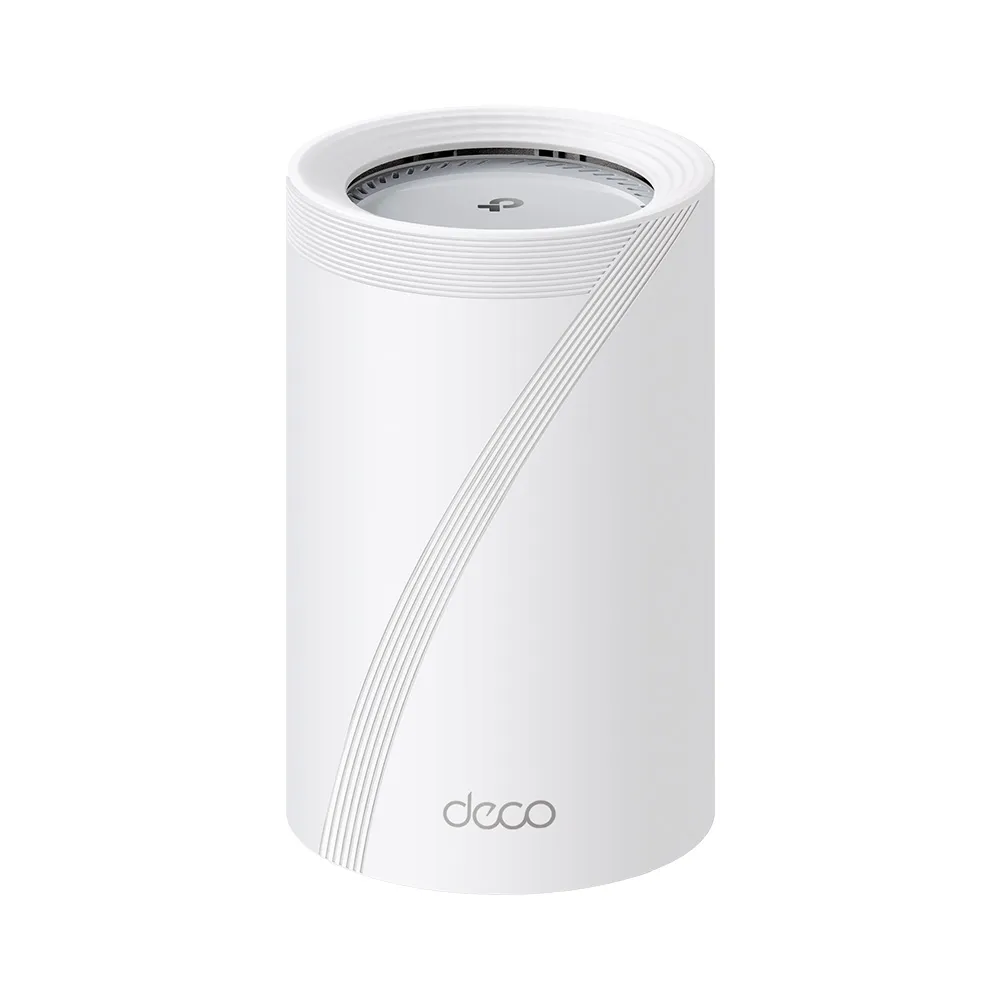
The TP-Link Deco BE65 Pro is an appealing mesh option for a busy home that can use Wi-Fi 7 and faster wired connections. We like its combination of three wireless bands, app management and multi-gigabit Ethernet, particularly for larger homes, streaming, gaming and remote work. The premium price still needs to match your actual clients, internet connection and room layout.
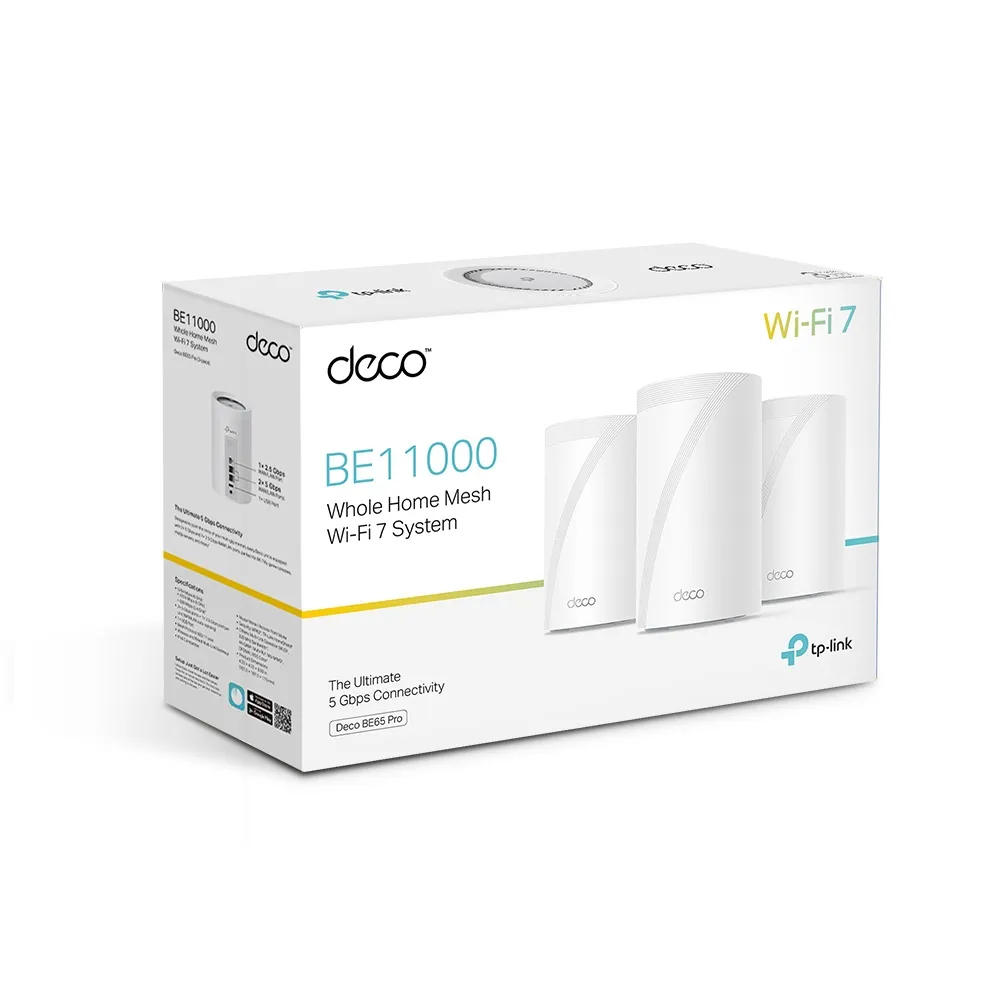
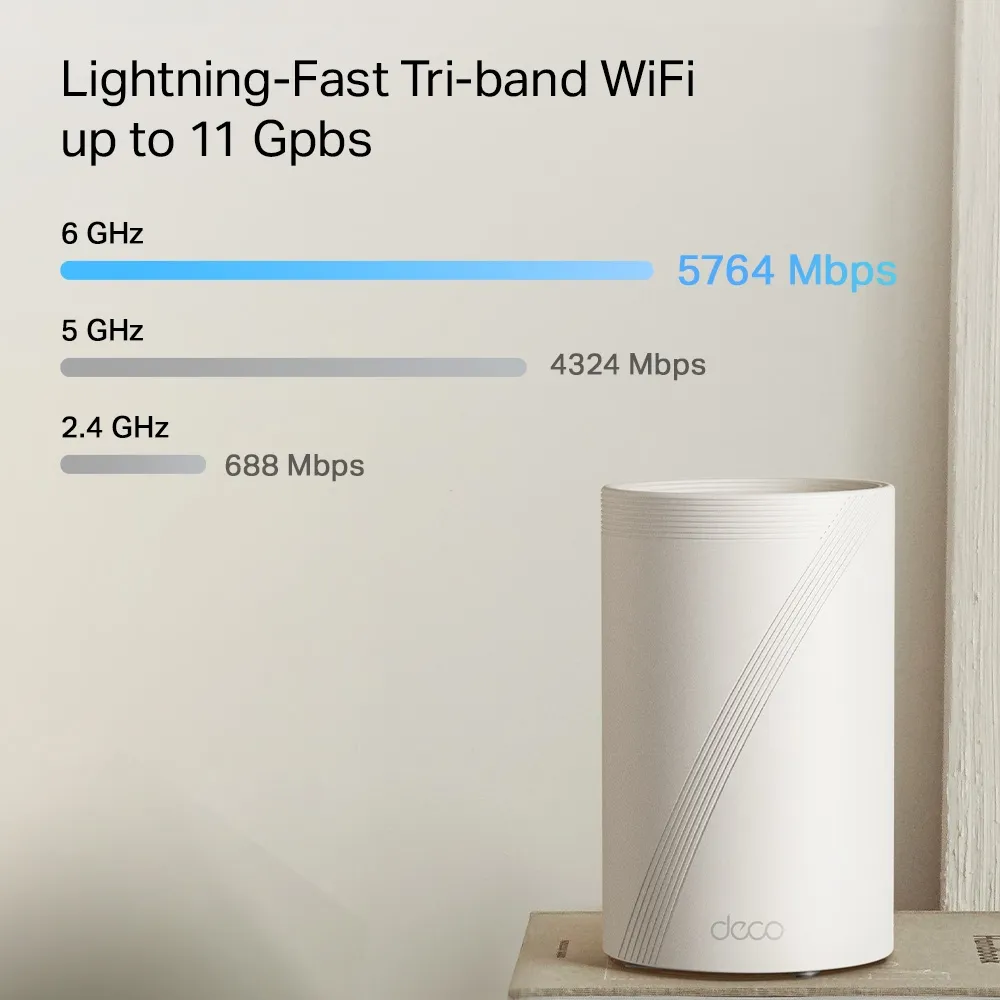
This is a specification and buying guide. It is not a hands-on benchmark review. The BE65 Pro also differs by region: the original BE11000 illustrations describe the higher-rated version, while current EU/JP documentation lists BE9300. Check the exact regional unit instead of assuming that every BE65 Pro has the same radio rates.
How Mesh Wi-Fi Helps
A main Deco connects to the broadband modem or ONT, and additional nodes extend wireless coverage. Think of the nodes as friends passing along a message: each connection still needs a usable route to the next friend. Put a wireless satellite where it can hear another node well, rather than inside the room where the signal has already disappeared.
Deco uses a common network name and supports assisted roaming, but the client influences when it changes nodes. There is no universal 80-millisecond handover or guarantee that every call stays uninterrupted. Walls, interference and client capabilities affect coverage. Test important rooms and applications after placement; do not equate the nearest node with an automatically better connection.
Wi-Fi 7 Radios: BE11000 Versus BE9300
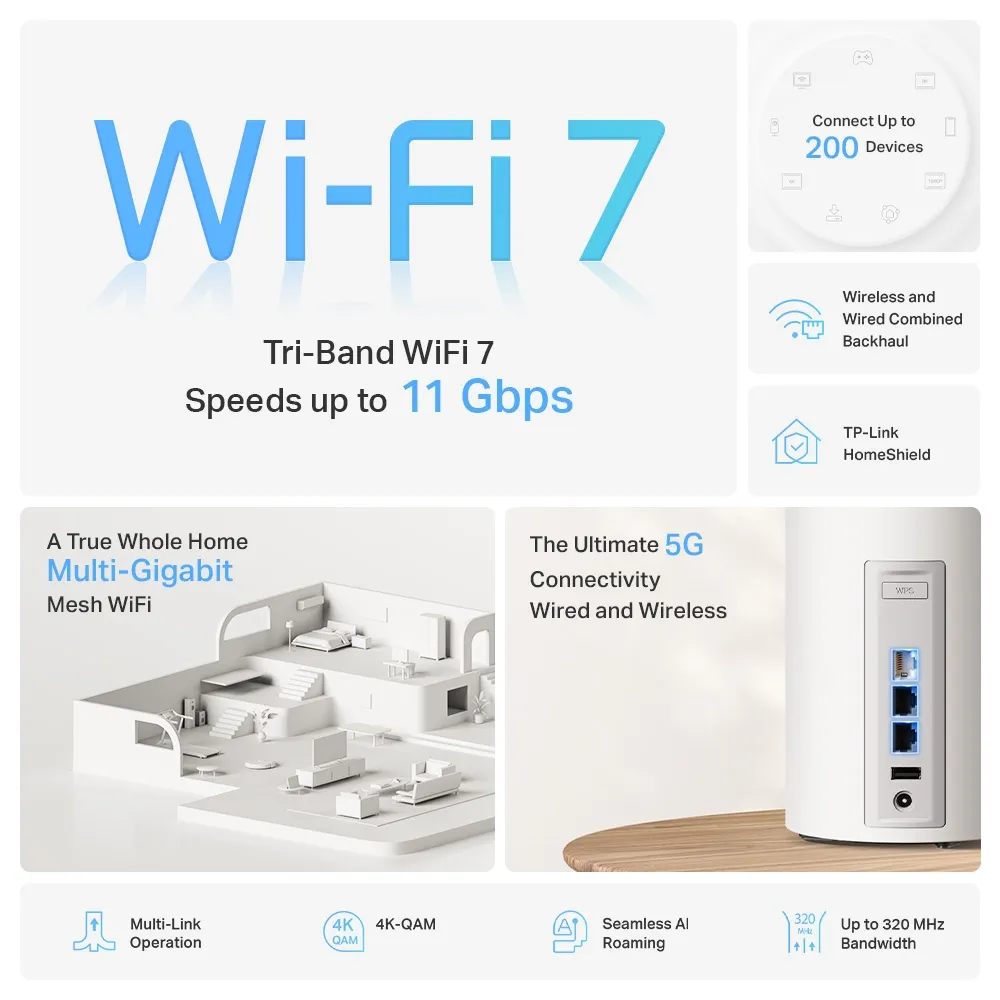
The US V1 datasheet lists 5764 Mbps on 6 GHz, 4324 Mbps on 5 GHz and 688 Mbps on 2.4 GHz, producing the BE11000 class. The EU/JP V1 datasheet instead lists 5765, 2882 and 688 Mbps respectively, producing BE9300. These are combined physical radio rates, not an 11 Gbps internet result or a promise to one device.
TP-Link specifies 2×2 MU-MIMO and six streams across the three bands, with four internal antennas. The higher 5 GHz headline does not establish a four-stream radio. Older Wi-Fi clients can connect using supported standards, but cannot obtain every Wi-Fi 7 feature. The advertised 320 MHz channel width is for 6 GHz, and permitted bandwidth and channels depend on local regulation as well as the client.
Multi-Link Operation can use multiple supported links with compatible hardware and software. It can improve flexibility, but does not guarantee a fixed ping or an Ethernet-equivalent connection. Our MLO explanation and MU-MIMO guide provide background. Treat the manufacturer's laboratory latency comparisons as condition-specific examples rather than results measured in your home. 6 GHz can avoid older clients competing on that band, but is not universally interference-free or immune to walls.
Technical Specifications
| Feature | Documented BE65 Pro capability |
|---|---|
| Wireless | Tri-band Wi-Fi 7: 2.4, 5 and 6 GHz |
| Regional class | US V1: BE11000; EU/JP V1: BE9300 |
| Streams and antennas | Six streams; 2×2 MU-MIMO; four internal antennas |
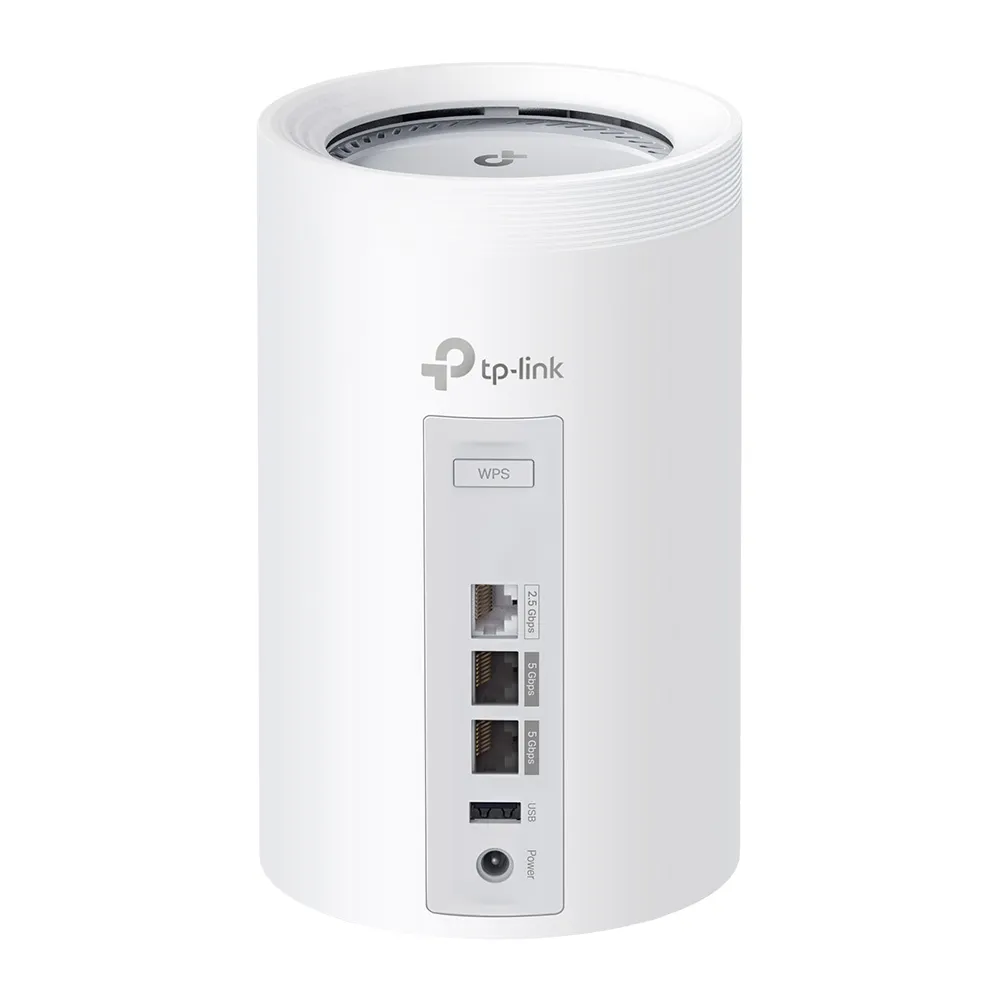
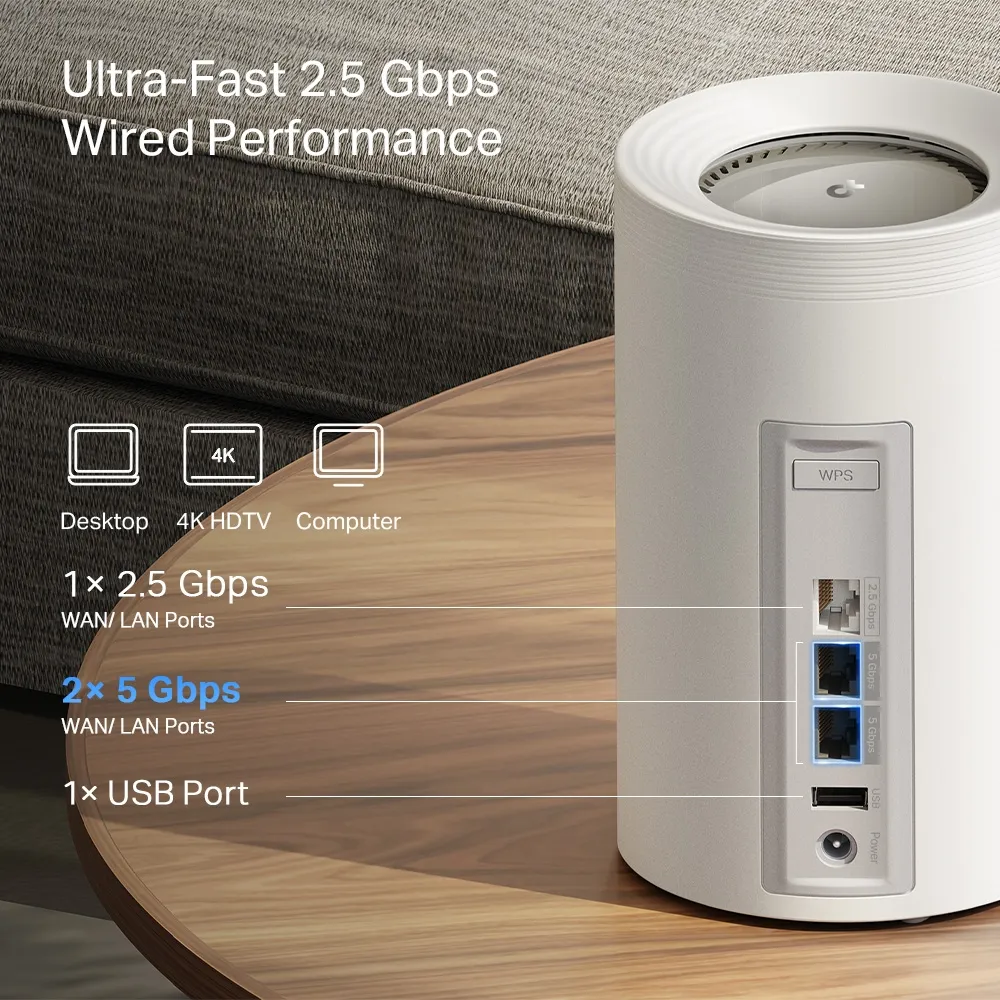
| Ethernet per unit | Two 5 Gbps WAN/LAN ports plus one 2.5 Gbps WAN/LAN port |
| USB | One USB port; documented FTP, media and Samba sharing |
| Operating modes | Router or Access Point |
| Dimensions | 107.5 × 107.5 × 176 mm |
| Client capacity claim | Up to 200 devices under the manufacturer's test conditions |
Coverage ratings require the pack size. TP-Link's current UK page lists up to 3,000 ft² for one unit, 5,800 ft² for two and 7,600 ft² for three. Those are advertised ceilings, not a survey of your property. Compare like-for-like packs and allow for walls and node placement. The original images include BE11000 packaging, so their printed class should not be applied automatically to an EU/JP purchase.
The Pro Difference: Faster Ports, Not More Ports
The clearest upgrade over the standard BE65 is the wired layout. The documented standard UK BE65 has four 2.5 Gbps ports, while the Pro has three total ports: two at 5 Gbps and one at 2.5 Gbps. It provides faster options rather than more sockets. Both already support MLO, so Pro should not be treated as proof of an entirely new MLO capability or automatically superior coverage.
Plan where each port will go. Using one 5 Gbps port for the WAN and the other for wired backhaul leaves the main unit's 2.5 Gbps port for another wired device. At a satellite, using one 5 Gbps port for backhaul leaves the other for a fast workstation. A suitable switch may help with more devices, but its port rates and uplink become part of the path. A 5 Gbps label does not guarantee full application throughput.
The term 5 Gbps here describes Ethernet; the BE65 Pro does not contain a 5G mobile modem. It can connect to a suitable external gateway, but a SIM-based service requires separate compatible equipment. Verify the broadband provider's requirements and the link rate negotiated by the chosen port.
Measure the Connection You Actually Need
Separate local network testing from internet testing. A local file transfer or suitable throughput tool can help evaluate the node and client path, while an internet test also includes the ISP and remote server. Record the client adapter, band, distance, backhaul and test endpoint so results are comparable. Repeat at different times rather than choosing the best run.
If the main-node result is good but a satellite struggles, check placement and backhaul first. If a wired result is also slow, check negotiated port speeds and the endpoint's storage or CPU limits. Test a call while walking between rooms if roaming is important. Manufacturer radio ratings alone cannot establish responsiveness or sustained performance for those tasks.
Router Mode, AP Mode and Security
Choose Router mode when Deco supplies the gateway services. With an existing firewall or router, Access Point mode lets that upstream device handle routing and address allocation. TP-Link's mode comparison explains that gateway features disappear in AP mode; check the exact firmware rather than assuming Deco parental controls, QoS, port forwarding and security services all remain available.
Keep firmware current and review which HomeShield features are free and which need a subscription. WPA3 also requires compatible clients; our WPA2 versus WPA3 comparison explains the distinction. For older IoT equipment, use the supported network options and verify that necessary discovery and control still work. A separately named network is not by itself evidence of every isolation policy you may want.
Backhaul and USB Storage
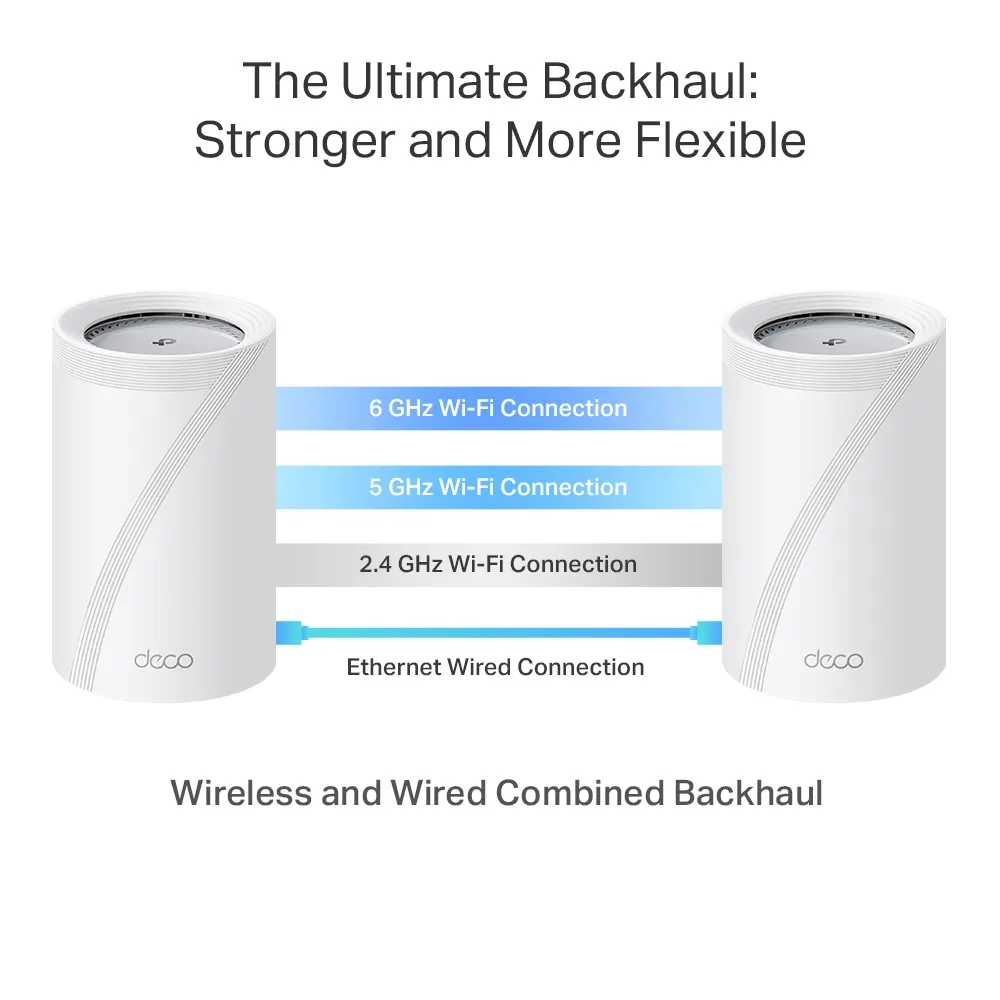
The BE65 Pro is advertised with combined wired and wireless backhaul, matching the original diagram above. Do not interpret that diagram as a permanently dedicated 6 GHz radio or assume that plugging in Ethernet disables every wireless backhaul path. The actual topology and firmware govern behavior. Place wired satellites to serve clients rather than expecting cables to remove the effects of every wall on Wi-Fi.
The USB sharing functions may suit a small media library or occasional file access. Check supported drive formats, authentication and access permissions before relying on them. They do not establish NAS-equivalent features, a particular USB generation or a backup strategy. Keep a separate recoverable copy of important files.
For Mac backups, ordinary Samba file access is not enough to prove Time Machine support. Apple's current guidance requires a network destination that supports Time Machine over SMB; AFP is unsupported on macOS 27 and later. TP-Link staff described Deco's AFP implementation and pending SMB work in October 2025. That historical statement does not prove whether a later firmware has added support. Confirm your exact BE65 Pro revision, installed firmware and macOS version support SMB Time Machine before buying it for that purpose.
Placement and Running Costs
Leave the unit's vents clear and follow the supplied power and environmental instructions. TP-Link's V1 datasheets specify a 29 W maximum without the adapter, which is not a measured idle consumption figure. Check sustained performance with your normal household workload, ensure adequate ventilation and measure the complete kit if running cost matters.
If electricity cost matters, measure the complete powered kit over a representative period with suitable equipment. Account for all nodes and any external switch or storage drive. Compare that running cost with the service the system provides rather than assuming the power-adapter rating is constant consumption.
Who Should Consider the BE65 Pro?
We still see the BE65 Pro as a compelling choice for demanding home networking when its faster ports, compatible Wi-Fi 7 clients and multiple nodes meet a real need. It deserves particular consideration for a busy larger home with a planned multi-gigabit path. Its premium is harder to justify when clients, internet service or cabling cannot use those capabilities. Check local regional specifications, pack price and supported features before choosing it simply for the Pro name.
Visit the original official BE65 Pro page and select your region and hardware revision for the applicable documents.