TP-Link HomeShield brings network-security and parental-control features into compatible Deco and Archer products. Its value depends on your router model, operating mode, firmware and subscription. Before paying for a plan, identify the problem you want to solve: discovering unfamiliar devices, setting a child's bedtime schedule or adding supported threat-filtering features. Those are different jobs, and one subscription does not automatically solve all of them.
What HomeShield Actually Does
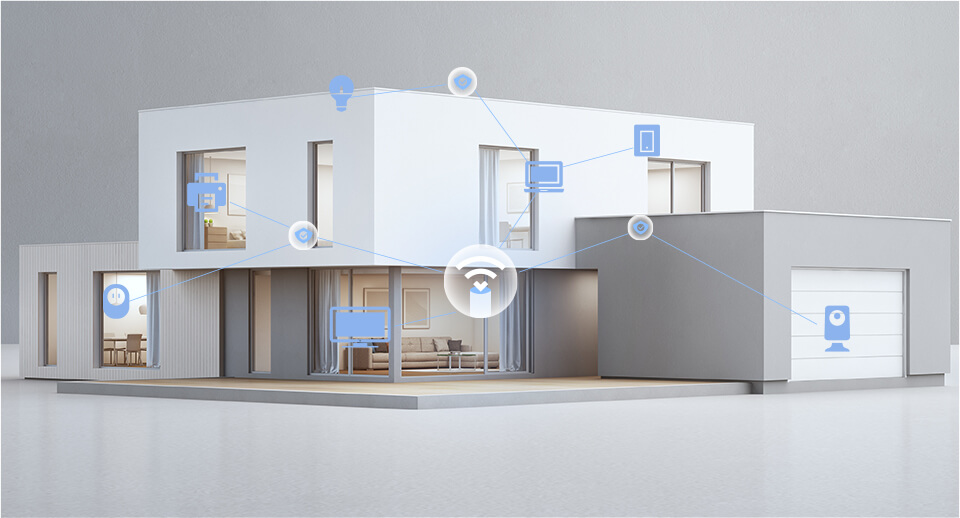
HomeShield is an umbrella for several functions presented through TP-Link's apps. Depending on the device, these include router or wireless security checks, connected-device information, parental profiles, quality of service and network reports. Some capabilities are part of the basic service; others require a paid plan. Check the feature screen on your own router before assuming a screenshot from another model describes your installation.
Network protection works at the gateway for the traffic and devices it can see. It complements updates, strong account credentials and endpoint protection. It does not mean every downloaded file has been inspected or that a smart camera cannot be compromised. Likewise, a blocked malicious destination is a useful event, not proof that the whole network is clean.
Basic Features and Paid Plans: Check the Current Offering
TP-Link's subscription guide distinguishes Security+, Advanced Parental Controls and security bundles with separate device software. Older references to a single HomeShield Pro package can therefore be misleading. Availability, pricing, trial terms and bundle names can vary by market and supported device. Use the regional offer displayed in the app as the source for an actual purchase.
Keep the two paid branches separate: Security+ adds supported gateway threat protection, while Advanced Parental Controls adds family-management features. The US subscription guide describes Total Security Package as Security+ plus third-party antivirus for up to five client devices at once; activating that software on the devices is a separate task. It does not list Advanced Parental Controls as part of that bundle.
The same US guide offers new users a one-month trial of Security+ and Advanced Parental Controls, with automatic renewal until cancelled, but no free trial of Total Security Package. Check the exact offer before agreeing. TP-Link also lists a Total Parental Controls Package with KidShield for supported mobile devices. That is a different parental-control offering, requiring device software and permissions where available; ordinary router profiles cannot follow a phone onto mobile data. Confirm availability for your region, model and device platform in the app rather than relying on an older launch announcement.
| Need | What to check first | What not to assume |
|---|---|---|
| Basic router review | Available security scans, device list and reports | A scan is continuous endpoint antivirus |
| Network threat filtering | Security+ features supported by the model | Every threat or saturated internet link can be blocked |
| Family schedules and content rules | Basic controls versus Advanced Parental Controls | Security+ includes every parental-control feature |
| Protection away from home | Whether a bundle includes a supported device app | Router rules follow a phone using mobile data |
Do not subscribe simply because a device list contains an unfamiliar name. First identify the device and check whether its address changed. A paid feature should answer a defined need that the basic settings do not address. Before starting a trial, record its end date and renewal conditions so you can evaluate the result rather than forgetting a recurring subscription.
Router Mode Is Important
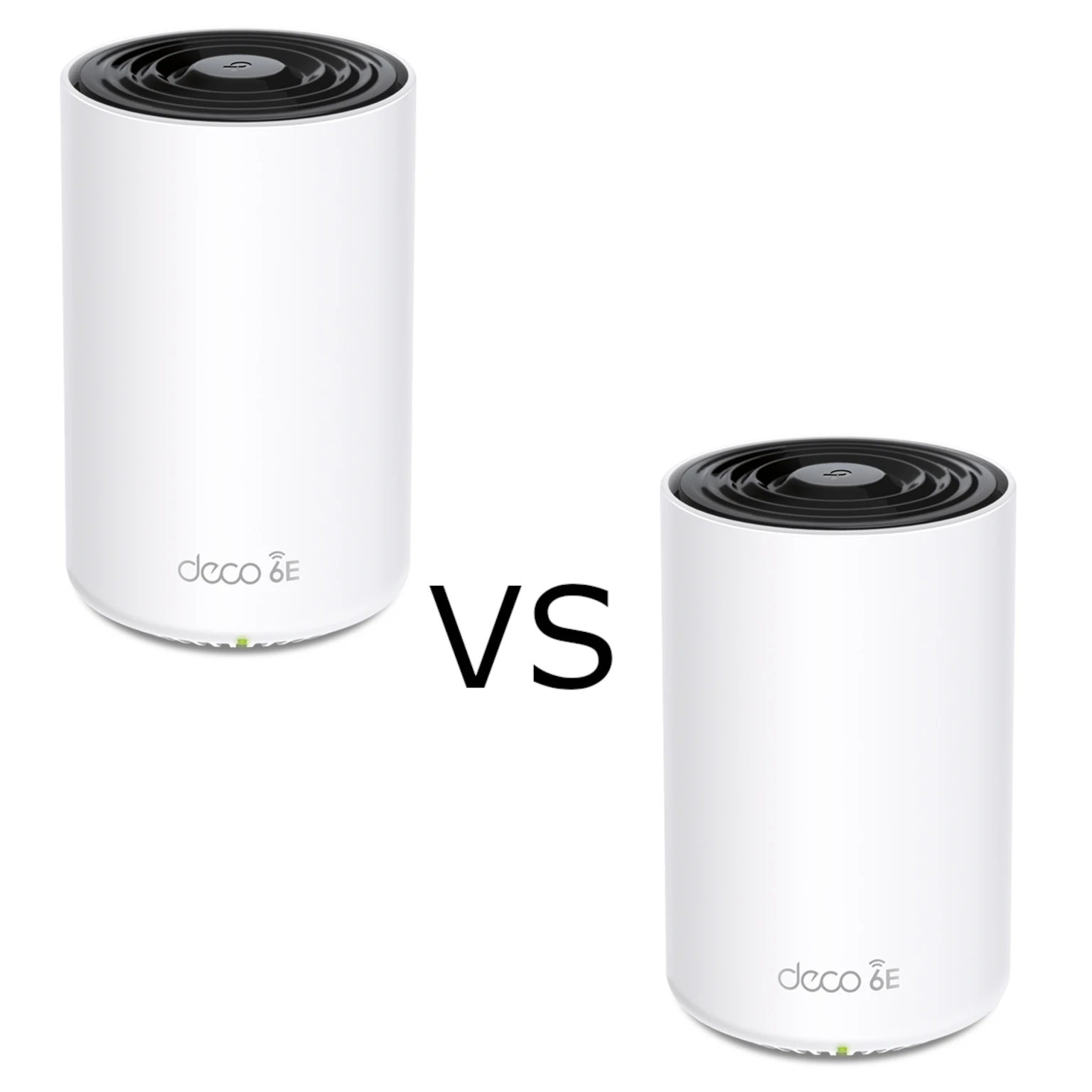
In Router mode, Deco is the gateway that manages the home network. In Access Point mode, another router handles that job. TP-Link's Deco comparison lists HomeShield, parental controls and QoS as unavailable in AP mode for the documented setup, with model-specific differences noted. A missing setting may therefore be a topology issue rather than an expired subscription.
Write down which box actually provides DHCP and connects the LAN to the internet. If your ISP router remains the gateway and Deco provides Wi-Fi only, review the ISP router's filtering and management controls. Changing modes without understanding this arrangement can introduce a second routed network and complicate access to a NAS or a service hosted at home.
Set Up a Household Profile That Matches the Real Devices
- Inventory before restricting. Give recognizable names to the family's phones, tablets and computers. Ask each person to confirm which devices belong to them.
- Group by user and purpose. A child's school laptop may need a different schedule from a game console. Avoid placing shared household devices in a profile that cuts them off unexpectedly.
- Start with one change. Apply a bedtime rule or a specific category restriction, then test a harmless site that should work and one that should be blocked.
- Test the exception. Confirm a permitted school service remains usable. Record why an exception exists instead of making the whole profile unrestricted when one site fails.
- Review devices again. Phones using private or randomized Wi-Fi addresses can appear under a different identity. Check assignments after reconnections or operating-system changes.
This workflow makes the controls understandable to the household. Explain what is restricted and when rather than silently changing access. Keep an adult management account separate from a child profile, and retain a way to restore access if a school task or accessibility tool is affected.
Guest Isolation and QoS Solve Different Problems
A guest SSID gives visitors separate credentials. Its isolation behavior still needs checking. The Deco guest-network guide describes isolation in Router mode and a local-access option in AP mode. Verify the setting on your model, then use a guest device to try reaching a harmless local service. A different Wi-Fi name alone does not prove the private network is inaccessible.
Client isolation and access to another subnet are also different controls. Isolating wireless clients from one another can disrupt casting or smart-home discovery. If a device needs a local controller, document that requirement and choose an arrangement that allows the specific interaction without granting general access to your personal computers.
QoS prioritizes traffic under contention; it does not create more internet capacity. For example, if a cloud backup and a video call compete for a constrained upload link, prioritizing the call may improve its responsiveness while the backup takes longer. Enter realistic bandwidth values if the app asks for them, test during the actual slowdown and avoid prioritizing every device, which defeats the purpose of choosing a priority.
Use Reports as Clues, Then Verify the Cause
A report can help identify a pattern, but it is not a packet-by-packet account of everything a person did. Background apps, shared devices and encrypted services affect what the gateway can infer. Avoid describing a report as complete browser history or an automatic diagnosis of malware. Investigate the device and the matching event before drawing that conclusion.
If a restriction does not work, check the assigned device, router mode, plan, firmware and whether the phone is using mobile data. If a legitimate application stops working, temporarily narrow the investigation to its profile and rule. Test with one change at a time, then restore the intended policy. Broad permanent exceptions make later problems harder to diagnose.
If protection features are missing, confirm the exact hardware revision and regional firmware support. Keep the app and router updated through their official update paths. Screenshots and videos below illustrate earlier interface layouts; labels and available options on your current model may differ.
Interface Examples
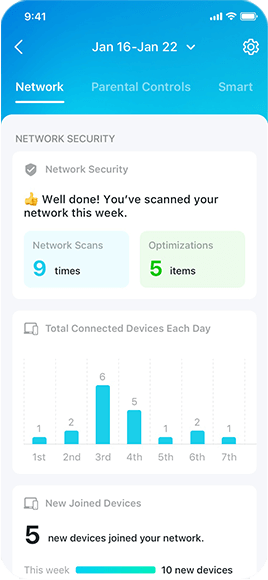
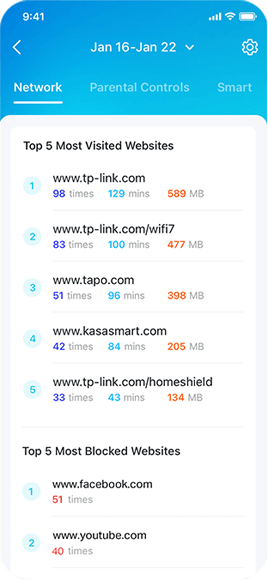
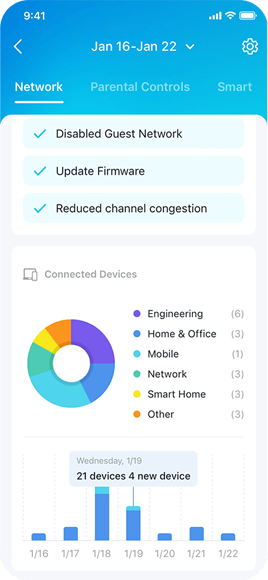
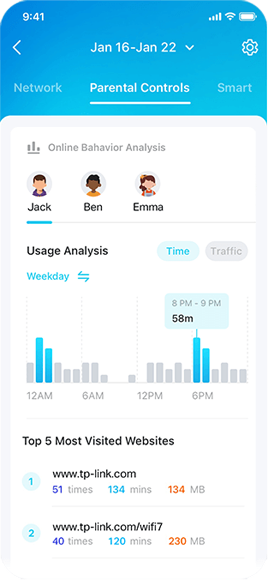
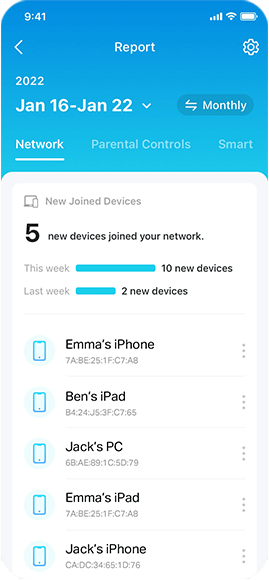
The report images show security scans, top visited and blocked website domains, network optimisation items and device categories, parental-profile usage, and newly joined devices. They are examples of different report views. A newly joined device is not automatically an intruder, and an optimisation entry such as disabling a guest network is not a universal recommendation: keep guest access configured for your household needs.
Is a Paid Plan Worth It for Your Household?
A paid plan is most useful when you have a supported feature you will actively configure and review. During an available trial, choose concrete checks supported by that particular plan, such as a flexible bedtime for parental controls or a documented protection feature for Security+. Record whether they work across the relevant devices and whether anyone needs an exception. Evaluate usability as well as the number of features.
If your main concern is a router with unsupported firmware, an exposed administration page or reused passwords, fix those issues first. HomeShield is a management layer within a broader home-network security plan. Its practical value comes from matching controls to your household and maintaining them, rather than treating the subscription as a guarantee of safety.
For a household that wants supported security settings and family controls together in the Deco app, HomeShield is a compelling option. That convenience is its main appeal: the settings still need deliberate configuration and review. For additional product information, visit TP-Link’s HomeShield page.