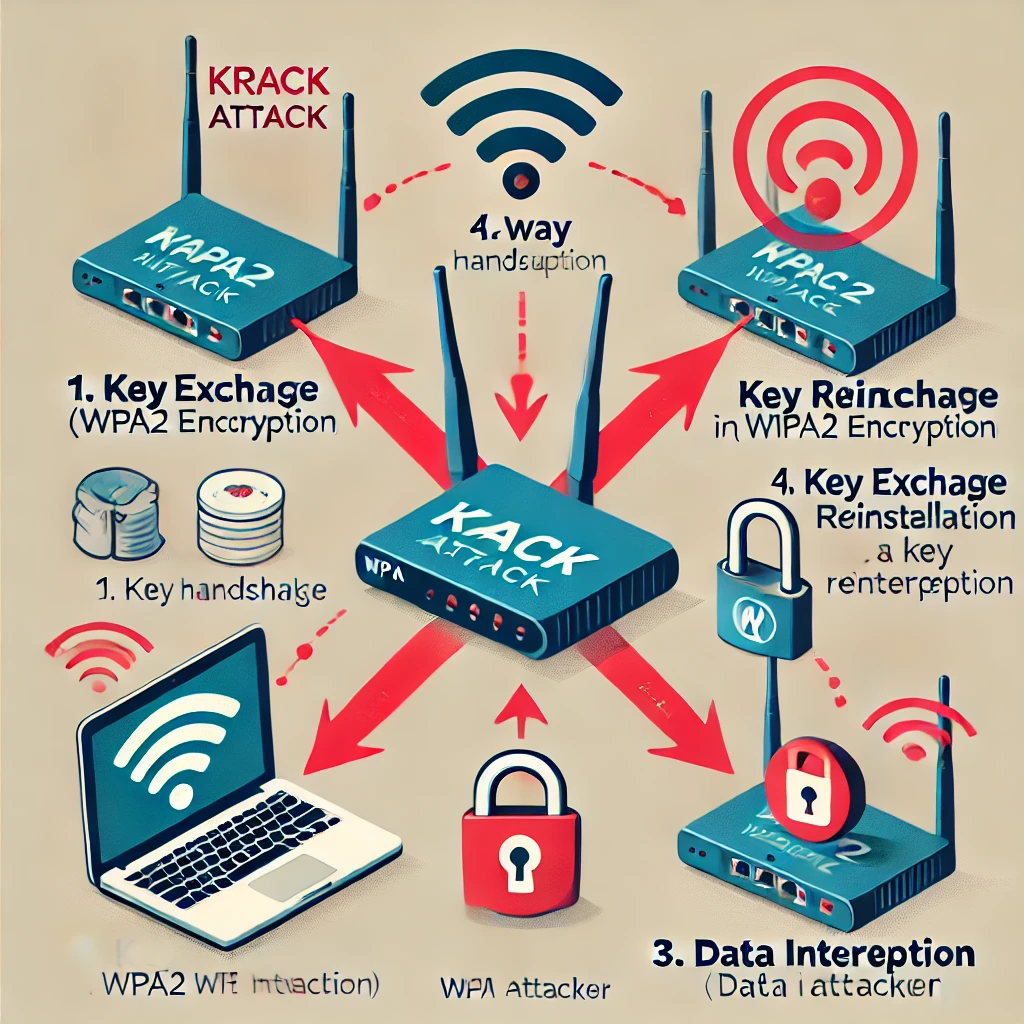
Imagine you’re at the airport, excitedly waiting to board your flight. You need to check your email, so you connect to what looks like the airport's free Wi-Fi. But unbeknownst to you, a clever hacker has set up a fake Wi-Fi network that looks just like the airport’s. When you connect to it, your traffic passes through infrastructure controlled by the attacker; unencrypted traffic is exposed, while correctly validated HTTPS still protects its contents. This is an example of a man-in-the-middle attack.
What is a Man-in-the-Middle Attack?
A man-in-the-middle (MITM) attack is when a cybercriminal intercepts communication between two parties—like you and your email server. The attacker may read or alter unprotected traffic. Correctly authenticated encryption limits what an on-path attacker can do, although they can still disrupt connectivity or try to trick you into visiting another destination.
The Airport Scenario: How it Works
- Setting the Trap: At the airport, the hacker sets up a Wi-Fi network with a name similar to the legitimate airport Wi-Fi, like “Airport_Free_WiFi” instead of “Airport_Official_WiFi.”
- Baiting the Victim: You see this network and connect, thinking it’s safe.
- Interception: Internet traffic routed over this Wi-Fi passes through the attacker-controlled access point. They can observe traffic metadata and unencrypted requests. Reading an HTTPS login requires defeating its authentication or encryption, compromising an endpoint, or redirecting you to a different site where you willingly enter the credentials.
- Data Relay: The hacker then forwards your data to the real Wi-Fi network, so you don’t suspect anything wrong because your internet works as expected.
Signs of a Man-in-the-Middle Attack
- Unusual Network Names: If you see multiple networks with similar names, be cautious.
- Network Security Settings: Open Wi-Fi lacks link encryption, but a shared Wi-Fi password is not proof that the access point is genuine or that every website is trustworthy.
- Strange Pop-ups or Certificates: If you get warnings about invalid certificates or unusual pop-ups, it might be a sign that someone is intercepting your connection.
- Unexpected Changes: New certificate warnings or an unfamiliar login destination deserve investigation. Slow browsing alone is common and is not evidence of interception.

How to Protect Yourself
- Use Official Wi-Fi Networks: Always ask airport staff for the official Wi-Fi network name and password.
- Enable Two-Factor Authentication: This adds an extra layer of security, making it harder for hackers to access your accounts even if they get your passwords.
- Use a VPN: A trusted VPN encrypts the traffic routed through its tunnel between your device and the VPN endpoint. Its operator or your own server becomes part of the trust boundary; keep HTTPS for the onward connection and verify that the intended traffic is included.
- Look for HTTPS: Ensure the websites you visit use HTTPS (browser indicators vary; inspect the actual scheme and hostname), which encrypts data between your browser and the server.
- Keep Software Updated: Ensure your devices’ operating systems and apps are up to date with the latest security patches.
- Avoid Sensitive Transactions on Public Wi-Fi: If you cannot verify the network, destination or device, postpone a sensitive transaction or use a connection you trust. Correctly validated HTTPS is important on public Wi-Fi and mobile data alike.
- Disable Bluetooth when not in use: Keep Bluetooth off when you do not need it, and reject unexpected pairing requests. Where pairing asks you to compare numbers on both devices, actually compare them; a comparison value is not a passkey to type into an unrelated prompt.
- Enable DNS over HTTPS (DoH) or DNS over TLS (DoT): DoH or DoT protects the DNS exchange with your selected resolver, but does not prove the destination is trustworthy or prevent every redirection (see our Encrypted DNS guide).
Common Technical Techniques Behind MITM Attacks
Beyond rogue Wi-Fi hotspots, attackers use several protocol-level techniques to position themselves between your device and the server you are communicating with:
- ARP Spoofing (ARP Cache Poisoning): On a shared IPv4 local network segment (like a hotel or café LAN), an attacker broadcasts forged Address Resolution Protocol (ARP) messages linking their own MAC address with the IP address of the default gateway router. Affected devices may send traffic intended for that gateway through the attacker's system; encrypted application sessions still have their own protections.
- DNS Spoofing & Cache Poisoning: An attacker may forge an unprotected DNS response or poison a resolver’s cached records, causing clients to receive an incorrect address. These are related but distinct places to interfere with name resolution. Correct HTTPS certificate validation still matters at the destination.
- SSL Stripping: If a connection actually begins with HTTP, an on-path attacker may prevent its upgrade to HTTPS and relay traffic to the real service over a separate secure connection. A modern browser may already prefer HTTPS, so typing a bare hostname does not always create this opening. Modern websites counter this using HSTS (HTTP Strict Transport Security).
DoH and DoT protect the connection to the selected resolver, while DNSSEC verifies signed DNS data where signing and validation are correctly deployed. DNSSEC does not encrypt the query. None of these checks makes a look-alike website trustworthy, and an encrypted connection to a dishonest resolver still requires trust in that resolver. Keep these protections separate from HTTPS and application authentication.
Cellular Connections Have a Different Threat Model
Mobile data avoids a rogue local Wi-Fi access point, but cellular networks have their own risks. Google's cellular-security guidance discusses false base stations and 2G protections. Availability of user controls depends on the device, modem and operating-system version; there is no universal menu path that applies to every Android phone.
Apple's Lockdown Mode is a broader option for people facing sophisticated targeted threats, with significant feature restrictions. It should not be presented as a routine airport Wi-Fi setting or as a guarantee against all interception. Keep the phone updated and retain HTTPS and trustworthy account authentication regardless of the access network.
HTTPS, HSTS and Phishing Are Different Checks
HTTPS protects the connection to the hostname in the browser. If the address is a look-alike domain, the attacker can obtain a valid certificate for that domain and receive everything you submit to it. Encryption can be working perfectly while the destination is wrong. Use a bookmark or type the known service address, and read the complete hostname before signing in.
MDN's TLS explanation describes server authentication and HSTS. HSTS tells the browser to use HTTPS for a known site; preload lists can address the first-visit gap for included domains. It does not authenticate a different look-alike site. Never install a new root certificate or bypass a certificate warning merely to make a public hotspot's login page work.
Treat a warning as a reason to check, not proof of an attack
A certificate error can also come from a wrong device clock, an expired certificate or a misconfigured service. Stop the sensitive action, note the affected hostname and check through a known support route. Do not “repair” a travel connection by installing a certificate supplied by an unknown page. A newly trusted root can change which certificates the device accepts; an approved work inspection profile is a different situation that your IT team should explain.
Connection encryption protects data in transit, not everything on the endpoints. Malware, a compromised browser extension or a stolen session can expose an account without breaking TLS. Conversely, unusual Wi-Fi names or slow speeds alone do not establish credential theft. Record the network, time and observable prompt privately so follow-up can address what actually happened.
A Practical Workflow on a Travel Network
- Verify access details. Ask the venue for the expected network and portal. Remember that an attacker can copy the SSID, so the name is one clue rather than proof.
- Handle the portal separately. A captive portal may need terms accepted or a room reference. An unfamiliar portal is not a reason to disclose your personal email or work password. If a legitimate service offers single sign-on, verify that you have reached the real identity-provider hostname and follow your employer’s approved process.
- Check the destination afterward. Once online, open a bookmarked HTTPS site. Stop at unexplained certificate failures instead of repeatedly dismissing them.
- Confirm any VPN policy. Connect the trusted client and check its intended routing. A split tunnel protects only the traffic included in it.
- Limit local sharing. Use the operating system's public-network settings and keep unnecessary file sharing or discovery disabled.
- Use stronger account authentication. Prefer passkeys or security keys where supported and keep recovery options secure.
The FTC notes that HTTPS already makes much public Wi-Fi browsing safer. Treat warnings seriously without assuming every open hotspot can decrypt modern banking traffic. A useful response depends on the actual destination, application security and device state.
After a Suspicious Login or Certificate Prompt
If you entered credentials on an unfamiliar page, disconnect and use a trusted device or connection to open the real service. Change the affected password, review active sessions and check recovery details. Report the suspicious portal to the venue with the network name and time, without forwarding your credentials or private session data.
If you installed a certificate, profile or application requested by the hotspot, review what was added and remove untrusted items through the platform's documented process. Work-device users should involve their support team because a managed certificate may also be legitimate. An origin-bound FIDO/WebAuthn authenticator helps resist fake login sites, but it cannot undo exposure from a compromised endpoint or a session already stolen.
Conclusion
Man-in-the-middle attacks can be sneaky and dangerous, but by using authenticated encryption, trustworthy destinations and the practical checks above, you can reduce the risk. Always be cautious when connecting to public Wi-Fi networks, and take proactive steps to secure your data. Safe travels and happy browsing!
Sources and Further Reading
- MDN: TLS authentication and HSTS
- FTC: public Wi-Fi encryption
- Google: cellular security controls
- Apple: Lockdown Mode
- CISA: phishing-resistant MFA
Additional references: MITRE ARP cache poisoning, DNSSEC validation, Bluetooth pairing guidance and NIST phishing-resistant authentication.