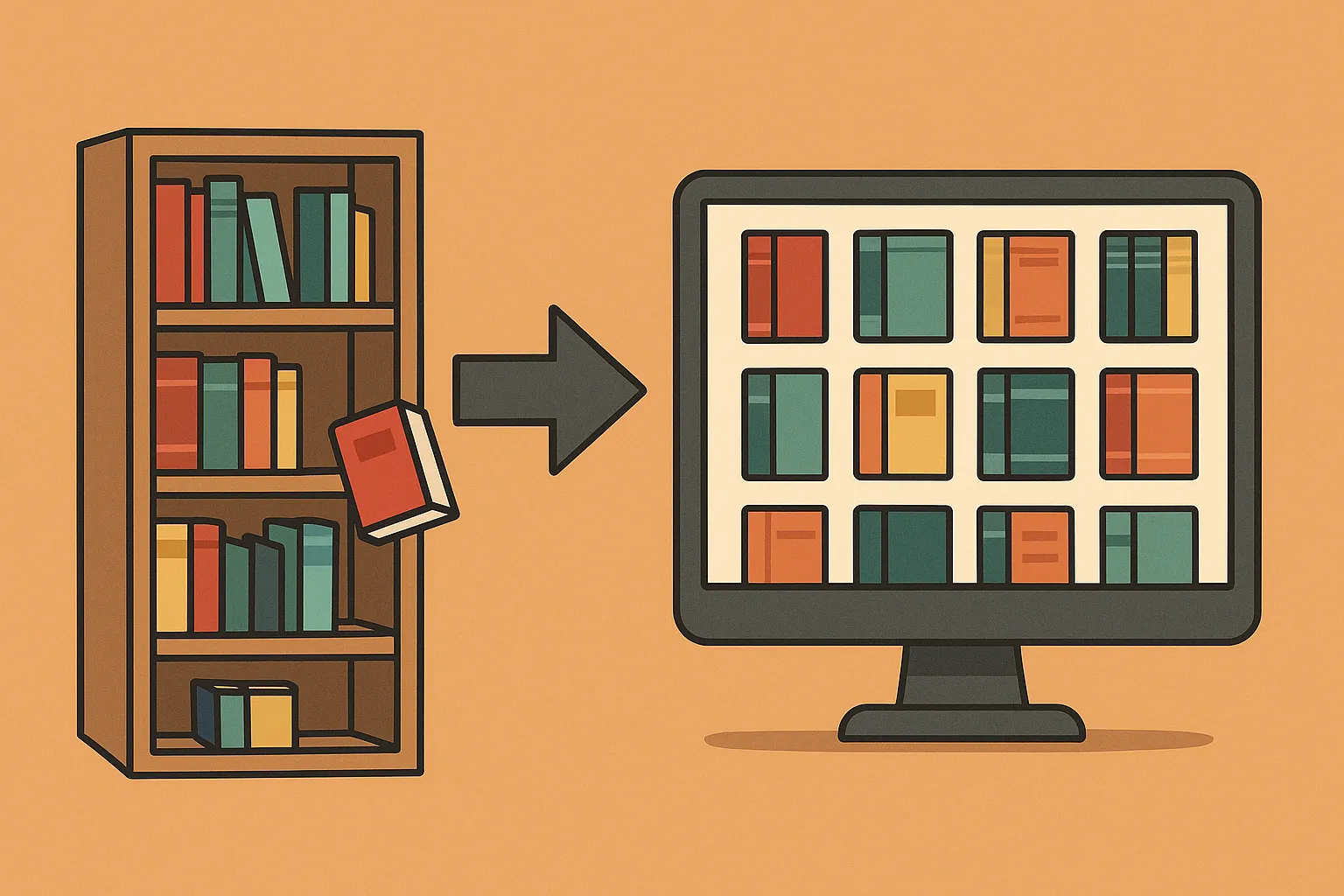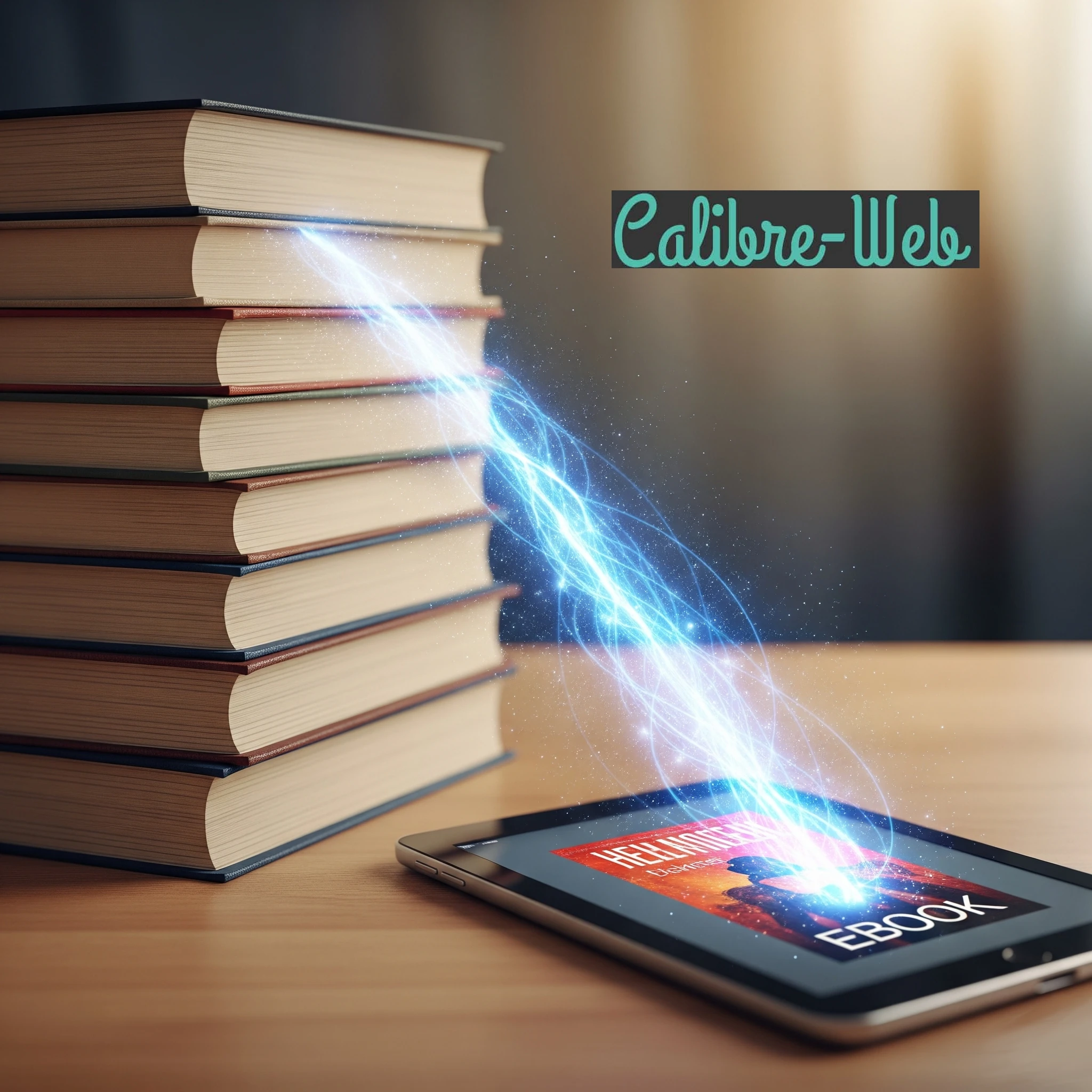
So, you've dived into the world of self-hosting by taking it step-by-step with our Build your own homelab series and have your homelab buzzing with exciting services. You're starting to take control of your data, from documents to media. But what about your ever-growing collection of eBooks? If you're looking for a sleek, web-accessible way to manage and read your digital library, then let's talk about Calibre-Web.
What Exactly is Calibre-Web?
At its heart, Calibre-Web is a web application that provides a clean, user-friendly interface for browsing, reading, and downloading your eBooks. Think of it as a personal library portal, rather than a commercial bookstore or social-reading network. Your library remains on the storage you choose (this is one of the goals of building your own homelab). It leverages the power of the renowned eBook management tool, Calibre, to bring your library to any device with a web browser.
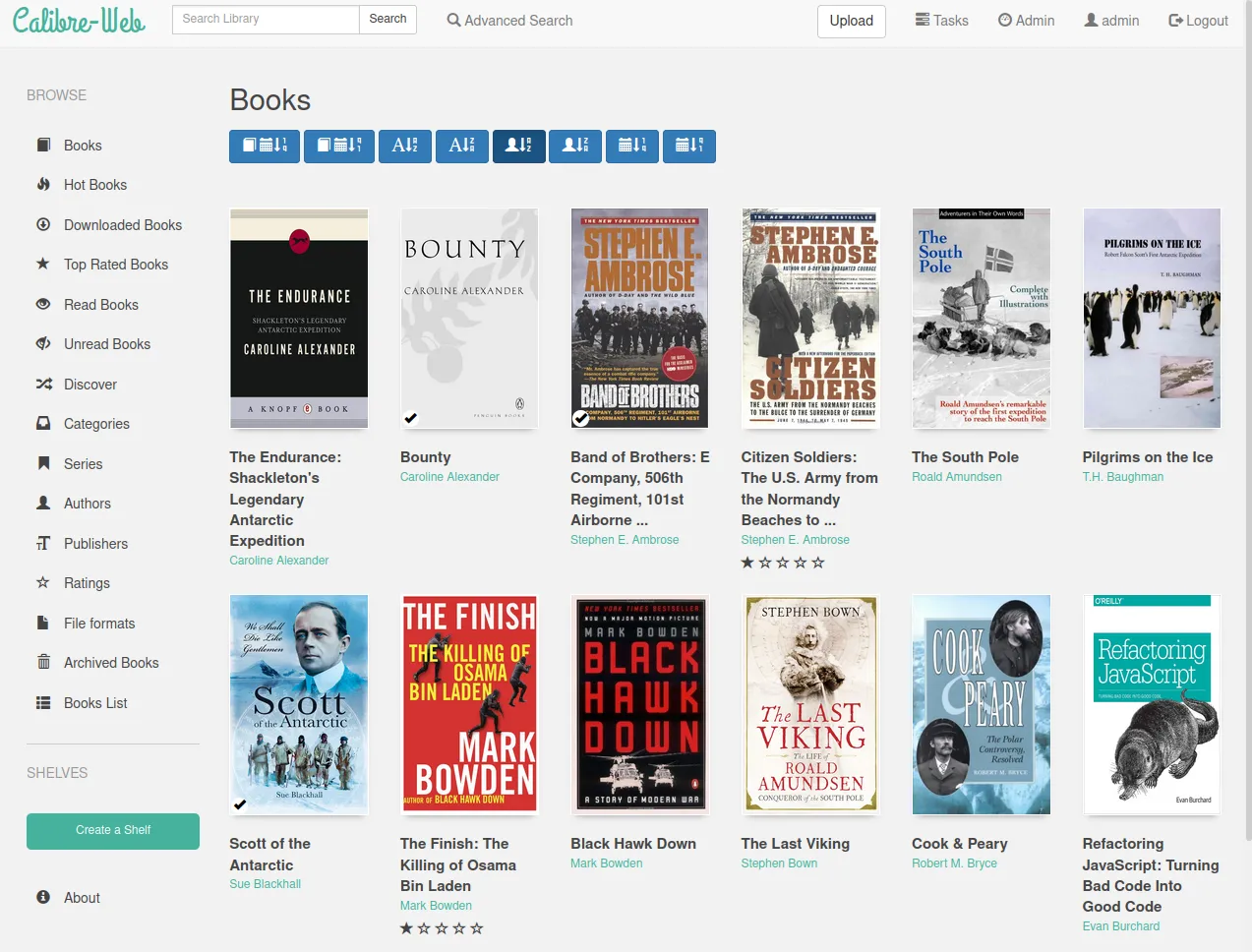
Features That Make Calibre-Web Shine
Calibre-Web isn't just a pretty face for your eBook collection; it packs a punch with features that make it a joy to use:
- Web-Based Reading: This is the star of the show! Read supported formats such as EPUB and PDF in the web interface. Access away from home needs a working secure connection, and reading-position synchronization depends on the chosen reader and integration.
- User Management: Share your library with family or friends. Calibre-Web allows you to create multiple user accounts with granular permissions, controlling who can see, download, or administer the library, while the actual data stays in your control.
- Clean & Modern Interface: It’s designed to be intuitive. Browsing by covers, titles, authors, series or tags is simple and visually appealing. The project uses a Bootstrap-based interface.
- Metadata Editing: While not as comprehensive as the full Calibre desktop application, Calibre-Web allows you to edit basic metadata for your books, like titles, authors, series information, and ratings. It also includes functionality to download metadata from sites like Google Books.
- OPDS Catalog: This is the most amazing part of the suite! Calibre-Web generates an OPDS (Open Publication Distribution System) feed. We'll explain this in a bit, but it essentially allows dedicated eReader apps on your phone or tablet to connect directly to your Calibre-Web library.
- Download Books: Easily download books to read offline on your preferred eReader device or app.
- Kobo Integration: For Kobo eReader users, Calibre-Web offers features to sync your library.
- Book Uploads: You can upload new books directly through the web interface (though initial mass organization is best done with Calibre desktop).
- Custom Shelves: Organize your books into custom collections or "shelves" for easier browsing.
Understanding the Limitations: The Calibre Database Dependency
While Calibre-Web is fantastic, it's crucial to understand its core architecture and limitations. Its key requirement is a valid Calibre-format library, including its database and book folders.
Here's what that means in simple terms:
Calibre-Web works with a Calibre-format library and can modify it through permitted uploads, metadata edits and deletions. It does not merely serve an arbitrary folder of unrelated eBook files. The Calibre desktop application (which is a separate, powerful eBook management tool for Windows, macOS, and Linux) creates a special database file, usually named metadata.db, along with a specific folder structure for your eBook files.
Implications of this dependency:
- Start with a valid library: Calibre desktop is useful for bulk organization, detailed metadata work and conversion. It does not need to run continuously alongside Calibre-Web. Use books in formats the service can read; an encrypted or DRM-protected purchase is not made readable simply by uploading it.
- For a new empty library, the project provides a sample database. Put it in a dedicated library folder; never overwrite an existing library database with this sample:
https://github.com/janeczku/calibre-web/raw/master/library/metadata.db
- For a new empty library, the project provides a sample database. Put it in a dedicated library folder; never overwrite an existing library database with this sample:
- Adding Books: While Calibre-Web has an upload feature, the most robust way to add and process new books (fetch metadata, convert formats if needed, organize files) is through the Calibre desktop application. Once Calibre desktop updates the
metadata.dbfile, Calibre-Web will then see these changes. I find the desktop workflow smoother for larger library-management tasks; web uploads remain an option. - Metadata Fetching: Calibre-Web can fetch metadata from configured providers, with extensible provider support. Check the provider and review matched titles, authors and covers; a lookup is not guaranteed to select the correct edition. Calibre desktop remains my preferred option for more extensive organization.
- Conversions: Calibre-Web delegates conversion to configured Calibre binaries. A converter installed on another computer is not automatically available inside its container. The selected image, CPU architecture and external-binary settings determine whether this feature works.
Other limitations to note include:
- No Advanced eBook Editing: You can't edit the content of eBooks (like EPUB or MOBI files) directly in Calibre-Web.
- Limited Plugin Support: Unlike Calibre desktop, Calibre-Web doesn't support the vast ecosystem of third-party plugins.
- News Fetching: The Calibre desktop feature to download news from websites and convert it into an eBook format is not present in Calibre-Web.
Despite these limitations, for its primary purpose – providing web access and OPDS feeds for your Calibre library – Calibre-Web excels.
Read Anywhere: Web Reader and the Magic of OPDS
Calibre-Web truly shines in making your eBooks accessible. The most straightforward way is using its built-in web reader. Simply log in to your Calibre-Web instance from any browser, click on a book, and start reading. It supports formats like EPUB and PDF directly in the browser.
But what if you prefer a dedicated eReader app on your phone or tablet? This is where OPDS (Open Publication Distribution System) comes in. A compatible client can browse the catalogue and download a supported book; OPDS is distinct from email delivery and Kobo synchronization.
What is OPDS?
The traditional OPDS catalogue used by this workflow is based on Atom and HTTP. It allows electronic publication catalogs (like your Calibre-Web library) to be easily browsed and accessed by compatible applications. Think of it as a standardized way for your eReader app to "talk" to your Calibre-Web server, see your book list, and download books.
This means you don't have to manually transfer files! Your favorite eReader app can connect directly to your self-hosted library.
eReader Apps that Support OPDS (Examples):
Choose a reader that supports your server's catalogue, authentication and desired book formats. Two documented examples are:
- KOReader: Its built-in OPDS plugin browses catalogues and downloads books. Installing KOReader on an e-ink device has device-specific requirements; stock Kindle software is not automatically KOReader.
- FBReader: The publisher lists OPDS support on Android, Windows, macOS and Linux. Its current iOS edition does not provide OPDS, so check the platform rather than assuming every edition has identical features.
Other apps can be suitable, but verify their current catalogue and authentication support before purchasing or configuring them.
By pointing these apps to your Calibre-Web OPDS feed URL (usually http://[your-calibre-web-address]/opds), you can browse your self-hosted library and download books directly to the app for offline reading.
For access outside your home, plan a secure route. A VPN can avoid publishing the library directly; a reverse proxy needs correct HTTPS and authentication. Our NGINX and a custom domain name articles explain supporting services, while connect to your library when not at home covers changing external addresses. Follow our Build your own homelab series for the broader setup. Reader devices must support the chosen access method; a VPN on your phone does not automatically connect a Kobo.
Installing Calibre-Web: Docker is Your Friend
There are generally two ways to install Calibre-Web:
- Manual Installation (Python-based): This involves setting up a Python environment, installing dependencies manually using
pip, and configuring it. - Docker Installation: This uses a pre-built container image that includes Calibre-Web and all its necessary dependencies.
For non-technical users, the Docker installation is by far the easiest and highly recommended method. Here’s why:
- Simplified Dependency Management: Python applications can sometimes be tricky with their dependencies (the other software components they need to run). Different projects might need different versions of the same dependency, leading to conflicts. Docker containers package the application with all its dependencies isolated inside the container. This means you don't have to worry about installing them on your host system or conflicts with other applications.
- Easy Updates: Updating normally requires pulling the intended new image and recreating the container, while retaining its persistent data. Back up first and check release notes. Manual updates can involve more steps. We can also read about Watchtower for container updates, then decide which services should be updated automatically.
- Pre-configured for Extras (Often): Many popular Calibre-Web Docker images (like those from LinuxServer.io) come with options to easily integrate Calibre's eBook conversion tools. This is more complex to set up manually. For example, you might just need to add an environment variable to your Docker setup to enable conversion capabilities.
- Consistency: An image packages dependencies, but its architecture, mounts, permissions and network still need to match the host. This reduces "it works on my machine" type problems.
- Clean Uninstallation: If you decide you no longer want Calibre-Web, removing the container stops the application, but its bind-mounted library and configuration remain. Keep or remove those deliberately; deleting the instance is not a backup or an instruction to erase your books.
Setting up Calibre-Web with Docker typically involves pulling the image, running a docker run command or using a docker-compose.yml file (which is a great way to manage your Dockerized services if you have more than one). You'll need to tell Docker where your Calibre library (the folder containing metadata.db and your books) is located on your server so Calibre-Web can access it. You'll also map a port so you can access the web interface.
While the initial Docker setup might seem like a new concept if you haven't used it before, the long-term ease of use and maintenance for services like Calibre-Web makes it well worth the small learning curve.
Conclusion: Your eBooks, Your Rules, Anywhere
Calibre-Web is a fantastic addition to any self-hoster's homelab who wants to take control of their digital book collection. It offers a beautiful and convenient way to access and read your eBooks from any web browser, and its OPDS support connects with compatible eReader apps, bringing your library to your fingertips wherever you are.
While it seems to rely on the Calibre desktop application for heavy-duty library management, it is not necessary to get Calibre-Web up and running. For non-technical users, opting for a Docker-based installation significantly simplifies the setup and maintenance process, letting you focus on enjoying your self-hosted digital library.
So, give Calibre-Web a try, and unlock a new level of freedom for your eBook reading experience!
Visit the official Calibre-Web site: https://github.com/janeczku/calibre-web
A Local Docker Trial and Optional Conversion
On a Linux host with Docker Compose installed, create a dedicated project folder containing config and library directories. Put a complete library copy in library, or use the project's sample database for a fresh empty one. Match PUID and PGID to the actual owner of these folders, and choose your timezone. Save this as compose.yaml:
services:
  calibre-web:
    image: lscr.io/linuxserver/calibre-web:latest
    restart: unless-stopped
    environment:
      PUID: "1000"
      PGID: "1000"
      TZ: Africa/Johannesburg
    ports:
      - "127.0.0.1:8083:8083"
    volumes:
      - ./config:/config
      - ./library:/books
docker compose up -d
docker compose logs calibre-webOpen http://localhost:8083 on the Docker host. This loopback-only trial needs a separately planned access route for other devices. Use the documented initial admin/admin123 login, change its password immediately and set the library location to /books. Keep public registration and anonymous access disabled unless deliberately required.
The image publisher documents two different persistent mounts: /config holds application settings and accounts, while /books holds the Calibre library. Optional DOCKER_MODS=linuxserver/mods:universal-calibre supplies conversion tools on x86-64; do not assume that mod supports ARM64. For Calibre-Web 0.6.22 and later, configure the Calibre converter directory as /usr/bin/; older versions use the executable path. The image's Kepubify path is /usr/bin/kepubify. Enable only the optional features you intend to use.
Check OPDS, Kobo and Email Separately
Create a non-administrator account with only the necessary viewing and download permissions. Add the actual /opds endpoint to your reader, supply that account's credentials and download one test book. Then disable connectivity and check offline reading. Catalogue access is not a universal reading-position synchronization service; a separate reader may store its progress locally or use its own synchronization system.
Kobo synchronization requires its own feature setting, a user with download permission and the generated sync URL in the device configuration. Back up the device's configuration before changing it. The upstream Kobo guide warns about PDF limitations and large-library timeouts. Begin with a small selected shelf. Enabling selected-shelf sync after syncing everything can archive books outside the selected shelves, so understand the change before applying it.
For email delivery, configure SMTP, the reader's destination and any provider-approved sender rules. Sending a file through Amazon also sends it outside your homelab. Follow the destination's current accepted formats; converting everything to MOBI is not a current general Send-to-Kindle recipe. Verify arrival of a harmless supported file and check mail errors rather than assuming a successful web button proves delivery.
Calibre-Web-Automated: A Separate Ingest Workflow
Calibre-Web-Automated adds configurable ingest, conversion and metadata features. Its settings decide target formats and processing; it does not guarantee perfect deduplication, covers or conversion for every file. Hardcover lookup requires its own token and external provider connection. Review that data path alongside any email integration.
Keep its /config, /calibre-library and /cwa-book-ingest mounts separate. The ingest folder is a staging area: the project explicitly states that files are removed after processing. Do not map your only library copy there. Finish downloading a file elsewhere, then copy it into ingest; downloading partially complete files directly into that watched folder is unsupported.
For a trial migration, stop the existing service and work from independent copies of configuration and library data. Follow the fork's current recipe rather than changing only the image name in the stock example above. Confirm which database it selected and check a sample book before enabling a large automated import.
Choosing a Library Service
| Service | Useful starting point | Check before deciding |
|---|---|---|
| Calibre-Web | A Calibre-format eBook library with web access and OPDS. | Library structure, reader access and required conversion or hardware integration. |
| Calibre-Web-Automated | The same ecosystem with configurable ingest automation. | Staging-folder deletion, settings and migration copies. |
| Kavita | EPUB, PDF, comics and manga with built-in readers. | Supported formats, filename/metadata organization and client needs. |
| Audiobookshelf | Audiobooks and podcasts, with additional eBook support. | Playback, mobile-client availability and actual eBook workflow. |
| Komga | Comics, manga, EPUB and PDF libraries. | Supported archive formats, client compatibility and metadata. |
Use a small copy of representative content when comparing services. A format listed for storage or downloading does not establish identical browser reading, conversion or device synchronization. My enthusiasm for Calibre-Web comes from its convenient web library and OPDS access; choose the service that suits the books and readers you actually use.
Protect the Library and Test Recovery
Back up the complete library, including metadata.db, book folders and covers, together with Calibre-Web configuration and account data. A database alone is not the books. Stop writes for a consistent copy, keep an independent backup and test restoration with a separate instance. Confirm login, a sample download and library metadata without allowing a recovery rehearsal to modify the live collection.
Calibre's library guidance warns about network-filesystem locking and concurrent access. Avoid editing the same library simultaneously from desktop Calibre, Calibre-Web, ingest automation or a file-sync tool. Prefer a managed local library and deliberate copy/update workflow to assuming any NAS share is safe for multiple writers.
For a long-term deployment, record the image version, review updates and retain a recoverable backup before recreating the service. Test the non-admin account, OPDS and any Kobo or email integration afterward. A functioning login page does not prove the library is complete or that every reader can fetch its books.