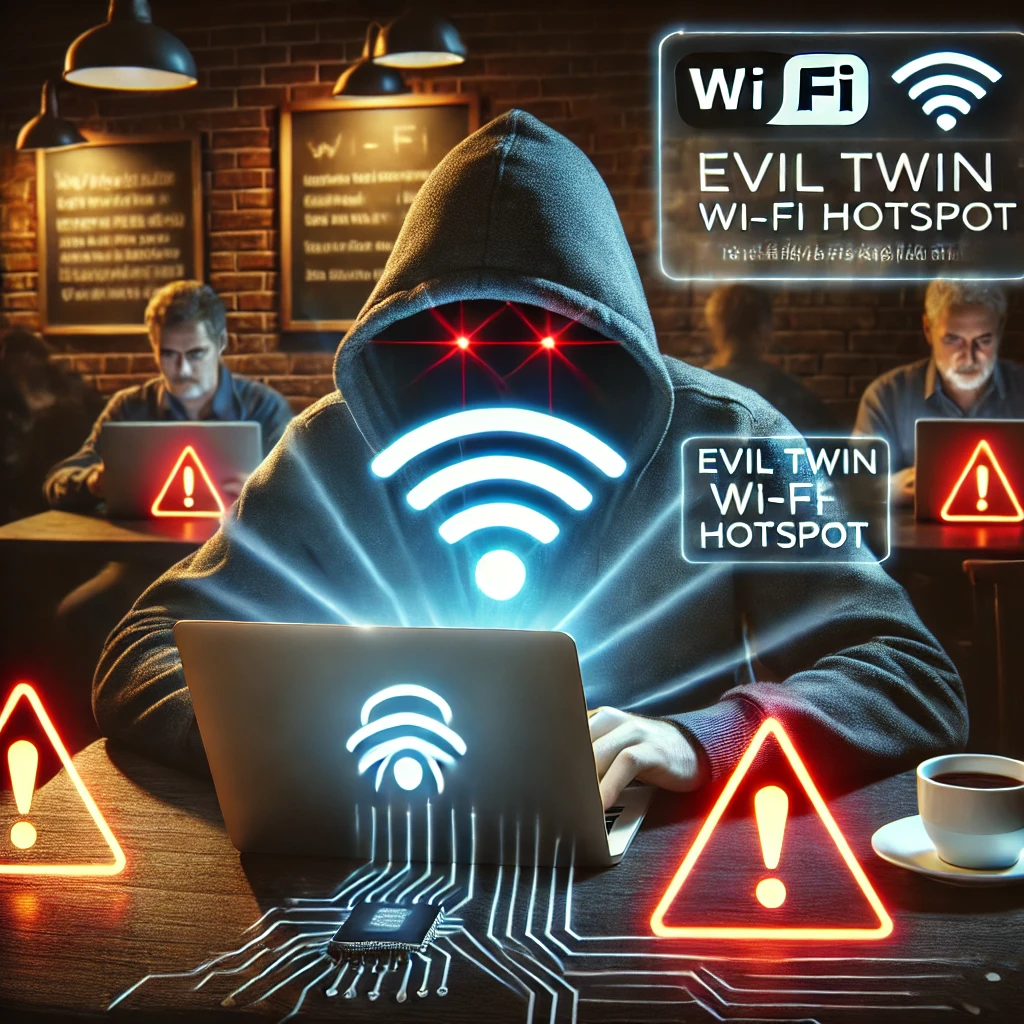
We previously looked at a Man-in-the-middle attack (MitM) using airport Wi-Fi as an example. An evil twin takes that idea onto the wireless network itself: a hotspot impersonates one you intended to use. I particularly like the homelab approach to VPNs because we can operate our own server at home, rather than depend on a commercial VPN subscription. The software can be free, although hardware, electricity, internet service and maintenance still have costs. Understanding what the tunnel protects is as important as getting it connected.
What Is an Evil Twin Wi-Fi Attack?
An evil twin is a rogue access point that presents itself as a legitimate network. Its network name, or SSID, can be identical to the venue's real name, not just a similar spelling. Asking staff for the right name helps avoid accidental mistakes, but a matching name alone does not authenticate the hotspot.
Someone might join the fake network manually, through an unsafe saved profile, or after following a misleading login prompt. The attack can provide working internet access to look convincing. Cloning the name of a password-protected network does not give the attacker its password or automatically satisfy the client's authentication checks.
Disconnections, Reconnection and Fake Portals
Forged deauthentication or disassociation messages can disrupt connections that lack applicable management-frame protection. A nearby rogue hotspot might also have a stronger signal. Neither condition guarantees that a device will automatically join it: saved profiles, security settings, operating-system behaviour and user decisions all matter. An evil twin does not require a deauthentication attack in the first place.
A fake captive portal is often the more visible danger. A normal venue may ask you to accept its terms or enter a supplied access code. A page asking for an unrelated email password, work credentials, software installation or permission to trust a new certificate should make you stop. An attacker does not need to decrypt a banking connection if they persuade you to enter credentials into a different website they control.
What Can the Hotspot Actually Read?
A network operator handles the traffic crossing that network, but handling it does not mean reading every message. Correctly validated HTTPS encrypts the connection between your browser and the destination. As the FTC explains, most websites now use encryption, including when reached over public Wi-Fi. A hotspot generally cannot read the contents of those properly encrypted sessions merely because you joined it.
Unencrypted services, connection metadata and some name-resolution traffic can still be exposed. A malicious operator can block connections, give misleading network settings or redirect requests to phishing destinations. HTTPS does not establish that a website is honest: a fraudulent site can have a valid certificate for its own domain. Check the actual address and never bypass a certificate warning just to make a connection work.
Protected Management Frames and Their Limits
WPA3 requires Protected Management Frames, commonly called PMF or 802.11w. Some WPA2 deployments support PMF as well. This protects a defined subset of robust management frames, including deauthentication and disassociation after association; it is not a signature on every Wi-Fi management message. HPE's PMF documentation distinguishes optional and required operation and explains the associated compatibility requirements.
PMF therefore addresses a particular disconnection technique. It does not authenticate every open hotspot, prevent radio jamming or stop a phishing page. With enterprise Wi-Fi, certificate validation also matters: use the organisation's approved profile and expected server identity. Microsoft's EAP guidance warns about rogue networks when server validation is missing. Accepting an unfamiliar authentication certificate can defeat that protection.
How a VPN Helps
1. Encryption to the VPN Gateway
A VPN encrypts IP traffic that its routing configuration sends into the tunnel. On the Wi-Fi link, that traffic is protected between your device and the VPN gateway. After it leaves the gateway, the connection still needs appropriate application protection, such as HTTPS, to the destination. The VPN moves some trust from the hotspot to the gateway operator.
It does not encrypt every wireless packet before association. Wi-Fi connection management and the network access needed to establish the tunnel are separate. A captive portal may have to be completed first, and a network can block the VPN. The tunnel also cannot stop you voluntarily giving a password to a fraudulent site.
2. Full Tunnels, Split Tunnels and DNS
WireGuard can be configured for selected private networks or for internet traffic. Those are different outcomes. Pi-hole's full-tunnel guide uses default IPv4 and IPv6 routes and an explicit DNS setting, with gateway forwarding configured too. Copying just a client's allowed-address line is not a complete server installation.
Tailscale normally connects your devices through its private network; installing it does not automatically route general browsing through your homelab. To use a home device for internet egress, configure and select an exit node. Check which routes and DNS settings are actually active. A tunnel reaching your NAS is not evidence that your browser's internet traffic follows the same path.
3. What an Exit Address Changes
Websites reached through an internet tunnel generally see its exit address instead of the venue's public address. A home exit uses your home connection. This does not make you anonymous: accounts, cookies and other identifiers remain. The hotspot still knows your device is present and can observe the connection to the VPN gateway, including its timing and volume.
4. Connection Blocking and Filtering
A supported kill-switch or operating-system blocking mode can prevent ordinary internet traffic when the VPN is unavailable. Availability and scope depend on the client and platform. Android, for example, documents an explicit block-connections-without-VPN option; an always-on label by itself is not a cross-platform guarantee that nothing bypasses the tunnel.
Some products also filter known malicious destinations. Treat that as another useful layer with coverage limits, rather than proof that every allowed page or download is safe.
Before Connecting at a Venue
- Confirm the intended network with the venue and disable automatic joining of networks you no longer need. Remove old open-network profiles after a trip.
- Keep your operating system, browser and VPN client updated. Use your own bookmarked addresses for important accounts and enable suitable multifactor authentication.
- Use mobile data when the hotspot or portal seems suspicious. For particularly sensitive work, follow your organisation's connection policy.
- Do not ignore certificate errors, install a venue-supplied root certificate or enter an unrelated account password just to obtain Wi-Fi.
Choosing and Checking a VPN
Choose the Trust Arrangement
For a commercial provider, investigate its ownership, security practices, logging disclosures, independent evidence and client support. A no-logs slogan or a paid subscription is not a security guarantee. For self-hosting, consider whether you can maintain updates, keys, backups and access rules. Home upload capacity and gateway availability may constrain performance while travelling.
The attraction of self-hosting is control and avoiding a VPN service subscription. Test it from outside your home before relying on it: a server accessible only from your own LAN has not yet demonstrated remote access.
Configure Each Device
Install the supported client through its official distribution route and use the correct profile. Check whether that profile is intended for private-service access or a full internet tunnel. If applications or destinations are excluded, understand that their traffic follows a different route.
Establish the Tunnel
Complete a legitimate captive portal if necessary, then connect to the chosen gateway. A connected icon is a starting point, not a routing test. If the network blocks the tunnel, use another connection instead of assuming protection that has not started.
Verify the Intended Result
On a trusted test network, check the external IPv4 address, IPv6 behaviour and DNS resolution with the VPN connected. Confirm access to both intended internet destinations and any private services. Then deliberately disconnect the tunnel and check whether the chosen blocking mode behaves as expected. Repeat after important client or routing changes.
Keep It Maintained
Use the verified profile on unfamiliar networks, revoke credentials for lost devices and keep the gateway maintained. Save a practical alternative, such as mobile data, for situations where the home server is offline or the venue prevents VPN access.
If You Already Joined a Suspicious Hotspot
Disconnect and forget that network. If you entered a password into a suspicious page, change it through the genuine service using a trusted connection, review active sessions and check its account-security guidance. Joining a hotspot alone does not prove that every account has been compromised; focus on what you actually entered or installed and any evidence of unauthorised activity.
Conclusion
A self-hosted VPN can be a useful homelab service, especially when its internet routing and failure behaviour have been tested. Combine it with validated HTTPS, careful portal decisions and suitable Wi-Fi authentication. Each addresses a different part of the problem, and understanding those boundaries gives you a much better basis for using public networks safely.