Now that we have secured ntfy in our homelab, we can go one step further and add an SSL certificate for all communication to it as well. This will add another level of security and make it so that the username and password we set up won't be sent in plain text for anyone to see. Let's get started.
Step 1: SSL In Nginx
For this to work, we will need to have nginx installed on a VM, as per the previous article where we installed NGINX on our VM. We also need to have certbot installed on our VM as per the instructions. Again, log in to the VM as per normal and elevate to a superuser with the command:
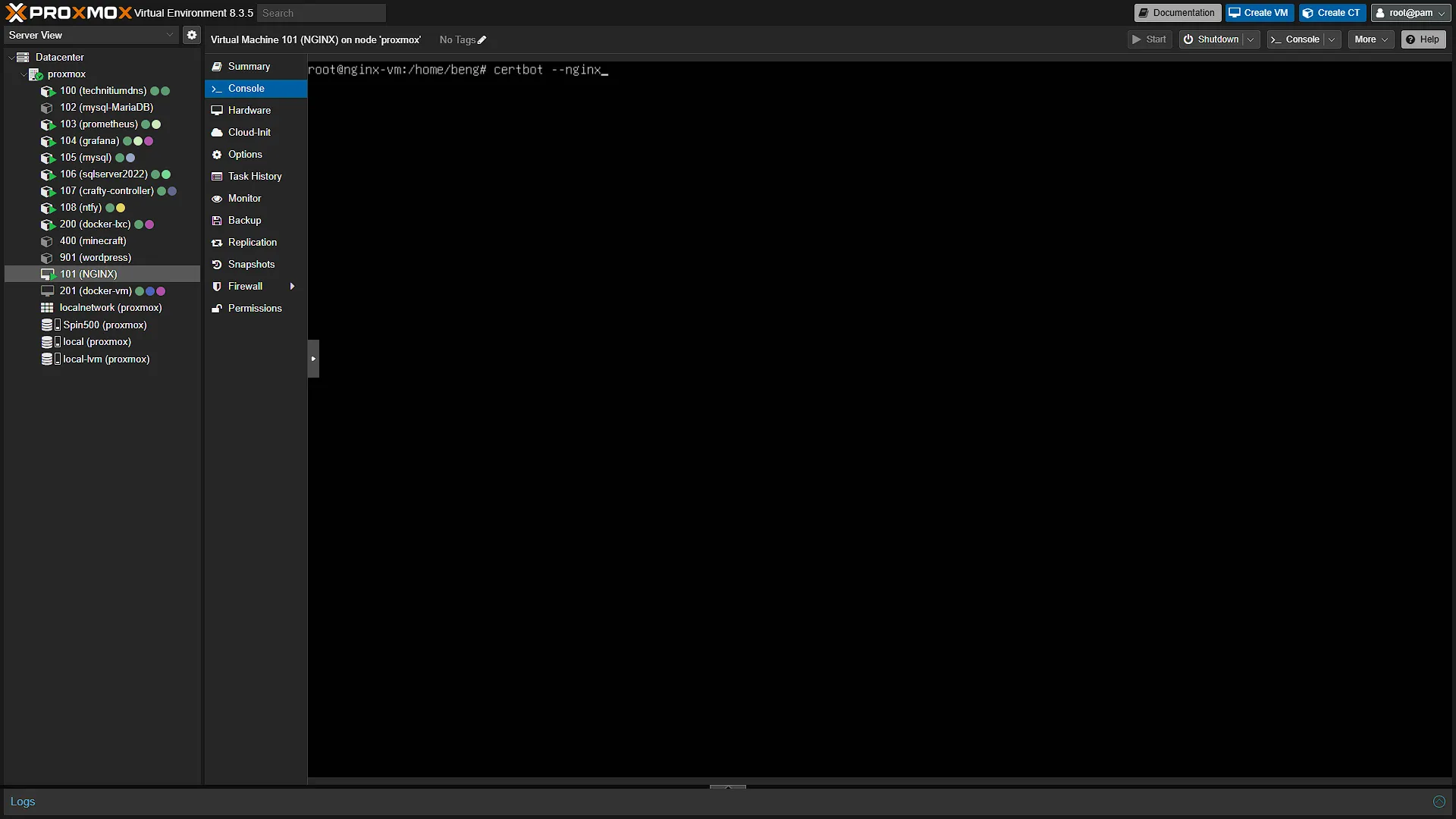
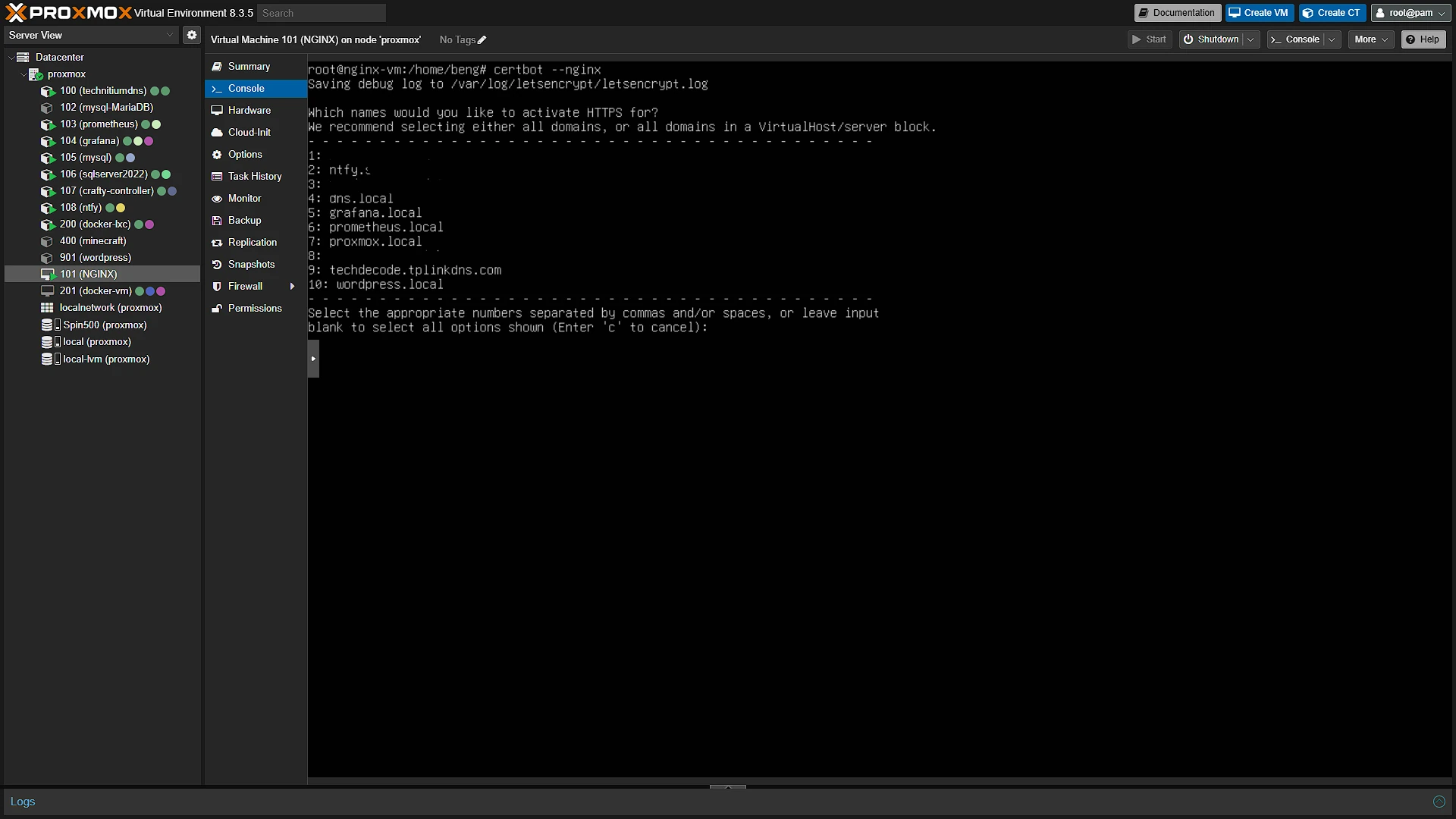
sudo suTo see a list of available websites, run the command:
certbot --nginxSelect the URL that we want to run SSL on. To do this, select and press the corresponding number of the address we want to secure and press enter. Once certbot installs the SSL certificate, we can access our ntfy instance again. This time, that annoying message we used to see:
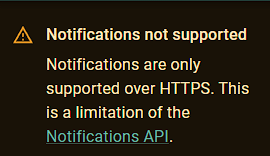
should no longer appear once the hostname presents a valid certificate. Subscription permissions and background Web Push still need their own configuration and tests.
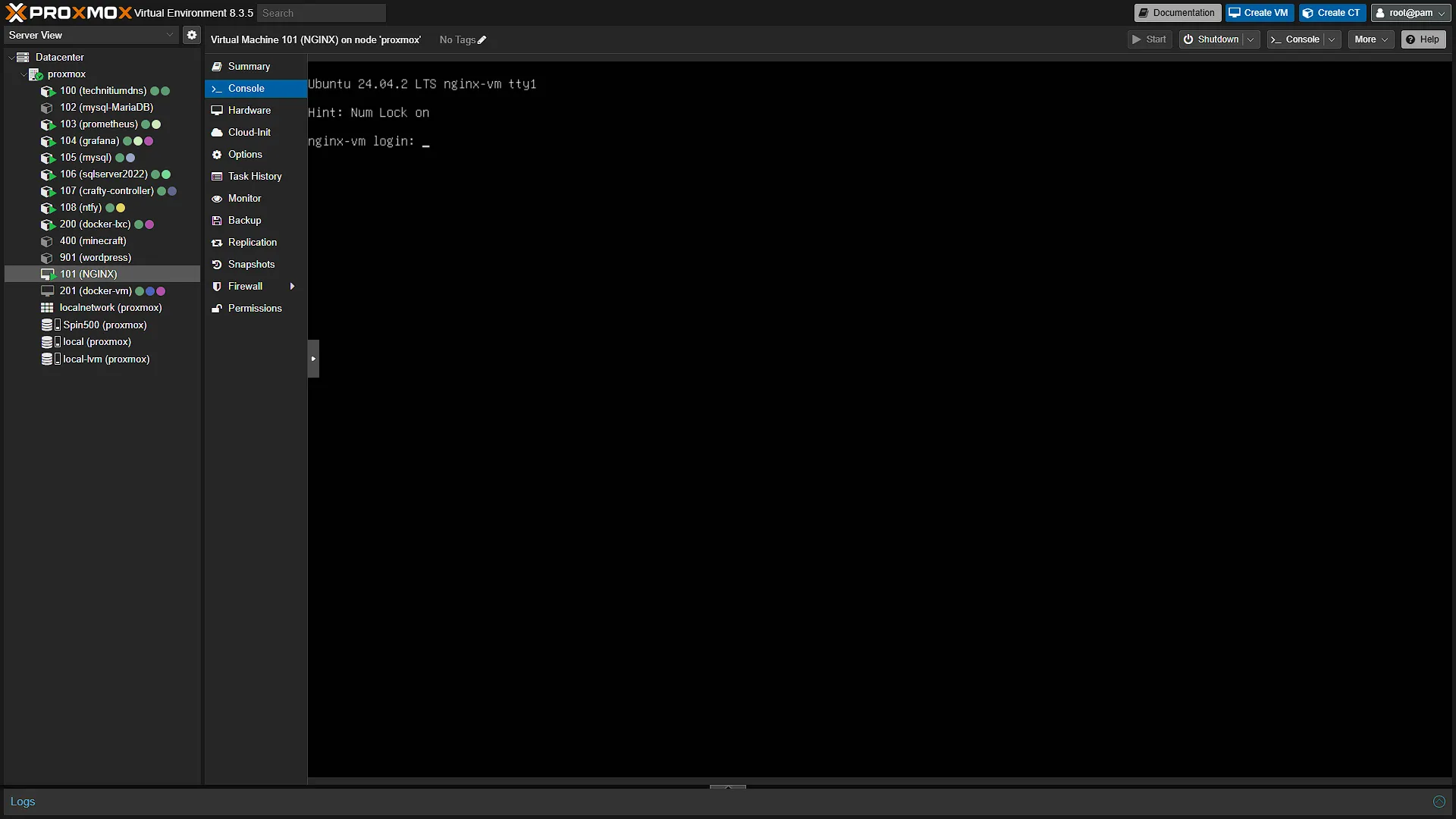
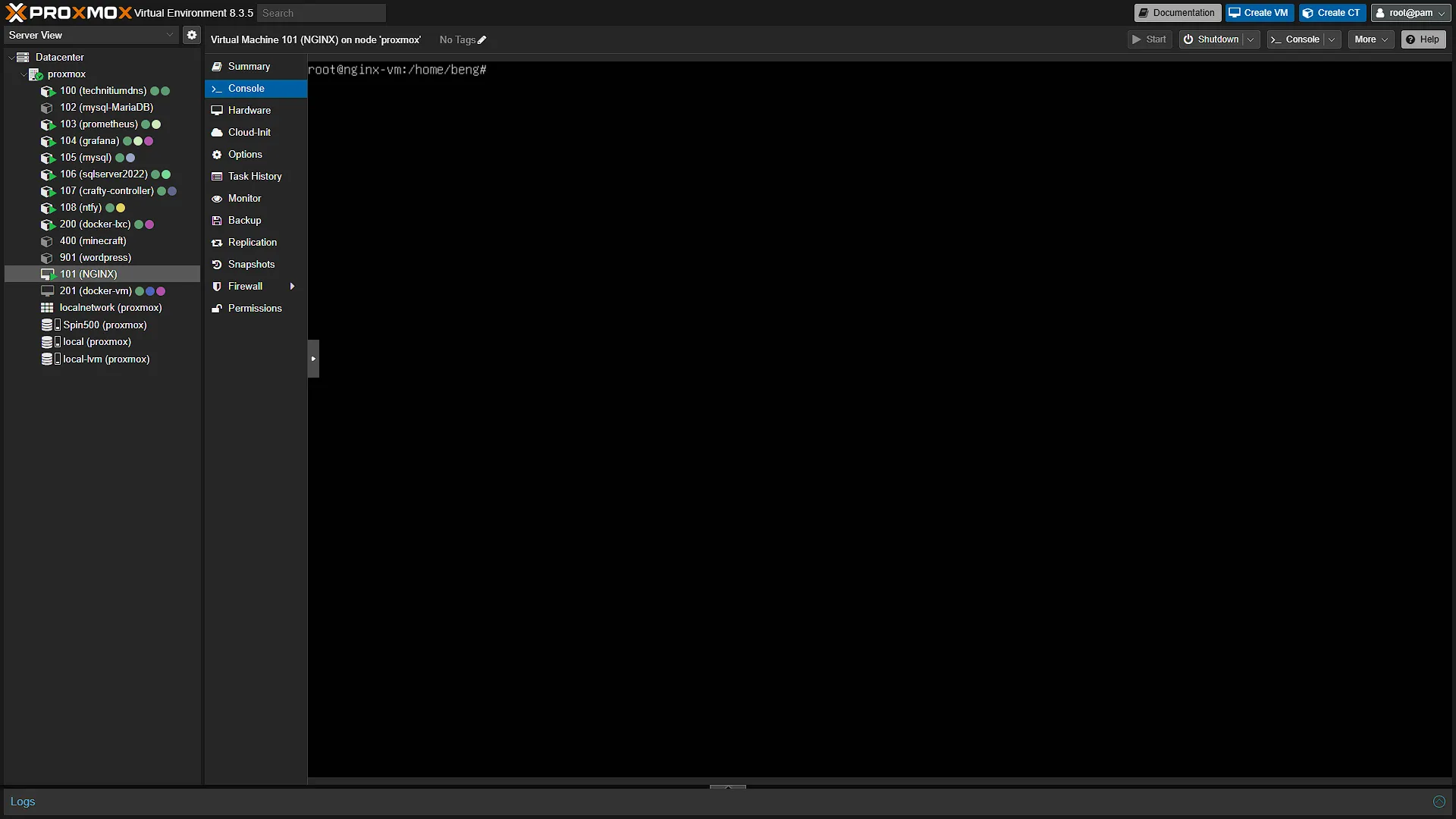
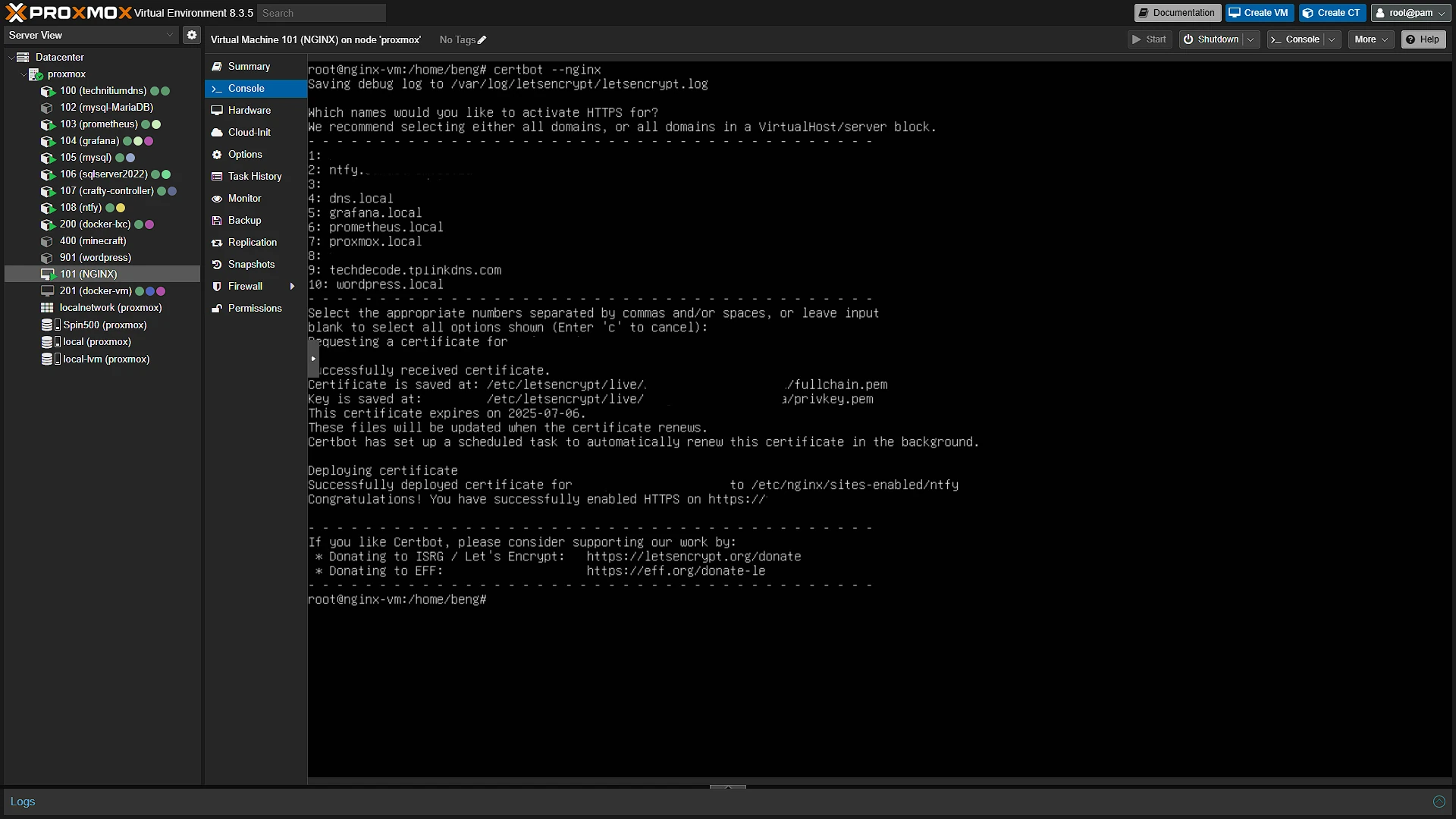
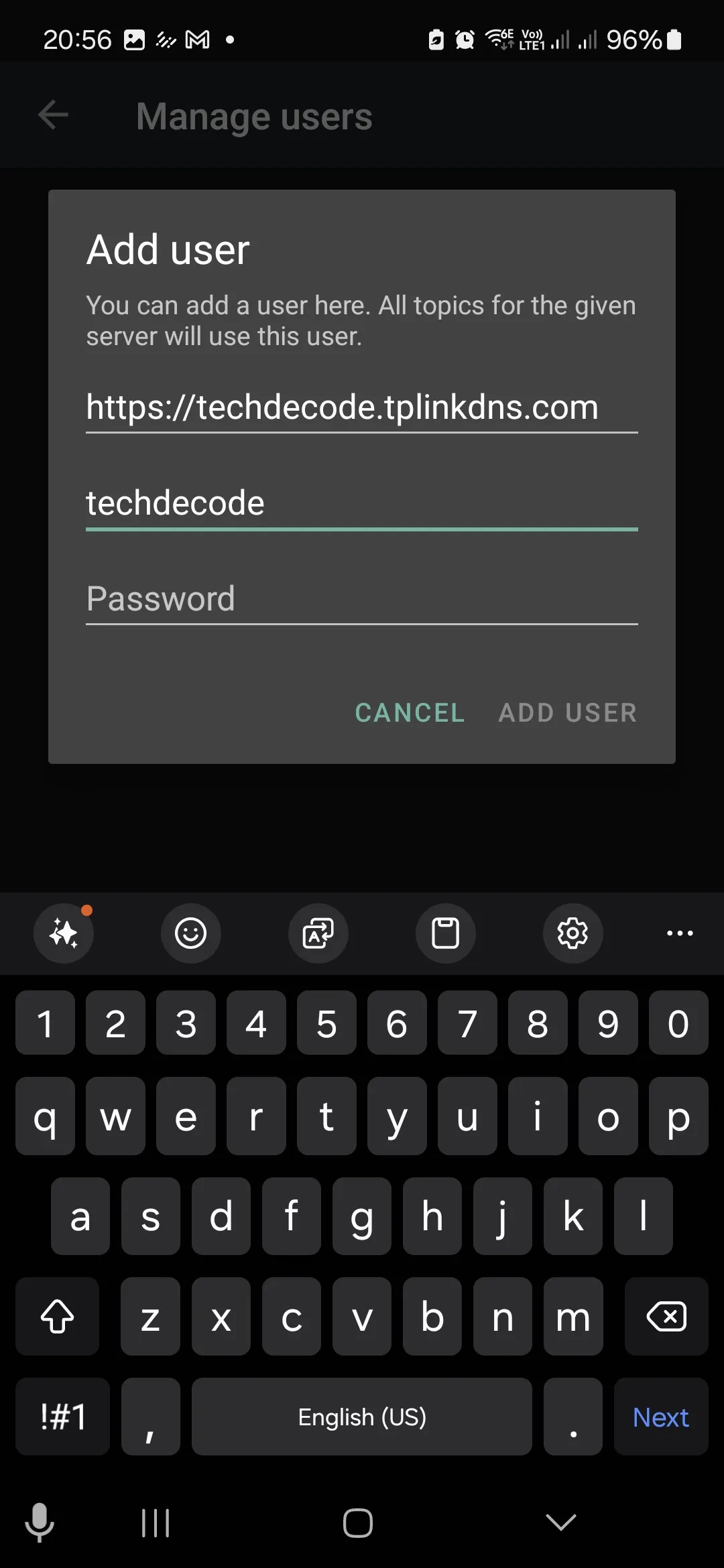
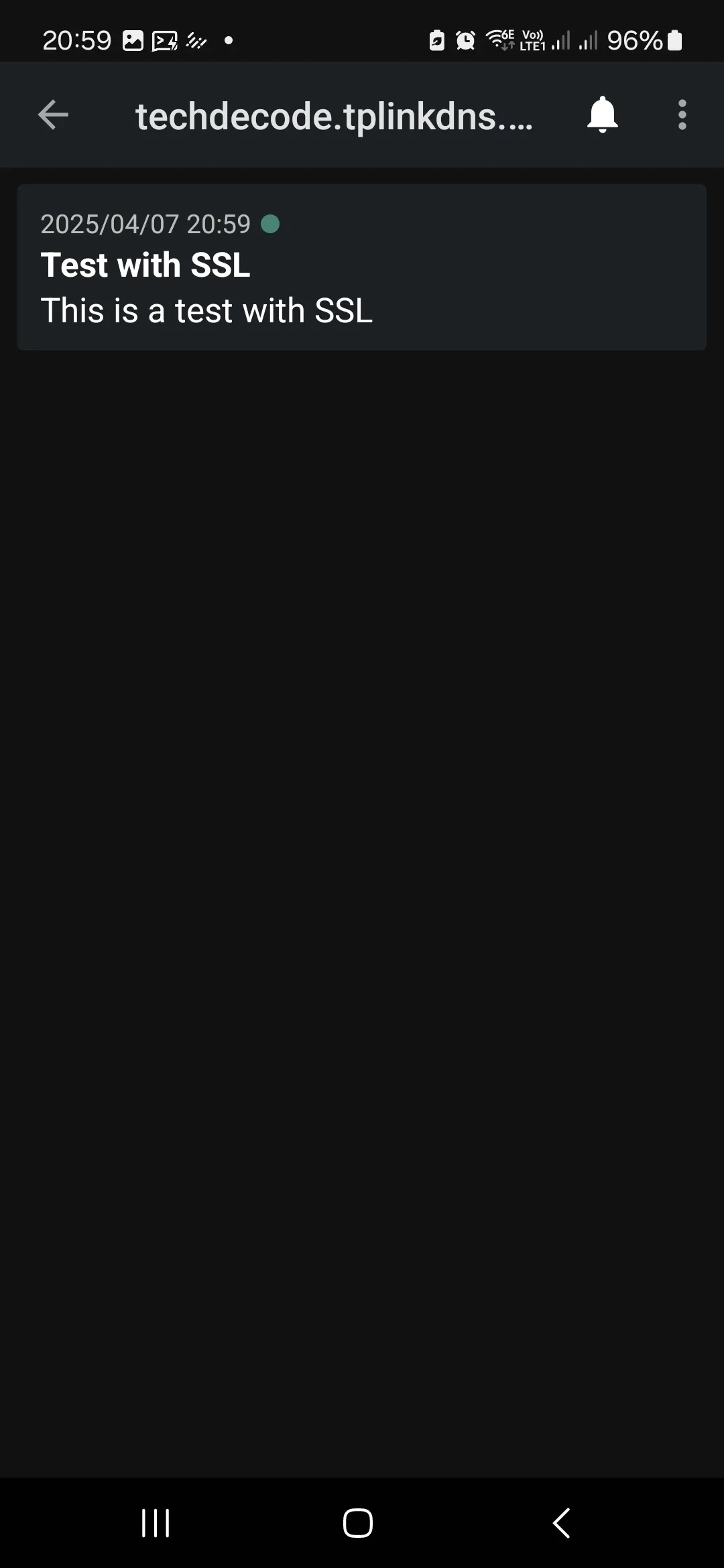
From here, we will need to add the username and password again. Yes, we did this previously, but the credentials are stored in the browser, and it is URL specific. Previously when we stored it, it was stored under http://techdecode.tplinkdns.com, but now that we are running https, the address changed to https://techdecode.tplinkdns.com. This means we will need to add the username and password again, as well as subscribe. We can then also send a test message and get it on our phone. Well, almost, we still need to also update our phone.
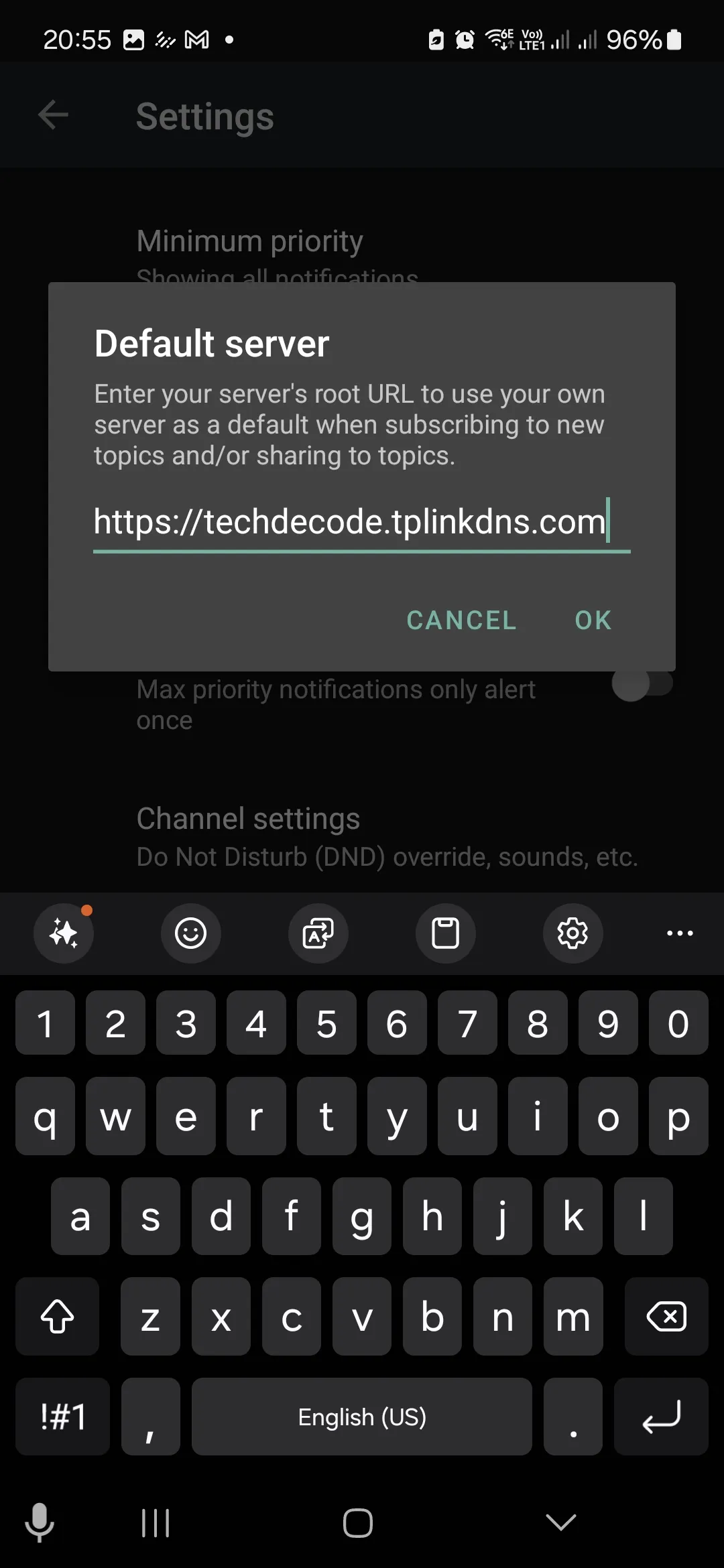
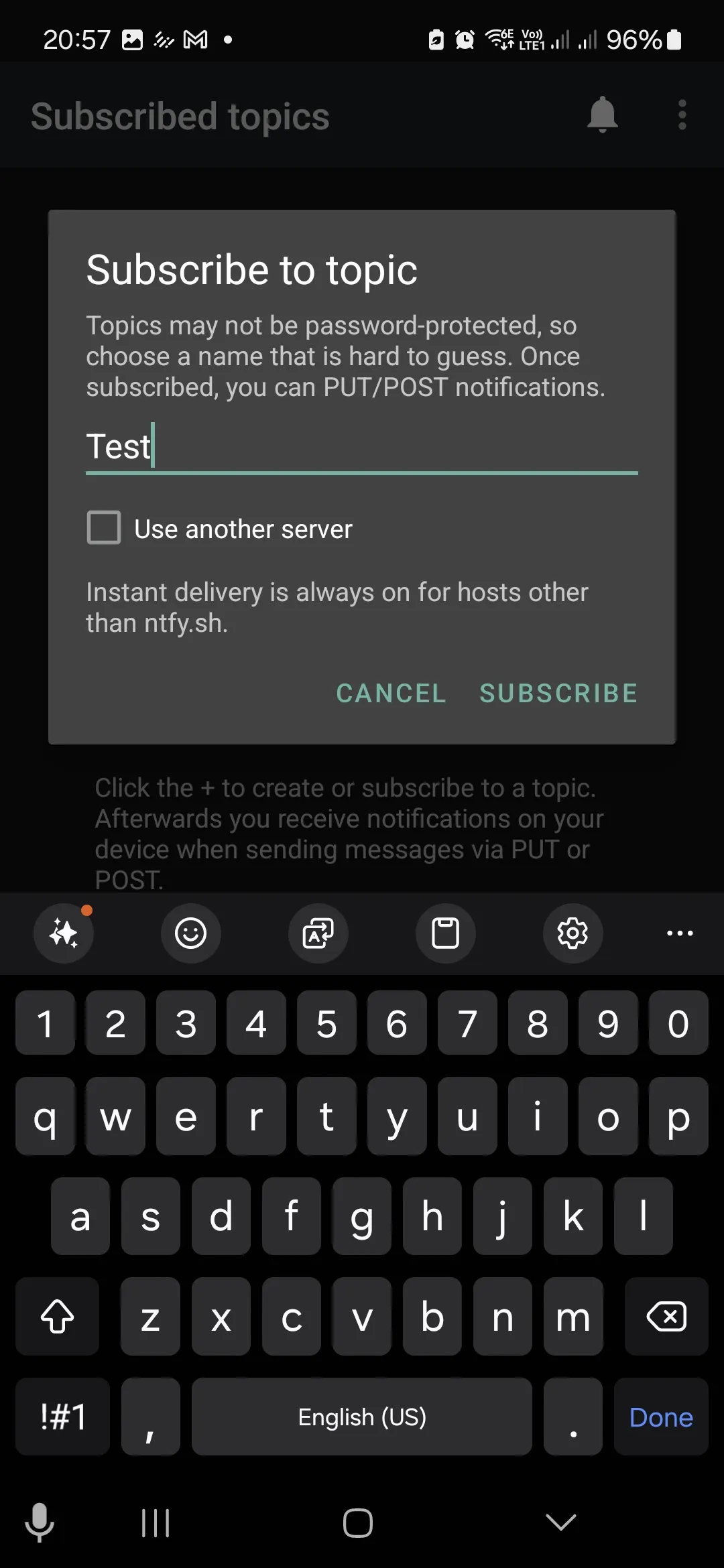
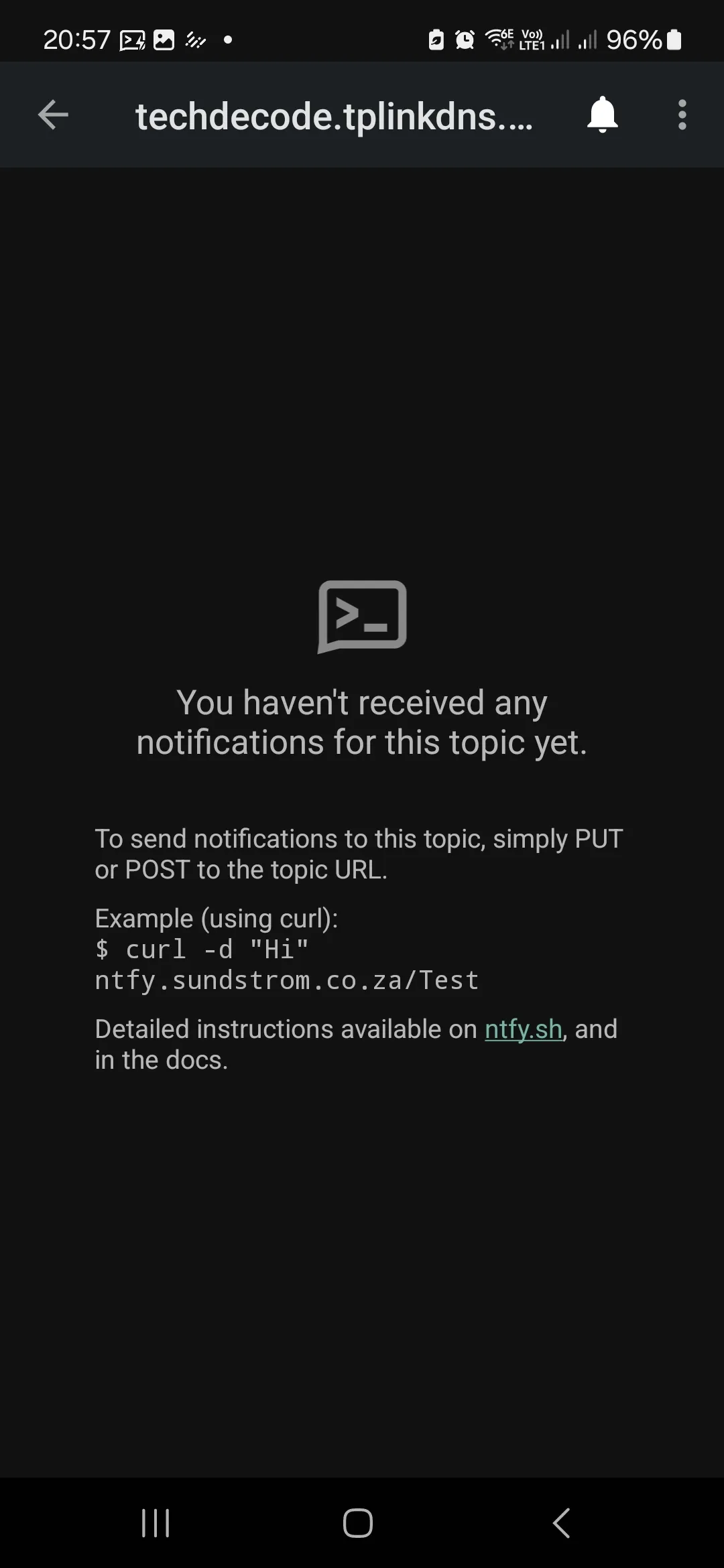
You will also need to re-add the username and password on your phone, as previously it was also stored as http. Then we need to unsubscribe from the topic and resubscribe. A good idea is to change the default server to also be https, as this will make future subscriptions easier.
After the Screenshot Walkthrough: HTTPS and Optional Push Features
The original certificate and subscription steps above are the main procedure. They continue Part 25's account and topic choices; you do not need a new publisher account. The sections below explain optional push features and maintenance checks. HTTP-to-HTTPS subscription changes remain necessary even if you skip those extensions.
HTTPS protects the connection to NGINX, including passwords, tokens and messages. Basic authentication's Base64 encoding is not encryption; a Bearer token is also a secret. TLS termination at the proxy does not automatically encrypt the proxy-to-backend hop or provide end-to-end message encryption. Keep that hop on a trusted private network, or protect it separately where needed.
Browser background Web Push needs a secure context, server Web Push configuration and permission from the user. HTTPS alone does not enable it. Delivery also depends on browser and operating system support; follow ntfy's current web subscription instructions for the device you use. Test an open tab and a closed tab separately.
For self-hosted iOS notifications, ntfy can forward a poll request through ntfy.sh and its platform push service. The phone wakes and fetches the actual message from your server. The upstream request contains a hashed topic identifier and polling metadata, not the original message body. This is a third-party wake-up dependency, even though the message content is fetched from your own endpoint.
Update the Base URL, Then Choose Optional Push Features
If you configured base-url in Part 24, change it to https://techdecode.tplinkdns.com after the certificate works, using your hostname. Retain the authentication, cache and attachment settings you already chose. The following merge template includes optional iOS and browser push; remove features you do not need.
For browser Web Push, run this command in the ntfy LXC. It prints the key settings to copy:
ntfy webpush keysThe two uppercase key values and contact-email value below are explicitly marked fields to replace, not working credentials. Paste the generated key pair and use a contact email you monitor. Keep an existing working key pair rather than generating another one:
base-url: "https://techdecode.tplinkdns.com"
behind-proxy: true

# Optional: wake the official iOS app through the upstream push service
upstream-base-url: "https://ntfy.sh"

# Optional: background browser Web Push
# Replace BOTH key fields with output from ntfy webpush keys
web-push-public-key: "REPLACE_WITH_GENERATED_PUBLIC_KEY"
web-push-private-key: "REPLACE_WITH_GENERATED_PRIVATE_KEY"
web-push-file: "/var/cache/ntfy/webpush.db"
# Replace this with your actual monitored contact email
web-push-email-address: "REPLACE_WITH_YOUR_CONTACT_EMAIL"
Do not replace the whole configuration file with this template. Ensure the service can write the Web Push database directory, then restart and inspect service state. Protect the private key and include the configuration and subscription database in your backup plan.
systemctl restart ntfy
systemctl status ntfy --no-pager
Use the same HTTPS base URL in the phone's server setting. For the iOS upstream route, exact URL agreement matters; a generic “New message” can mean wake-up succeeded but retrieval from your server failed. For browser background notifications, use the web app on your own server, allow notifications and check the platform's support. Keep foreground and background tests separate.
Verify Certificate Renewal, Not Just Initial Issuance
Inspect the renewal arrangement installed with your Certbot package rather than assuming a particular timer name, certificate lifetime or renewal threshold. HTTP-01 validation needs inbound port 80 at the challenge path. DNS-01 is another option when inbound HTTP cannot be provided; its DNS credentials need appropriate protection. Use the challenge type actually recorded in your Certbot renewal configuration.
systemctl list-timers --all
sudo certbot certificates
sudo certbot renew --dry-run
Look for the relevant timer or scheduled job and inspect its recent result. A dry run exercises renewal validation; it does not prove that every service reloads a renewed certificate, and deploy hooks are not normally run during a dry run unless explicitly requested. Test your reload arrangement separately and check the certificate actually served by the public hostname.
Verify TLS and Delivery Independently
Before changing client subscriptions, open the HTTPS hostname from mobile data and inspect its certificate. The name must match, the chain must be trusted and the expiry must be valid. Do not bypass a certificate warning to get a notification test working. If validation fails, check DNS records, which machine receives forwarded ports and whether NGINX is serving the intended site.
Check both A and AAAA records if you publish them. An IPv6 record pointing at an unreachable endpoint can cause apparently inconsistent failures across clients. For HTTP-01, confirm the challenge path is reachable from outside rather than only from the proxy VM. A stale DNS record or a changed firewall rule can break renewal long after initial setup succeeds.
Run separate acceptance checks: unauthorized topic access is denied, an authenticated publish is accepted, an unlocked phone receives it, a locked phone receives it and a background browser subscription behaves as expected on that platform. Use harmless test messages and the exact production server URL. Distinguish a certificate problem from an access-rule problem and from a platform push problem.
Finally, monitor expiry and renewal failures from a system independent of this ntfy server. If the certificate expires, the same endpoint you rely on for alerts may become unusable. Keep a dated maintenance note with the renewal method, where its logs live and how to restore the configuration. That small record saves time when the service has been running quietly for months.
Conclusion
The certificate and subscription screenshots complete the HTTPS stage for the ntfy setup from Parts 23–25. Confirm that your existing authorized topic still works over the new URL. Optional push features and renewal checks can then improve delivery and maintenance. Continue to Part 27 to install Uptime Kuma, then Part 28 to connect monitoring with ntfy.