
wger is an open-source web application for organising workouts, recording training logs and managing weight and diet plans. Hosting it at home is an appealing way to control the service and its data, especially if you already maintain a small server. It also pairs well with Mealie for meal planning, although they remain separate applications unless you build an integration.
What wger provides
The application supports workout routines, exercise logs, nutrition planning and progress records. Its REST API and mobile-app project provide additional ways to use the service. Feature availability and mobile synchronisation depend on the server and client versions, so check a current release rather than treating a historical screenshot as a complete specification.
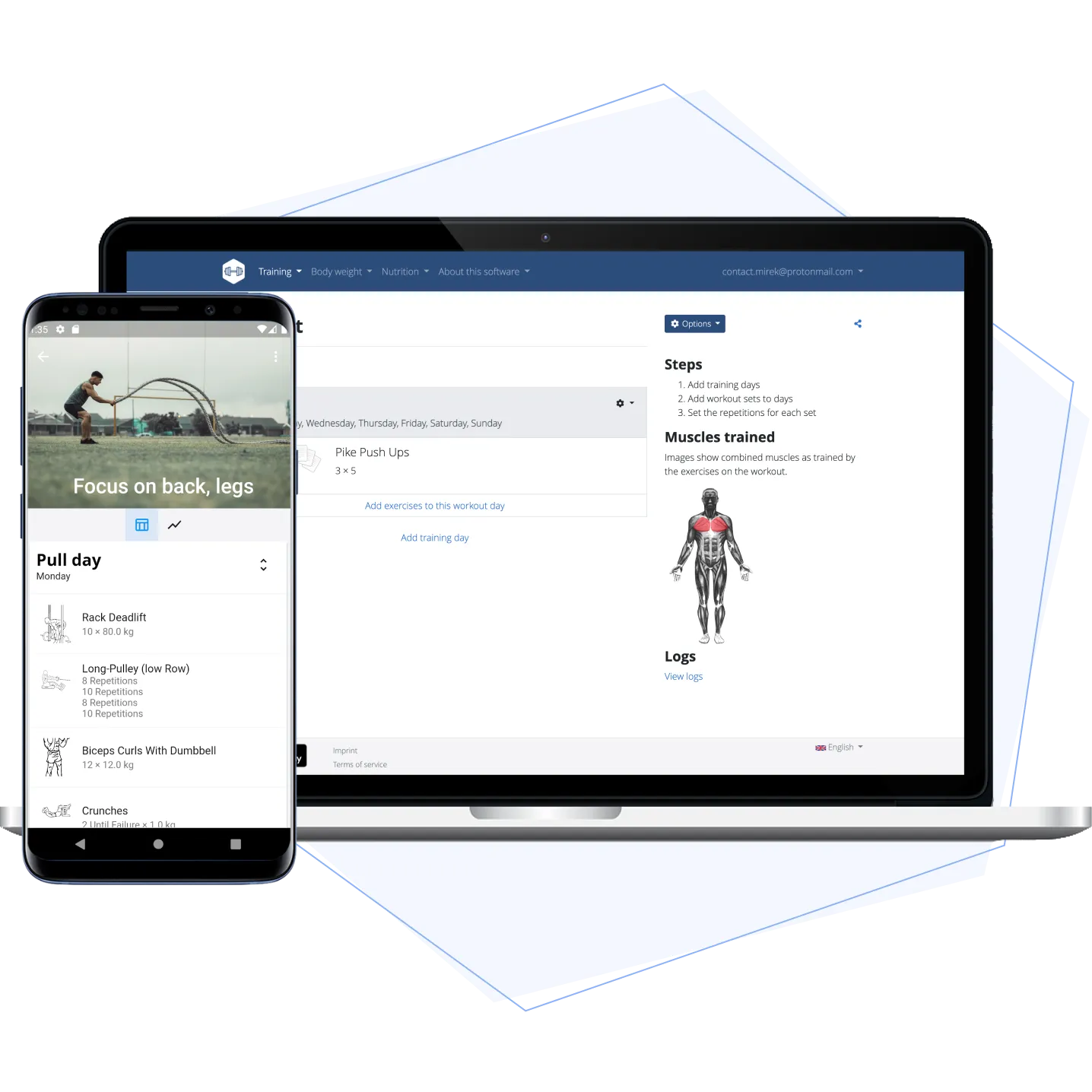
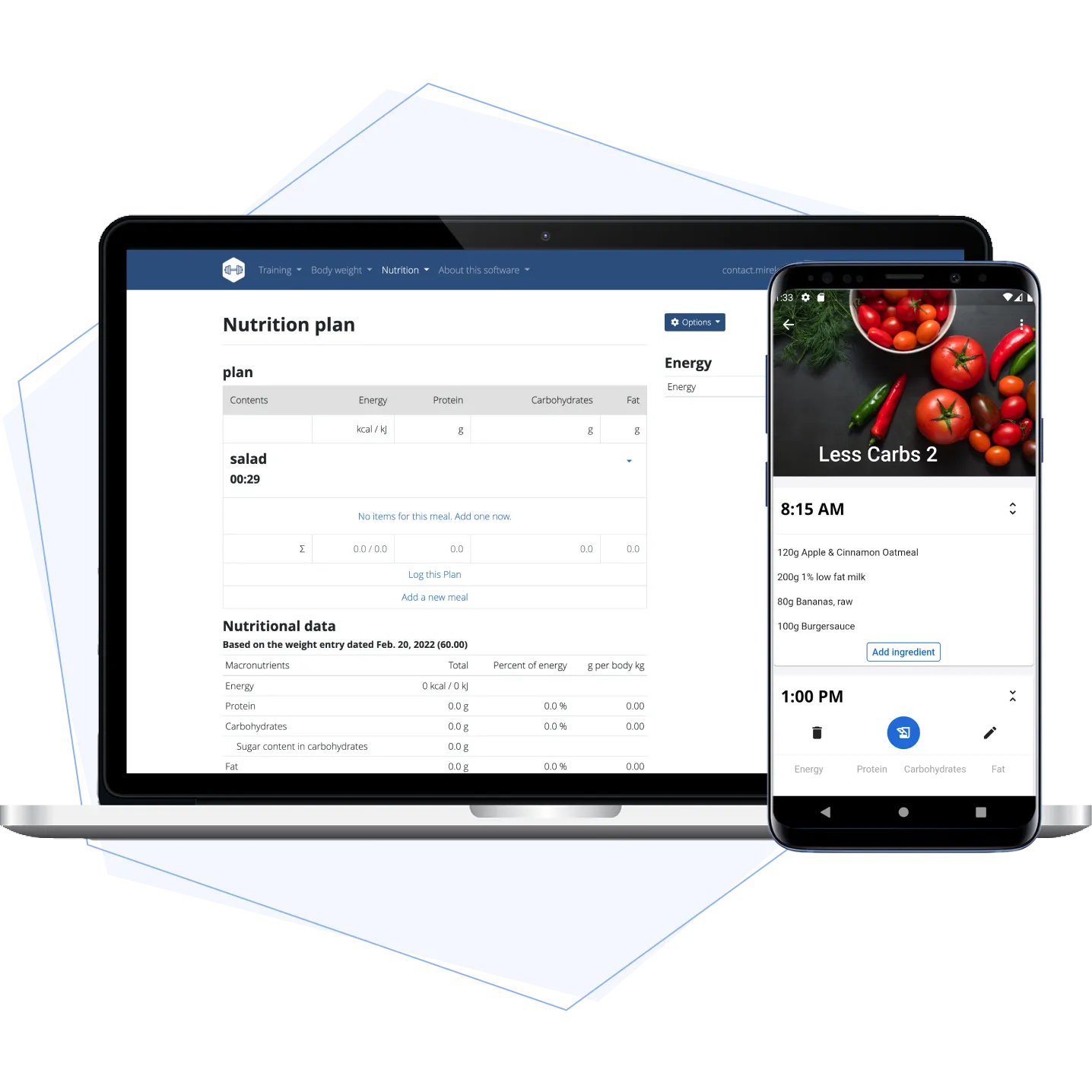
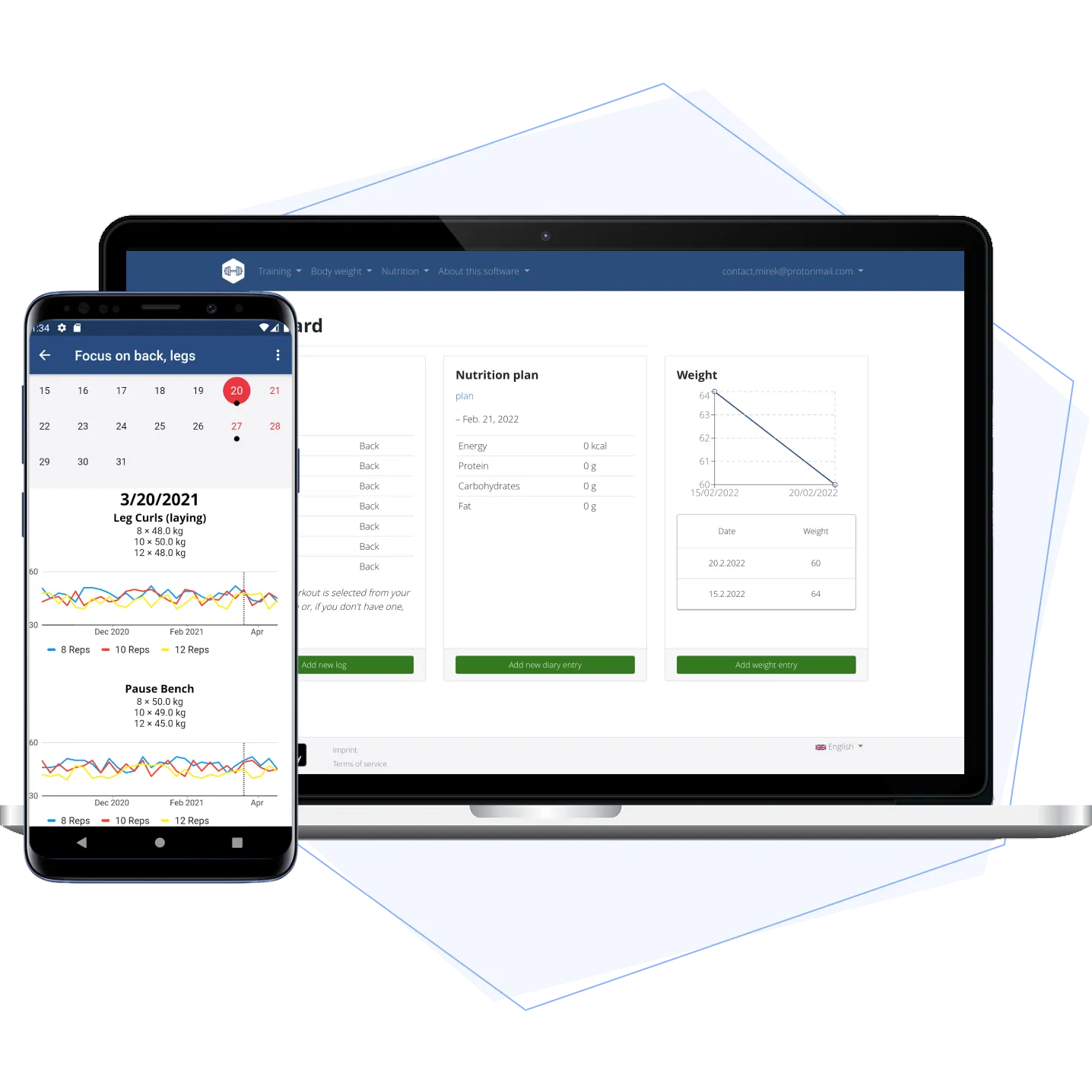
The gallery illustrates routine planning, nutrition and progress views. The pictured values are examples, not training results from this review. Keep the workflow useful: enter a small routine, log a test session and check that the history appears as expected before moving an existing tracking system.
Self-hosting gives you responsibility for updates, access, backups and availability. The software is free to use under its licence, but hardware, power, storage and administration still have costs. Your phone, browser, backups and enabled external services also affect where copies or requests go; hosting the server at home is not proof that every piece of data never leaves it.
Choose the supported deployment
Use the production stack in wger-project/docker. The main application repository remains useful for source code, but cloning it alone is not the production Compose setup. Install a current Docker Engine and Compose version appropriate to the checkout using Docker’s documentation.
The upstream stack includes the application, PostgreSQL, caching, background workers, nginx and the mobile synchronisation service. Persistent volumes hold the important state. Keep the included nginx service unless you deliberately reproduce its static-file and sync behaviour elsewhere. A generic single-container recipe leaves out relevant parts of this deployment.
Check image architecture support for your chosen release before assuming a particular Raspberry Pi can run it. Start with suitable disk space and reliable power, then measure the actual workload. A small trial instance is a better basis for capacity planning than a claim that every low-power board runs it effortlessly.
Prepare the checkout and settings
For a new installation, clone the deployment repository into a new working folder. If you already have a deployment, review and back up its configuration instead of replacing it with a fresh checkout:
git clone https://github.com/wger-project/docker.git wger-stack
cd wger-stack
docker compose version
Read config/prod.env and the service files before starting. Set a stable generated SECRET_KEY, the intended SITE_URL and coherent database credentials, including the related PowerSync connection settings. The published sample contains defaults intended to be changed. Store custom environment values securely, keep them out of a public repository, and retain them for recovery.
Use the upstream-supported override approach where practical. For an initial local test, this docker-compose.override.yml replaces nginx’s published ports with a loopback binding. The !override directive requires Compose 2.24.4 or later; the complete current checkout may require a newer version, so check its requirements too.
services:
  nginx:
    ports: !override
      - "127.0.0.1:8080:80"
An ordinary additional ports list can retain the original port-80 publication as well. Check the merged configuration privately and ensure only the intended mapping remains. Set SITE_URL to match the test URL. This local binding allows access on the server; another device needs an appropriately configured tunnel, proxy or intentionally chosen LAN binding.
Start and complete initial setup
After configuring the checkout, validate and start it. The current wger guide includes a one-time PowerSync storage setup for mobile synchronisation:
docker compose config --quiet
docker compose up -d
docker compose exec web ./manage.py setup-powersync-storage
docker compose ps
Wait for the application to become ready and investigate unhealthy services before continuing. For the local port mapping above, open http://127.0.0.1:8080 on the server. The documented initial login is admin with password adminadmin; change it immediately while the installation remains restricted. Use an ordinary account for daily logging where appropriate.
Generate installation-specific JWT keys using the documented command, place the resulting values in the relevant configuration and recreate the services that consume it before broader access:
docker compose exec web ./manage.py generate-jwt-keys
Do not publish the generated private key. Follow the documentation matching your checkout when applying it. If mobile sync is enabled, test an entry from the app and confirm it reaches the server. A working web login alone does not prove that the separate sync path is configured correctly.
Exercise and ingredient data
The current Docker image includes a default exercise set, so a fresh instance is not necessarily empty. You can refresh upstream exercises and download their media through the supported commands:
docker compose exec web python3 manage.py sync-exercises
docker compose exec web python3 manage.py download-exercise-images
docker compose exec web python3 manage.py download-exercise-videos
The ingredient collection is larger and is not included in the same way. The current sync guide offers a smaller starter dataset:
docker compose exec web wger load-online-fixtures
For the full ingredient collection, use the documented sync-ingredients-bulk command and the appropriate insert/update mode for a fresh or existing instance. Review space and download requirements first. Background Celery sync options may already be enabled, so check the configuration before adding duplicate manual jobs. Food-data availability and barcode behaviour depend on those settings and the available source data.
Remote access and privacy
Keep the first deployment local until accounts and keys are configured. For access away from home, a VPN or a properly configured HTTPS reverse proxy can be suitable. Use the supported domain layout; the wger guide warns that a subdirectory deployment may only partly work.
A proxy in front of the included nginx service must handle the /ps/ streaming endpoint correctly for mobile sync. Buffering and timeouts can prevent synchronisation even when the main website loads. Follow the PowerSync proxy documentation and test the actual app through the chosen access path.
Review registration and sharing settings for your use. Personal body measurements and photos deserve appropriate access controls and protected backups. Do not infer privacy from the hosting location alone, and check client settings before connecting a phone to a public service or another server.
Updates and recovery
Back up the PostgreSQL database, your private uploaded media and the configuration needed to recreate the installation. Upstream exercise images may be downloaded again, but your own gallery files cannot be reconstructed that way. Follow the supported consistency procedure and test restoration in a separate environment.
Updates can involve both images and repository configuration. Current wger documentation specifically notes that PowerSync sync rules are mounted from the checkout and are not updated merely by pulling images. Review release notes, merge relevant upstream configuration changes with your local settings and recheck mobile sync after updating.
For recovery, confirm that a test account can sign in and that a known routine, log and private media file are present. Record the server/client versions and any extra settings. Avoid deleting persistent volumes as a routine update step; retained data and a verified restore are what protect the history you care about.
Deciding whether to self-host
wger remains an attractive choice for people who want an open workout manager under their own administration. Compare it with other tools using the features you actually need, your preferred clients and your willingness to maintain a server. Avoid assuming every commercial feature, subscription limit or price is identical across regions and versions.
The official wger Docker stack provides the upstream deployment files. For this standalone deployment, follow the current upstream stack and verify each stage before expanding. You can also explore the official wger website and current documentation for the features and settings relevant to your routine.